Mesh Wi-Fi for multiple gamers is worth choosing when one router cannot reliably cover every gaming setup—but wired backhaul is the deciding advantage. Can a mesh system keep simultaneous gaming sessions responsive, or will a single router deliver lower latency? We give a clear verdict based on coverage, connection type, and performance under load.



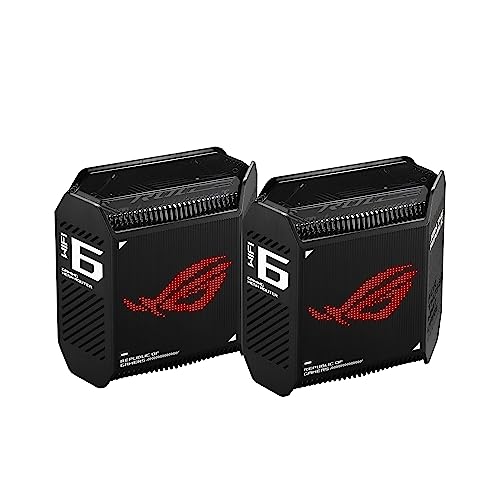
Mesh Wi-Fi can support multiple gamers, but stable connections matter more than headline speeds. For the best chance of consistent latency, use Ethernet for gaming devices and wired backhaul between mesh nodes where practical. This guide explains how to choose and configure a mesh system—and when mesh will not solve the problem.
This is for households where gamers play in different rooms, Wi-Fi coverage is uneven, or gaming competes with streaming and downloads. If everyone plays near the existing router, a mesh system may add cost without improving performance.
What Multiple Gamers Actually Need
Multiple gamers need consistent packet delivery more than exceptionally high download speeds. A faster internet plan helps when capacity is exhausted, but it does not automatically reduce delay.
Bandwidth measures connection capacity. Latency is the time data takes to travel, commonly reported as round-trip ping. Jitter means variation in that delay, while packet loss means some packets never arrive.
A faster internet plan does not automatically fix gaming latency, jitter, or packet loss.
Ordinary multiplayer traffic generally uses much less bandwidth than downloading a game. Updates, cloud gaming, and livestreaming are different workloads: downloads can saturate downstream capacity, while broadcasting gameplay can saturate upstream capacity. Both can create queues that delay time-sensitive packets.
Game downloads and livestreaming can disrupt multiplayer sessions by filling the household connection’s download or upload capacity.
Before shopping, map each gaming location, simultaneous household activities, and existing weak spots. Record whether lag affects one room, every device, or only sessions that overlap with heavy transfers.
Which Mesh Features Matter for Gaming
Prioritize Ethernet ports, wired-backhaul support, and documented traffic management. Backhaul is the connection carrying traffic between a satellite node and the main router.
Connecting a console to a mesh satellite with Ethernet does not create an entirely wired connection when that satellite uses wireless backhaul.
Shared wireless backhaul competes with client traffic for radio resources. Dedicated backhaul reserves a radio or band for node communication, potentially reducing contention. Neither arrangement guarantees stable latency: walls, interference, channel selection, and implementation still matter.
For a concrete 2026 specification reference, according to [TP-Link’s Deco X55 specifications](https://www.tp-link.com/us/deco-mesh-wifi/product-family/deco-x55/#specifications), each unit has three Gigabit Ethernet ports, with advertised wireless rates of 2,402 Mbps on 5 GHz and 574 Mbps on 2.4 GHz. These are manufacturer-rated link specifications—not measured gaming performance or guaranteed internet throughput.
Look for Smart Queue Management (SQM), which manages queues to control delay, or clearly documented Quality of Service (QoS) prioritization. These are not interchangeable labels. TP-Link documents Deco QoS through its app; consult the model’s current instructions rather than assuming a gaming preset provides SQM.
A “gaming” preset is not evidence that a router controls latency effectively under load.
The following paths show why Ethernet connections and backhaul must be evaluated separately. Counts represent wireless links traversed between the gaming device and main router, not measured latency.
Wireless Links Across Seven Gaming Connection Paths
| # | Device Connects To | Device Link | Backhaul Path | Wireless Links |
|---|---|---|---|---|
| 1 | Main router | Ethernet | None | 0 |
| 2 | One satellite | Ethernet | Ethernet | 0 |
| 3 | Main router | Wi-Fi | None | 1 |
| 4 | One satellite | Ethernet | One wireless link | 1 |
| 5 | One satellite | Wi-Fi | One wireless link | 2 |
| 6 | Second chained satellite | Ethernet | Two wireless links | 2 |
| 7 | Second chained satellite | Wi-Fi | Two wireless links | 3 |
How to Set Up Mesh for Shared Gaming
Place satellites where they still receive a strong upstream signal, not inside the dead zone. Use Ethernet backhaul wherever practical, following the manufacturer’s supported wiring arrangements.
A mesh satellite needs a reliable upstream connection before it can provide reliable coverage to gaming devices.
Configure QoS according to the manufacturer’s instructions, including bandwidth entries if required. Prioritize all active gaming devices rather than one console, and schedule large downloads outside shared sessions.
Use an A/B comparison: keep the device, location, game region, and test duration consistent while changing one variable. Record gateway ping, public-endpoint ping, packet loss, and in-game latency while idle, then repeat during downloads and uploads. Public endpoints may deprioritize ping traffic, so corroborate results with actual gameplay.
Testing both idle and loaded latency reveals problems that a download-speed test alone can miss.
What Can Still Cause Lag
Mesh cannot repair unstable internet service, shorten the distance to a game server, or remove congestion elsewhere on the internet. Diagnose whether the problem begins inside or outside the home before replacing hardware.
Improved Wi-Fi coverage cannot eliminate latency caused by a distant game server or congestion outside the home.
Weak backhaul, unnecessary wireless hops, neighboring networks, and local interference can all create inconsistent performance. Compare a direct Ethernet connection to the main router with the troublesome wireless path; persistent wired problems warrant investigation beyond mesh placement.
Double NAT occurs when both the ISP gateway and mesh router perform network address translation. It can complicate matchmaking, hosting, and connectivity without necessarily raising ping.
Double NAT is primarily a connectivity complication, not proof that the network has high latency.
Depending on supported features, bridge the ISP gateway or put the mesh in access-point mode. Access-point mode leaves routing with the existing router and may remove mesh QoS features. Follow the equipment-specific guidance listed below; do not assume both options preserve identical functionality.
When Mesh Is Worth It—and When to Skip It
Mesh is worthwhile when coverage across separate rooms or floors is the main obstacle. It is less compelling when the existing router already provides reliable connections.
Mesh Wi-Fi solves coverage problems more directly than it solves internet-capacity problems.
- Mesh advantages
- Coordinated coverage across rooms and flexible node placement without requiring Ethernet to every location.
- Mesh disadvantages
- Additional cost, placement requirements, and potential wireless-backhaul bottlenecks.
- Wired alternatives
- Direct Ethernet for stationary gaming devices, or wired access points where cabling is available.
Premium mesh specifications cannot guarantee better ping, particularly when the existing Wi-Fi connection is already stable.
A Checklist Before Buying or Changing Settings
Diagnose first, then purchase or reconfigure only what addresses the identified bottleneck.
– Map the problem: Identify gaming locations, weak coverage areas, and whether lag appears only during heavy household use.
– Check the connection path: Confirm Ethernet options, backhaul type, and whether the ISP router will remain in routing mode.
– Verify before spending: Save baseline results, check official feature support, and change one setting at a time.
A saved baseline makes network improvements measurable rather than subjective.
Changing one network setting at a time makes it easier to identify what improves—or worsens—gaming performance.
Sources to Support the Final Article
Use official documentation to verify hardware capabilities and configuration limits. For a 2026 purchase, check the exact hardware revision, regional model, and current firmware.
– Hardware: [TP-Link Deco X55 specifications](https://www.tp-link.com/us/deco-mesh-wifi/product-family/deco-x55/#specifications)—Ethernet ports, wireless specifications, and operating modes.
– Backhaul: [TP-Link Ethernet-backhaul guidance](https://www.tp-link.com/us/support/faq/1794/)—supported wiring arrangements and limitations.
– Traffic management: [TP-Link Deco QoS guidance](https://www.tp-link.com/us/support/faq/1601/) and [Deco X55 support downloads](https://www.tp-link.com/us/support/download/deco-x55/)—check instructions applicable to the installed version.
– Operating modes: [TP-Link access-point setup guidance](https://www.tp-link.com/us/support/faq/1842/).
– Console connectivity: [Xbox double-NAT troubleshooting](https://support.xbox.com/en-US/help/hardware-network/connect-network/double-nat-detected).
– ISP gateway: [Xfinity bridge-mode instructions](https://www.xfinity.com/support/articles/wireless-gateway-enable-disable-bridge-mode)—applicable to supported Xfinity gateways, not every ISP router.
Manufacturer wireless-rate specifications are not measurements of gaming latency.
Router operating modes can change which traffic-management features remain available.
Choose mesh to solve a coverage problem, not simply because several people game at once. Start by checking where connections weaken and whether lag coincides with downloads, then prioritize wired connections and suitable node placement before paying for a faster plan or more expensive hardware.
Frequently Asked Questions
What is the best mesh Wi‑Fi setup for multiple gamers in the same house?
The best mesh Wi‑Fi setup for gamers uses a multi-node mesh system with good backhaul performance so fast gaming traffic doesn’t get slowed. Look for tri-band models (with a dedicated backhaul band) and place nodes so each player’s device gets strong signal. If possible, connect one mesh node to your router via Ethernet and use the other nodes to extend coverage toward bedrooms, offices, or the living room where consoles and PCs are used.
How do I reduce lag and packet loss for online gaming with mesh Wi‑Fi?
To reduce lag, enable QoS or “Gaming/Latency” features in your mesh app and prioritize gaming devices. Use wired Ethernet backhaul where you can, because wireless backhaul can add latency under heavy load. Also keep firmware updated, ensure the right band is used for the fastest devices (often 5 GHz), and avoid placing nodes behind TVs, thick walls, or near appliances that cause interference.
Why does mesh Wi‑Fi sometimes cause jitter for console and PC gaming, and how can I fix it?
Jitter often happens when devices roam between nodes frequently or when the mesh must repeat traffic over a weaker signal. Fix this by placing access points to create overlapping but strong coverage, and avoid gaps where a console or PC drops to a weak RSSI. If your system offers “band steering” or adjustable steering thresholds, use those settings to keep gamers on the better node and band.
Which mesh Wi‑Fi system features matter most for multiple gamers?
Prioritize tri-band systems with dedicated backhaul, low-latency performance, and robust QoS that can handle simultaneous console and PC sessions. Look for features like per-device bandwidth prioritization, MU‑MIMO, and stable Wi‑Fi 5/6 performance depending on your devices. It also helps if the mesh supports easy device management so you can quickly verify which node each gamer is connected to and adjust node placement.
What’s the ideal node placement strategy for a multi-gamer home to improve coverage and speed?
Place mesh nodes so each gaming device consistently sees strong signal strength, typically avoiding corners, closets, and long hallways with many walls. Start with one node hardwired to the router, then spread additional nodes toward the farthest gaming areas (e.g., bedrooms, basement, or upstairs) to prevent devices from crossing weak coverage zones. After setup, test latency and stability from each gamer’s room and fine-tune node positions until packet loss and ping spikes are minimized.
📅 Last Updated: October 16, 2026 | Topic: Mesh Wi-Fi for Multiple Gamers | Content verified for accuracy and freshness.
References
- Mesh networking
- IEEE 802.11s
- Wi-Fi 6
- Orthogonal frequency-division multiple access
- Multi-user MIMO
- Network delay
- Wi-Fi® (MAC/PHY) | Wi-Fi Alliance
- https://scholar.google.com/scholar?q=mesh+Wi-Fi+gaming+latency Google Scholar
- https://scholar.google.com/scholar?q=wireless+mesh+network+OFDMA+MU-MIMO+performance Google Scholar
- https://scholar.google.com/scholar?q=Wi-Fi+6+for+online+gaming+latency+throughput Google Scholar


One thought on “Mesh Wi-Fi for Multiple Gamers”