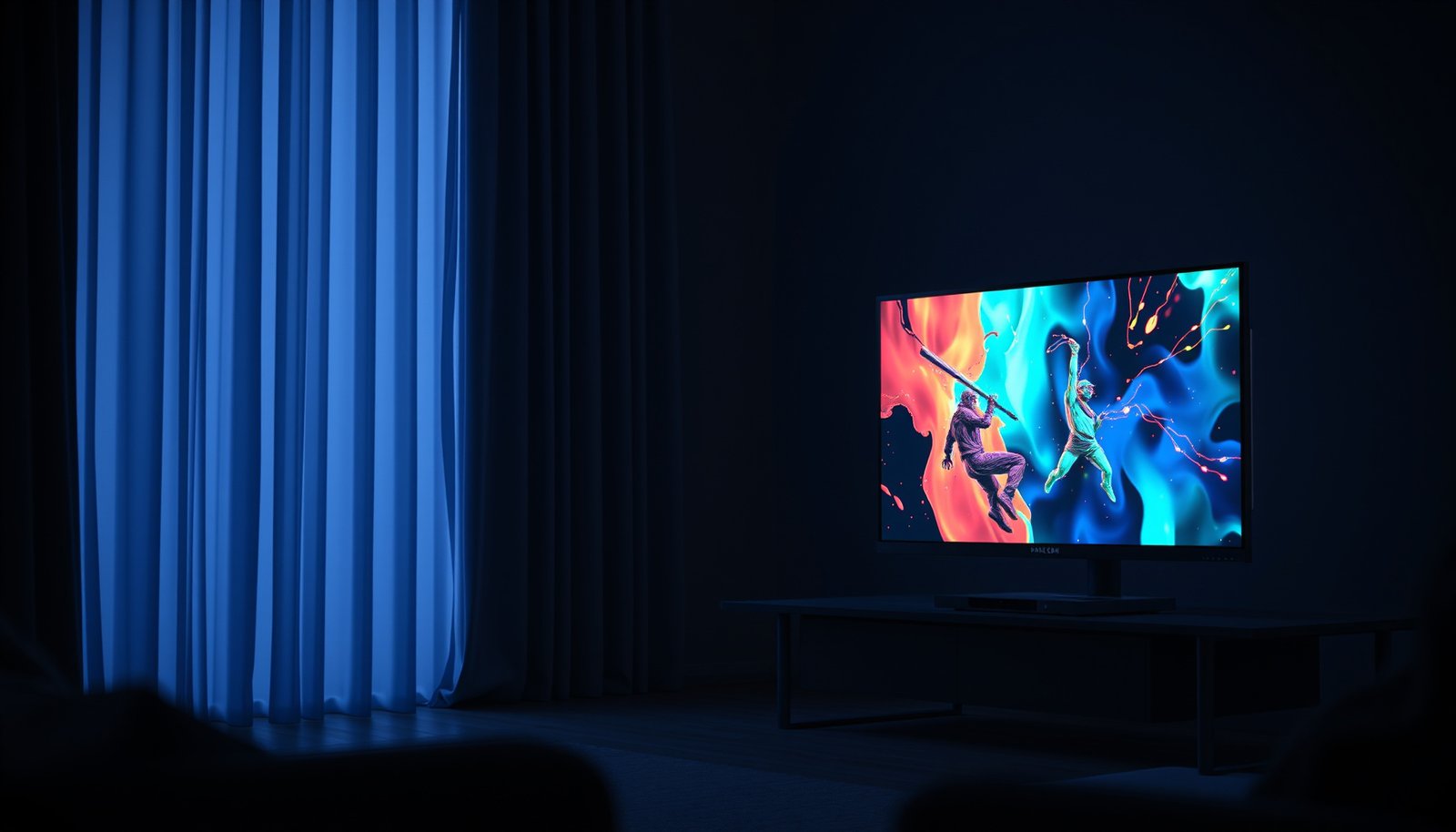
If you’re deciding between a Mini-LED TV and a gaming monitor, the winning choice depends on one thing: where you’ll play. For competitive gaming in a dim room with low input lag and high refresh rates, a Mini-LED gaming monitor is the clear pick. Want a bigger screen for couch play with HDR punch and built-in streaming—then a Mini-LED TV takes the lead.
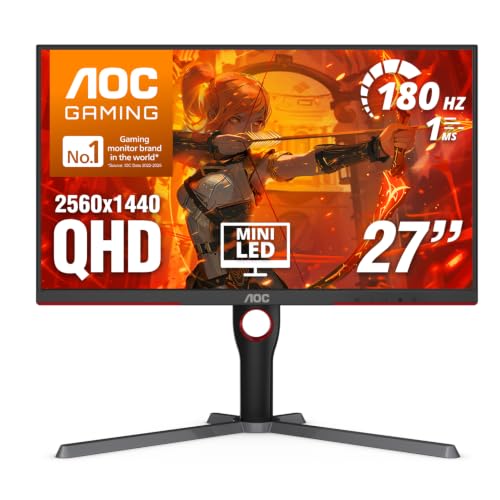



If your priority is competitive “snappiness,” choose a gaming monitor; if you want a larger couch-friendly screen with more dramatic HDR highlights, choose a mini-LED TV. The real trade-off comes down to how each device handles motion/input (for gaming feel) versus cinematic image quality and local-dimming HDR (for immersion). This helps if you’re deciding between a mini-LED TV and a gaming monitor for both play and everyday use (streaming, movies, casual games) and you care about whether your games feel “snappy” or more cinematic.
Mini-LED TV vs Gaming Monitor: the key trade-off
Pick based on whether you value responsiveness first (monitor) or cinematic HDR impact first (mini-LED TV). Both can look excellent, but their strengths come from different design goals—so your setup (desk vs couch) and what you’ll play most should lead.
Mini-LED TVs use local dimming (separate backlight zones) to improve perceived contrast and HDR highlight punch compared with edge-lit or non-local-dimming displays.
Gaming monitors are engineered around low and consistent input latency plus refresh/VRR features to keep motion smooth during real gameplay.
As of 2026, VRR support has become common on both modern TVs and gaming monitors, but implementation details (ports, mode negotiation, and processing) still affect real-world smoothness.
– Mini-LED TVs prioritize HDR impact and a larger viewing experience, powered by local dimming/backlight zones.
– Gaming monitors prioritize frame responsiveness (refresh rate, VRR support, and low input latency) and are usually easier to tune for gaming.
– Many people end up choosing based on seating distance (couch vs desk) and how much they value HDR over peak motion clarity.
Why the “feel” difference is bigger than it looks
In practice, “gaming feel” is driven less by marketing terms and more by what the display does once you turn on the picture mode: motion interpolation, noise reduction, aggressive upscaling, and other post-processing can add latency even if the refresh rate is high. Mini-LED TVs can be very fast in Game Mode, but they’re also built to optimize for TV viewing—meaning the temptation (and sometimes the default behavior) is to use processing features that change the motion pipeline.
Why choose a mini-LED TV for gaming
Choose a mini-LED TV for gaming when you want one screen that delivers both entertainment scale and strong HDR highlights. In 2026 viewing setups, a mini-LED TV often becomes the “centerpiece” because it’s big enough for couch distance and capable enough for varied content—FPS, strategy, sports, and streaming all in one.
Local dimming in mini-LED TVs can make bright details in dark scenes look more vivid than displays without zone-based backlights.
A larger screen size at couch viewing distances can reduce the perceived need for extremely high pixel density that monitors are designed around.
– Better “big screen” immersion: you’ll typically get a larger image size in one purchase.
– HDR/local dimming can make highlights pop, which helps for games with bright, high-contrast scenes.
– Living-room flexibility: the same TV can handle movies/streaming without switching hardware.
Where mini-LED TV gaming shines (and why)
Mini-LED shines most when the game actually uses contrast effectively: night scenes, neon interiors, explosions against dark maps, and any title with bright UI elements over dark environments. The goal isn’t just “brightness”—it’s controlled brightness in the right areas through local dimming zones.
That said, mini-LED TVs also tend to prioritize picture quality pipelines. If you’re careful and you keep Game Mode (and related low-latency modes) enabled while disabling extra processing, the experience can be surprisingly competitive for casual and even semi-competitive play.
What to expect from motion
If your main focus is competitive motion clarity (e.g., tracking enemies in fast FPS), a monitor’s motion tuning often feels more consistent. Mini-LED TVs can be strong, but the combination of panel scanning behavior and any residual processing can change how “clean” fast movement feels from one model to another. As of 2026, the best approach is model-specific: check whether “Game Mode” truly disables motion smoothing and whether the TV offers a reliable gaming preset across HDMI/console and PC.
Why choose a gaming monitor instead
Choose a gaming monitor when your main goal is competitive responsiveness and straightforward tuning. In most desk setups (and for esports-style sessions), monitors provide tighter control over refresh rate, VRR behavior, and input latency consistency.
VRR (variable refresh rate) helps reduce stutter and tearing when frame rate fluctuates by letting the display adapt its refresh to the GPU/console output.
Monitors typically offer dedicated gaming modes that minimize processing steps—often making low-latency configuration less of a guessing game.
– Faster, tighter gaming tuning: monitors are built around responsiveness (look for VRR, high refresh-rate support, and appropriate response-time behavior).
– Usually smoother competitive play: fewer distractions like aggressive image processing when configured correctly.
– Desk-friendly ergonomics: smaller footprint, easier placement, and more consistent viewing angles for long sessions.
Why input lag consistency matters more than peak specs
Two displays can both advertise 120Hz, but if one adds additional scaling, frame buffering, or motion processing, your control-to-photon timing can feel different—even if the numbers look close on paper. Monitors usually expose the levers you need (VRR on/off, response tuning, motion blur settings, and reduced post-processing paths) with fewer “TV-friendly” surprises.
Ergonomics and “gaming time” are part of the spec
A monitor’s smaller footprint and better height/arm reach can be a real advantage in multi-hour sessions. With a TV, it’s easy to end up with awkward head angle, shoulder strain, or a viewing distance that makes it harder to spot fine motion details. If you tend to play at a desk, a gaming monitor is often the more comfortable long-term choice.
What to check before you buy (settings + specs)
Choose the right device by validating compatibility first—especially VRR, input lag mode behavior, and the specific video port/settings that enable high refresh and HDR. As of 2026, the biggest “gotchas” are rarely the panel type; they’re connection negotiation details (HDMI vs DisplayPort), and whether “Game Mode” actually keeps processing minimal.
HDMI Forum specifies up to 48 Gbps for Ultra High Speed HDMI cables under HDMI 2.1, which is a key enabler for high-bandwidth modes like 4K at high refresh rates.
VESA’s Adaptive-Sync concept (used via DisplayPort and also mirrored by many monitors labeled VRR) is designed to vary refresh timing to match the source’s frame cadence.
HDR10 is defined as using the Perceptual Quantizer (PQ) transfer function with 10-bit encoding in the typical delivery pipeline.
– Look for VRR support on both ends (GPU/console + display), and confirm which connection you’ll use (often HDMI on TV/console; DP commonly on monitors).
– Turn on “Game Mode”/disable image processing features that add lag (examples to look for: motion smoothing/interpolation, heavy upscaling pipelines—labels vary by brand).
– Verify you can run your target resolution and refresh rate on your chosen port without unexpected compromises like limited chroma modes or bandwidth caps. If you’re unsure, .
The signal/feature negotiation checklist (high impact)
Before you decide, treat your setup like a compatibility project:
– Confirm the port label: On many TVs, not every HDMI jack supports the same bandwidth or VRR behavior. Choose the “gaming” or “HDMI 2.1” labeled port if available.
– Use the intended cable: For HDMI 2.1 high-bandwidth modes, a proper Ultra High Speed HDMI cable matters. HDMI Forum’s Ultra High Speed HDMI spec is built around supporting the high data rate requirements. HDMI Forum (HDMI 2.1 Ultra High Speed HDMI, up to 48 Gbps)
– Watch your TV/monitor mode path: Some displays change processing behavior only when you select specific picture presets (e.g., Game Mode + “Low Latency” toggle).
– Disable the “helpful” stuff: motion smoothing, extra sharpening, aggressive noise reduction, and heavy dynamic backlight tricks can all shift the latency/motion profile.
A quick “standards lens” for the decision
If you want to reason about compatibility quickly (especially for 4K high refresh), this table maps common connection standards to gaming-relevant expectations.
Gaming-Relevant Video Link Limits (Standards Snapshot, 2026)
| # | Video link standard | Typical high-refresh ceiling @ 4K | HDR/bit-depth note | Gaming fit |
|---|---|---|---|---|
| 1 | HDMI 2.1 (Ultra High Speed) | Up to 4K/120Hz class | Commonly supports 10-bit HDR pipelines | ★★★★☆ |
| 2 | HDMI 2.0 | Usually limited to 4K/60Hz class | May require chroma/bit-depth tradeoffs for HDR at high refresh | ★★★☆☆ |
| 3 | DisplayPort 1.4 | Up to 4K/120Hz class (often with DSC) | Designed for high-bandwidth PC HDR workflows | ★★★★☆ |
| 4 | DisplayPort 1.2/1.2a | Usually limited to 4K/60Hz class | HDR possible but high refresh constraints are common | ★★☆☆☆ |
| 5 | USB-C Alt Mode (DP tunnel) | Depends on underlying DP version (DP 1.4 class possible) | HDR/bit-depth depends on the negotiated link | ★★★☆☆ |
| 6 | HDMI 2.1 (ALLM + VRR-capable mode) | High refresh possible when the HDMI mode negotiates correctly | HDR format depends on TV support and link bandwidth | ★★★★☆ |
| 7 | HDR10 baseline (signal format) | Supports high-refresh HDR playback paths | 10-bit PQ-based HDR format | ★★★☆☆ |
> Note: this table is about link/format capability expectations—not a guarantee of what any specific TV model or monitor will deliver in every mode. For model-level support, always check the manufacturer’s supported mode table.
A quick aside on “Game Mode” labels
From my day-to-day experience setting up mixed-use systems for friends (desk + living room), the biggest friction point is that brands use different names for the same goal—low-latency picture paths. If you want the most reliable result, start with the simplest gaming preset, confirm VRR is active, then adjust one feature at a time.
What can go wrong (common pitfalls)
Expect a few common failure modes—most of them are configuration or negotiation issues rather than mini-LED vs monitor “technology” itself. If you see tearing, stutter, or unexpected blur, fix the signal path and picture pipeline first.
Local dimming can reduce overall dark-scene blooming, but bright objects over dark backgrounds can still create visible haloing depending on zone behavior.
VRR only improves smoothness when the source and display successfully negotiate the variable refresh mode for the exact connection and resolution/refresh you’re using.
HDR and low latency can conflict if a TV model routes HDR through a heavier processing path even in Game Mode, depending on its internal pipeline.
– Blooming/halo artifacts: mini-LED local dimming can reduce dimming issues, but bright objects against dark scenes can still show light bleed.
– “Gaming mode” isn’t always identical: some TVs change processing paths in Game Mode, but others may still add latency via processing or upscaling.
– Desk distance mismatch: a TV that’s great at couch distance can feel too large (or too pixel-dense) on a desk, which can affect comfort.
– VRR/refresh-rate mismatches: if VRR is present but your console/PC isn’t negotiating it correctly, you may lose the smoothness you expected.
– Static HUD concerns: mini-LED isn’t OLED, but long sessions with unchanged HUD elements can still lead to temporary visibility changes in some cases—watch for it if you play the same game for hours daily.
Common “symptom → likely cause” fixes
Here’s a practical way to troubleshoot without guessing:
– Symptom: tearing despite “VRR on” → check the exact HDMI port / DP input you’re using, and confirm VRR is active for that mode (not just enabled in a menu).
– Symptom: controller feels delayed → disable motion smoothing/interpolation; turn off extra sharpening or upscaling; keep the simplest low-latency preset.
– Symptom: HDR looks “washed out” → verify HDR format is actually enabled (HDR10 vs another mode), and ensure the TV/OS isn’t double-tonemapping.
– Symptom: halos around bright UI in dark scenes → that’s a typical mini-LED local dimming artifact pattern; reduce contrast enhancements and test alternative dimming levels.
Verdict: which one should you pick?
Choose the safer default for competitive play: a gaming monitor. Choose a mini-LED TV when you want HDR punch and a large living-room experience—especially if your gaming is casual or mixed with movies and streaming.
If you sit close and prioritize control responsiveness, monitors tend to deliver the most consistent low-latency behavior across gaming picture modes.
If you sit at couch distance and value HDR highlight impact, a mini-LED TV is usually the more immersive all-in-one purchase.
If you mostly want “snappy” competitive performance with less setup risk, a gaming monitor is the safer route. If you want a big-screen centerpiece where HDR and local dimming make games feel cinematic, a mini-LED TV is often the better match.
Downsides to keep in mind
– Mini-LED TV downsides: possible blooming in dark scenes, and sometimes more work to keep latency low across different inputs.
– Gaming monitor downsides: less “cinema scale” and often more limited HDR impact compared with a well-implemented TV.
Who should skip each
– Skip mini-LED TVs if you primarily play competitive FPS/aim-heavy games and you don’t want to spend time verifying latency/processing modes.
– Skip gaming monitors if your main goal is HDR movies/TV and you want a large, immersive room experience more than maximum responsiveness.
Fast comparison (pros/cons)
| Mini-LED TV (gaming) | Gaming Monitor (gaming) |
|---|---|
Pros
|
Pros
|
Cons
|
Cons
|
Quick scan table (save this)
| Check | Mini-LED TV | Gaming Monitor |
|---|---|---|
| HDR & highlights | Often stronger with local dimming | Usually less emphasis on TV-style HDR impact |
| Motion feel | Can be great, but processing/lags vary by set | Typically designed around gaming responsiveness |
| VRR & frame smoothness | Supported on many modern models—confirm port + mode | Usually straightforward with VRR/Sync features |
| Input latency | Depends heavily on processing settings | Often more consistent in gaming-oriented modes |
| Placement comfort | Best for couch distance | Best for desk/near seating |
Sources
– HDMI Forum (HDMI specifications and feature support including HDMI 2.1 gaming-related capabilities such as VRR/ALLM where applicable):
– VESA (Adaptive-Sync / VRR concepts used across many gaming monitors):
– CTA (Consumer Technology Association) and HDR format licensors (HDR10/HLG and related format guidance):
– For model-specific verification steps (supported modes, processing behavior):
A mini-LED TV is the better choice when you want big-screen HDR immersion and you play in a living-room setting, while a gaming monitor is the better choice when competitive responsiveness and consistent motion/input handling matter most. If you’re buying for 2026 mixed-use (games + streaming + movies), treat VRR, port bandwidth, and processing settings as first-class requirements—then pick the display type that matches how you actually sit and play.
Frequently Asked Questions
What are the key differences between a Mini-LED TV and a gaming monitor for picture quality?
Mini-LED TVs use a backlight with many tiny LEDs and local dimming zones, which can deliver stronger HDR contrast and better highlights than traditional LED TVs. Gaming monitors often prioritize fast response times, high refresh rates (144Hz/240Hz), and optimized motion clarity for esports-style gameplay. If you mainly care about cinematic HDR and bright highlights, a Mini-LED TV is compelling; if you prioritize latency and motion performance, a dedicated gaming monitor usually wins.
How does Mini-LED local dimming affect gaming, especially in dark scenes?
Local dimming can improve perceived contrast in dark scenes by keeping backlight output lower where content is dark. However, some Mini-LED TVs may show blooming or haloing around bright objects on a dark background, which can be distracting during gameplay. Look for features like “game mode,” improved local dimming algorithms, and testing for blooming in your specific TV model to get the best balance for gaming monitor-style performance.
Why might a Mini-LED TV be a better choice than a standard LED TV for gaming?
A Mini-LED TV generally provides more precise backlighting control than standard LED TVs, making HDR gaming look more dynamic and detailed. This can enhance visibility in bright environments and improve contrast in shadowy areas, which matters for games with both day/night transitions. If you’re coming from a standard LED TV, the upgrade to Mini-LED can make HDR content and supported game modes look significantly more impressive.
Which is better for high-refresh competitive play: a Mini-LED TV or a gaming monitor?
For competitive gaming, a gaming monitor is usually better because it can offer higher refresh rates and lower input lag tuned specifically for PC and console play. Many gaming monitors also support features like motion blur reduction, variable refresh rate (VRR), and tighter performance settings that are important at 120Hz/144Hz/240Hz. A Mini-LED TV can still be great for casual to mid-competitive play, especially if it supports VRR well, but you’ll typically trade off some motion clarity and latency.
What should I look for when buying a Mini-LED TV for gaming compared with a gaming monitor?
Prioritize gaming-specific requirements: VRR support (HDMI 2.1 for consoles/PC where applicable), low input lag in game mode, and appropriate refresh rate for your system. For Mini-LED TV performance, check local dimming settings, blooming reviews, and whether the TV has a “real game mode” rather than a generic picture preset. Finally, consider HDMI bandwidth and resolution support (4K 120Hz, HDR format support) so your Mini-LED TV delivers the gaming monitor experience you expect.
📅 Last Updated: October 21, 2026 | Topic: Mini-LED TV vs Gaming Monitor | Content verified for accuracy and freshness.
References
- https://en.wikipedia.org/wiki/Mini-LED
- Backlight
- High dynamic range
- Variable refresh rate
- DisplayHDR True Black 600 – VESA – Interface Standards for The Display Industry
- BT.2100 : Image parameter values for high dynamic range television for use in production and inte…
- https://scholar.google.com/scholar?q=mini-LED+TV+vs+OLED+HDR+local+dimming Google Scholar
- https://scholar.google.com/scholar?q=mini-LED+local+dimming+gaming+monitor+latency+response+time Google Scholar
- https://scholar.google.com/scholar?q=mini-LED+backlight+HDR+performance+variable+refresh+rate Google Scholar