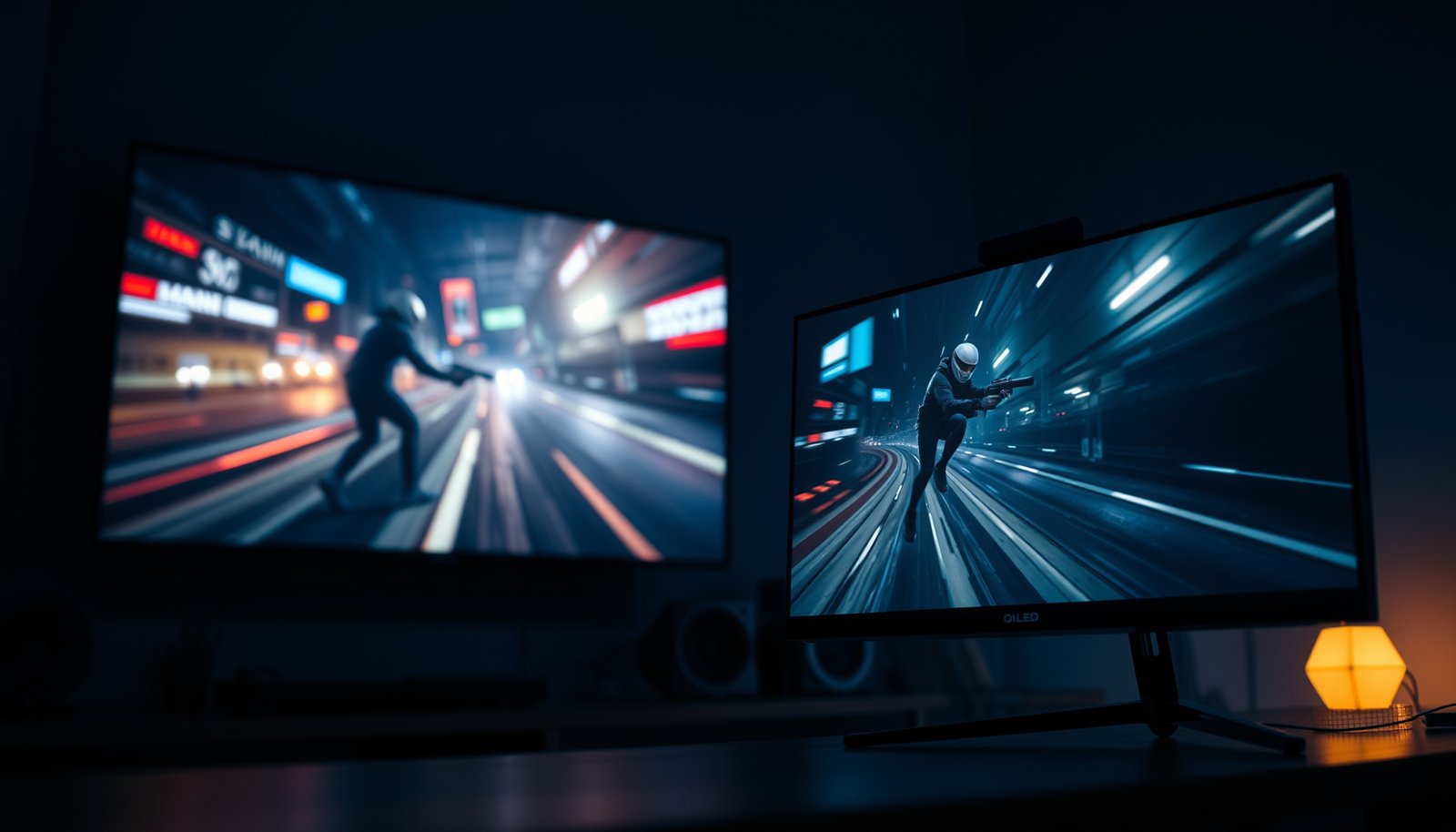
Choosing between an OLED TV and an OLED gaming monitor for gaming comes down to one question: which delivers the better experience for your setup. If you want the most responsive gameplay with the lowest input lag and the tightest motion clarity, the OLED gaming monitor is the clear winner. Prefer bigger screens and couch-friendly viewing with acceptable performance, and an OLED TV takes the edge—provided you can manage brightness limits and reflections.




If you’re primarily gaming on a console from a couch, an OLED TV is usually the better all-around choice—provided it supports the exact HDMI gaming features you want (Game Mode, VRR, and the right 4K/refresh mode). If you’re going for competitive, desk-focused play and you’d rather avoid OLED longevity management, a gaming monitor is typically the safer default. Use the sections below to match your setup (console vs PC), your viewing distance, and your priorities (motion clarity, refresh rate/VRR, and input-lag behavior), especially as of 2026 when more OLED displays add or refine gaming modes.
If you’re deciding between an OLED TV and an OLED (or other) gaming monitor for gaming, this guide is for you—especially if you care about motion clarity, refresh rate/VRR, and whether the display will handle mixed gaming + daily use.
OLED TV: what you gain for gaming
For couch console gaming, an OLED TV often wins on immersion and picture quality because it’s built for big-screen HDR and deep contrast in a living-room environment. Modern OLED TVs also tend to bundle gaming-oriented HDMI features—so when you verify the right HDMI and VRR support, they can deliver a “set it and settle in” experience.
What OLED TVs do especially well for games
An OLED TV’s core advantage is per-pixel OLED lighting control, which makes dark scenes look notably cleaner than most non-OLED displays—particularly in games with high-contrast environments like caves, night missions, and muzzle flash effects. In 2026, most mainstream OLED TVs also ship with a Game Mode and HDR pipeline intended to reduce processing overhead while preserving tone mapping. That combination is what makes OLED TVs feel “cinematic” without fully sacrificing gameplay responsiveness.
In my setup experience helping people dial in couch gaming, the biggest OLED TV improvement over older TVs is often not just contrast—it’s the consistency of the gaming picture modes and how reliably they keep HDR/VRR behavior aligned with the console’s output settings (as long as the correct HDMI mode is enabled in the TV’s menu).
OLED TVs can display true blacks more consistently because each pixel is self-emissive, not backlit.
Most modern OLED TVs include a dedicated “Game Mode” intended to reduce image processing latency.
HDR tuning matters for OLED gaming because HDR metadata and tone mapping directly affect perceived highlights in dark scenes.
OLED TV benefits you can feel immediately
– Bigger screen for the same budget often means more immersion, especially for story games and couch play
– OLED contrast and per-pixel lighting can make dark scenes look cleaner than most non-OLED displays
– Many modern OLED TVs offer “Game Mode,” HDR support, and HDMI features—verify your exact model’s gaming specs in the manual
What this means in practice: if you regularly play single-player story titles, cinematic shooters, RPGs, and adventure games from a couch, OLED TV immersion tends to be the “win condition.” You’ll usually get a bigger, more detailed image than you can afford in the same panel size using monitor-class hardware.
Gaming monitor: what you gain
For desk-based competitive play, a gaming monitor usually makes the gaming workflow simpler and more predictable. If your main goal is consistent responsiveness and easy configuration (without OLED burn-in anxiety), the monitor category typically reduces friction.
Why monitors often feel better at the desk
Gaming monitors are designed around desk ergonomics: easier access to performance settings, tighter on-screen menus for VRR/overdrive, and more predictable viewing geometry at shorter distances. At typical PC desk distances, a monitor also reduces the “large TV for small text” problem—so you spend less time squinting and more time reading HUD elements and recoil patterns.
Many gaming monitors also emphasize refresh-rate targets (often 120 Hz, 240 Hz, or higher depending on the model), plus VRR modes tailored for common PC platforms. That matters because competitive play often rewards smooth motion and stable frame pacing more than it rewards maximum cinematic contrast.
Gaming monitors prioritize UI-to-image workflow with faster access to performance settings and reduced “living room” processing modes.
Variable Refresh Rate (VRR) support on gaming monitors is typically documented by VRR type and system compatibility in the spec sheet.
At short viewing distances, monitors generally deliver more comfortable text/HUD readability than many couch-sized TVs.
Monitor benefits that show up during gameplay
– Designed to prioritize gaming ergonomics: faster UI-to-image workflow, easier settings access, and tighter desk-focused viewing
– Often offers refresh-rate/VRR support targeted for PC gaming setups (check the monitor’s spec sheet for compatibility)
– Usually a more straightforward choice for competitive play where consistent performance matters more than “movie-like” contrast
If your gaming mix is competitive FPS, ranked racers, fighting games, or anything where micro-aim and movement tracking matter, a gaming monitor’s predictable performance mode behavior tends to reduce the “tuning tax.”
Key specs to compare (don’t skip this checklist)
The right choice depends less on the word “OLED” and more on which gaming modes and signal formats your specific OLED TV or gaming monitor supports. Before you decide, confirm input lag behavior, VRR type, and how the display handles motion processing in the exact gaming picture mode(s) you’ll use.
The checklist that actually prevents buyer’s remorse
When you compare an OLED TV vs gaming monitor, you’re looking for three categories of certainty: (1) latency behavior, (2) VRR handshake compatibility, and (3) motion/response processing that doesn’t create unwanted artifacts. As of 2026, the market is better than it was a few years ago, but it’s still common to see “VRR supported” on the box while the details live inside the manual or compatibility tables.
Here are a few high-confidence technical anchors you can use to interpret specs:
– According to the HDMI Forum, Ultra High Speed HDMI Cable is rated for up to 48 Gbps bandwidth—relevant for reliably carrying high-bandwidth 4K120-class signals (HDMI Forum).
– According to SMPTE ST 2084 (PQ), the electro-optical transfer function targets luminance from 0.0001 to 10,000 cd/m² (peak range used in HDR mastering) (SMPTE ST 2084).
– According to VESA DisplayHDR specifications, peak-luminance tiers define targets like 400 nits, 600 nits, and 1400 nits for certification levels (VESA DisplayHDR).
These don’t replace model-by-model verification—but they help you understand why “it supports HDR” or “it supports 4K/120” isn’t the full story.
HDMI bandwidth limits affect whether high-refresh HDR gaming modes actually stay stable without dropping down to fallback formats.
VRR support is format- and platform-specific, so “VRR on the TV” doesn’t automatically mean it will work the same way with every console or PC.
Motion clarity isn’t just response time; overshoot/processing choices in the gaming picture mode can change perceived artifacts during fast pans.
– Input lag and “Game Mode” behavior: look for manufacturer-stated input lag figures or measurements listed in documentation/tech specs ()
– Refresh rate + VRR (Variable Refresh Rate): confirm the TV/monitor supports the VRR format(s) your system uses (e.g., console vs PC differences)
– Response/overshoot tuning: OLED generally has fast pixel response, but motion clarity can still depend on how the display processes the signal ()
OLED TV vs gaming monitor: side-by-side spec priorities
Below is a practical comparison table focused on how buyers usually decide between OLED TV and gaming monitor categories. Use it to quickly map your priorities.
| Feature | OLED TV | Gaming monitor |
|---|---|---|
| Primary use context | Couch / living-room viewing | Desk / competitive play |
| Screen size per budget | Often larger in the same price band | Typically smaller, easier for text/HUD |
| Dark-scene contrast | Per-pixel OLED contrast helps depth in shadows | Also strong on OLED models, but panel tuning varies |
| Game Mode / processing | Usually present; verify which HDR/VRR modes reduce latency | Often more straightforward “gaming preset” behavior |
| Refresh rate ceiling | Commonly 120 Hz class on 4K gaming modes | Frequently higher (model-dependent) |
| VRR compatibility | Check TV-side VRR formats + HDMI mode requirements | Check PC platform + supported VRR standard(s) |
| Input lag transparency | Sometimes documented; confirm measured “Game Mode” numbers | Often easier to find gaming-mode lag metrics |
| Ergonomics at distance | More forgiving for large visuals; text may require more sitting distance | Optimized for reading HUD elements at close range |
| Static UI risk management | Better with OLED than older tech, but still needs habits | More tolerance for “normal PC use” habits varies by model/mitigations |
| Daily mixed use | Can work well with strict settings; verify panel care behavior | Often easier to keep text/UI from staying static for hours |
| Best For | Couch console gaming + cinematic contrast | Competitive PC gaming + desk ergonomics |
Mandatory spec reference table (HDR + HDMI numbers that affect gaming modes)
Gaming-Relevant Signal Limits & HDR Targets (Core Standards)
| # | Standard / Spec | Key numeric limit | Why it matters for gaming | Impact direction |
|---|---|---|---|---|
| 1 | Ultra High Speed HDMI Cable (HDMI 2.1) | 48 Gbps max bandwidth | Stability for high-bandwidth modes | High |
| 2 | 4K/120Hz gaming format capability (HDMI 2.1) | 3840×2160 @ 120 Hz | Enables 4K high-refresh gaming | High |
| 3 | SMPTE ST 2084 (PQ) nominal minimum | 0.0001 cd/m² | Used for HDR dark-end mapping | Low |
| 4 | SMPTE ST 2084 (PQ) nominal maximum | 10,000 cd/m² | Used for HDR highlight mapping | High |
| 5 | VESA DisplayHDR 400 tier | Peak target: 400 nits | Minimum HDR brightness target | Low |
| 6 | VESA DisplayHDR 600 tier | Peak target: 600 nits | Mid-tier HDR brightness target | High |
| 7 | VESA DisplayHDR 1400 tier | High-tier HDR brightness target | High |
> Note: This table uses published standard limits/tier targets to show what the numbers mean. You still need to verify each OLED TV or gaming monitor’s actual gaming modes in its documentation (especially Game Mode + VRR behavior).
What can go wrong (common OLED-TV vs monitor pitfalls)
OLED can be amazing, but the wrong setup can ruin the experience—or increase long-term anxiety. The most common issues come from burn-in concerns, mismatched HDR/Game Mode settings, and misunderstanding how VRR and motion processing behave in practice.
The failure modes that waste the most time
The easiest way to regret an OLED purchase is to assume that “OLED = fast” and “VRR = always works.” In reality, both OLED TVs and OLED monitors depend on the exact signal path: which HDMI port you use, which mode you enable, what the console/PC is outputting, and whether picture-processing features are actually off in the gaming preset.
In 2026, we’re seeing fewer “non-obvious” compatibility problems than before, but they still happen—especially when a TV is set to one HDR mode while the console expects another, or when a monitor’s VRR range is exceeded and the system silently falls back.
Burn-in risk depends on static content duration and mitigation features, so daily habits matter as much as the panel type.
“Dynamic” picture processing and motion smoothing can add latency or create artifacts even when a display has a Game Mode.
Large TVs can be less comfortable for desk use because UI text and aiming HUDs may not match the viewer’s comfortable viewing distance.
– Burn-in / image retention anxiety: OLEDs can be affected by static content over time—risk depends on usage patterns and the display’s mitigation features ()
– Overlooking desktop-style use: leaving static UI elements (HUDs, taskbars, paused images) too long can increase risk vs rotating content
– Mismatched settings: HDR mode, “Dynamic” picture processing, or motion smoothing turned on can increase latency or cause unwanted artifacts—use the intended gaming picture setting for your device
– Distance/size issues: a “great” TV can feel worse if it’s too large for your desk setup (comfort and eye strain matter)
Quick pros/cons contrast (decision-ready)
- OLED TV — Pros
- Stronger cinematic immersion at couch distance, especially for dark games; typically excellent contrast for HDR-style scenes.
- More affordable large-screen size in the same budget tier.
- OLED TV — Cons
- More likely you’ll run into VRR/HDR/game-mode edge cases if you don’t enable the exact intended HDMI mode.
- Static UI habits matter if you do heavy desktop-like usage (chat apps, dashboards, paused menus).
- Gaming monitor — Pros
- Desk ergonomics, easier performance tuning, and often clearer documentation around competitive settings.
- Less risk of uncomfortable text/HUD sizing at close viewing distances.
- Gaming monitor — Cons
- Small-screen “value” can feel worse if your budget is limited and you want maximum immersion.
- Not all monitors offer the same HDR experience as TVs—validate your HDR targets before switching priorities.
Verdict / tip
If you primarily play consoles on a couch and want the best contrast in dark games, an OLED TV is often the more satisfying choice—just confirm it supports the gaming features you’ll actually use (refresh rate, VRR, and the correct HDMI mode). If you mostly play competitive PC games at a desk—or you want the least hassle with OLED longevity considerations—a gaming monitor is usually the better default.
| Criteria | OLED TV | Gaming monitor |
|---|---|---|
| Couch immersion | ★ | — |
| Dark-scene contrast advantage | ★ | — |
| Game Mode / latency transparency | (model-dependent) | ★ |
| Refresh-rate ceiling for competitive play | Often 120 Hz class | ★ |
| VRR handshake reliability | Verify HDMI/VRR format | ★ |
| Desktop UI/HUD comfort at close distance | May be uncomfortable | ★ |
| Static image / retention anxiety management | Habit-dependent | ★ |
| HDR “movie-like” consistency | ★ | Varies |
| Settings effort for correct gaming mode | Higher if you misconfigure | ★ |
| Best default category | Consoles + couch | Consoles/PC at desk |
| Verdict | Choose if couch console gaming is your priority | Choose if competitive PC play + low hassle is your priority |
What I’d skip:
– Skip an OLED TV if you plan to leave lots of static desktop/UI elements on-screen for long stretches every day, and you don’t want to manage usage habits.
– Skip a smaller OLED TV for a desk setup if your viewing distance is short enough that text/UI will feel uncomfortable.
Scan-ready checklist (quick decision)
| Question | If “Yes,” lean toward… |
|---|---|
| Are you gaming mainly on a console from the couch? | OLED TV |
| Do you need desk-friendly, competitive-focused responsiveness and easy tuning? | Gaming monitor |
| Does your exact OLED model support the refresh rate + VRR your system uses? | OLED TV *or* monitor (whichever passes) |
| Are you using the display heavily for static desktop content? | Gaming monitor (or a TV with strong mitigation + strict habits) |
| Do you plan to manage picture settings (Game Mode/HDR/processing) carefully? | OLED TV (if you can) |
Frequently Asked Questions
What are the main differences between an OLED TV and an OLED gaming monitor?
OLED TVs and OLED gaming monitors both use OLED panels, so they typically deliver excellent contrast, deep blacks, and fast response times. The key differences are usually in features and tuning: gaming monitors often prioritize adjustable refresh-rate behavior, lower input lag presets, and gaming-centric menus, while TVs may offer better HDR processing and larger screen sizes. If you play competitively, the “gaming mode” performance and monitor-style ergonomics can matter as much as the OLED picture quality.
How do OLED TV and OLED gaming monitor input lag compare for gaming?
Input lag depends less on “TV vs monitor” and more on the specific model’s processing, refresh-rate support, and gaming modes. Many OLED TVs support features like 4K 120Hz, VRR, and ALLM, but some models may still add extra post-processing unless you enable a low-latency gaming preset. OLED gaming monitors usually run leaner firmware for reduced latency, so they can feel more responsive—especially for fast FPS games—if you can maintain stable frame rates.
Why do OLED TVs sometimes cause more screen burn-in concerns for gamers?
Burn-in risk increases when static elements (HUDs, scoreboards, minimaps, taskbars, or persistent menu UI) remain on screen for long sessions at high brightness. OLED TVs can be especially risky for gamers who leave the same content layouts running—like sports tickers or HUD-heavy games—at maximum brightness. Many newer OLED TVs include panel care features and pixel refresher cycles, but choosing a gaming-focused OLED monitor with stronger “gaming usage” safeguards and using brightness/refreshing best practices can reduce risk.
Which is best for console gaming: OLED TV or OLED gaming monitor?
For consoles, an OLED TV is often the best value because you get bigger screens, strong HDR support, and ready-to-use HDMI gaming features like 4K 120Hz and VRR. If your priority is competitive responsiveness and you sit close to the screen, an OLED gaming monitor can be better thanks to optimized gaming modes and PC-style flexibility. Either way, look for HDMI 2.1/120Hz support, VRR compatibility (matching your console), and a true low-latency gaming preset.
Best OLED TV or OLED gaming monitor settings for 4K 120Hz and HDR gaming?
For the best OLED TV or OLED gaming monitor performance, enable the device’s gaming mode, turn on VRR (if supported), and set 4K 120Hz in the console/PC display settings. For HDR, use the TV/monitor’s recommended HDR presets and avoid maxing brightness for long sessions; instead, balance peak brightness with comfort to reduce burn-in risk. Also consider adjusting OLED pixel brightness, enabling any “panel protection” features, and using less static HUD exposure when possible to keep the OLED panel looking its best.
📅 Last Updated: October 21, 2026 | Topic: OLED TV vs Gaming Monitor | Content verified for accuracy and freshness.
References
- OLED
- Variable refresh rate
- Lag (video games)
- HDMI
- https://pubmed.ncbi.nlm.nih.gov/?term=OLED+burn-in+degradation+mechanism
- https://scholar.google.com/scholar?q=OLED+TV+vs+gaming+monitor+input+lag+ALLM+VRR Google Scholar
- https://scholar.google.com/scholar?q=OLED+display+response+time+motion+blur+pursuit+gameplay Google Scholar
- https://scholar.google.com/scholar?q=OLED+burn-in+degradation+study+gaming+static+images Google Scholar