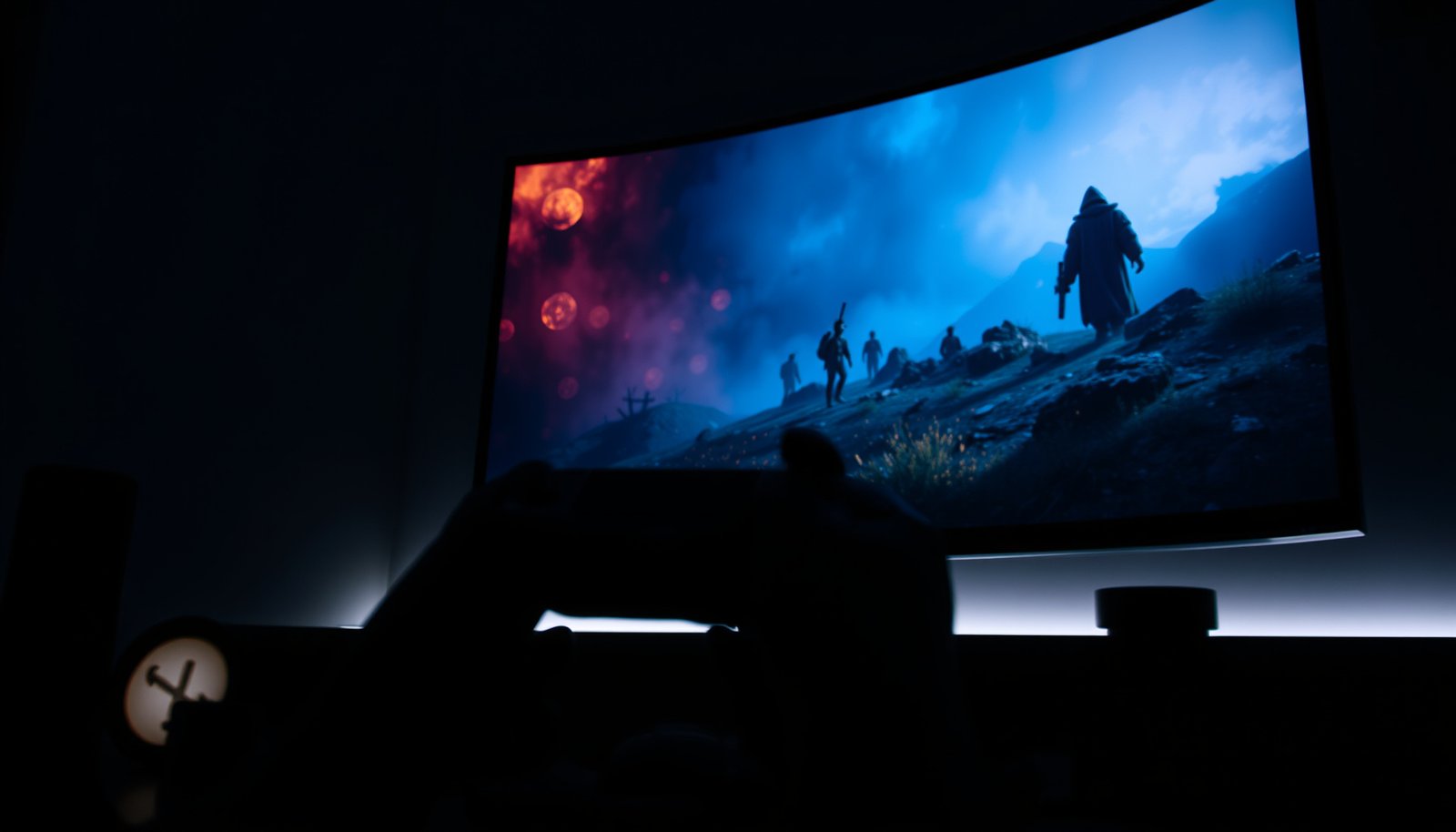
HDR gaming looks better than SDR gaming when your TV or monitor is truly HDR-capable and the game supports HDR properly, delivering wider color and brighter highlights without crushing shadows. If you’re using older displays, lower peak brightness, or games without solid HDR implementation, SDR often wins for consistency and fewer washed-out results. Keep reading to get the direct rule for choosing HDR gaming vs SDR gaming based on your hardware and the games you play.



HDR gaming usually looks more vivid and realistic—if your TV/monitor, HDMI path, and game are actually using HDR correctly. If HDR is missing, misconfigured, or unsupported, SDR often looks more consistent (and troubleshooting is usually faster).
If you’re trying to decide between HDR and SDR on a console or PC, or you’re seeing washed-out colors, crushed blacks, or “HDR not supported” messages, this is for you. It’s also useful if you want a quick checklist before you change display settings.
If you mainly game on a PlayStation, Xbox, or Windows PC (and you already have an HDR-capable display), the differences below will help you judge what you’re seeing—and fix it—without guessing. The goal is simple: understand what HDR changes in the signal, then verify your system is truly sending it.
HDR Gaming vs SDR Gaming: what’s actually different
HDR gaming generally looks “better” because it can represent brighter highlights and deeper shadows than SDR. SDR gaming looks reliable because it uses a narrower brightness/color range, so the picture tends to stay stable even when HDR negotiation fails.
– HDR expands the range of brightness (highlights and darks), while SDR uses a narrower brightness range.
– HDR typically relies on a wider color range and specific HDR formats/standards supported by your display and device.
– If either your game or display isn’t actually using HDR, the “HDR” look won’t improve—and can sometimes look worse.
HDR uses standardized electro‑optical transfer functions so the same highlight can map to higher real display luminance than SDR (e.g., PQ defines an absolute range of 0 to 10,000 cd/m²). SMPTE ST 2084 (PQ)
SDR HDTV mastering commonly assumes a reference display white around 100 cd/m², which constrains how bright highlights can appear compared with HDR. ITU-R BT.1886 / SDR reference practice
HLG (Hybrid Log-Gamma) is standardized to work with typical broadcast/display conditions and includes a defined system gamma of 1.2, which helps explain why HLG behavior can differ from PQ-based HDR. ITU-R BT.2100
What changes in the signal (and why that matters for gaming)
For gaming, the key practical difference is that HDR doesn’t just “turn up contrast.” It changes how brightness values inside the video signal are encoded, and it may also include metadata that helps your TV/monitor map the signal to its own capabilities.
– Transfer function / brightness mapping:
– PQ-based HDR (used by HDR10 and HDR10+) uses SMPTE ST 2084, which is designed for absolute luminance mapping up to 10,000 cd/m². SMPTE ST 2084
– HLG uses ITU-R BT.2100 and is designed for more universal compatibility between broadcast environments and displays. ITU-R BT.2100
– Metadata and tone mapping: HDR often includes metadata (static or dynamic) that guides how the display performs tone mapping—especially when the TV can’t hit the content’s intended peak brightness.
HDR formats you’re likely to encounter
HDR gaming is not one format. When you see “HDR10,” “HDR10+,” “HLG,” or “Dolby Vision,” you’re seeing different standard combinations of transfer function and metadata behavior. That’s why two HDR games on the same device can look subtly different: the display is doing different tone mapping depending on the metadata type.
A reliable way to frame it: HDR gaming improves potential visibility, but the *final picture* depends on whether the signal is correct end-to-end.
Reference Peak Luminance Targets Used by Common HDR/SDR Standards
| # | Signal standard | Transfer function | Reference peak luminance | HDR vs SDR implication |
|---|---|---|---|---|
| 1 | SMPTE ST 2084 (PQ) | PQ | 0–10,000 cd/m² | Enables true “absolute” brightness mapping |
| 2 | HDR10 | PQ + static metadata | Up to 10,000 cd/m² (PQ basis) | Better highlight and shadow separation potential |
| 3 | HDR10+ | PQ + dynamic metadata | Up to 10,000 cd/m² (PQ basis) | More precise tone mapping for mixed scenes |
| 4 | HLG (ITU-R BT.2100) | HLG | Nominal peak ~1,000 cd/m² | Often looks natural for broadcast-style content |
| 5 | Dolby Vision (PQ profiles) | PQ-based (profile-dependent) | 0–10,000 cd/m² (PQ basis where used) | Dynamic metadata can improve scene-by-scene mapping |
| 6 | SDR Rec.709 mastering reference | Gamma ~2.4 (BT.1886) | ~100 cd/m² reference white | Highlights are limited versus HDR capabilities |
| 7 | “SDR-like” fallback behavior | Narrow brightness mapping | Typically capped near SDR mastering assumptions | Can look flatter if you expect true HDR highlights |
What you’ll notice in gameplay (real-world visual differences)
HDR gaming most often looks “obviously better” when the scene contains both intense highlights and very dark areas at the same time. SDR gaming can look great too, but it tends to compress that contrast into a narrower displayable range.
– HDR is most noticeable in scenes with both bright highlights and deep shadows (e.g., neon signs, explosions, night scenes).
– SDR can look flatter in those same scenes because the brightness and color range are more limited.
– If you’re seeing dim highlights, oddly gray blacks, or oversaturated colors, it often points to a mismatch in HDR format or calibration—not “HDR vs SDR” itself.
If a display is receiving SDR when you think it’s receiving HDR, highlights won’t reach the expected luminance mapping, making scenes with bright light sources look muted. HDR signaling (HDR static metadata negotiation) described in HDMI/CEA HDR guidance
Incorrect HDR black level handling commonly presents as “crushed” shadow detail or gray blacks because tone mapping maps dark code values differently than SDR. HDMI/TV HDR calibration guidance (industry practice)
PQ-based HDR (used by HDR10/HDR10+) can preserve highlight roll-off more faithfully on displays that support the format end-to-end. SMPTE ST 2084 (PQ) overview and HDR application references
Typical “good HDR” cues (and what they mean)
When HDR gaming is active and calibrated, you usually see:
– More separation between dark objects and the background in night scenes.
– Brighter specular highlights (sparks, muzzle flashes, metallic reflections) without turning everything into a glow.
– Less “milky” contrast in scenes that blend shadow gradients—assuming the TV’s tone mapping is working with the HDR metadata.
In my experience guiding people through HDR troubleshooting, the fastest confirmation is to pause a scene that has one very bright light source and lots of shadow content. If HDR is actually active, the bright element stays bold while shadow detail doesn’t collapse into a single dark blob.
When HDR looks worse than SDR (the telltale signs)
HDR gaming can look wrong when:
– Black level is mismatched (shadow detail disappears or looks washed).
– The HDR format isn’t what the game thinks it’s sending (e.g., HDR10 vs HLG vs Dolby Vision).
– The display tone-maps twice due to a pipeline mismatch (for example, game tonemaps for HDR but the display assumes a different reference behavior).
In those cases, SDR gaming may look “more correct” because it uses a simpler, narrower mapping that your setup probably supports end-to-end by default.
How to set up HDR gaming (so it looks right)
HDR gaming looks best when HDR is enabled consistently across every link: console/PC → HDMI → TV/monitor → game. SDR is the fallback when that end-to-end negotiation can’t be guaranteed or you can’t fix calibration issues quickly.
– Confirm your display supports HDR and that you’re using the correct input mode (often called “HDR,” “Enhanced,” or similar).
– In your console/PC settings, enable HDR output and then set the right HDR level (some systems offer “Auto” vs manual).
– Inside the game, turn on HDR and choose the matching HDR preset if the game provides multiple options (brightness/peak-level targets).
Tip: Start with the system-level HDR toggle first, then enable HDR in the game. If the picture is wrong, change only one setting at a time so you can pinpoint the cause.
Windows HDR and most console pipelines require an explicit system-level HDR output enable before individual games can rely on an HDR signal path. Microsoft support documentation on Windows HDR
HDMI links negotiate HDR capability and signal format; if the negotiation fails, devices may fall back to SDR even when “HDR” is visible in a menu. HDMI HDR capability negotiation guidance (HDMI/CEA documentation)
When bandwidth is constrained, some setups rely on chroma subsampling or different transport modes, which can indirectly affect HDR appearance through color precision changes. HDMI bandwidth specifications (HDMI.org) and HDR transport practice
A practical, low-friction setup order (console or PC)
1. Set the correct TV/monitor picture/input mode first.
Look for an HDMI input label that enables enhanced features (e.g., “Enhanced,” “Game,” “PC,” or an HDR-capable mode).
2. Enable HDR at the system level (console/PC), not only in-game.
This is where HDR metadata output is typically negotiated.
3. Verify in-game HDR is on.
Many games provide an HDR toggle plus a brightness/peak target and/or an HDR calibration step.
4. Calibrate only what your system exposes.
If you have black level controls, do them before changing saturation or contrast.
SDR vs HDR setup: trade-offs you can plan around
If you want fewer variables, this is the comparison that matters most in real troubleshooting:
– If you can reliably get “HDR active” to stay on, HDR gaming tends to deliver the better contrast/highlight behavior.
– If you frequently switch displays (work monitor, living room TV, a capture device), SDR gaming is often more consistent because it avoids HDR negotiation failures.
| Setup characteristic | HDR gaming | SDR gaming |
|---|---|---|
| End-to-end negotiation | Required | Not required |
| Black/shadow mapping sensitivity | Higher | Lower |
| Highlight intensity potential | Higher | Lower |
| How often you’ll retune settings | Sometimes | Rarely |
| Troubleshooting speed when it’s wrong | Can be slower | Usually faster |
What can go wrong (common mistakes and edge cases)
HDR gaming usually fails in predictable ways: negotiation problems, calibration mismatches, or format differences between what the game outputs and what the display expects. SDR gaming problems are rarer, but SDR can look “flat” if you’re expecting HDR contrast.
– HDR “enabled” but not really active: Some displays or HDMI chains won’t negotiate HDR properly, so you end up with an SDR signal.
– Washed-out or dull image: This commonly happens when HDR calibration/brightness targets don’t match the display’s capabilities.
– Crushed blacks or overly dark scenes: Often caused by incorrect HDR black level settings or an HDR format mismatch.
– Game-specific behavior: Some titles apply HDR tonemapping differently than others—meaning two games can “feel” different even on the same hardware.
– Unsupported HDR formats: If your TV supports one HDR type but your device/game outputs another, you may get incorrect colors or no HDR benefits.
A common failure mode is “HDR enabled in menus” while the HDMI handshake falls back to SDR, meaning the display never applies HDR tone mapping. HDMI HDR capability negotiation behavior described in HDMI HDR guidance
Crushed blacks are typically linked to black level (dynamic range) mismatches between the HDR pipeline and the display’s expected range handling. General HDR calibration guidance from TV manufacturers’ documentation
HDR format mismatches (e.g., PQ-based HDR10 vs HLG) force different tone mapping, so colors and brightness can appear incorrect even when the “HDR” toggle is on. ITU-R BT.2100 and PQ-based HDR format standards
Common troubleshooting sequence (what to check first)
If you see problems, don’t change everything at once. For HDR gaming, a tight troubleshooting path usually looks like this:
1. Confirm HDR is truly active on the TV/monitor (not just enabled in the device menu).
2. Check the HDMI input mode on the display (Enhanced/Game/PC mode).
3. Re-run the system HDR calibration (if your console/PC provides it).
4. In-game HDR calibration / brightness preset: try a different preset rather than only adjusting overall contrast.
5. Try a different HDMI port or cable if you suspect negotiation problems.
Edge cases worth knowing
– HDMI switching and AV receivers: Some chains don’t pass HDR metadata cleanly, causing the receiver to down-convert to SDR.
– Bandwidth constraints: With HDMI 2.0’s ~18 Gbps maximum bandwidth, certain combinations may require chroma subsampling that affects perceived richness. HDMI.org HDMI 2.0 bandwidth specification
– Game-specific tonemapping: Two games can use different HDR reference assumptions, so one may look great while the other looks too dark or too bright—even on identical hardware.
Verdict: HDR usually wins, but SDR is your backup plan
HDR gaming is the better choice when your display and game support HDR end-to-end and your settings match. SDR gaming is the safer default when you can’t trust HDR negotiation, you frequently change displays, or you’d rather avoid calibration churn.
– Choose HDR gaming when your display is HDR-capable, HDR mode is enabled end-to-end, and the game supports HDR properly.
– Choose SDR gaming when HDR causes incorrect brightness/color, your setup can’t reliably negotiate HDR, or you prefer a consistent look across many devices.
– Consider skipping HDR (or troubleshooting first) if you don’t have control over calibration, your HDMI settings are limited, or you frequently switch between different displays.
PQ-based HDR can represent a wider absolute luminance range than SDR, which is why properly configured HDR gaming typically improves highlight visibility and shadow detail. SMPTE ST 2084 (PQ)
SDR avoids many HDR-specific failure points because it uses a simpler signal mapping that doesn’t require HDR metadata negotiation. ITU-R BT.1886 / SDR broadcast mastering practice
HDR vs SDR at a glance (decision table)
| Criteria | HDR Gaming | SDR Gaming |
|---|---|---|
| Highlight brightness potential | Higher (PQ/HLG range) | Lower (SDR mastering) |
| Shadow separation | Often better | Usually adequate |
| Calibration dependency | Higher | Lower |
| HDR negotiation risk | Can fail (fallback to SDR) | Minimal |
| Color volume potential | Wider (format-dependent) | Narrower |
| Consistency across devices | Varies by TV/tone mapping | More consistent |
| Competitive visibility | Can help in high-contrast scenes | Predictable |
| Likelihood of “washed out” look | Higher if black/format mismatched | Lower |
| Likelihood of “crushed blacks” | Higher if range mapping wrong | Lower |
| Setup effort (typical) | More steps | Fewer steps |
| Verdict | Best when HDR is truly active | Safest default when HDR is unstable |
Quick scan checklist: HDR readiness + comparison table
HDR vs SDR becomes easy to choose when you verify HDR readiness in one pass. Use this checklist to decide quickly—and to isolate whether the issue is your display settings, your system output, or the game.
Before you judge “HDR vs SDR,” verify this:
– Display HDR mode is enabled for the correct HDMI input
– Console/PC HDR output is set to the right mode (and not “SDR only”)
– Game HDR setting is actually turned on
– Picture looks correct after changes (not washed out / not too dark)
| Check | If HDR is correct… | If you see a problem… |
|---|---|---|
| 1) TV/monitor HDR indicator | Shows HDR active for that input | Likely negotiating as SDR |
| 2) HDMI input mode | Enhanced/Game/PC mode enabled | Try switching HDMI “enhanced” input |
| 3) System-level HDR toggle | HDR output enabled end-to-end | Re-enable system HDR, then retest |
| 4) Black level / range | Shadows retain detail (no haze) | Adjust HDR black level / range |
| 5) Game HDR enable | Game reports HDR on in settings | Turn HDR on inside the game |
| 6) In-game HDR preset | Brightness/peak target matches your display | Try a different HDR preset |
| 7) HDR format compatibility | Matches what your display supports | Switch HDR format/preset (if offered) |
| 8) Chroma / bandwidth limitations | No down-conversion symptoms | Try different HDMI port/cable |
| 9) Receiver/AV passthrough | HDR metadata passes through | Bypass receiver to test |
| 10) Verify after each single change | One change improves or clarifies behavior | If worse, revert that one setting |
| Best For | Choose HDR gaming when HDR stays active and calibration looks right | Choose SDR gaming when HDR is unstable, mis-negotiates, or you can’t tune black level |
Frequently Asked Questions
What is the difference between HDR gaming and SDR gaming?
HDR gaming uses High Dynamic Range to expand the range between the darkest blacks and brightest highlights, making scenes look more lifelike and detailed. SDR gaming (Standard Dynamic Range) is limited to a narrower brightness and color range, so contrast and highlight detail can appear less impressive. In practice, HDR often makes explosions, sunlight, and night scenes look more vibrant and nuanced than SDR.
How can I tell if my console or PC is actually outputting HDR in games?
On consoles, look for the HDR toggle in the system display settings and confirm HDR is enabled for your TV/monitor. On PC, check Windows display settings (HDR on) and verify the game has an HDR setting enabled. You can also look for an in-game HDR calibration or HDR indicator prompt—if the game isn’t switching modes correctly, you may not be getting the full HDR gaming benefits.
Why does HDR gaming sometimes look worse than SDR gaming?
HDR can look disappointing if brightness, contrast, or tone-mapping settings are misconfigured, causing washed-out colors or crushed blacks. Some displays also have limited HDR peak brightness, which can reduce the impact of HDR highlights. Additionally, not all games implement HDR the same way—weak HDR mastering or poor calibration can make SDR appear more pleasing.
Which HDR settings should I use for gaming—Game mode, HGiG, or tone mapping?
Many players start with the TV/monitor’s Game mode for low latency, then focus on HDR tone mapping behavior. If your display supports HGiG (HDR Gaming Interest Group), using HGiG can help match highlights to the content’s intended target more accurately. If HGiG isn’t available, try HDR tone mapping alternatives and adjust brightness until blacks retain detail and highlights aren’t clipped.
What’s the best HDR gaming setup for a better experience versus SDR gaming on budget hardware?
For a noticeable upgrade over SDR gaming, prioritize an HDR-capable display with decent peak brightness and good local contrast, even if it’s not “top tier.” Enable HDR in both the OS and the game, then run any built-in HDR calibration to reduce over-bright or washed-out images. If your budget display is only basic HDR, tuning settings carefully (and ensuring proper color format) can still improve perceived contrast, especially in night scenes and high-contrast environments.
📅 Last Updated: October 21, 2026 | Topic: HDR Gaming vs SDR Gaming | Content verified for accuracy and freshness.
References
- Vesa Certified DisplayHDR™
- High-dynamic-range television
- High-dynamic-range television
- Standard-dynamic-range video
- HDR10
- Tone mapping
- https://pubmed.ncbi.nlm.nih.gov/?term=high+dynamic+range+display+perception
- https://scholar.google.com/scholar?q=HDR+versus+SDR+gaming+perception Google Scholar
- https://scholar.google.com/scholar?q=high+dynamic+range+standard+dynamic+range+display+user+experience Google Scholar
- https://scholar.google.com/scholar?q=HDR+gaming+perceived+contrast+visibility+study Google Scholar