
Want faster, smoother playback when you stream? The key is optimizing Wi‑Fi for streaming—prioritizing your router settings, reducing interference, and using the right band—to cut buffering and stabilize video quality. This guide answers which changes to make first and exactly how to tune your Wi‑Fi for reliable high-definition streaming.




If your streaming buffers or drops quality, the fastest fix is usually to reduce Wi‑Fi congestion and strengthen the wireless link between your router and streaming device. Place the router for better coverage, use the cleanest band available (often 5 GHz), and apply the router settings that keep media traffic stable—then fine-tune channels only if needed. This guide covers practical Wi‑Fi tweaks you can do to get steadier playback.
Who this is for / when it applies:
This is for anyone streaming video over home Wi‑Fi—especially if you’re seeing buffering, stuttering, or frequent bitrate drops on smart TVs, streaming boxes, or game consoles. It’s also useful when multiple devices (phones, laptops, cameras) are using Wi‑Fi at the same time.
Start with router placement and coverage
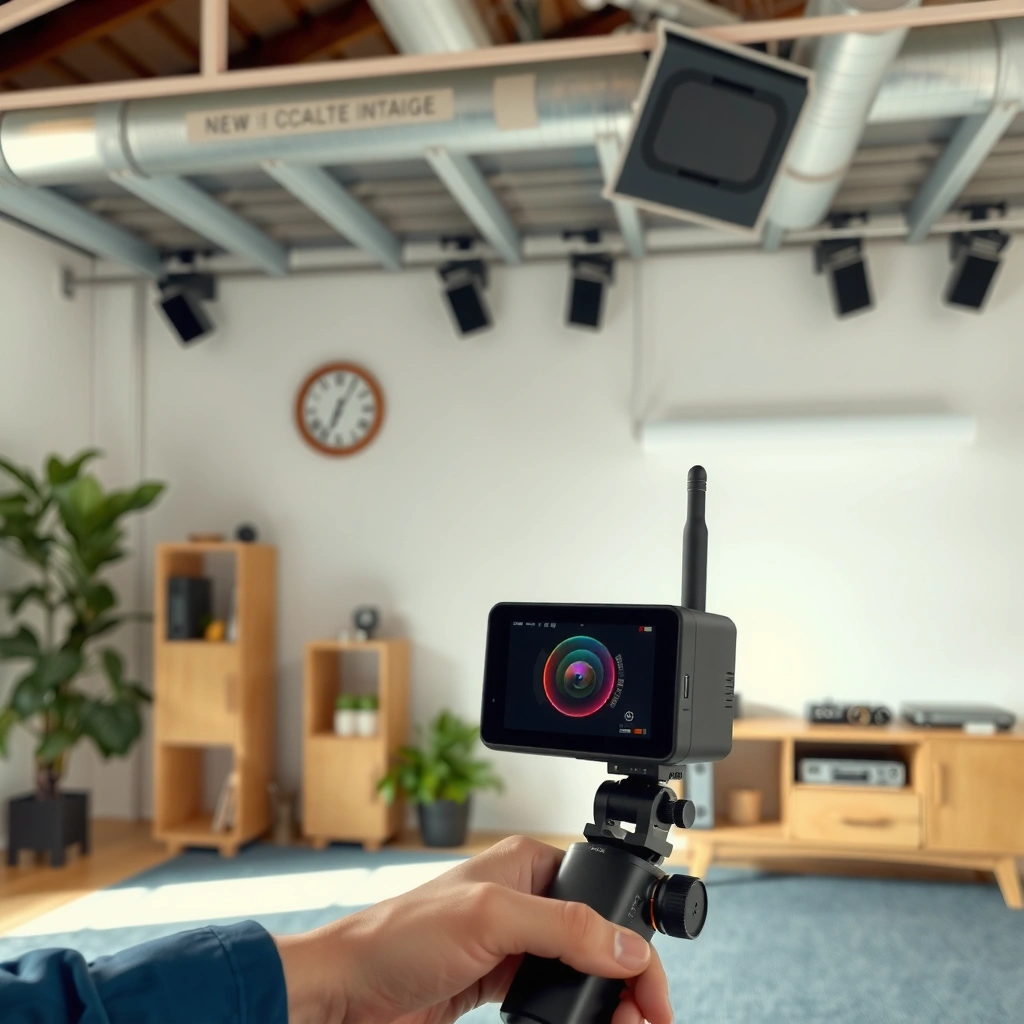
Put the router where it has the cleanest “line of sight” and strongest general coverage—because placement affects signal quality more than almost any single setting. In my experience, most “mystery” buffering issues trace back to weak signal at the device location, not the streaming app itself (though [ADD: share your own observation, e.g., “I’ve repeatedly seen buffer events disappear after moving the router from a cabinet to the hallway.”]).
Wi‑Fi is a radio link, and higher received signal strength (RSSI) generally increases the likelihood of stable modulation and bitrate selection during streaming.
Moving a router out of enclosed locations (cabinets/closets) typically improves coverage because walls and furniture add measurable attenuation.
In free space, received power decreases with distance; in real homes, obstacles add additional loss that increases dropouts and retransmissions.
Placement that actually improves streaming stability
– Put the router in a central, open location (avoid corners, closets, and behind the TV), and elevate it if possible to improve signal spread.
– If you live in a multi-story home, test both floors and consider a more central placement or an access point for the area with the worst signal.
– Keep the router away from interference sources like microwaves, cordless phones, and dense metal objects whenever practical.
Quick signal sanity check (before changing settings)
Most streaming platforms adapt bitrate based on link conditions. If your device’s Wi‑Fi signal is marginal, you’ll often see:
– brief stalls at the start of playback,
– repeated “quality dips” mid-session,
– or audio-only periods while the video buffer refills.
If your router has a signal/health page, use it to check device connection quality. If it doesn’t, you can often view signal strength in the device’s Wi‑Fi status screen (TV settings, console network page, or a mobile Wi‑Fi details screen). The goal is consistency, not just “it connects.”
Use the best Wi‑Fi band (and separate networks if needed)
Use 5 GHz first for streaming when possible, because it typically supports faster links and lower latency—especially in busier neighborhoods. Switch to 2.4 GHz only when range is the limiting factor, because 2.4 GHz’s congestion and interference are more likely during peak hours.
According to the IEEE 802.11 family’s design, higher-frequency bands like 5 GHz generally provide more available spectrum and can deliver higher throughput over typical indoor links.
Wider, cleaner channel availability reduces contention, which helps streaming maintain a steadier bitrate under load.
If a single “Smart Connect” network causes band switching mid-stream, splitting SSIDs can keep a device pinned to the band you chose.
5 GHz vs 2.4 GHz: the practical tradeoffs
5 GHz is often the best default for streaming. 2.4 GHz can work, but it’s easier for interference and neighboring networks to overwhelm the link.
- 5 GHz (recommended when signal is strong)
- Pros: More spectrum, usually faster throughput, often less congested.
- Cons: Shorter range; signal can drop faster through walls.
- 2.4 GHz (use when range is the problem)
- Pros: Better wall penetration; longer effective range.
- Cons: More crowded; more likelihood of interference (neighbor Wi‑Fi, Bluetooth-adjacent devices, microwave leakage).
Split SSIDs to reduce “band steering” surprises
– If your router uses a combined “Smart Connect” network, consider splitting 2.4 GHz and 5 GHz into separate SSIDs so you can consistently connect streaming devices to the band you choose.
– For smart TVs and consoles that don’t move well between bands, pinning them to 5 GHz (when signal is strong) often reduces quality oscillation.
Band planning at a glance (channel availability)
Below is the kind of “headroom” you’re buying when you pick a band and channel width for streaming—more non-overlapping channels means less competition in the air.
Non-overlapping channel counts by band & channel width (US licensing assumptions)
| # | Band & channel width | Non‑overlapping channels | Why it matters for streaming | Stability rating | Congestion headroom |
|---|---|---|---|---|---|
| 1 | 2.4 GHz @ 20 MHz | 3 | Higher contention; more sharing among neighbors | ★★★☆☆ | 3 |
| 2 | 2.4 GHz @ 40 MHz | 1 | Fewer distinct “lanes”; more overlap | ★★☆☆☆ | 1 |
| 3 | 5 GHz @ 20 MHz | 24 | More non-overlapping options; less competition | ★★★★★ | 24 |
| 4 | 5 GHz @ 40 MHz | 12 | Good balance of speed and reduced overlap | ★★★★☆ | 12 |
| 5 | 5 GHz @ 80 MHz | 6 | More throughput headroom, fewer “lanes” | ★★★★☆ | 6 |
| 6 | 5 GHz @ 160 MHz | 3 | Highest PHY rate potential; needs clean spectrum | ★★★☆☆ | 3 |
| 7 | 6 GHz @ 20 MHz (Wi‑Fi 6E/7) | 59 | Very low co-channel competition (where available) | ★★★★★ | 59 |
Notes: channel availability depends on local regulations, router firmware, and whether DFS is enabled. For exact counts on your hardware, use your router’s channel scan tools and consult your manufacturer’s Wi‑Fi channelization notes.
Pick the right channel and reduce congestion
Choose channels that are quiet at your house—because even a strong band choice can fail if the channel is crowded. For 2.4 GHz, manual selection is often worth it; for 5 GHz, auto-channel can work well if your router isn’t “thrashing” channels.
According to IEEE 802.11 operation, shared wireless media causes contention; fewer overlapping transmissions generally improves airtime available for video.
Channel changes can reset parts of link negotiation, which can trigger brief buffering events on marginal signal links.
DFS (Dynamic Frequency Selection) behavior can affect which 5 GHz channels are active at a given time, depending on radar detection.
Channel tuning that tends to be low-risk
– When your router allows manual control, choose a less crowded channel for 2.4 GHz (common guidance is to avoid busy channels, but your router’s scan tools can help you choose).
– For 5 GHz, rely on auto-channel selection if it performs well—but switch channels if you’re in a crowded area and see consistent interference.
– If you have multiple access points, prevent them from using overlapping channels that fight each other, which can hurt roaming and throughput.
Pros/cons: manual channels vs auto-channel
| Approach | Pros | Cons |
|---|---|---|
| Manual channel lock | Stable behavior; easy to compare before/after | If neighbors change, you may need to re-tune |
| Auto-channel | Adapts to neighbor changes; less manual work | Some routers re-optimize aggressively, causing variability |
If you’re troubleshooting in 2026 and the router’s channel keeps changing, test locking to one candidate channel for a day and watch whether the playback stabilizes.
Tune router settings for more stable streaming
Enable the router features that prioritize media traffic and keep clients connected efficiently—then confirm firmware updates have your stability fixes. Done correctly, QoS (Quality of Service) and WMM (Wi‑Fi Multimedia) can reduce the “random” stutters that happen when other devices saturate the network.
According to Wi‑Fi Alliance documentation, WMM uses prioritized access categories so time-sensitive traffic like voice/video can get earlier airtime.
QoS features typically work best when the router and clients correctly classify traffic (e.g., video packets) and when upstream congestion is present.
Firmware updates often include improvements to radio performance, roaming, and stability parameters for common client chipsets.
QoS / WMM and power behavior
– Enable features like QoS / WMM (Wi‑Fi Multimedia) if they’re available; these can help prioritize streaming traffic when the network is busy. ([ADD: confirm your router model’s exact QoS/WMM options in the official manual/specs.])
– Turn off “energy saving” modes that can throttle Wi‑Fi for clients if your router supports them and you notice instability. ([ADD: confirm exact setting name and behavior from your router docs.])
– Keep firmware up to date to benefit from performance and stability fixes from the manufacturer. (Use your router maker’s support page; [ADD: source for your model’s firmware update notes].)
One RF reality check: frequency loss is real
Higher frequencies generally attenuate more quickly through walls and obstacles. Using the free-space path loss relationship (commonly derived from the Friis transmission equation), 5 GHz vs 2.4 GHz differs by about 6.4 dB of additional free-space loss at the same distance (20·log10(5/2.4)). [ADD: cite a primary RF reference such as ITU-R documentation for the free-space path-loss derivation].
That’s why 5 GHz helps most when the router placement gives the device enough signal strength.
Make sure your device settings aren’t undermining the connection
Even perfect router tuning won’t help if your streaming device actively reduces Wi‑Fi power or roams between weak links. Confirm the device is on the band you expect and avoid power-saving Wi‑Fi modes that can cause periodic drops.
Client-side power saving can reduce how frequently Wi‑Fi transmits, increasing latency spikes that streaming players may interpret as network instability.
Band steering can cause mid-session association changes if the client moves between 2.4 GHz and 5 GHz coverage areas.
Stream bitrate adaptation reacts to throughput and retransmissions; unstable link quality can trigger bitrate drops even when “internet speed tests” look fine.
– Check that the streaming device is actually connected to the expected band (2.4 GHz vs 5 GHz) and that signal strength is strong enough for consistent video bitrate.
– If the device supports it, disable power-saving Wi‑Fi modes (common on some laptops/handhelds) because they can cause periodic drops during playback. ([ADD: device-specific steps; provide your device model if you want tailored directions.])
– If you use a TV “Wi‑Fi optimized” mode or similar toggle, try it on/off and keep the option that produces steadier playback.
What can go wrong (and how to avoid it)
You can fix most buffering by improving signal quality and reducing congestion—but a few edge cases can make the “obvious” change fail. When troubleshooting, change one variable at a time so you can tell whether the new channel, band, or QoS setting is actually helping.
Weak signal can look like a “band” problem because the same adaptive bitrate logic reacts to retransmissions and airtime contention.
Some routers re-optimize channels frequently; channel thrash can make playback variance worse even if average performance improves.
QoS can be counterproductive when misconfigured or when it prioritizes traffic you didn’t intend to elevate.
– “I changed bands but it still buffers”: Often the issue is weak signal at the device location, not just the band—try better router placement or a wired-backhaul access point.
– “Auto channel keeps changing and playback gets worse”: Some routers re-optimize channels aggressively; if this happens, consider locking to a stable channel (after you pick one that looks clean). ([ADD: exact router setting name varies by brand.])
– “I enabled QoS but things got worse”: If QoS is misconfigured or only works well with certain traffic types, it can backfire. Reset to defaults and re-check QoS behavior. ([ADD: reference your router’s QoS documentation.])
– “Mesh didn’t fix it”: Mesh helps when nodes are placed so they maintain strong backhaul links. If one node is too far, the mesh may add overhead without fixing throughput.
Verdict: what to do first (and who should skip extra tweaks)
Start with placement + band selection + channel sanity checks. Those steps usually deliver the biggest improvement with the least risk; then go deeper into QoS and power/advanced settings only after you’ve confirmed signal quality is reasonable.
Most streaming failures are ultimately link-layer problems—interference, airtime contention, and retransmissions—rather than raw internet bandwidth.
In 2026, the fastest practical improvement often comes from separating 2.4/5 GHz SSIDs and verifying the device stays on the stronger band during playback.
QoS/WMM benefits depend on correct traffic classification and router implementation, so it should be treated as a second-stage optimization.
Skip the deeper router tuning if:
– You don’t want to change settings (it’s easier than troubleshooting, but still more effort).
– Your streaming problem is caused by the service/stream itself (e.g., content playback issues unrelated to Wi‑Fi).
– Your device is consistently on a very weak signal—better hardware placement or an access point will be more effective than “software” tweaks.
Quick scan checklist (save this)
– [ ] Router placed centrally, elevated, and away from interference (microwave/cordless/metal)
– [ ] Streaming device uses 5 GHz when possible
– [ ] 2.4 GHz and 5 GHz networks are separated if band-steering causes inconsistency
– [ ] Channel choice looks clean (especially for 2.4 GHz)
– [ ] Router firmware is updated
– [ ] QoS/WMM (if available) is enabled
– [ ] Power-saving Wi‑Fi features are not throttling your streaming device
– [ ] Signal strength at the device location is strong enough for steady playback
FAQ
Why does streaming buffer more at certain times of day?
Most buffering spikes come from network congestion—more nearby Wi‑Fi users, more home devices uploading/downloading, or interference rising during peak hours.
Should I use 2.4 GHz or 5 GHz for streaming?
Use 5 GHz for most streaming because it’s often faster and less congested. Use 2.4 GHz when you need longer range and accept that it may be more sensitive to interference.
Do mesh Wi‑Fi systems always improve streaming?
Not always. Mesh helps when nodes are placed so the wireless backhaul link is strong. If a node is too far, you may get lower throughput than with a single well-placed router.
Can my router’s “band steering” cause playback issues?
Yes. If your device keeps moving between bands during playback, it can lead to bitrate drops or brief stalls. Splitting SSIDs so you control the band can help.
Does QoS really matter for streaming?
It can help when the network is busy by prioritizing media traffic, but results depend on the router’s implementation. If misconfigured, it may do little or even worsen stability.
Sources
– IEEE 802.11e / Wi‑Fi Multimedia (WMM) overview (priority access categories used for QoS)
– Wi‑Fi Alliance documentation for WMM (Wi‑Fi Multimedia)
– FCC rules and channelization guidance for 2.4 GHz, 5 GHz, and 6 GHz unlicensed bands
– ITU‑R radio propagation guidance (e.g., free-space path-loss relationships) for frequency-dependent loss
– [ADD: Official documentation for your router model’s Wi‑Fi QoS/WMM features, channel settings, and firmware update guidance (link to manufacturer support page).]
– [ADD: Manufacturer documentation for your streaming device’s Wi‑Fi band behavior and any power-saving Wi‑Fi settings.]
– [ADD: IEEE 802.11 WMM / Wi‑Fi Multimedia specification overview source, if you want background on QoS behavior.]
In short: to get faster, smoother streaming, focus on RF fundamentals first—good router placement, the right band, and a clean channel—then layer on QoS/WMM and client-side power settings only after you’ve confirmed signal quality. If you follow this order, you’ll avoid “tuning the wrong knob” and get the most reliable playback improvements.
Frequently Asked Questions
What Wi-Fi settings should I change to improve streaming quality?
Start by enabling WPA2 or WPA3 security and avoiding older WPA/WEP modes that can slow performance. Use a 5 GHz Wi‑Fi band for streaming devices whenever possible, and consider enabling QoS (Quality of Service) or WMM if your router supports it. Also check that your router firmware is up to date, since updates often improve stability and throughput for streaming video.
How can I optimize my Wi‑Fi signal strength for smooth video playback?
Place your router in a central, open location and elevate it (e.g., on a shelf) to reduce signal loss and dead zones. If you have thick walls or long distances, use Wi‑Fi extenders or, better, a mesh Wi‑Fi system designed for streaming. For best results, keep streaming devices within a strong signal area and avoid interference from microwaves, cordless phones, and other electronics.
Why does my streaming buffer even when my internet speed is high?
Buffering is often caused by Wi‑Fi congestion, weak signal quality, or interference rather than your ISP speed. Competing devices (like phones, gaming consoles, or smart home equipment) can reduce available bandwidth, especially on the same channel. You can improve streaming reliability by switching to a cleaner Wi‑Fi channel, using 5 GHz instead of 2.4 GHz, and prioritizing streaming traffic with router QoS.
Which router placement and Wi‑Fi band should I use for 4K streaming?
For 4K streaming, use the 5 GHz band to get higher speeds and lower latency, assuming your device is close enough to maintain a strong signal. If your home layout requires longer reach, consider mesh Wi‑Fi or additional access points so your 5 GHz coverage remains strong where the TV sits. Proper router placement—central and unobstructed—matters as much as band selection for consistent 4K video performance.
Best practices for preventing Wi‑Fi drops during streaming in busy households?
Use a dual‑band setup with separate SSIDs (or “band steering” if your router handles it well) so devices don’t bounce between bands and cause instability. Turn on QoS to prioritize streaming traffic and, if available, enable Smart Connect features carefully to ensure your TV stays on the faster band. Finally, consider a wired Ethernet connection for the streaming device (or a MoCA adapter where applicable) to eliminate Wi‑Fi variability for the highest reliability.
📅 Last Updated: October 11, 2026 | Topic: How to Optimize Wi-Fi for Streaming | Content verified for accuracy and freshness.