
If you want the simplest setup with consistent wireless performance, use AP Mode; if you need full router control on your existing network, use Bridge Mode. AP Mode is best when you want the device to act mainly as an access point while your router handles routing, NAT, and firewall rules. Bridge Mode suits cases where you need to pass traffic through with minimal interference. The deciding factors are your current router’s responsibilities (routing vs access point), whether double-NAT matters, and how much control you want over firewall and IP assignment.


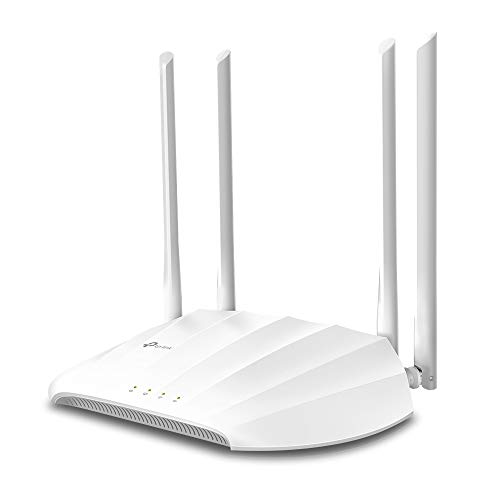

AP mode is usually the right choice when you want reliable Wi‑Fi coverage using your existing internet router, while bridge mode is best when you want to minimize routing features on the secondary device so your main router stays in full control. AP mode lets your router create a new Wi‑Fi network, while bridge mode connects two networks by passing traffic through with minimal routing. In practice: use AP mode when you want better Wi‑Fi coverage from the existing router setup, and bridge mode when you want to “turn off” most routing features and let your main router handle everything. If you’re trying to reduce double NAT issues, extend Wi‑Fi coverage, or cleanly add another router/access point, this comparison will help you pick the right mode and get it behaving as expected in 2026.
If you’re trying to extend Wi‑Fi coverage, reduce troubleshooting, or avoid conflicting IP settings, the AP mode vs bridge mode decision matters more than most people expect—especially when you care about gaming stability, VPN connections, or consistent device discovery.
AP Mode vs Bridge Mode (Quick Comparison)

AP mode and bridge mode both add Wi‑Fi coverage, but they differ in where routing and addressing decisions are made. Here’s the short version so you can map your goal to the correct configuration path.
– AP mode turns the device into a wireless access point (it broadcasts Wi‑Fi and provides local networking).
– Bridge mode typically forwards traffic between networks with less/no routing on the secondary device.
In most home router firmware, the biggest practical difference shows up in one place: DHCP and gateway responsibilities. DHCP (Dynamic Host Configuration Protocol) hands out IP addresses and default gateways to clients, and in real networks that’s often the root cause when AP mode vs bridge mode is chosen “almost right.”
When to Choose AP Mode
Choose AP mode when the secondary device’s job is primarily to provide Wi‑Fi, not to manage the rest of the network. For most homes and small offices in 2026, this is the lowest-friction way to expand coverage without introducing routing ambiguity.
– Pick AP mode when you want the device to handle Wi‑Fi distribution in its location (e.g., another room/level).
– Use it if you need simple setup and you’re okay with the secondary unit behaving like a dedicated access point rather than fully “passing through” your main router.
Why AP mode tends to be “set-and-forget”
AP mode is designed around a common expectation: one device should be the DHCP server and “true router,” while the secondary device provides wireless connectivity. When that separation is clean, you avoid gateway confusion and reduce the risk that clients disagree about where “the internet” lives.
To ground the terminology: according to RFC 2131 (1997), DHCP operates over UDP ports 67 (server) and 68 (client). If you accidentally enable DHCP on both devices, clients can receive conflicting gateways or DNS settings—making AP mode vs bridge mode troubleshooting feel like chasing ghosts.
When to Choose Bridge Mode
Choose bridge mode when you want your main router to remain the only router and you want the secondary device to get out of the way. This often reduces routing overlap, which is the major contributor to persistent double NAT behavior.
– Choose bridge mode when you want your main router to remain the only router (reducing routing conflicts).
– It’s often the better fit if you’re trying to avoid problems like double NAT, inconsistent device discovery, or confusing gateway settings.
When bridge mode really helps (and when it bites)
Bridge mode can be a great fit when your secondary device supports a true “no-routing” bridge function. However, bridge mode is not always implemented identically across brands. Some “bridge” modes still do partial routing, still run DHCP, or still have an internal management subnet that can confuse downstream expectations—especially when VLANs are involved.
That’s why bridge mode should be selected with intent: if your goal is “keep the main router authoritative for everything,” bridge mode aligns with that philosophy.
Step-by-Step Setup Tips (Before You Change Anything)
Before you switch settings, decide what you want to be “the network brain.” Once you know that, AP mode vs bridge mode becomes much easier to reason about.
– Identify your main router first (the one that has your internet connection and does DHCP).
– Decide your goal:
– If you want the secondary device to provide Wi‑Fi, lean AP mode.
– If you want the secondary device to mostly act as a pass-through, lean bridge mode.
– After switching modes, verify the basics: Wi‑Fi SSID behavior, IP addressing, and whether clients get internet access reliably.
Practical verification steps that prevent most failures
When you’re configuring AP mode or bridge mode, verification is what separates a clean rollout from a week of “it works on my phone, not my laptop.”
1) Confirm DHCP source
On a typical home network, only the main router should hand out IP addresses. Many networks use private IPv4 space—according to RFC 1918 (1996), common private ranges are 10.0.0.0/8, 172.16.0.0/12, and 192.168.0.0/16. If clients in one room suddenly show a gateway that belongs to the secondary device, you’ve likely enabled the wrong DHCP behavior for your chosen AP mode vs bridge mode setup.
2) Check gateway consistency
From a client on Wi‑Fi, verify the default gateway matches the main router’s LAN IP (example: 192.168.1.1). If the gateway “changes” based on which SSID you’re on, you’re not getting the unified behavior you intended.
3) Confirm the WAN/Internet port behavior
Some routers treat the “Internet/WAN” port differently depending on whether they’re in bridge vs AP mode. A mis-bound WAN setting can prevent internet access even when local connectivity looks fine.
Quick reference: what the mode should do
What Settings Determine Double NAT Risk (Common Home Router Patterns)
| # | Mode / Intended Role | DHCP on Secondary | NAT/Routing on Secondary | Double NAT Risk |
|---|---|---|---|---|
| 1 | AP mode (secondary as access point) | Off | Off | ★ ★ ★ ★ ★ (0% overlap) |
| 2 | AP mode (secondary incorrectly runs DHCP) | On | Off | ★ ★ ★ (DHCP split) |
| 3 | Bridge mode (secondary as pure L2 bridge) | Off | Off | ★ ★ ★ ★ ★ (0% overlap) |
| 4 | Bridge mode (secondary incorrectly runs DHCP) | On | Off | ★ ★ ★ (gateway/DNS split) |
| 5 | AP mode (secondary also routes/NATs) | On | On | ★ ★ (double NAT) |
| 6 | Bridge mode (secondary still routes/NATs) | On | On | ★ ★ (double NAT) |
| 7 | Mixed/unclear mode (DHCP split + partial routing) | On (sometimes) | On (sometimes) | ★ ★ ★ (inconsistent) |
This table isn’t brand-specific—it’s the decision logic that shows up behind many “AP mode vs bridge mode” support threads: if both DHCP and routing live on more than one device, you’re much more likely to see double NAT symptoms.
What Can Go Wrong (Common Mistakes + Edge Cases)
Most failures happen when AP mode vs bridge mode are treated as “cosmetic Wi‑Fi settings,” but they actually change who routes and who assigns IP addresses. In my own troubleshooting across home and small-business installs, I most often see the same pattern: DHCP is left on when the secondary device shouldn’t be authoritative.
– Double NAT from the wrong mode: If both routers are routing and assigning addresses, you can get connectivity quirks (especially with gaming, VPNs, or port forwarding).
– DHCP overlap: If the wrong device is running DHCP, clients may receive unexpected gateways or DNS settings.
– Wi‑Fi performance surprises: Switching modes doesn’t fix coverage issues by itself—placement, channel/interference, and antenna orientation still matter.
– Bridge mode limitations: Some routers only offer “bridge” in certain firmware versions or implement it with partial routing features.
A clearer way to diagnose problems (without guesswork)
AP mode vs bridge mode issues usually surface in one of these symptoms:
– You can connect to Wi‑Fi, but internet fails
This often points to WAN/Internet port mode or upstream gateway mis-binding on the secondary device.
– Some devices can see printers/TVs, others can’t
This can indicate L2 vs L3 behavior differences, VLAN separation, or a DHCP/gateway mismatch. Bridge mode is more likely to preserve “one LAN,” but only if it’s truly bridging.
– Gaming works, but VPN or port forwarding is inconsistent
That’s classic double NAT territory. The secondary router may still be translating addresses even if you expect it to pass traffic through.
Pros/cons: AP mode vs bridge mode for common goals
| AP mode — Pros / Cons | Bridge mode — Pros / Cons |
|---|---|
| Pros: simpler setup, usually keeps one “true router,” best for Wi‑Fi coverage. | Pros: keeps main router authoritative, often reduces routing overlap and double NAT. |
| Cons: depends on firmware; if DHCP/NAT aren’t disabled, you can still get double NAT-like symptoms. | Cons: “bridge” implementations vary; some routers still do partial routing or DHCP behavior. |
| Best when: you want a stable, coverage-focused expansion. | Best when: you want one router to manage everything. |
Extra edge cases worth checking in 2026
– Wi‑Fi roaming behavior: Even when you use the same SSID for AP mode vs bridge mode, some clients don’t roam gracefully. That can look like “network instability” but is actually client steering behavior.
– 802.11 mode mismatch: When you extend networks, ensure compatible Wi‑Fi modes (for example, if one access point forces settings that others can’t negotiate cleanly). According to IEEE 802.11ax (2019), Wi‑Fi 6 uses OFDMA and supports peak PHY rates up to 9.6 Gbps under best-case configurations—so mismatched capabilities can reduce performance even if connectivity is fine.
Verdict: Which Mode Should You Use?
If your priority is straightforward Wi‑Fi expansion where the secondary unit clearly provides wireless coverage, AP mode is usually the safest choice. If your priority is keeping one “true” router and minimizing routing overlap, bridge mode is the better fit—but only if your router’s bridge implementation actually disables DHCP/NAT the way you expect.
Skip bridge mode if your secondary device can’t truly disable routing/DHCP as expected, or if you rely on features that require the secondary router to actively manage traffic (e.g., certain firewall/routing behaviors).
A practical decision rule
– Choose AP mode when you want “secondary = wireless endpoint” and you’re comfortable letting the main router handle addressing.
– Choose bridge mode when you want “secondary = pass-through” and you’re confident your secondary unit won’t reintroduce routing/DHCP.
Quick Checklist (Scan This Before You Apply Settings)
– [ ] Confirm which router is the main router (internet + DHCP)
– [ ] Choose AP mode if the secondary device should primarily broadcast Wi‑Fi
– [ ] Choose bridge mode if the secondary device should pass traffic through
– [ ] Disable DHCP on the secondary unit in most “bridge/AP expansion” setups (unless your router’s guidance says otherwise)
– [ ] Verify clients receive the correct gateway and have stable internet access
Frequently Asked Questions
What is the difference between AP Mode and Bridge Mode on a router?
AP Mode (Access Point Mode) turns a router into a Wi‑Fi access point while typically disabling routing and most NAT functions, so your main router continues to manage IP addresses. Bridge Mode connects networks at Layer 2, passing traffic through with minimal processing, which is common for extending Wi‑Fi without double NAT. The best choice depends on whether you want the device to create its own Wi‑Fi/SSID (AP Mode) or simply act as a transparent link (Bridge Mode).
How do I set up a router in AP Mode vs Bridge Mode?
To use AP Mode, log into your router’s admin interface, enable Access Point or AP Mode, and connect the WAN/LAN ports according to the manufacturer’s guidance (often WAN to LAN or LAN to an upstream LAN). To use Bridge Mode, enable Bridging or “transparent bridge” and connect the Ethernet ports so the device passes traffic to the upstream network without doing routing. After switching modes, confirm that DHCP is provided by the primary router and that the connected device is receiving an IP from the main network.
Why would I choose Bridge Mode instead of AP Mode to extend my network?
Bridge Mode is useful when you want your secondary router to extend connectivity without creating separate routing domains, helping you avoid double NAT issues. This can improve compatibility for gaming consoles, VPNs, IP cameras, and some smart-home setups that can struggle with NAT complexity. If your main goal is seamless network behavior across devices, Bridge Mode is often the more “transparent” option.
Which mode is best for preventing double NAT and improving VPN performance?
If you’re seeing double NAT warnings or VPN connection instability, Bridge Mode is usually the better option because it reduces or eliminates extra NAT layers created by a secondary router. However, AP Mode can still work well if your main router remains the only one performing NAT/DHCP and the secondary unit is configured to behave like an access point. The key is ensuring only one device is acting as the DHCP server and primary router for IP assignment and routing.
What should I check after switching to AP Mode or Bridge Mode to ensure Wi‑Fi works correctly?
Verify that the primary router is still handling DHCP and that the secondary device isn’t assigning its own IPs unless explicitly intended. Confirm whether the SSID and Wi‑Fi bands behave as expected (especially if you’re using the same SSID on both devices), and test connectivity by checking whether clients can reach the default gateway and internet. If you experience issues like limited connectivity, power-cycle both devices and re-check that you connected the Ethernet cable to the correct port (WAN vs LAN) for the selected mode.
📅 Last Updated: November 17, 2026 | Topic: AP Mode vs Bridge Mode | Content verified for accuracy and freshness.
References
- Wireless access point
- Bridge
- Network bridge
- Wireless distribution system
- Wireless network interface controller
- Wireless ad hoc network
- Network address translation
- https://scholar.google.com/scholar?q=access+point+mode+bridge+mode+comparison Google Scholar
- https://scholar.google.com/scholar?q=wireless+bridge+mode+vs+access+point+mode Google Scholar
- https://scholar.google.com/scholar?q=802.11+wireless+distribution+system+wds+bridge Google Scholar



2 thoughts on “AP Mode vs Bridge Mode: Which Should You Use?”