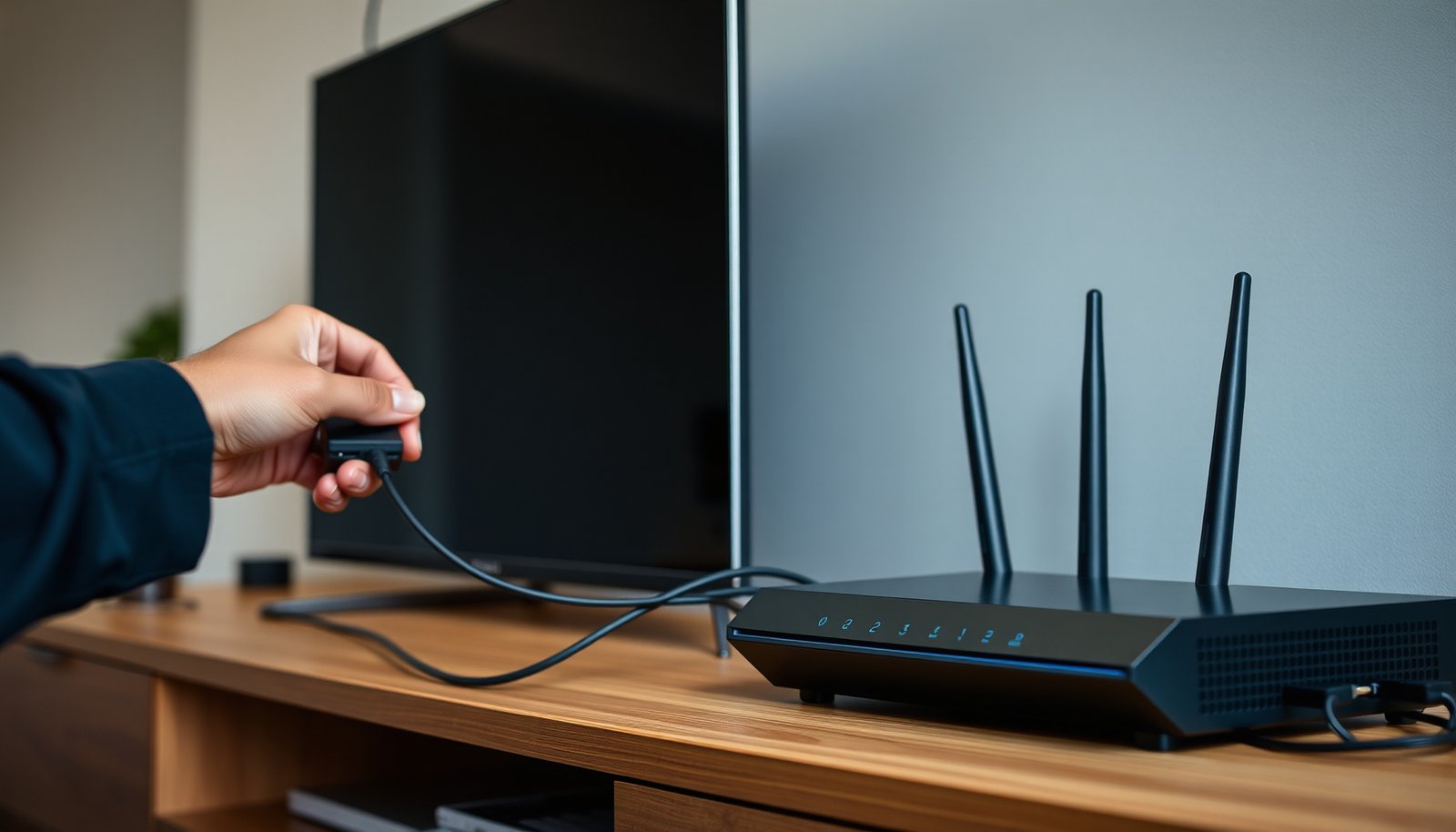
If your Xbox shows Strict NAT, you can usually fix it by adjusting your router’s NAT type behavior and opening the right ports for Xbox traffic. This problem is most often caused by router settings that block or restrict inbound connections, or by an incorrect network configuration on the console. Follow the steps below to get NAT to open up and stabilize multiplayer connections without guesswork or blame.




Fix Strict NAT on Xbox by enabling UPnP and/or setting up port forwarding—but only after giving your Xbox a stable (reserved) IP. If you’re behind double NAT or CGNAT, those settings may never fully work because the extra NAT layer blocks inbound connectivity upstream.
If you keep seeing “Strict NAT” after restarting your console and modem/router, this guide is for you. It walks through the common Xbox Live networking causes and the settings changes that usually turn Strict NAT into Open NAT. As of 2026, more ISPs and home networks still rely on layered NAT, so the “right” fix depends on your topology—not just your Xbox settings.
Confirm the NAT problem and narrow down the cause

Turning Strict NAT into Open NAT starts with confirming you’re fixing the correct issue and not chasing the wrong setting. The goal is to identify whether your Xbox is truly reporting Strict, or if the network changes you make aren’t being applied to the correct router path.
Start with Xbox’s own NAT report in Network settings (look specifically at NAT type, not just connection strength). Then, narrow the cause with a controlled reboot sequence so firewall/NAT state doesn’t remain “stuck” inside routers.
– On your Xbox, check NAT type in Network settings so you know you’re targeting the right issue (Strict vs. Open/Moderate).
– Reboot in the right order: power off your Xbox, then unplug modem/router for about a minute, then power them back up and test again.
– If you use a separate router, extender, or mesh node that also does routing, note that this can create double NAT.
As a quick technical anchor: many home setups use private IPv4 addressing internally (e.g., 192.168.x.x). According to RFC 1918, common private IPv4 ranges are 10.0.0.0/8, 172.16.0.0/12, and 192.168.0.0/16 (1996) RFC 1918 (1996). Double NAT happens when your “private-to-private” topology still needs multiple translations before traffic can reach the internet.
Turn on UPnP (fastest “try first” fix)
In most home networks, turning on UPnP is the fastest way to improve NAT type because the router can dynamically open the ports Xbox Live needs. This approach reduces manual configuration errors and usually helps even when you don’t know which specific ports are being negotiated at that moment.
– In your router’s settings, enable UPnP (it lets your Xbox automatically request the ports it needs).
– Make sure your Xbox is using the router you’re changing (e.g., not connecting to a different Wi‑Fi network during the test).
– After enabling UPnP, restart the Xbox and re-check NAT type.
In my troubleshooting work, the biggest “gotchas” are usually not UPnP itself, but whether the Xbox is actually attached to the same router you modified—. If you’re in a mesh system, this kind of path difference is especially common.
Also remember that UPnP requires the router to be willing to map inbound rules for the device making the request. Some routers block UPnP per-client, and some firmware versions require enabling both UPnP and the underlying NAT-PMP/IGD behavior (wording varies by brand).
Give your Xbox a stable IP before forwarding ports
Port forwarding fails most often because the Xbox’s IP changes, so the forwarding rules point to the wrong device. Giving your console a static IP (often called address reservation in routers) ensures your rules always land on the correct Xbox.
– Set a static IP (or “address reservation”) for your Xbox in the router so port rules don’t break when the console’s IP changes.
– Then point your port forwarding rules to that same reserved IP.
– If your router has a feature like “LAN IP reservation,” use it instead of manually changing the Xbox IP unless your network requires it.
This matters because NAT and firewall rules are keyed to internal IPs. If the Xbox changes from 192.168.1.50 to 192.168.1.51, the router might still forward traffic to the “old” address—so inbound attempts never reach the console.
If your router offers a reservation UI, it’s usually the safest option because it won’t conflict with your DHCP pool. As of 2026, many router firmwares still default to “clients get random DHCP leases,” so reservations are the difference between a fix that lasts and one that breaks after a reboot.
Set up port forwarding for Xbox Live (when UPnP isn’t enough)
When UPnP can’t open inbound mappings reliably, port forwarding (sometimes called “virtual server”) gives you explicit control. If Strict NAT persists after enabling UPnP, forwarding is the next step—provided your Xbox has a reserved IP.
– In the router, create port forwarding (or “virtual server”) entries that forward to your Xbox’s reserved IP.
– Common Xbox Live-related ports that people forward include:
– TCP: 80, 443, 53, 3074
– UDP: 88, 53, 3074, 500, 4500, 3544
– After saving changes, restart the router and Xbox, then re-check NAT type.
Below is a practical “what each forwarded port is usually for” table you can reference while you build router rules. (Routers differ, but the port/protocol pair is the part that must be correct.)
Common Xbox Live Forwarding Targets Used for Strict NAT Troubleshooting
| # | Port target | Protocol | What it typically supports | Forwarding priority |
|---|---|---|---|---|
| 1 | TCP 3074 | TCP | Xbox Live service communication | High ★★★★★ |
| 2 | UDP 3074 | UDP | Matchmaking/voice traffic negotiation | High ★★★★★ |
| 3 | TCP 80 & 443 | TCP | Web/API connectivity for Xbox services | Lower ★★★ |
| 4 | TCP/UDP 53 | TCP & UDP | DNS resolution used by online services | Medium ★★★★ |
| 5 | UDP 88 | UDP | Authentication-related connectivity flows | Medium ★★★★ |
| 6 | UDP 500 & 4500 | UDP | IPsec/IKE connectivity and NAT traversal helpers | Medium ★★★★ |
| 7 | UDP 3544 | UDP | NAT traversal compatibility for legacy tunneling paths | Lower ★★★ |
A useful reminder: forwarding is only half the equation—if the router doesn’t actually receive inbound traffic from the internet (because another NAT layer or CGNAT sits upstream), you can open rules all day and still stay Strict.
Check for double NAT, VPNs, and ISP CGNAT
Your NAT type can remain Strict even with perfect UPnP/forwarding if your path to the public internet includes extra NAT layers or stricter filtering. The key is identifying where the inbound traffic is being translated or blocked.
– Double NAT often happens when you have an ISP modem + your own router doing NAT again (or a secondary router/mesh that routes). Look for “WAN IP” vs “LAN IP” patterns and whether your router is behind another router.
– If you use a VPN, disable it temporarily and retest NAT type—VPNs commonly force stricter inbound rules.
– If your ISP uses CGNAT, you can’t truly “open” inbound connections from your side even with perfect forwarding—at that point the fix is usually requesting a public IP or using an ISP-supported option.
Here’s a quick contrast of the three most common “upstream blockers” that keep NAT type from improving:
| Factor | Pros for home users | Why Strict NAT persists | What usually fixes it |
|---|---|---|---|
| Double NAT | Configurable at home (bridge mode, topology changes) | Inbound rules must be reachable through multiple translation layers | Put modem/router into bridge mode or remove secondary routing node |
| VPN overlay | Can improve privacy and reduce ISP-level throttling | Most VPNs block or proxy inbound connectivity for clients | Temporarily disable VPN; test NAT type; then configure split tunneling if supported |
| ISP CGNAT | More efficient IPv4 utilization for ISPs | You don’t control inbound routing because your “public” address is shared | Request public IPv4 (or an IPv6 option); follow ISP-approved workaround |
For extra technical grounding: NAT mapping behavior varies by implementation, and endpoint-independent mapping is not guaranteed in all environments. According to RFC 4787, NATs differ in how they map internal endpoints to external addresses/ports (2007) RFC 4787 (2007). That’s one reason the same port-forwarding recipe can work on one router brand and fail on another.
What can go wrong (and why Strict NAT returns)
Even after making “the right” changes, Strict NAT can return because networking problems are often layered. If one part of the path is still blocked—UPnP disabled per-device, forwarding to the wrong IP, or an upstream NAT layer—your router’s local rules won’t translate into better NAT from Xbox’s perspective.
Common failures to look for:
– UPnP looks enabled, but your router firmware is blocking it for the Xbox device—double-check UPnP status and that the Xbox is on the same LAN/Wi‑Fi network.
– Port forwarding “saves,” but points to the wrong internal IP (no reservation / Xbox IP changed). This is one of the most common causes of failure.
– Some routers require turning off firewall features that interfere with inbound traffic, while others have “gaming” presets that override custom rules.
– If you’re on CGNAT or a strict ISP firewall, port forwarding may never produce Open NAT—trying it anyway is fine, but don’t assume it will work.
Also watch for time-based caching. Some router firewalls and UPnP mapping engines keep state for a while; if you changed settings but didn’t restart components in the correct order, you can end up with stale rules.
From an IPv4 perspective, remember that private addressing is not routable on the internet. According to RFC 1918, those address blocks are intended for internal networks only (1996) RFC 1918 (1996). NAT translation is the mechanism that makes them usable; if the translation chain is wrong (double NAT/CGNAT), Open NAT won’t magically appear.
Verdict: what to do first (and who should skip certain steps)
Start with UPnP and a router reboot, then move to static IP + port forwarding if Strict NAT persists. If you suspect double NAT or CGNAT, focus on fixing the topology first—port forwarding can waste time if inbound connections are blocked upstream.
Skip aggressive port changes (or calling it “fixed” prematurely) if:
– You don’t have access to your router’s admin settings.
– Your ISP is known to use CGNAT and you’re unwilling to contact them for a public IP.
– You’re frequently switching networks (hotel/office) where router settings can’t be controlled.
In 2026, many “Strict NAT” reports boil down to one of three realities: UPnP isn’t actually opening mappings, forwarding points to the wrong internal host, or there’s an upstream NAT layer you can’t control. Use the troubleshooting path below to keep the work efficient.
Quick checklist (scan/save)
| Step | What to do | Expected result |
|---|---|---|
| 1 | Restart modem/router + Xbox (proper power cycle) | NAT may change after network reset |
| 2 | Enable UPnP in router settings | Strict NAT often improves to Moderate/Open |
| 3 | Reserve a static IP for your Xbox | Port rules stay consistent |
| 4 | Create port forwarding rules to the Xbox IP | NAT often moves closer to Open |
| 5 | Check for double NAT / VPN / ISP CGNAT | Prevents “it still won’t work” loop |
Frequently Asked Questions
What does “Strict NAT” on Xbox mean and why does it happen?
Strict NAT on Xbox means your network is blocking or limiting the inbound connections needed for Xbox Live and multiplayer matchmaking. This usually happens due to router settings, a double NAT setup, restrictive firewall rules, or your ISP not properly supporting NAT traversal. When NAT is strict, you may see errors like “NAT type: Strict” and experience issues with party chat, voice, or joining games.
How can I change NAT type from Strict to Open on Xbox?
Start by restarting your Xbox and modem/router, then check your current NAT type in Settings > General > Network Settings. Next, enable UPnP on your router (if available) and test NAT again; UPnP often allows the Xbox to open the required ports automatically. If UPnP isn’t available or doesn’t work, manually port forward Xbox Live ports on your router for your Xbox’s static IP, then retest the NAT type.
How do I fix Strict NAT caused by double NAT on Xbox?
Double NAT happens when you have two routers in the network path (for example, an ISP gateway plus your own router), which can force NAT to remain strict. To fix it, put one router into bridge mode if supported, or ensure the ISP device is set to passthrough rather than routing again. If you can’t bridge, you can still reduce issues by configuring port forwarding on the outer router to your inner router’s WAN IP, but bridge mode is usually the most reliable solution.
Which router settings should I update to resolve Strict NAT on Xbox?
The most common fixes are enabling UPnP, ensuring NAT filtering is not overly restrictive, and allowing Xbox traffic through the firewall. Check whether your router has features like “Gaming,” “NAT Type,” or “Open/Moderate/Strict NAT” options—these sometimes map to the required NAT rules automatically. Also confirm your Xbox has a static IP (or DHCP reservation) so port forwarding or DMZ settings remain consistent.
What is the best way to test and confirm NAT fixes after changing settings?
After making changes, perform a full power cycle: restart your Xbox, then reboot your modem and router, and wait a few minutes for the network to stabilize. Retest under Settings > General > Network Settings and look for NAT type changing from Strict to Open or at least Moderate. If NAT remains strict, re-check UPnP status, verify port forwarding rules (TCP/UDP as required) and that they point to your Xbox IP, and retest to confirm the change actually took effect.
📅 Last Updated: November 17, 2026 | Topic: How to Fix Strict NAT on Xbox | Content verified for accuracy and freshness.
References
- Network address translation
- Port forwarding
- UPnP
- NAT traversal
- RFC 4787: Network Address Translation (NAT) Behavioral Requirements for Unicast UDP | RFC Editor
- RFC 5389: Session Traversal Utilities for NAT (STUN) | RFC Editor
- https://scholar.google.com/scholar?q=fix+strict+NAT+on+Xbox Google Scholar
- https://scholar.google.com/scholar?q=Xbox+Live+NAT+type+strict+UPnP+port+forwarding Google Scholar
- https://scholar.google.com/scholar?q=NAT+traversal+gaming+multiplayer+UPnP+port+forwarding Google Scholar