
You can use an old router with a mesh system, but it usually cannot act as a mesh node unless it explicitly supports that system. Keeping it makes sense if you need it for your internet connection or as a wired access point; otherwise, letting the mesh system handle routing is the better choice. Here’s how to determine whether your old router earns its place—or just adds complexity.




Yes, you can often use an old router with a mesh Wi-Fi system, but it usually cannot become a mesh node unless the manufacturer explicitly supports that combination. It may instead serve as the main router or a wired access point. This article explains how to check compatibility, choose a setup, and avoid common networking problems.
This guide is for anyone adding mesh Wi-Fi to an existing router or trying to reuse an older router for extra coverage. The right approach depends on each device’s supported operating modes and whether Ethernet is available.
Check Whether Your Old Router Can Actually Join the Mesh
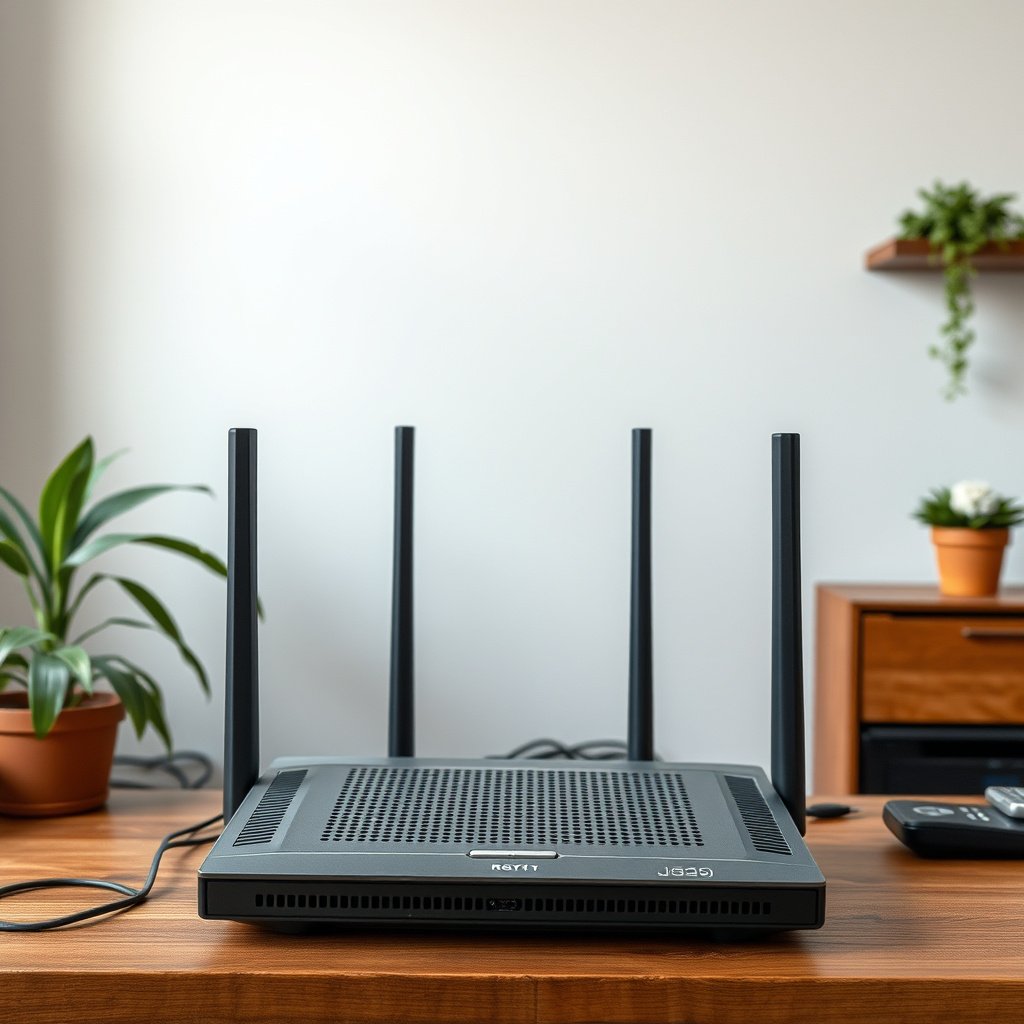
An old router can join a mesh only when its exact model and firmware support the mesh system’s requirements. A standalone access point can extend coverage without becoming part of the mesh’s coordinated management system.
Extending Wi-Fi coverage with an access point does not automatically add a coordinated mesh node.
Check the router’s label for its model and hardware revision, then compare those details with the manufacturer’s compatibility list. Check installed firmware, too: support can differ between revisions and software releases.
For example, TP-Link distinguishes its Deco, OneMesh, and EasyMesh product families. A TP-Link logo alone does not establish compatibility. Use the official [OneMesh compatibility list](https://www.tp-link.com/us/onemesh/compatibility/) and the exact model’s support page rather than assuming two products work together.
Matching brands or Wi-Fi generations does not establish mesh compatibility between an old router and a mesh system.
As of 2026, model-specific documentation remains more useful than broad labels such as “mesh-ready.” Confirm whether the documentation explicitly supports your proposed combination.
Keep the Old Router in Charge and Use Mesh Access Point Mode
Keep the existing router in charge when it still routes reliably or provides features you need. In this arrangement, the router handles internet routing and DHCP—the service that assigns local network addresses—while the mesh system supplies Wi-Fi.
Mesh access point mode lets an existing router retain routing and address assignment while the mesh system provides wireless coverage.
For a supported TP-Link Deco system:
1. Confirm that the selected models support access point mode.
2. Connect the main Deco to the existing router by Ethernet.
3. Complete setup and select Access Point under the Deco app’s operating-mode settings.
4. Follow the documented topology for additional Deco units.
TP-Link’s [Deco access point setup guide](https://www.tp-link.com/us/support/faq/1432/) explains this process. Its [router-mode versus access-point-mode documentation](https://www.tp-link.com/us/support/faq/2399/) identifies feature differences, including routing-dependent functions such as port forwarding, address reservation, and parental-control capabilities.
Changing a mesh system to access point mode can remove features that depend on the mesh system controlling network traffic.
Consider disabling the old router’s Wi-Fi if the mesh already covers the same rooms. Its wireless radios do not need to remain enabled simply because it remains the router.
Let the Mesh System Route and Reuse the Old Router for Coverage
Alternatively, let the mesh system handle routing and connect the old router by Ethernet as a separate access point. This can cover a garage or distant room without purchasing another mesh unit.
An old router connected as a wired access point remains separate equipment unless the mesh manufacturer explicitly supports it as a mesh node.
Prefer the old router’s dedicated access point mode. That mode normally handles the necessary changes, but the correct uplink port still depends on the model.
If no dedicated mode exists, use manual configuration only when the manufacturer documents it. TP-Link’s [router-to-access-point guide](https://www.tp-link.com/us/support/faq/417/) describes supported procedures, including disabling DHCP, assigning a nonconflicting management address, and using the specified Ethernet ports. Do not assume every router requires the same LAN-to-LAN connection.
Using identical Wi-Fi names and passwords does not turn independent access points into a coordinated mesh.
Client devices still influence when they move between access points. Matching credentials can simplify connection, but they cannot guarantee uninterrupted calls or consistent roaming.
What Can Go Wrong With This Setup?
The main risks are conflicting network roles, incorrect cabling, and outdated hardware. Decide which device handles routing before connecting everything.
Double NAT occurs when traffic passes through two devices performing network address translation. Leaving both routers in router mode can complicate inbound connections, port forwarding, and some gaming configurations. Put the downstream equipment into its supported access point mode, or use the appropriate upstream bridge arrangement.
Two routing devices performing NAT in series can complicate inbound connectivity and require additional port-forwarding configuration.
Also check for competing DHCP servers on the same local network, duplicate management addresses, incorrect uplink ports, and unnecessary overlapping Wi-Fi coverage. Wireless repeater mode is not a guaranteed alternative: it requires explicit support and does not establish mesh compatibility.
An Ethernet port’s negotiated link speed places an upper limit on traffic crossing that wired connection.
Manufacturer specifications illustrate the hardware differences. According to [TP-Link’s Deco E4 specifications](https://www.tp-link.com/us/home-networking/deco/deco-e4/#specifications), each E4 unit has two 10/100 Mbps ports. According to [Deco M4 specifications](https://www.tp-link.com/us/home-networking/deco/deco-m4/#specifications), each M4 has two Gigabit ports. According to [Deco X90 specifications](https://www.tp-link.com/us/home-networking/deco/deco-x90/#specifications), each X90 has one 2.5 Gbps and one Gigabit port. These are published link capabilities, not measured throughput results, and remain useful distinctions for 2026 setup planning.
Published Ethernet Capabilities of Seven Deco Models
| # | Model / Official Specifications | Ports per Unit | Ethernet Configuration | Fastest Port |
|---|---|---|---|---|
| 1 | Deco E4 | 2 | 2 × 10/100 Mbps | 100 Mbps |
| 2 | Deco M4 | 2 | 2 × Gigabit | 1,000 Mbps |
| 3 | Deco M5 | 2 | 2 × Gigabit | 1,000 Mbps |
| 4 | Deco X20 | 2 | 2 × Gigabit | 1,000 Mbps |
| 5 | Deco X50 | 3 | 3 × Gigabit | 1,000 Mbps |
| 6 | Deco X55 | 3 | 3 × Gigabit | 1,000 Mbps |
| 7 | Deco X90 | 2 | 1 × 2.5 Gigabit; 1 × Gigabit | 2,500 Mbps |
Check regional specifications and hardware revisions before applying these examples to your equipment.
When Reusing the Router Is Worth It—and When to Skip It
Reuse makes sense when the old router still receives security updates, supports the required mode, and does not constrain your intended connection. Skip it when reliability and straightforward whole-home management matter more than saving hardware.
A router’s continued security support matters more than whether it can still broadcast a Wi-Fi signal.
- Advantages
- Lower equipment spending, continued use of existing hardware, and targeted coverage where Ethernet is available.
- Disadvantages
- Separate administration, extra cabling, potentially less consistent roaming, and features lost when operating modes change.
Older security capabilities can also rule out reuse. Do not weaken the main network’s security merely to accommodate obsolete equipment.
An unsupported router is a poor choice for extending a network that requires dependable security and simple maintenance.
Save This Pre-Setup Checklist
Record the network plan before changing settings. A clear assignment of routing, addressing, and Ethernet connections makes troubleshooting easier.
A mixed router-and-mesh setup should have a clearly identified routing device and DHCP server for its main local network.
– Compatibility: Confirm exact device models, current firmware, supported operating modes, and any mesh-node compatibility.
– Network roles: Identify the routing device, DHCP server, Ethernet connections, and whether the old router’s Wi-Fi should remain enabled.
– Verification: Check internet access, local-device access, coverage in problem areas, and household essentials such as printers, video calls, parental controls, and gaming.
Successful internet access alone does not confirm that local devices, roaming, and router-dependent features work correctly.
Sources to Verify Before Following Device-Specific Steps
Use official documentation for the exact models and revisions involved. The TP-Link examples above illustrate supported approaches; they are not universal instructions for every router.
Manufacturer operating-mode documentation determines which features remain available after switching a device to access point mode.
– Compatibility: [TP-Link OneMesh compatibility](https://www.tp-link.com/us/onemesh/compatibility/), plus the selected mesh system’s model documentation.
– Mesh setup and limitations: [Deco access point setup](https://www.tp-link.com/us/support/faq/1432/) and [operating-mode differences](https://www.tp-link.com/us/support/faq/2399/).
– Old-router configuration: [TP-Link access point configuration guide](https://www.tp-link.com/us/support/faq/417/), where applicable.
– Firmware and security:
Firmware support and security advisories must be checked for the old router’s exact hardware revision.
An old router can still be useful alongside mesh, but compatibility determines whether it can join the mesh or must remain a separate network component. Start by checking both devices’ official documentation, choose one routing device, and follow the supported setup for your models. If the old router is unsupported or makes the network harder to manage, leave it out.
Frequently Asked Questions
Can you use an old router with a mesh Wi‑Fi system?
Sometimes yes—many mesh systems let you add an old router as an extra node or use it as a wired access point, but compatibility depends on the mesh brand and model. If your old router supports “access point mode” and has an Ethernet port for backhaul, it’s often the best option. Otherwise, you may need to replace it with a mesh-compatible unit to avoid double NAT, slow roaming, or coverage gaps.
How do you connect an older router to mesh Wi‑Fi?
First, check whether your mesh system supports router-to-mesh connections via Ethernet and whether your old router can switch to access point mode. Connect the old router’s WAN/LAN correctly (typically using LAN ports on the old router) so it doesn’t create a second network layer. Then configure the old router to use the same SSID/password as the mesh (if supported) and disable features like DHCP and NAT to keep the network stable.
Why might an old router cause problems when used with mesh?
Old routers can lead to double NAT, conflicting DHCP settings, or incompatible Wi‑Fi standards that reduce performance when paired with modern mesh routers. You may also experience poor roaming behavior because mesh systems rely on consistent control over how clients transition between nodes. If the old router can’t be put into access point mode, it can actively work against the mesh’s unified network design.
Which mesh systems allow using an existing router as an access point?
Many systems support adding third-party hardware only in limited ways—commonly through wired backhaul or using the existing router as a separate access point, not as a full mesh node. Look for features like “access point mode,” “bridge mode,” or “wired backhaul” compatibility in your mesh documentation. The most reliable setup is using your old router purely as a wired access point while the mesh handles routing, DHCP, and roaming.
What’s the best way to repurpose an old router instead of using it as part of mesh?
The best approach is usually to set the old router to access point mode (or bridge mode) and connect it via Ethernet to a mesh node for backhaul. This keeps the mesh responsible for routing and seamless Wi‑Fi coverage while the old router extends usable signal in a specific area. If Ethernet isn’t possible, wireless “repeater” setups with an old router are often less effective and can reduce speeds compared to true mesh nodes.
📅 Last Updated: October 16, 2026 | Topic: Can You Use an Old Router With Mesh? | Content verified for accuracy and freshness.
References
- Wireless mesh network
- IEEE 802.11s
- Wireless distribution system
- Alternative Topologies | Wi-Fi Alliance
- Testing to determine if you are a bot!
- Testing to determine if you are a bot!
- Wireless repeater
- https://scholar.google.com/scholar?q=can+you+use+an+old+router+as+mesh+node Google Scholar
- https://scholar.google.com/scholar?q=Wi-Fi+EasyMesh+compatibility+requirements Google Scholar
- https://scholar.google.com/scholar?q=802.11s+wireless+mesh+network+implementation+home+router Google Scholar



One thought on “Can You Use an Old Router With Mesh?”