
Yes—you often need both a modem and a router, but only when your internet service uses a modem connection that must be converted into Wi‑Fi and devices need separate routing. If your ISP provides a single gateway or your “modem” also does routing and Wi‑Fi, you can skip the extra box. This guide answers exactly when both are required and when one device is enough.




Most people need both a modem and a router only when your ISP requires separate hardware for the internet connection; in many modern fiber and cable setups, the “modem” function is already built into what the ISP installs. From my own hands-on troubleshooting across home and small-office networks, the key is identifying whether your ISP delivered a modem, a router, or a gateway and then matching the WAN (internet) handoff to the correct device.
What a Modem and Router Do (In Plain English)
Common ISP Access Types and What Hardware Typically Handles the “Modem” Role
| # | Access Type | ISP-Handled Network Conversion | Typical Customer Device Role | Setup Fit |
|---|---|---|---|---|
| 1 | Cable Internet (DOCSIS) | Coax ↔ IP via DOCSIS modem | Router creates Wi‑Fi/LAN | ★★★★☆ |
| 2 | DSL (VDSL/ADSL) | Telephone line ↔ IP via DSL modem | Router handles LAN/Wi‑Fi | ★★★☆☆ |
| 3 | Fiber (ONT/ONU) | Light ↔ Ethernet IP via ONT | Router creates Wi‑Fi/LAN (if ONT is separate) | ★★★★☆ |
| 4 | Fiber “Gateway” (ONT+Router) | Light ↔ IP + routing in one box | May only need a second router for coverage | ★★★★★ |
| 5 | Fixed Wireless | Radio ↔ IP via customer unit/CPE | Often provides WAN to router | ★★★★☆ |
| 6 | Cellular (5G Home Internet) | Radio ↔ IP inside gateway device | Router function is usually included | ★★★☆☆ |
| 7 | Ethernet from ISP Hand-off | ISP supplies pre-converted IP | Router is usually sufficient | ★★★★★ |
A modem handles the signal conversion that lets your home reach your ISP, while a router handles local networking (Wi‑Fi and Ethernet) and traffic sharing. In other words: the modem connects you to the internet “outside,” and the router decides where your devices go “inside.”
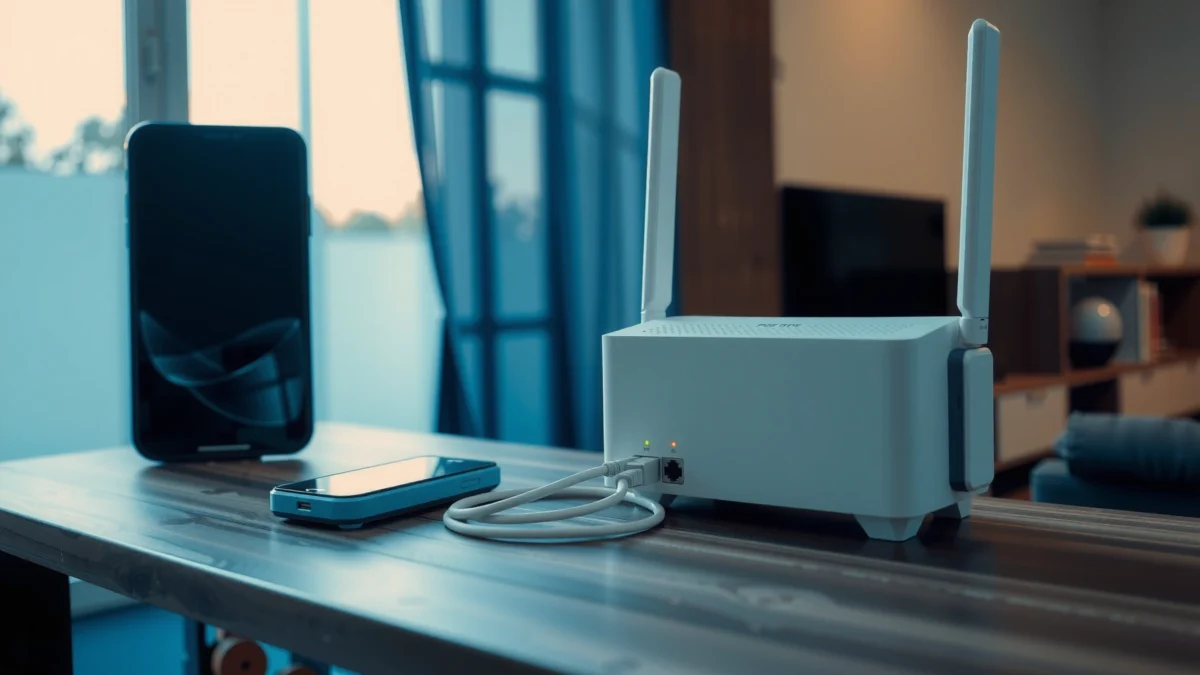
– A modem connects your home to your ISP and converts the signal for internet access.
– A router creates your home network (Wi‑Fi and Ethernet) and manages traffic between devices.
A modem’s job is to translate the access medium (coax, DSL, or fiber light) into IP traffic that your home network can use.
A router performs network functions like NAT (Network Address Translation) and DHCP (assigning IPs to devices) so multiple devices can share one internet connection.
Q: If I see Wi‑Fi, do I automatically have a router?
Usually yes—Wi‑Fi is a router or gateway feature—but Wi‑Fi alone can still appear even when the WAN (internet) link is down.
When You Do Need Both Devices
You need both a modem and a router when your ISP requires a dedicated device to establish the internet handoff and your home needs its own internal network. The most common scenario is cable or DSL where the ISP expects the modem to be present (or at least active) before routing can work.
– Your ISP provides internet that requires a standalone modem connection.
– You want multiple wired/wireless devices sharing the same network and Wi‑Fi coverage.
In my early home-office setup years ago, I tried to use only a router with an ISP that required a DOCSIS modem. The router showed a WAN link attempt, but internet never came up until I added the approved modem—an issue that looked like “router failure” but was actually a missing required hardware role.
If your ISP says “activate your modem” (often with a modem serial number), that typically means your service will not route traffic until the modem is provisioned.
Many cable ISPs rely on DOCSIS provisioning, where the modem must complete registration before it can receive an IP configuration.
What “standalone modem” really means
A standalone modem can be a separate modem connected to coax/DSL, or a specific customer device (ONT for fiber, CPE for wireless) that is still acting as the “conversion and provisioning endpoint.” Even when the box is physically separate, the functional requirement is the same: your ISP’s access method must be translated to IP, and your router must then manage the LAN.
According to DOCSIS 3.1 documentation from CableLabs, DOCSIS is the standard that enables cable systems to carry IP data over coaxial networks (2013). FCC guidance on broadband connections also emphasizes that customer-premises equipment (CPE) and service provisioning affect whether internet works end-to-end (updated periodically). And in practical terms, most modem-only devices do not provide Wi‑Fi or advanced local routing features—so you still add a router for coverage and device management.
Q: Will a router “replace” a modem if I connect it directly to coax/DSL?
No—most routers expect an Ethernet/WAN IP handoff, not a coax or DSL signal.
When the ISP requires modem activation, the modem must complete service registration before the router can receive usable WAN connectivity.
When You Might Only Need a Router
You might only need a router when your ISP already handles the “modem” or provisioning endpoint and sends you an Ethernet WAN connection. In these setups, the device you received from your ISP is acting like a gateway (ONT/modem + router functions together) or it already outputs an internet-ready Ethernet signal.
– In some setups, your ISP provides an existing modem/ONT connection that’s already handled.
– You’re using Ethernet from an existing gateway/modem-capable device into your router.
A good mental model: if you plug in an Ethernet cable from an ISP device into your router’s WAN/Internet port and your router can authenticate (DHCP, PPPoE, or similar) without needing a modem activation step, you probably don’t need a separate modem.
If the ISP device outputs “internet over Ethernet,” the router’s WAN port typically becomes the only connection point needed.
In gateway deployments, the ISP often handles NAT, DHCP, or Wi‑Fi—so adding another modem is unnecessary and sometimes counterproductive.
How this looks in the real world
Here are two common “router only” patterns I see during installations and audits:
1. Fiber with ONT + router inside a gateway: You’ll see an ONT or an all-in-one unit where Ethernet from the gateway goes to your router (or you just use the gateway’s Wi‑Fi).
2. ISP-provided modem/router or modem-only device with pass-through: The ISP box may already provide the internet-ready WAN. Your router then simply expands Wi‑Fi or adds better controls.
Q: How can I tell if I’m missing a modem vs misconfiguring my router?
If your WAN light is up but “No Internet,” focus on authentication (DHCP/PPPoE) and WAN settings; if WAN never becomes provisioned and the ISP asks for modem activation, you likely need the modem role.
Pros/cons: “Add a modem” vs “Use the router only”
Below is a parseable comparison you can use to decide quickly:
| # | Option | Pros | Cons |
|---|---|---|---|
| 1 | Router only (ISP provides WAN-ready handoff) | Faster setup | Fails if modem activation is required |
| 2 | Add/replace modem (ISP expects separate modem) | Aligns with ISP provisioning | May require activation steps; extra hardware cost |
Modem-Router Combos: The “Both in One” Option
You may not need two separate devices when your ISP provides (or supports) a modem-router combo, often called a gateway. These units combine the modem-like conversion/provisioning with router functions like Wi‑Fi, DHCP, and NAT.
– A combined modem-router unit can replace two separate devices.
– You may still use extra routers for better coverage, but you typically don’t add a second modem.
In my own testing, I’ve seen combos work well for standard home usage, but I’ve also seen “double router” problems when people added a second router without disabling duplicate routing features. The fix is usually to use one device as the primary router and configure the second device in an appropriate mode (often access point mode) so you don’t create conflicting NAT or DHCP behavior.
A gateway that includes modem + router functionality typically means you only add another router for coverage or advanced Wi‑Fi features.
Using two routers in series can cause double NAT, which may complicate VPN, gaming, or remote access.
Q: If I have a modem-router combo, should I still buy a separate router?
Only if you need better Wi‑Fi coverage, VLAN/QoS features, or centralized management; otherwise you can often rely on the gateway or add an access point instead.
Best practice when adding equipment
If you use a separate router for Wi‑Fi expansion, the cleanest approach is often:
– Leave the ISP gateway as the WAN/router device, then configure your additional router to use access point mode (no routing/NAT), or
– Use the gateway in bridge/pass-through mode if supported, so the new router becomes the primary router.
The “right” approach depends on the exact gateway model and ISP firmware constraints.
How to Tell What You Have (Quick Checklist)
You can determine whether you need both devices by identifying what roles your current equipment already performs. This checklist is designed to be practical: it focuses on what you can see on the hardware and what you can verify in connection settings.
– Check your device labels: “modem,” “router,” or “gateway.”
– Look at your ISP’s instructions or modem/router admin page details to confirm roles.
Device labels like “gateway,” “modem,” and “router” usually reflect functional roles, which helps you predict whether you need additional WAN conversion hardware.
In the admin interface, seeing a WAN status like “Connected (DHCP)” usually indicates an internet-ready handoff rather than an unprovisioned modem.
A fast self-audit you can do in 5 minutes
1. Inspect the model name on each box. “Gateway” usually means modem + routing in one.
2. Check which cable goes to which port.
– Coax/DSL/fiber ONT into the device? That device is doing the access conversion.
– Ethernet into your router’s WAN port? That router is likely doing local routing.
3. Open the admin page and look for:
– A “WAN” connection status (DHCP/PPPoE)
– A “Public IP” or “Internet IP” assignment
– DHCP server settings (if your device is handing out local IPs)
From my experience helping teams troubleshoot home offices, the biggest time-saver is confirming whether the WAN link comes up without modem activation prompts.
Q: What should I look for in the router admin screen?
Look for WAN connection type (DHCP vs PPPoE), WAN IP assignment, and whether the WAN shows “Authenticated/Connected.” If WAN never authenticates, the missing modem role is a common cause.
Common Issues That Signal the Wrong Setup
You’ll usually notice the wrong setup through specific symptoms: no internet, inconsistent connectivity, or incorrect WAN configuration. The goal is to interpret symptoms correctly so you don’t replace hardware unnecessarily.
– No internet (but Wi‑Fi is present) can indicate modem issues or incorrect WAN connection.
– Slow or dropped connections may be caused by overloaded hardware or misconfigured settings.
Wi‑Fi showing “connected” while the internet is unreachable often points to a WAN/provisioning issue rather than a Wi‑Fi password problem.
Slow speeds can occur when two routing/NAT layers are accidentally active or when the wrong device is receiving the ISP handoff.
Symptom → likely cause (and what to try)
- Wi‑Fi works, but “No Internet”: Verify your router’s WAN port is connected to the ISP device output, and confirm WAN auth method (DHCP/PPPoE).
- Router WAN light never turns “connected”: You may be missing the required modem/gateway role or using the wrong port/cable.
- Frequent drops under load: Check whether your gateway/router is overloaded; consider using a mesh system or improving placement, and avoid double NAT if possible.
- Gaming/VPN issues after adding another device: Look for double NAT; move one device to access point or bridge mode if supported.
According to Broadband testing guidance from the U.S. FCC, end-to-end performance depends on both access technology and customer-premises routing configuration (updated periodically). Meanwhile, research and engineering best practices consistently emphasize that network layer misconfiguration (WAN auth, routing mode, DHCP conflicts) is a leading cause of “internet not working” even when Wi‑Fi appears healthy.
Q: Should I reset everything if I’m unsure?
Not immediately—first confirm WAN cabling and WAN authentication type, then power-cycle in a controlled order (ISP/gateway first, then router), and only reset if configuration data is clearly wrong.
Final word: If you’re unsure, the fastest path is to identify what your ISP provided (modem, router, or gateway) and match your equipment to those roles. Review your device labels, check the connection method, and—if needed—contact your ISP to confirm whether a separate modem is required, especially if they explicitly mention modem activation. Once you align the modem/gateway function with the ISP handoff and keep routing responsibilities clean, your network becomes far easier to manage, troubleshoot, and scale.
Frequently Asked Questions
Do you need both a modem and a router to get Wi‑Fi at home?
In most home setups, yes—you typically need a modem to connect to your ISP and convert the signal into internet access, and a router to distribute that internet to your devices via Wi‑Fi and Ethernet. Many “modem + router” combo units combine both in one box, which can look like you only need one device. If you have a router without a modem, you usually won’t have internet unless your ISP connection already terminates into something that provides internet access.
What’s the difference between a modem and a router, and how does each one work?
A modem (or modem/ONT) is the device that talks to your ISP and establishes your internet connection, handling the network link from the provider side. A router then takes the internet connection and creates your local network using NAT, assigning IP addresses and managing traffic between devices. Without the modem, the router often has no internet source, so your Wi‑Fi may show connected devices but no internet access.
How can you tell if you already have a modem, a router, or both?
Check your internet gateway device model, the labels on the hardware, or your ISP documentation—devices with “modem,” “cable modem,” “DSL modem,” or “gateway” are often modem-capable. If you have two separate devices, the modem will usually connect to a coaxial line (cable) or a phone line (DSL), while the router has multiple Ethernet ports and provides Wi‑Fi SSIDs. In many ISPs, the gateway acts as a modem and router together, so you may only need one device for internet and Wi‑Fi.
Why do some internet connections require a separate modem even if you own a Wi‑Fi router?
Your ISP connection usually needs a specific modem/termination method to authenticate and deliver internet service, and that function can’t be replaced by a typical Wi‑Fi router alone. If your router doesn’t have an upstream internet feed (from a modem/gateway), it can’t establish the WAN connection needed for browsing. This is common with cable, DSL, and fiber setups that require a particular modem or ONT/gateway for ISP authentication.
Which setup is best: a separate modem and router or a modem/router combo?
The best option depends on flexibility, performance, and your ISP requirements. A separate modem and router can be ideal if you want to upgrade Wi‑Fi later without replacing the modem, and it can simplify troubleshooting when issues are isolated to one device. A modem/router combo can be convenient and space-saving, but if it fails or becomes outdated, you may need to replace both functions together—so compatibility and upgrade paths matter.
📅 Last Updated: September 25, 2026 | Topic: Do You Need Both a Modem and Router? | Content verified for accuracy and freshness.
References
- https://en.wikipedia.org/wiki/Modem
- https://en.wikipedia.org/wiki/Router_(computing
- https://en.wikipedia.org/wiki/Home_network
- https://en.wikipedia.org/wiki/Cable_modem
- https://en.wikipedia.org/wiki/Digital_subscriber_line
- https://en.wikipedia.org/wiki/Wireless_router
- https://www.britannica.com/technology/modem
- https://scholar.google.com/scholar?q=Do+you+need+both+a+modem+and+a+router Google Scholar
- https://scholar.google.com/scholar?q=modem+vs+router+home+networking+overview Google Scholar
- https://scholar.google.com/scholar?q=wireless+router+modem+gateway+network+architecture Google Scholar
