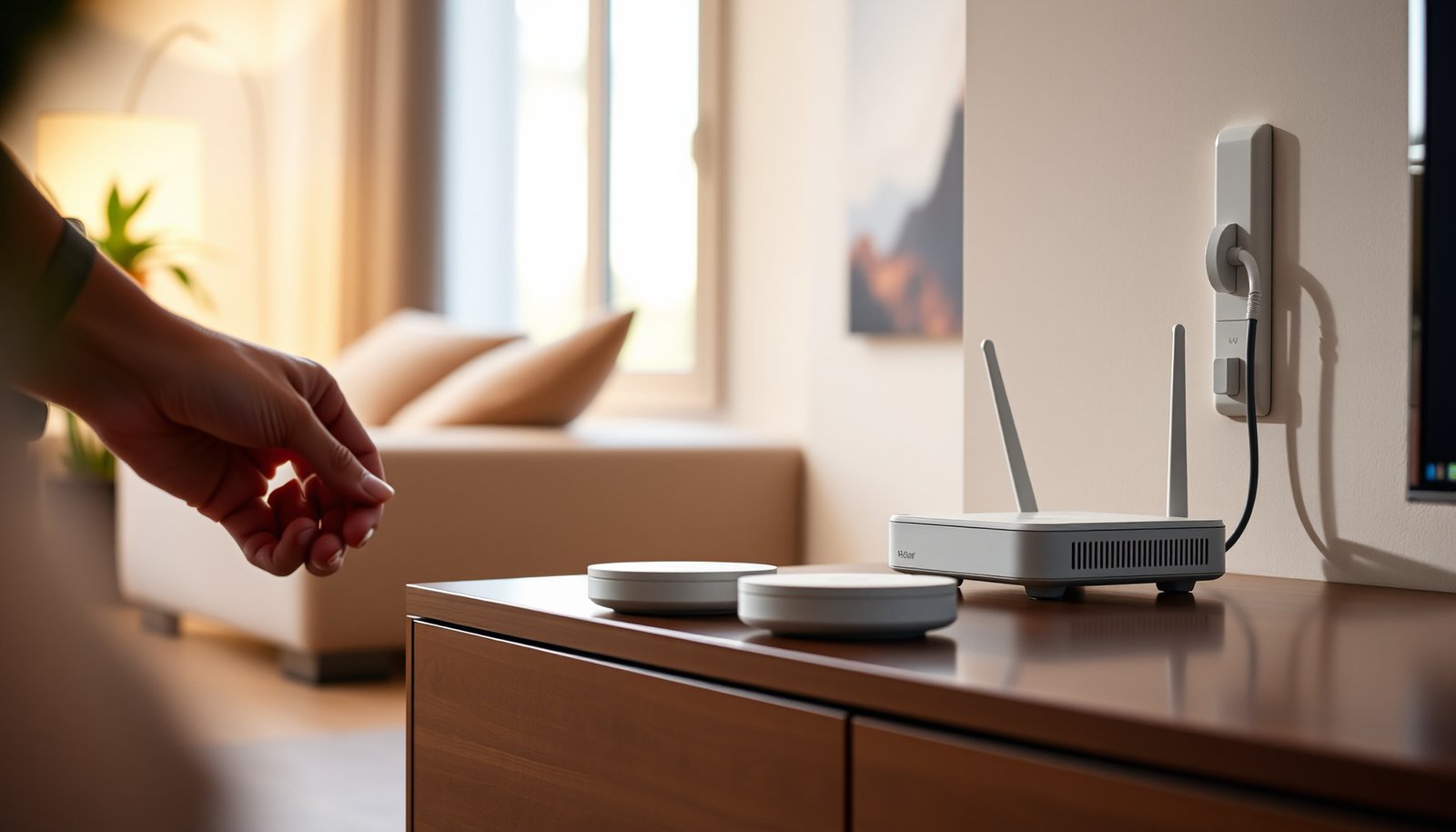
Mesh Wi-Fi beats an ISP gateway’s built-in Wi-Fi when dead zones or weak coverage leave parts of your home disconnected. The key question is how to combine them without creating competing networks or double NAT. Use gateway bridge mode if you want the mesh to handle routing; choose mesh access point mode if your ISP requires the gateway to remain the router.




You can use a compatible mesh Wi-Fi system with an ISP gateway by putting the mesh in access point mode or putting the gateway in bridge mode. Access point mode keeps the gateway managing your network; bridge mode lets the mesh handle routing instead. The right choice depends on your equipment, the mesh features you need, and any ISP services tied to the gateway.
This guide is for households that want better wireless coverage without unnecessarily replacing their ISP equipment. It also applies if you already connected a mesh system but are experiencing connection problems or confusing router settings.
Choose Which Device Will Manage Your Network

Choose one device to handle routing—the process of directing traffic between your home network and the internet. For most coverage-only upgrades, keeping the ISP gateway as the router involves fewer changes.
A mesh Wi-Fi system in access point mode extends the existing network while the ISP gateway continues handling routing and local IP address assignment.
Gateway bridge mode and mesh bridge mode describe changes to different devices; the same label does not necessarily mean the same configuration.
- Gateway routes, mesh provides Wi-Fi
- Access point mode preserves the gateway’s routing configuration. Some manufacturers, including eero, call their mesh system’s non-routing setting “bridge mode.” The downside is that router-dependent features, such as mesh-managed port forwarding or parental controls, may disappear.
- Gateway bridges, mesh routes
- A supported gateway bridge mode disables its normal routing role, allowing the mesh router to manage the home network. This preserves more mesh routing features but transfers configuration and troubleshooting responsibility to the mesh.
IP passthrough is not automatically equivalent to bridge mode. Its implementation can retain gateway functions or restrictions. Follow the documentation for the exact gateway rather than substituting instructions from another provider.
For a concrete example, Xfinity documents gateway bridge mode, while TP-Link documents access point mode for Deco systems. Those are complementary options—not interchangeable settings on the same device.
Check Compatibility Before Changing Settings
Identify the gateway and mesh model numbers before changing anything. Similar-looking hardware can have different ports, firmware options, or ISP restrictions.
A mesh system must explicitly support access point operation if the ISP gateway will remain the only router.
Ethernet port speed and wireless coverage are separate specifications; additional mesh nodes do not increase a gateway’s incoming internet capacity.
Check the following:
– Operating modes and ports: Confirm that the primary mesh unit accepts an Ethernet connection from the gateway.
– Service dependencies: Ask whether telephone service, television equipment, provider security features, or parental controls require the existing gateway configuration.
– Recovery: Record the administrator address, credentials, Wi-Fi settings, address reservations, and forwarding rules. Export a configuration backup if supported.
According to [TP-Link’s Deco X20 specifications](https://www.tp-link.com/us/home-networking/deco/deco-x20/#specifications), each X20 unit has two Gigabit Ethernet ports. According to [Deco X55 specifications](https://www.tp-link.com/us/home-networking/deco/deco-x55/#specifications), each X55 has three Gigabit Ethernet ports. According to [Deco XE75 Pro specifications](https://www.tp-link.com/us/home-networking/deco/deco-xe75-pro/#specifications), each XE75 Pro has one 2.5-Gbps port and two Gigabit ports. These manufacturer specifications are useful reference points for a 2026 setup; verify your regional hardware revision.
Seven Deco Models: Ethernet Connections and Access Point Support
| # | Mesh model | Ethernet ports per unit | Fastest port | Access point mode |
|---|---|---|---|---|
| 1 | Deco X20 | 2 × Gigabit | 1 Gbps | Supported |
| 2 | Deco X50 | 3 × Gigabit | 1 Gbps | Supported |
| 3 | Deco X55 | 3 × Gigabit | 1 Gbps | Supported |
| 4 | Deco X60 | 2 × Gigabit | 1 Gbps | Supported |
| 5 | Deco XE75 | 3 × Gigabit | 1 Gbps | Supported |
| 6 | Deco XE75 Pro | 1 × 2.5-Gigabit; 2 × Gigabit | 2.5 Gbps | Supported |
| 7 | Deco X90 | 1 × 2.5-Gigabit; 1 × Gigabit | 2.5 Gbps | Supported |
Port rates are interface specifications, not promised internet speeds. Each model links to its official specifications.
Connect the Mesh and Configure the Chosen Mode
Configure the chosen routing arrangement before adding satellite nodes. Establish a working connection through the primary mesh unit first.
In access point mode, the primary mesh unit connects by Ethernet to the routing gateway’s LAN port.
Wireless mesh satellites need a reliable upstream connection; placing a satellite inside an existing dead zone can reproduce the coverage problem.
– For access point mode: Leave gateway routing enabled. Connect a gateway LAN port to the primary mesh unit’s manufacturer-designated port. For Deco, follow [TP-Link’s access point setup instructions](https://www.tp-link.com/us/support/faq/1842/); initial setup may precede changing the operating mode.
– For gateway bridge mode: Follow the ISP’s activation procedure, then connect the mesh router’s internet/WAN port as directed. Xfinity’s [bridge-mode instructions](https://www.xfinity.com/support/articles/wireless-gateway-enable-disable-bridge-mode) describe enabling the setting through the gateway administration interface and the resulting connection restrictions. Other providers may require PPPoE credentials, VLAN settings, or IP passthrough instead.
– After connectivity works: Disable gateway Wi-Fi if unnecessary and safe for dependent devices. Place satellites between the primary unit and weak-coverage areas. Use Ethernet backhaul—the wired connection between mesh units—where supported.
What Can Go Wrong With This Setup
The main risks are competing routers, unavailable features, and mistaking an internet-service problem for a Wi-Fi problem.
Double NAT occurs when two routers perform network address translation between a home device and the internet.
Mesh Wi-Fi can improve local coverage without improving the speed of the incoming ISP connection.
Double NAT: Leaving both devices routing can complicate inbound connections, port forwarding, remote access, and some games, even when browsing works. Gateway bridge mode also cannot necessarily remove carrier-grade NAT operated upstream by the ISP.
Lost features or service: Deco access point mode transfers gateway functions away from Deco; check which security, parental-control, and forwarding features remain available. Xfinity warns that bridge mode affects gateway-managed functions, including xFi functionality. Do not assume telephone or television dependencies behave identically across providers.
Coverage improves but speed does not: Compare a wired baseline, Wi-Fi near the primary unit, and Wi-Fi near a satellite using the same client and test service. Poor wired results suggest an upstream or Ethernet problem; degradation only at a satellite points toward placement or backhaul.
Which Setup Makes the Most Sense?
Favor mesh access point mode for a coverage upgrade with fewer network changes. Favor supported gateway bridge mode when mesh routing features are important enough to justify additional configuration.
Keeping the ISP gateway as router is often the simpler choice when bundled services depend on its existing configuration.
A wired access point can address one isolated coverage gap without requiring a whole-home mesh system.
Access point mode is less attractive if the mesh’s main value is its router-based controls. Gateway bridge mode is less attractive when the ISP restricts support or household services depend on gateway-managed functions.
Skip mesh when wired testing reveals an ISP fault. For a single distant room with Ethernet available, a wired access point may solve the problem more directly. In 2026, mesh remains an option—not an automatic upgrade for every household.
Save This Setup Checklist
Complete the setup only after both internet access and essential household services work.
Saving gateway settings before changing operating modes makes rollback more manageable.
Successful mesh installation requires testing coverage and dependent services, not merely confirming that the mesh app reports an internet connection.
– [ ] Confirm supported operating modes and ISP service dependencies; save the existing configuration.
– [ ] Choose which device handles routing, connect the primary mesh unit correctly, and disable unneeded gateway Wi-Fi.
– [ ] Test internet access, coverage, and any services you rely on before considering the setup complete.
Sources to Verify for Your Equipment
Use official instructions matching your hardware revision, region, and ISP. General setup advice cannot establish whether a particular bundled service survives a mode change.
Manufacturer specifications establish physical port capabilities; operating-mode documentation establishes available network functions.
The ISP’s gateway documentation should determine whether bridge mode or IP passthrough is supported for a specific installation.
– ISP documentation: [Xfinity: Enable or disable bridge mode](https://www.xfinity.com/support/articles/wireless-gateway-enable-disable-bridge-mode). For other gateways: .
– Mesh manufacturer documentation: [TP-Link: Set up Deco in access point mode](https://www.tp-link.com/us/support/faq/1842/), plus the linked model specifications above. Review its feature limitations before switching.
– Placement and troubleshooting guidance: [TP-Link: Ethernet backhaul FAQ](https://www.tp-link.com/us/support/faq/1794/).
Mesh Wi-Fi can work well alongside an ISP gateway when each device has a clear role. Start by checking supported modes and service restrictions, then choose gateway routing with mesh access points or supported gateway bridge mode with mesh routing. Save your current settings, verify coverage against a wired baseline, and test essential services before considering the change complete.
Frequently Asked Questions
What is the best way to set up mesh Wi-Fi with an ISP gateway?
Start by deciding whether to use the ISP gateway as a modem/router or to put it in bridge mode. For most mesh Wi-Fi systems, enabling bridge mode and letting the mesh router handle routing creates the most stable “whole-home Wi-Fi” experience. Then connect the main mesh node (gateway/primary) to the ISP gateway’s LAN/Internet port and add satellite nodes using Wi‑Fi or Ethernet backhaul based on your layout. Finally, update firmware on both the ISP gateway and mesh Wi‑Fi system, and test speeds in multiple rooms.
How do I configure my ISP gateway to work with mesh Wi-Fi without double NAT?
Double NAT usually happens when both the ISP gateway and the mesh Wi‑Fi system act as routers. To avoid this, enable bridge mode or DMZ to the main mesh node, depending on your ISP gateway model. After changing settings, reboot the ISP gateway and the mesh system, then confirm whether the mesh is receiving a public IP (or the expected WAN IP) on the primary node. If you use gaming, VoIP, or VPN, verifying NAT type and port forwarding behavior will help confirm the setup is correct.
Why does my mesh Wi‑Fi with ISP gateway still show weak signal or buffering?
Weak performance is often caused by poor backhaul placement, interference, or an outdated Wi‑Fi channel/band configuration. If your satellites connect wirelessly to the main node, try relocating them closer to the center of coverage or switching them to Ethernet backhaul if possible. You can also optimize the mesh Wi‑Fi by enabling band steering (where supported), adjusting channel settings, and ensuring your ISP gateway isn’t creating conflicting Wi‑Fi networks. Running a speed test near each node helps identify whether the issue is coverage, backhaul, or the ISP connection.
Which mesh Wi‑Fi system is easiest to use with an ISP gateway?
Look for mesh systems that support “gateway mode,” “bridge mode compatibility,” and simple WAN/Multi-WAN configuration. Many modern mesh Wi‑Fi platforms provide guided setup for common ISP gateway scenarios, including automatic detection of WAN connectivity and seamless roaming. To choose the easiest option, check whether the system supports Ethernet backhaul, has robust mobile app controls, and clearly documents how to disable routing features on the ISP gateway. If you’re unsure, selecting a mesh system from a brand known for compatibility with ISPs in your region can reduce setup headaches.
How can I improve roaming and device handoff when using mesh Wi‑Fi with an ISP gateway?
For best roaming, keep the same network name (SSID) and password across all mesh nodes and avoid running separate Wi‑Fi networks from the ISP gateway. In many setups, disabling the ISP gateway’s Wi‑Fi radios or turning the ISP into a pure modem/bridge improves handoff consistency. Also ensure you’re using the mesh Wi‑Fi system’s unified controller/app, since that often manages band steering and roaming thresholds. After setup changes, test handoff by walking between rooms while streaming or making a video call to confirm smooth transitions.
📅 Last Updated: October 16, 2026 | Topic: Mesh Wi-Fi With ISP Gateway | Content verified for accuracy and freshness.
References
- Mesh networking
- Network address translation
- Bridge
- Residential gateway
- Wireless repeater
- Alternative Topologies | Wi-Fi Alliance
- https://standards.ieee.org/standard/802_11s-2020.html
- https://scholar.google.com/scholar?q=mesh+wifi+with+isp+gateway Google Scholar
- https://scholar.google.com/scholar?q=mesh+network+bridge+mode+double+nat+isp+router Google Scholar
- https://scholar.google.com/scholar?q=Wi-Fi+EasyMesh+architecture+gateway+compatibility Google Scholar



