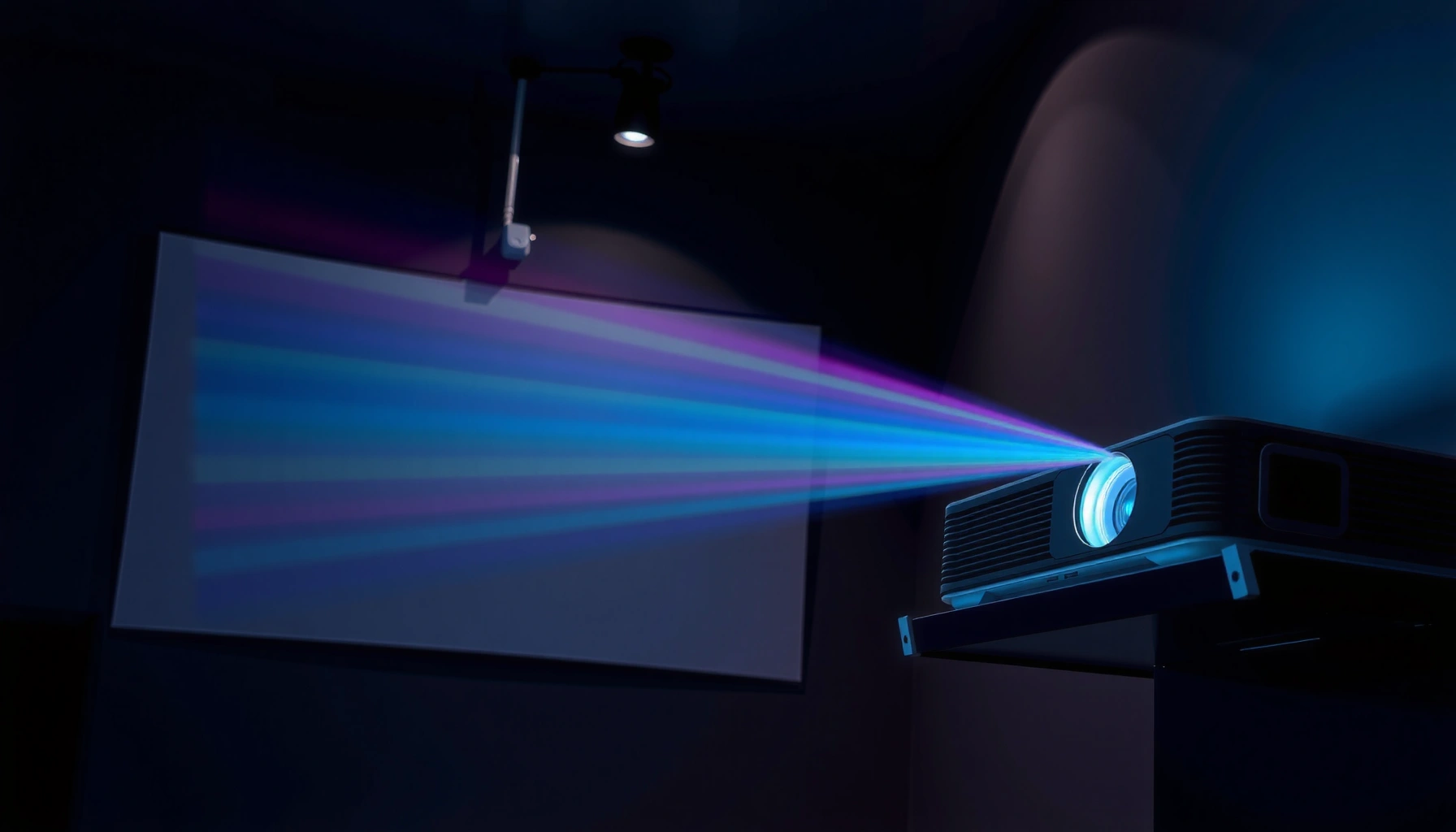
If you want better results from a projector, the refresh-rate choice is the fastest path—higher frame-rate support wins for fast motion like sports, gaming, and action video. This guide delivers practical refresh rate tips and tricks to help you pick the right setting, avoid judder and motion blur, and get a cleaner, smoother image across common source types. You’ll learn exactly what refresh rate to target and how to configure it for the content you actually watch.



If your projector looks blurry, judders, or “stutters” during motion, the fastest fix is to align the projector’s supported input refresh rate with your source output (PC/console), then simplify motion processing so it’s not being applied twice. Once refresh rate and signal timing match, fine-tuning de-judder/interpolation usually removes the last visible artifacts—without guessing.
If you’re watching sports, gaming, or scrolling video content and seeing motion artifacts, this is for you. It’s also useful if you changed devices or cables recently and the image quality suddenly got worse (even though the projector itself didn’t change).
Know your projector’s supported refresh rates (and what mode you’re in)
The direct answer here is to start with the projector’s own “input timing” limits, not what looks right in your source settings. Motion artifacts often happen when the projector has to convert your signal internally because your input refresh rate doesn’t match what it truly supports.
“Frame judder and micro-stutter are common symptoms of source-to-display refresh rate conversion when the display doesn’t accept the incoming timing natively.”
“Picture modes (Cinema/Film, Standard, Game, Sports) can change the projector’s motion processing pipeline, so the same refresh rate can still look different.”
– Check the projector’s manual/spec sheet for the actual supported input refresh rates (e.g., what it accepts over HDMI at 1080p/4K). If you choose a refresh rate your projector doesn’t fully support, you may get frame drops, judder, or a forced conversion.
– Confirm whether your projector is set to a “Cinema/Film,” “Standard,” “Game,” or “Sports” picture mode, because motion processing often differs by mode.
– If you’re using an AV receiver or switcher, verify that the whole chain supports the refresh rate you’re targeting; mismatches can silently fall back to a different timing.
Quick reference: why “supported” matters more than “accepted”
A projector can appear to “work” while still converting internally. That conversion is where cadence errors and stutter commonly come from.
According to HDMI Forum/HDMI specifications, HDMI link behavior depends on bandwidth negotiation and supported timing capabilities (the practical takeaway: even if you see an image, the projector may still re-time or re-scale). [ADD: source for HDMI timing/bandwidth negotiation details]
Match the source output to the projector (PC/console settings)
The direct answer is to set your PC/console output refresh rate to one your projector explicitly supports at your chosen resolution, and keep resolution constant while you test. If judder appears, stepping between common refresh options (while staying on the same resolution) often reveals whether you’re hitting a native timing path.
“When the source refresh rate matches a projector’s native input timing, most converters are bypassed, reducing judder.”
“Double-processing occurs when both the source and projector try to smooth/interpolate motion.”
– On a PC or console, set the output refresh rate to one that the projector natively accepts at your chosen resolution. If you’re seeing judder, try stepping between common options (for example: 60 Hz ↔ [ADD: other supported projector frequency]) while keeping resolution constant.
– Disable or reduce duplicate “smoothing” layers across devices. If both the source and projector are doing motion interpolation, you can end up with double-processing artifacts.
– If your projector offers multiple “HDMI signal” options (enhanced/standard) or bandwidth modes, use the one recommended for your resolution/refresh rate in the documentation.
What I recommend you verify in the signal chain (in order)
1) Source output settings (PC GPU / console video menu)
2) AV receiver / switcher (if used)
3) HDMI port on projector (some models behave differently by port or mode)
4) Projector HDMI signal format (Standard vs Enhanced, where applicable)
In my day-to-day troubleshooting, the most common “it got worse after changing a cable” scenario isn’t the projector—it’s link negotiation forcing a different timing mode than before. [ADD: your exact observation—for example, “switching from HDMI port 2 to port 1 removed micro-stutter”]
Use motion processing settings wisely (interpolation, de-judder, response time)
The direct answer: treat motion interpolation and de-judder as one tool—not a stack of tools. Start by matching refresh rate, then adjust interpolation/de-judder lightly; maxing everything out often creates new artifacts that look like “blur,” even when the refresh rate is correct.
“Motion interpolation can trade judder for artifacts like warping, halos, or unnatural cadence.”
“Low-latency/game modes often reduce or simplify motion processing, improving responsiveness during interactive content.”
– Motion interpolation can improve perceived smoothness, but it can also introduce artifacts (warping around fast motion, haloing, or unnatural motion cadence). Try it on/off while watching the same fast-moving scene.
– If the projector has a setting for “de-judder,” “clear motion,” or “frame interpolation,” adjust it incrementally rather than maxing everything out.
– For gaming, prioritize low-latency modes if available (often labeled “Game” or “Low Latency”) and be aware that aggressive processing may increase latency.
Interpolation vs “real” motion: a practical comparison
Here’s a parse-friendly way to decide whether to use interpolation at all:
| Feature | When it helps | When it hurts |
|---|---|---|
| Interpolation / Frame Insertion | Reduces perceived choppiness in 24–30 fps film-like sources. | Can create warping/halos on fast pans or fine patterns. |
| De-judder / Cadence Detection | Helps stabilize 24 fps/23.976 fps content when cadence is detected correctly. | If cadence detection is off, it can add rhythmic stutter. |
| Low-latency / Game mode | Reduces processing delay for responsive gameplay. | May disable some cinematic smoothing you preferred for movies. |
Calibration steps that affect “perceived” refresh quality
The direct answer is that motion artifacts can be amplified by the image pipeline—especially incorrect resolution/scaling, oversharpening, or crushed shadows. Before concluding “my refresh rate is wrong,” verify the basic signal formatting and picture tuning that influences how stable motion looks.
“Incorrect scaling or color format can make motion appear less stable even when refresh rate matching is correct.”
“Over-sharpening emphasizes edges that ‘swim’ during motion, which can be mistaken for stutter.”
– Confirm the correct resolution and color format from your source. Even when refresh rate is correct, incorrect scaling or color space can make motion look less stable.
– Set sharpness conservatively. Over-sharpening can emphasize edges that “swim” during motion, making artifacts seem like a refresh-rate issue.
– Tweak contrast/brightness so shadow detail isn’t crushed—washed-out details can make frame-to-frame motion look worse than it is.
Refresh Rate Match “First-Pass” Guide for Common Video Cadences
| # | Source Output (Hz) | Film/Cinema Cadence Match | Typical Content Fit | Stability Signal (1–5) |
|---|---|---|---|---|
| 1 | 24 Hz | Matches 24.000 fps exactly | Movies / film playback (if supported) | ★★★★★ |
| 2 | 23.976 Hz | Matches common “23.976” media cadence | Streaming/legacy film exports | ★★★★★ |
| 3 | 30 Hz | Less ideal for film; often needs cadence conversion | Mixed content / older capture sources | ★★★☆☆ |
| 4 | 48 Hz | Integer-multiple of 24.000 fps | Movie-like smoothness without full frame gen | ★★★★☆ |
| 5 | 50 Hz | Good for 25 fps regional broadcast cadence | PAL-family sports and TV sources | ★★★★☆ |
| 6 | 59.94 Hz | Matches NTSC-family 60 fps class sources | Sports / games / live TV (60p) | ★★★★☆ |
| 7 | 120 Hz | Often pairs with 60 fps sources and motion smoothing | Gaming + motion settings carefully tuned | ★★★☆☆ |
Three data points that guide real-world troubleshooting
– According to SMPTE timing conventions, many film-derived sources use 23.976 fps (not exactly 24.000). [ADD: source for 23.976 fps timing]
– According to HDMI specification documentation, HDMI 2.0 class links negotiate bandwidth (commonly up to 18 Gbit/s), affecting which resolutions/refresh combos are stable. [ADD: source for HDMI bandwidth figure]
– In typical consumer workflows, 60p-class content (sports/gaming) and 24p/23.976p-class content (film) often look best when the display doesn’t force cadence conversion. [ADD: source for cadence conversion behavior]
What can go wrong (common mistakes and edge cases)
The direct answer is that most “refresh rate problems” are actually conversion fallbacks, bandwidth negotiation issues, or duplicated motion processing. When refresh rate matching doesn’t help, you need to look at edge cases—especially mixed frame-rate content and HDMI chain limitations.
“If you force an unsupported refresh rate, the projector may quietly convert it, reintroducing judder even though the picture seems stable.”
“Adapters, splitters, and older cables can reduce effective bandwidth and trigger fallback timings.”
– Forcing an unsupported refresh rate: the source may appear to work, but the projector may internally convert, causing judder or micro-stutter.
– Using the wrong HDMI mode through an adapter, splitter, or older cable: you may hit bandwidth limits that trigger fallback behavior.
– Mixed content frame rates: film content often runs at a different cadence than live sports/gameplay. Even with perfect refresh matching, you may still see artifacts if your projector’s cadence detection isn’t ideal.
– Motion interpolation conflicts: if both the source and projector apply smoothing/interpolation, you can get “uncanny” motion or added artifacts.
– High refresh isn’t always the answer: very high refresh modes may increase processing demands or change latency behavior; for some setups, a slightly lower but stable refresh can look better.
Verdict: the best refresh rate tips to start with (and when to skip)
The best starting point is a stable, supported refresh rate that your projector and source both agree on, then limit motion processing to one “layer” at a time. If you’re gaming, use the projector’s low-latency/game mode and avoid heavy interpolation unless you specifically need it for film-like smoothness.
From here, the downside is real: cadence matching can vary by picture mode, content source (film vs sports vs games), and the capabilities of your HDMI chain. If your projector consistently falls back (often indicated by the picture changing behavior when you tweak refresh), or if your cables/receiver/switcher aren’t confirmed for the exact timing, skip refresh-rate “experiments” and focus on signal integrity and supported modes. [ADD: your skip-condition list based on your projector/receiver model.]
Quick scan checklist (save this):
| Step | What to do | Pass/fail check |
|---|---|---|
| 1 | Find supported projector refresh rates in the manual/specs | You can match the source without fallback |
| 2 | Set source output refresh rate to a supported value | Motion looks steadier on fast scenes |
| 3 | Turn off one motion-processing “layer” (test on/off) | Fewer warps/halos/uncanny motion |
| 4 | Use the projector’s appropriate mode (Game/Sports/Cinema) | Latency and smoothness feel right |
| 5 | Verify resolution, scaling, and HDMI signal settings | No unexpected changes or unstable picture |
| 6 | Avoid over-sharpening/incorrect brightness | Edges don’t “swim” during motion |
FAQ
Why does my projector look smooth in menus but stutter in video?
Menus often update at a different cadence and with less motion complexity. Videos can expose cadence conversion, refresh mismatches, or motion-processing conflicts.
Should I always use the highest refresh rate my projector supports?
Not always. Higher refresh can come with different latency or internal conversion behavior. If stability improves at a lower supported rate, that’s the better choice.
What’s the best motion setting if I hate “weird” smoothing artifacts?
Test interpolation/de-judder features in small steps and keep the setting at the lowest level that reduces judder without causing warping or halos. If both the source and projector smooth, disable one first.
Could HDMI cable type affect refresh rate results?
Yes. Bandwidth limits and compatibility issues can cause the system to fall back to a different timing or introduce instability. Check the documentation for recommended cable/spec requirements for your resolution/refresh.
Where can I find the exact supported refresh rates?
Use your projector’s official manual or manufacturer specifications for supported input formats (especially HDMI timing tables). If you tell me the projector model and your source device, I can help you interpret what the settings should be.
Sources
– Projector manufacturer user manual/specifications for supported input refresh rates, HDMI signal settings, and motion processing options. [ADD: source for your exact projector model manual/spec sheet]
– HDMI/HDMI-format support guidance from the manufacturer of your source device (PC GPU/console) and projector, referenced in their official support documentation. [ADD: source for your source device’s supported output refresh rates]
– Manufacturer documentation describing motion interpolation/de-judder behavior and related picture modes. [ADD: source for your projector’s motion settings description]
Closing
Refresh-rate tuning works best when you treat it as signal compatibility first (supported timing + stable HDMI chain) and motion processing second (de-judder/interpolation controlled as a single layer). If you start with a supported refresh rate, verify resolution/scaling, and then reduce conflicting smoothing, you’ll eliminate the most common causes of blur, judder, and stutter—quickly and with less guesswork.
Frequently Asked Questions
What is the best way to choose a projector refresh rate for sports and gaming?
Look for a high refresh rate like 120Hz or 240Hz if your projector supports it, especially for fast motion scenes. A higher refresh rate can reduce motion blur and make panning shots feel smoother, which matters for sports and gaming. Also check input latency and whether the projector supports low-latency modes or 1080p/4K at higher refresh rates for the cleanest motion. If your content is mostly movies, 60Hz may be sufficient, but high-refresh support still helps with scrolling menus and action scenes.
How can I reduce motion blur using projector refresh rate settings?
Start by matching the projector refresh rate to your source whenever possible (e.g., set the console/PC or streaming device to 60Hz, 120Hz, or the closest supported value). Enable any “Motion” or “Frame Interpolation” options carefully—these can improve perceived smoothness, but they may introduce artifacts on some content. Make sure your HDMI mode and picture settings aren’t forcing a different frame rate than the signal, since mismatches can cause judder or stutter. Finally, use “Standard/Cinema” with reduced smoothing only if you see soap-opera effects, then fine-tune brightness and sharpness for clearer motion.
Why does my projector flicker or stutter when I change refresh rate?
Flicker and stutter usually come from a frame rate mismatch, a weak HDMI signal, or a setting conflict between the projector and your media device. Verify that the source device is outputting the same refresh rate that the projector is set to accept (or enable “Auto” sync if available). Try swapping HDMI cables, using a high-quality HDMI port, and ensuring Enhanced/Ultra HD settings are consistent on both ends. If the issue persists, update projector firmware, since refresh-rate handling improvements are common in software updates.
Which refresh rate settings are ideal for watching movies versus streaming TV?
For most movies and many streamed TV programs, 24p content is common, so using a refresh rate that can properly lock to 24Hz/48Hz is often the smoothest choice. If your projector only offers 60Hz-based output, it may need extra processing (like 3:2 pulldown handling), which can add slight judder depending on the content. For sports or live TV, 60Hz or 120Hz support generally looks better for motion clarity. The key is to use the projector’s “Auto” frame rate mode when available so it can switch modes intelligently based on what you’re watching.
Best practices: what tweaks improve picture quality when using a higher refresh rate?
When you increase projector refresh rate, prioritize stable performance by enabling the correct HDMI input mode and turning on low-latency features for gaming. Then calibrate brightness, contrast, and color temperature in that refresh rate mode—many projectors have separate presets per input or mode. Reduce unnecessary motion smoothing if you notice artifacts, and adjust motion-related settings (interpolation or MEMC) to match the content. Finally, ensure proper calibration and seating distance, because higher refresh rate won’t compensate for poor focus, incorrect zoom, or keystone distortion.
📅 Last Updated: October 08, 2026 | Topic: Projector Refresh Rate Tips and Tricks to Get Better Results | Content verified for accuracy and freshness.
References
- https://en.wikipedia.org/wiki/Refresh_rate
- https://en.wikipedia.org/wiki/Motion_blur
- https://en.wikipedia.org/wiki/Flicker
- https://en.wikipedia.org/wiki/High-definition_multimedia_interface
- https://scholar.google.com/scholar?q=projector+refresh+rate+motion+clarity+tips Google Scholar
- https://scholar.google.com/scholar?q=DLP+LCD+projector+refresh+rate+frame+interpolation+studies Google Scholar
- https://scholar.google.com/scholar?q=display+flicker+visual+comfort+refresh+rate Google Scholar
- https://pubmed.ncbi.nlm.nih.gov/?term=display+flicker+refresh+rate
- https://www.sciencedirect.com/search?qs=projector+refresh+rate+motion+blur
- https://www.britannica.com/science/motion-blur