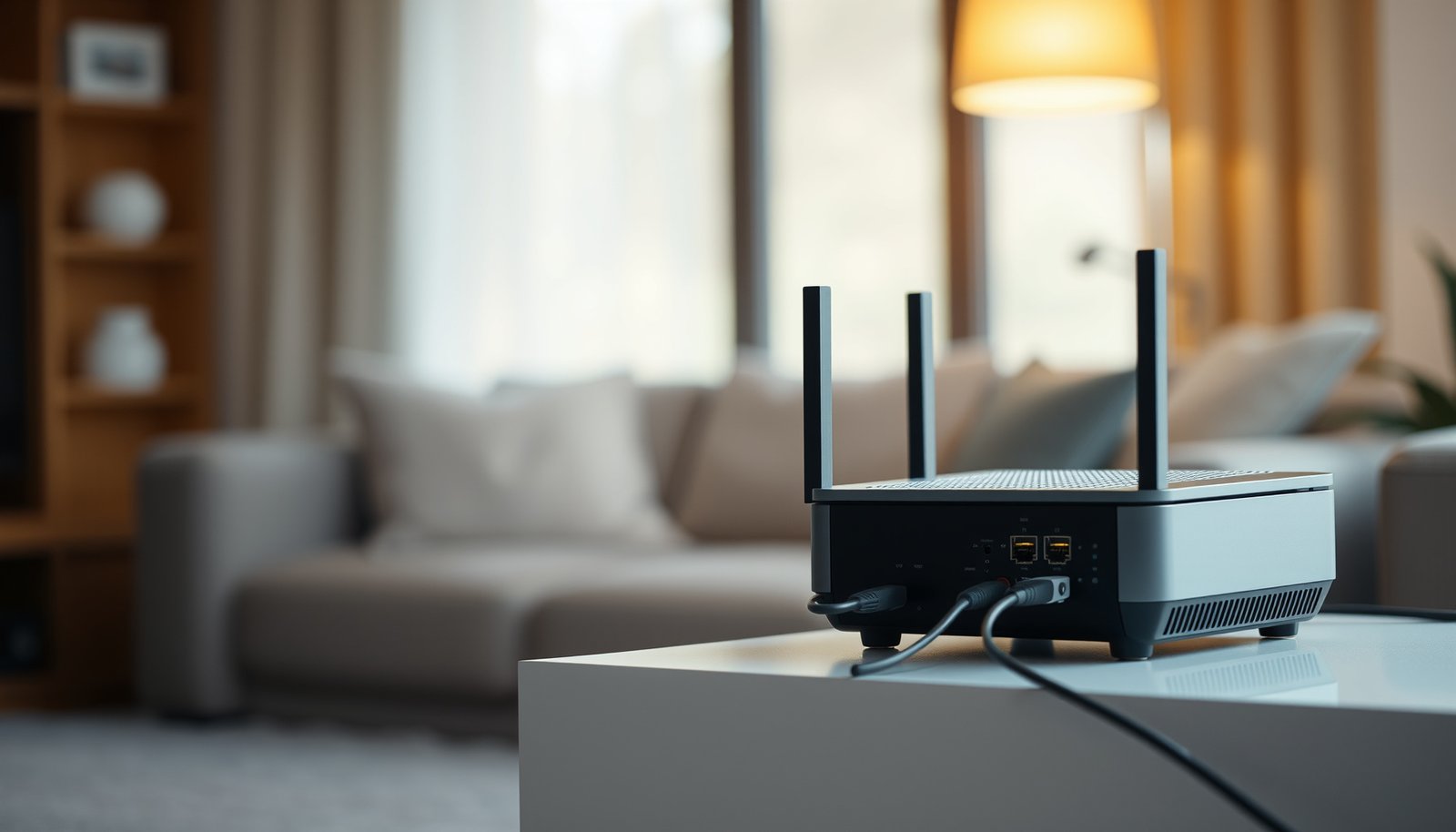
You can mix mesh and traditional routers, but they won’t necessarily work together as one coordinated Wi-Fi network. A unified mesh system is the better choice for seamless whole-home coverage; keeping a traditional router makes sense when you need its features and your mesh supports access-point mode. We’ll explain which setup fits your home and how to avoid common problems such as double NAT.




Yes, you can mix mesh and traditional routers, but they usually cannot act as interchangeable nodes in one mesh network. The most practical setup is often to keep one device routing and put the other system into access point mode, if supported. This article explains how to check compatibility, choose a setup, and avoid common connection problems.
This guide is for readers who want to keep an existing router while adding mesh coverage, including households using an internet provider’s router. The right arrangement depends on which devices support access point mode and which routing features you need to retain.
What “Mixing” Mesh and Traditional Routers Actually Means

Connecting a mesh system to an existing router is different from making that router a mesh node. The Ethernet connection can provide internet access without creating shared wireless management.
A mesh node participates in a compatible system’s coordinated network. An access point, or AP, connects wireless devices to an existing local network without necessarily managing routing. A traditional router configured as a wired AP can extend coverage, but it does not automatically join the mesh system’s management or roaming features.
Matching brands or Wi-Fi network names does not establish mesh compatibility.
Check the exact product family, hardware revision, and firmware—not just the logo. For example, TP-Link documents Deco compatibility separately from its other networking product families. Google also places restrictions on which Google Wifi and Nest Wifi generations can join the same mesh.
A wired access point can extend Wi-Fi coverage without becoming a genuine mesh node.
The following manufacturer-documented examples illustrate why operating-mode checks matter. Confirm current regional specifications before configuring hardware in 2026.
Seven Mesh Devices: Ethernet and Bridged-Mesh Support
| # | Device | Ethernet Ports | Nonrouting Mode | Multi-Node Mesh in That Mode |
|---|---|---|---|---|
| 1 | TP-Link Deco X20 | 2 Gigabit ports per unit | Access point | Supported |
| 2 | TP-Link Deco X55 | 3 Gigabit ports per unit | Access point | Supported |
| 3 | TP-Link Deco M5 | 2 Gigabit ports per unit | Access point | Supported |
| 4 | eero 6 router | 2 Gigabit ports | Bridge | Supported |
| 5 | eero 6+ | 2 Gigabit ports | Bridge | Supported |
| 6 | Google Wifi point | 2 Gigabit ports | Bridge; single device only | Not supported |
| 7 | Nest Wifi router | 2 Gigabit ports | Bridge; single device only | Not supported |
According to [TP-Link’s Deco X20 specifications](https://www.tp-link.com/us/home-networking/deco/deco-x20/#specifications), each unit has two Gigabit Ethernet ports. According to [Deco X55 specifications](https://www.tp-link.com/us/home-networking/deco/deco-x55/#specifications), each unit has three. According to [Deco M5 specifications](https://www.tp-link.com/us/home-networking/deco/deco-m5/#specifications), each unit has two. These are model specifications, not measured throughput results.
Choose Which Device Will Handle Routing
Choose one device to manage the household’s main network whenever possible. Routing determines how traffic moves between networks; NAT, or network address translation, typically lets home devices share an internet-facing address.
– Keep the traditional router in charge: Put the mesh system into supported AP or bridge mode. This suits households retaining gateway-based parental controls, VPN services, or provider-specific functionality.
– Let the mesh system handle routing: Put the provider gateway into documented bridge or passthrough mode, then connect the mesh router as instructed.
– If neither arrangement is supported: Connecting the mesh router behind the traditional router can work, but normally creates double NAT.
A mixed router setup is usually simpler when one device handles routing for the main household network.
Bridge and IP passthrough are not universal synonyms. A true bridge generally removes the gateway’s routing role for the bridged connection; passthrough may deliver the public address to a downstream router while retaining gateway functions.
Bridge mode and IP passthrough can behave differently, so the provider’s gateway-specific instructions take precedence.
Connect and Configure the Devices
Follow the exact models’ wiring instructions, then verify addressing and connectivity. Do not assume every device uses the same WAN or LAN port in AP mode.
1. Record the existing configuration. Save settings and confirm how to restore internet access.
2. Check manuals and firmware. Confirm supported operating modes and whether initial setup must precede switching modes.
3. Connect Ethernet as documented. Typically, the existing router’s LAN connects to the mesh system’s designated upstream port. Some systems require additional mesh devices to remain downstream of a primary mesh unit.
4. Enable the chosen mode. Avoid competing DHCP servers, which automatically assign network addresses, on the same local network.
5. Test actual household tasks. Check browsing, printing, casting, video calls, and movement between coverage areas.
Two DHCP servers on the same local network can assign conflicting network settings.
Separate routed networks can each legitimately run DHCP; the problem is competing servers on one shared network. If the traditional router’s Wi-Fi remains enabled, use distinct names during troubleshooting to identify which system serves each client.
Successful browsing does not prove that printers, casting, and roaming work correctly.
What Can Go Wrong With a Mixed Setup?
The main risks are double NAT, isolated devices, and inconsistent roaming—not necessarily a complete loss of internet access.
Double NAT occurs when traffic passes through two routers performing address translation. Browsing usually continues, but inbound connections may require forwarding through both routers. Some games, remote-access services, and VPN configurations become harder to diagnose. Provider-side carrier-grade NAT can create another inbound-access limitation even after household double NAT is removed.
Double NAT can complicate inbound connections without preventing ordinary web browsing.
Printers, casting receivers, and smart-home controllers may also fail to discover one another across separate subnets or guest-network isolation. Put devices that need local discovery on the same trusted network unless the equipment explicitly supports discovery across network boundaries.
Giving independent Wi-Fi networks the same name does not turn them into a coordinated mesh.
Client devices ultimately influence roaming decisions. A phone may remain attached to a weaker access point, even when another independent network broadcasts the same name and password.
Is Keeping Both Systems Worth It?
Keep both systems when the traditional router supplies necessary features and the mesh supports a documented AP configuration. Otherwise, one supported system is often easier to manage.
- Benefit: preserve useful hardware
- Retain required gateway services while adding mesh-managed wireless coverage.
- Cost: reduced mesh-router features
- AP or bridge mode may disable mesh-system parental controls, traffic prioritization, port forwarding, or other routing-dependent functions.
- Cost: divided administration
- Firmware updates, wireless settings, and troubleshooting may involve separate interfaces.
Mesh access point mode can preserve wireless coverage while disabling router-dependent features.
Consult the manufacturer’s mode-specific feature comparison before switching. TP-Link’s Deco and eero’s bridge-mode documentation explain that available functions change with operating mode.
Readers seeking the simplest management should avoid mixed hardware without a documented, supported configuration.
For a 2026 upgrade, evaluate support and security updates alongside coverage. Retaining an unsupported router is not worthwhile merely because it still powers on.
Save This Compatibility Checklist
Complete these checks before treating the mixed network as finished. Internet access alone is not an adequate acceptance test.
– [ ] Confirm the exact models’ mesh compatibility and access point, bridge, or passthrough support.
– [ ] Choose the routing device, follow the documented wiring, and check which features change.
– [ ] Test browsing, roaming, printers, casting, and any gaming or remote-access requirements before considering the setup complete.
Compatibility checks must include hardware revisions and supported operating modes, not just product names.
A completed network test includes both internet connectivity and the household’s required local-device functions.
Sources to Verify Before Making Changes
Use official documentation for compatibility, wiring, and feature limitations. The following primary sources support the examples above:
– TP-Link: [Deco support and manuals](https://www.tp-link.com/us/support/download/) and [Deco access point setup](https://www.tp-link.com/us/support/faq/1842/). Select the exact model and hardware revision.
– eero: [Bridge-mode instructions](https://support.eero.com/hc/en-us/articles/208276903-How-do-I-bridge-my-eeros). Check current feature limitations and required network topology.
– Google Nest: [Bridge mode and double NAT](https://support.google.com/googlenest/answer/6240987) and [Google Wifi/Nest Wifi specifications](https://support.google.com/googlenest/answer/6280668).
Model-specific manufacturer instructions are more reliable than generic WAN-to-LAN wiring advice.
Gateway configuration changes should account for any provider-managed television or telephone services.
Mixing mesh and traditional routers can preserve useful hardware while expanding coverage, but it does not automatically create one unified mesh. Start by checking both models’ documentation, choose which device will handle routing, and verify that the supported configuration retains the features your household needs.
Frequently Asked Questions
Can you mix a mesh Wi‑Fi system with a traditional router in the same home network?
Yes, you can mix mesh and traditional routers, but it depends on how you connect them. The most common approach is to keep the mesh system as your main Wi‑Fi (primary router) and connect the traditional router in bridge mode or as a wired access point to avoid conflicts. If you simply plug them in without coordination, you can end up with double NAT, unstable roaming, or overlapping Wi‑Fi channels.
How do you set up mesh Wi‑Fi and a traditional router together without causing double NAT?
Start by designating one device as the primary router (usually the mesh system) handling DHCP and internet routing. Put the traditional router into bridge mode, access point mode, or disable its DHCP and Wi‑Fi routing features, then connect it via Ethernet to the mesh node. This preserves a single network for devices, improving connection reliability and simplifying troubleshooting.
Why do devices sometimes disconnect or lose signal when combining mesh and traditional routers?
This usually happens because both systems may be broadcasting different networks, using separate DHCP settings, or interfering with each other’s Wi‑Fi coverage. Poor placement of the traditional router can also create dead zones or fast signal swings that confuse clients during roaming. Using a wired backhaul where possible, setting the traditional router to access point/bridge mode, and using consistent SSID settings can reduce drops.
What is the best way to use a traditional router with mesh Wi‑Fi if you want to expand coverage?
The best approach is to use the traditional router as a wired access point rather than a second router. Connect it to a mesh Ethernet port using a cable (or via MoCA/Ethernet-over-power solutions if available), then match SSID/security settings to the mesh network for seamless use. If you can’t wire it, consider adding another mesh node instead, since true mesh backhaul generally performs better than extending with a standalone router.
Which settings should you change on the traditional router when using it alongside a mesh system?
Enable bridge mode or access point mode, disable DHCP, and turn off any features that create routing functions like NAT and firewall rules that conflict with the mesh controller. Also avoid running the traditional router’s Wi‑Fi as a separate network unless you intentionally want segmentation. For the smoothest experience, use the same Wi‑Fi name (SSID) and compatible security settings so devices can roam more naturally across the mesh Wi‑Fi and the traditional router’s coverage area.
📅 Last Updated: October 16, 2026 | Topic: Can You Mix Mesh and Traditional Routers? | Content verified for accuracy and freshness.
References
- Wireless mesh network
- Network address translation
- Bridge
- Router
- Wireless repeater
- Backhaul
- Testing to determine if you are a bot!
- https://scholar.google.com/scholar?q=mesh+router+vs+traditional+router+compatibility+bridge+mode Google Scholar
- https://scholar.google.com/scholar?q=double+NAT+mesh+wifi+bridge+mode Google Scholar
- https://scholar.google.com/scholar?q=connecting+mesh+nodes+to+existing+router+LAN+bridge Google Scholar



One thought on “Can You Mix Mesh and Traditional Routers?”