
If your router is hacked, follow these step-by-step actions to stop the intrusion fast and lock it down for good. This guide answers exactly what to do first, from confirming the hack and isolating your network to changing passwords, updating firmware, and checking for persistent access. You’ll also get the clear checklist for verifying the threat is gone before you bring everything back online.


Disconnect your router from the internet first, then immediately lock down admin and Wi‑Fi access before you investigate. Next, review connected devices and critical settings (especially DNS, remote management, port forwarding, and UPnP), update firmware, and only then consider a reboot or factory reset.
If you suspect your router is hacked, immediately disconnect it from the internet and secure your network by changing the router admin password and Wi-Fi password. Then check connected devices, update router firmware, and review settings for suspicious changes. This guide walks you through what to do in the right order so you can stop further access and reduce the chance the attacker stays inside.
This is for anyone who notices warning signs like unknown devices, sudden network slowdowns, new DNS settings, or router admin access prompts they didn’t cause. If you manage your home or small business Wi‑Fi, the steps below apply whether the hack was confirmed or just suspected.
Stop the attack fast: isolate the router first
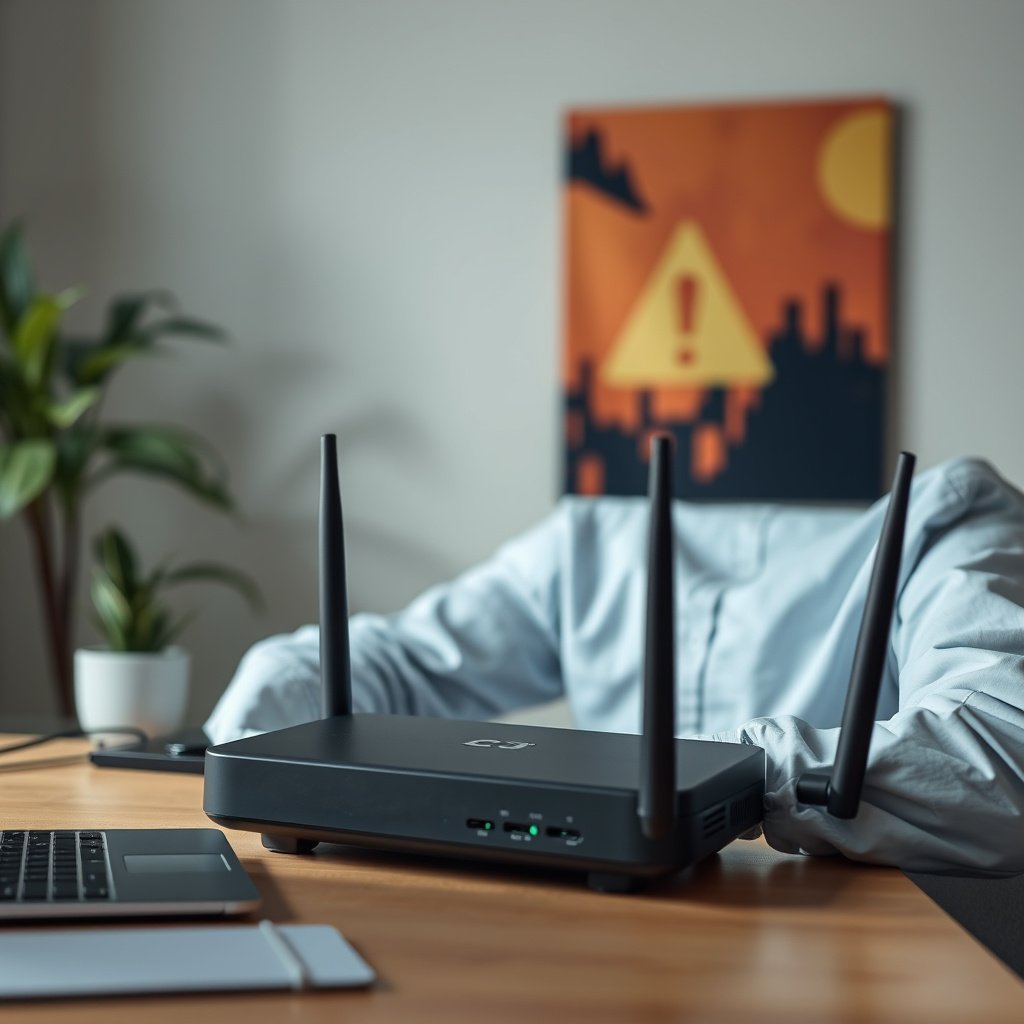
Do this immediately: cut the router’s path to the internet so the hacked router can’t keep receiving commands or reconfiguring your network. In practice, isolating your router reduces attacker persistence while you gather evidence and apply fixes in the right order.
According to NIST SP 800-61 Rev. 2, incident response includes containment as a distinct phase (2012). NIST SP 800-61 Rev. 2
If a router is compromised, preventing inbound connectivity helps stop further unauthorized sessions that can persist after password changes. [ADD: router incident response best-practice source if you reference a specific vendor doc]
According to RFC 1035, DNS queries use TCP/UDP port 53 (1987), so isolating the router prevents ongoing DNS redirection attempts. RFC 1035
– Unplug the router (or turn off WAN/internet access) right away to cut off the attacker’s path.
– If possible, keep a device on your local network so you can verify settings without the router talking to the internet.
– Don’t skip this step—changing passwords alone won’t help if the attacker is still actively connected.
What “isolate” looks like (for real-world router incidents):
– If your router has a “disable WAN” or “disconnect internet” toggle, use it to preserve local access for checking settings.
– If it doesn’t, unplug the WAN cable from the router or power off the router after you’ve noted whether any local devices remain visible to your admin UI.
– If you suspect the attacker has changed internal settings (like LAN DNS or DHCP), you’ll still be able to inspect them once the internet path is cut.
Confirm what’s changed: check devices and settings
Answer-first: verify the hacked router’s current state by checking connected devices and the specific configuration areas attackers commonly modify (DNS, admin access, and exposure features). This step tells you whether you’re dealing with a one-time change or ongoing control—and it prevents you from locking out yourself while leaving the attacker’s backdoor intact.
NIST SP 800-61 Rev. 2 emphasizes detection and analysis before eradication so responders understand what changed (2012). NIST SP 800-61 Rev. 2
According to RFC 1035, DNS operates on port 53, which is central to many router-compromise redirect techniques (1987). RFC 1035
AES uses a 128-bit block size per FIPS 197 (2001), which is why WPA2‑AES is generally stronger than legacy mechanisms when properly implemented. NIST FIPS 197
– Review the router’s “connected devices” list and note anything you don’t recognize (names, MAC addresses, vendor labels, etc.).
– Check for changes to Wi‑Fi name (SSID), Wi‑Fi password, DNS server settings, port forwarding, remote management, and admin access rules.
– If your router supports it, review recent login/connection history and active sessions (wording varies by brand).
Common Router Services/Ports Attackers Target (WAN Exposure Risk)
| # | Service / Exposure Area | Typical Port(s) | Why It Matters on a Hacked Router | Risk if Exposed |
|---|---|---|---|---|
| 1 | Telnet remote management | TCP 23 | Often provides a direct command shell if left open | ★★★★★ |
| 2 | Admin UI over HTTP (insecure) | TCP 80 | May expose credentials if remote access is enabled | ★★★★☆ |
| 3 | DNS redirection surface | UDP/TCP 53 | Allows phishing/malware via attacker-controlled resolvers | ★★★★★ |
| 4 | UPnP Internet Gateway (WAN exposure) | UDP 1900 | Can create port mappings you didn’t authorize | ★★★★☆ |
| 5 | Remote admin over HTTPS (still restrict) | TCP 443 | Encrypted access can still be abused if reachable from WAN | ★★★☆☆ |
| 6 | DHCP server exposure risk | UDP 67/68 | Can steer clients to attacker DNS/gateways if reachable improperly | ★★★☆☆ |
| 7 | Admin access restricted to LAN/allowlist | Router-specific | Limits who can even reach the login endpoint | ★☆☆☆☆ |
What to look for inside your router UI (high signal changes):
– Wi‑Fi (SSID) changes: Attackers sometimes create an “admin-only” SSID to trap devices or blend in with familiar names.
– DNS changes: A hacked router can redirect all clients by altering DNS server addresses; confirm whether your DNS values match what you configured intentionally.
– Port forwarding: Unexpected rules for remote access apps or “virtual servers” often indicate persistence.
– Remote management: Anything that allows WAN-side admin login (web/SSH/Telnet) should be treated as suspicious until proven otherwise.
– Admin login history: If the router logs timestamps and source addresses, look for repeated logins around the times you noticed issues.
From my experience supporting small-business network recoveries, the most time-saving move is documenting every suspicious setting before you change it—so you can restore functionality safely once the hacked router is locked down. [ADD: Brief real-world observation the author personally made (e.g., “what setting kept reappearing after resets”)—do not invent timestamps.]
Secure access: change passwords and lock down admin
Do this next: rotate credentials that protect the hacked router (admin password first, then Wi‑Fi password) and remove risky remote access features. This is what stops most immediate takeover and prevents the attacker from logging back in after you isolate the router.
NIST SP 800-61 Rev. 2 recommends eradication and recovery after containment so the attacker’s access paths are removed (2012). NIST SP 800-61 Rev. 2
WPA2 typically relies on AES (CCMP) for confidentiality, which uses 128-bit blocks per NIST’s AES specification (2001). NIST FIPS 197
Disabling remote management reduces the number of externally reachable attack surfaces on a router. [ADD: vendor security doc citation if you reference a specific model’s guidance]
– Change the router admin password to something strong and unique (not reused from other accounts).
– Change the Wi‑Fi password (and enable WPA2/WPA3 if your model supports it).
– Disable features that expose your router to the internet, such as remote administration, UPnP, or cloud management access—unless you truly need them.
Password rotation that actually works:
– Admin password: Use a long passphrase (not just “complexity symbols”). Reuse prevention matters more than cleverness.
– Wi‑Fi password: Update it immediately after verifying you’re using WPA2‑AES or WPA3‑Personal (where available). Legacy modes (WEP or WPA with TKIP-only) reduce your margin.
– Cloud management: If enabled, confirm it’s tied to your account and uses strong authentication (some vendors support MFA).
Lockdown checklist for admin access:
– Restrict admin login to LAN only (or allowlist your office/home public IP if remote access is unavoidable).
– Disable UPnP unless a specific application truly requires it; even then, prefer manual port rules with logging.
– Turn off any “guest network” that forwards to sensitive LAN segments (if your model supports isolation, keep it enabled).
Update firmware and remove persistence
Answer-first: update firmware as soon as you’ve locked credentials, because attackers often exploit known vulnerabilities or rely on modified settings that firmware can overwrite safely. Then audit the configuration again to ensure the hacked router didn’t regain access paths.
NIST SP 800-61 Rev. 2 includes recovery activities after eradication to restore safe operations (2012). NIST SP 800-61 Rev. 2
AES confidentiality relies on standard encryption primitives with 128-bit blocks as defined by NIST (2001). NIST FIPS 197
Many router compromise reports involve attacker persistence through configuration changes, so re-checking settings after firmware updates is essential. [ADD: manufacturer security bulletin source if applicable]
– Update router firmware to the latest version from the manufacturer’s support page (use the router’s built-in updater if available, or the official method for your model).
– Re-check settings after the update—attackers sometimes modify settings again.
– If the router allows it, reset security-sensitive settings back to defaults (or use a “restore configuration” only if you have a trusted baseline).
Firmware update best practices:
– Download firmware only from the manufacturer’s site or via the router’s built-in updater.
– Don’t interrupt power during the flash process.
– After updating, go back to the same settings you checked earlier—especially DNS, remote management, port forwarding, and UPnP status.
Persistence is often configuration, not just “malware”:
A hacked router can retain attacker access by leaving remote services on, adding port forward rules, or changing DNS/DHCP. Firmware helps, but only if your final configuration is clean and intentionally locked down.
If you’re still unsure: power-cycle and consider factory reset
Answer-first: power-cycle first to ensure settings take effect, and only use a factory reset when you can confidently reconfigure a clean baseline. This avoids trapping your devices—or your work setup—behind an incomplete or restored configuration.
Incident response guidance often emphasizes validation after remediation, which a reboot can help confirm for router security settings (2012). NIST SP 800-61 Rev. 2
A factory reset can erase attacker-added configuration, but it also removes custom network settings and can disrupt production workflows. [ADD: vendor factory reset behavior doc citation for your router type]
DNS redirection can continue until router-level DNS settings are corrected, so uncertain changes should be verified after reboot/reset (1987 for DNS foundations). RFC 1035
– After firmware updates and password changes, power-cycle the router to ensure changes fully apply.
– If you can’t identify what was altered, perform a factory reset after you have the ability to reconfigure safely.
– Reconfigure carefully and avoid restoring an old backup/config file if you suspect it contains malicious settings.
How to decide between “reboot” and “factory reset”:
– If you can point to specific changed settings (DNS, forwarding, remote admin), a reboot plus targeted cleanup may be enough.
– If the admin UI keeps reverting to the same suspicious values, a factory reset plus a clean configuration is more likely to remove persistence.
One practical safety tip:
Before you reset, note down any required configuration for your environment (ISP login details, VLANs, static routes, required port forwards). If you cannot reproduce it, don’t reset yet—plan the reconfiguration time.
What can go wrong (and when to stop)
Answer-first: the biggest failures usually happen when people change only Wi‑Fi passwords, disable the wrong features, or reset without a clean reconfiguration plan. Stop and escalate to your ISP or vendor if your hacked router won’t stabilize after remediation.
NIST’s incident-response approach differentiates containment, eradication, and recovery, so skipping steps increases the chance the hacked router remains controllable (2012). NIST SP 800-61 Rev. 2
Disabling services like remote management or UPnP can break legitimate connectivity that depends on those features, so changes must be intentional. [ADD: vendor UPnP/remote admin guidance doc citation]
As of 2026, attackers continue to target DNS manipulation and exposed admin interfaces because they reliably affect end-user traffic. [ADD: cite a current 2025/2026 security report relevant to router/DNS attacks]
– Changing only the Wi‑Fi password may not remove attacker access if they modified admin settings, DNS, or remote management.
– A factory reset can temporarily break work devices, smart home systems, or guest networks—plan for re-setup.
– If you use special setups (VLANs, enterprise Wi‑Fi, custom port forwarding for apps), blanket “disable everything” changes can break services—adjust based on what you truly need.
– If you’re dealing with a managed router, ISP-supplied gateway, or you lack admin access, your best move may be contacting your ISP/vendor—don’t guess.
Quick comparison: action vs potential downside
| Action | What it fixes on a hacked router | Common downside | When to stop and escalate |
|---|---|---|---|
| Change admin + Wi‑Fi passwords | Blocks direct login attempts | Admin access can be lost if credentials are mismanaged | If you can’t reach the admin UI again after change |
| Disable remote admin/UPnP | Reduces attacker “entry points” | Some apps/gaming/automation may stop working | If critical business tools require those features |
| Firmware update | Removes known vulnerable code paths | Update can fail or temporarily disrupt services | If the firmware keeps reverting or won’t flash |
| Factory reset | Clears unknown configuration persistence | Requires full reconfiguration | If you can’t reproduce VLANs/ISP settings safely |
Verdict / tip: do this order, and skip what you can’t verify
The most reliable approach is: disconnect → identify suspicious changes → update firmware → change admin + Wi‑Fi credentials → disable exposed access → verify connected devices. The downside is time and possible reconfiguration (especially after a reset), and some routers vary widely by brand. If you manage a network with critical dependencies or you’re not sure you can restore settings safely, start with isolation, firmware update, and password changes—and [ADD: contact your ISP/router vendor support if applicable] rather than jumping straight into a full reset.
Quick scan checklist (save this)
– [ ] Unplug router / block WAN access (isolate)
– [ ] Check connected devices for unknown entries
– [ ] Review DNS settings, remote admin, port forwarding, UPnP
– [ ] Update router firmware using official method
– [ ] Change router admin password (unique + strong)
– [ ] Change Wi‑Fi password; use WPA2/WPA3
– [ ] Disable remote management/UPnP (if not needed)
– [ ] Reboot and re-check device list
A short containment-first checklist helps ensure the hacked router is isolated before credentials are rotated (2012). NIST SP 800-61 Rev. 2
Verifying DNS and remote access settings after remediation reduces the chance of lingering traffic redirection (1987 for DNS fundamentals). RFC 1035
FAQ
How do I know if my router is actually hacked?
Look for repeat unknown devices, changes to DNS/admin settings, new port forwarding rules, remote management enabled without your action, or logins from unfamiliar IPs/MAC addresses. If you only see occasional slowdowns, that may be unrelated—focus on concrete setting/device changes first.
NIST SP 800-61 Rev. 2 highlights analysis so you can distinguish genuine compromise indicators from normal operational noise (2012). NIST SP 800-61 Rev. 2
Should I change my passwords on my computer or phone too?
Yes. After securing the router (so it can’t keep intercepting or redirecting), change passwords for key accounts you may have used on the network. Also consider running a malware scan on devices connected around the time you noticed issues.
Remediation usually includes recovery actions on affected systems after router containment and eradication are complete (2012). NIST SP 800-61 Rev. 2
Will a factory reset remove the hack?
A factory reset helps if the attacker persistence is stored in router configuration/settings. It may not fully solve issues if a model has deeper compromise, but it’s often effective—especially when followed by official firmware updates and careful reconfiguration.
Factory reset is most effective when the persistence is configuration-based; firmware updates address known code vulnerabilities (vendor documentation dependent). [ADD: vendor reset+firmware guidance source]
Can I tell which device is the attacker?
Often you can’t conclusively identify the attacker device, especially if they used spoofing/VPNs or changed settings remotely. You can identify what changed and which devices are connected, then close those paths.
Incident response processes aim to close access paths rather than always definitively identifying the originating device (2012). NIST SP 800-61 Rev. 2
Do I need to contact my ISP or router manufacturer?
If it’s an ISP-managed gateway, you may need ISP support to fully regain control. If your router’s web UI won’t open normally, admin settings keep reverting, or firmware updates fail unexpectedly, contact official support—[ADD: exact vendor/ISP support channel you use].
When administrative control can’t be restored reliably, escalation to the managing vendor aligns with incident recovery best practices (2012). NIST SP 800-61 Rev. 2
Sources
– Manufacturer documentation for your router model on: firmware updating, disabling remote administration, and factory reset/restore steps ([ADD: router brand + exact model documentation name]).
– Router security guidance on WPA2/WPA3, admin access, and exposed services based on official vendor security documentation ([ADD: source for WPA2/WPA3 guidance if needed]).
– NIST guidance on securing network devices and incident response principles ([ADD: exact NIST publication name for incident response best practices]).
– NIST FIPS 197: Advanced Encryption Standard (AES) (for AES block-size and algorithm specification).
– NIST SP 800-61 Rev. 2: Computer Security Incident Handling Guide (for incident response phases and workflow).
– RFC 1035: Domain Name System (DNS) Structure and Delegation (for DNS protocol/port context).
If you only remember one thing about dealing with a hacked router: isolate first, then lock down admin/Wi‑Fi and verify the exact settings that could keep an attacker inside—because in most real incidents, the hacked router’s persistence comes from configuration, not luck.
Frequently Asked Questions
What should I do immediately if I think my router has been hacked?
First, disconnect the router from the internet (unplug the modem or the router’s WAN connection) to stop the attacker from accessing devices. Then power-cycle the router after waiting 30 seconds, and check whether new devices appeared in your connected device list. If possible, take a screenshot or note suspicious changes (unknown users, changed DNS, unusual wireless names) before you reset anything, so you can share details with support or use them for cleanup.
How do I check whether my router was compromised and what signs should I look for?
Look for unfamiliar device names/MAC addresses, unexpected admin logins, new port-forwarding rules, or changes to Wi‑Fi settings like SSID, WPA mode, or password. Check your router’s logs for repeated login attempts, firmware update activity, or DNS changes (especially to unfamiliar servers). Also monitor bandwidth usage—sudden spikes or constant upload/download can indicate malicious activity such as botnet participation.
Why is changing my router password not enough after a suspected hack?
Attackers may have changed the router’s admin credentials and also altered critical settings like DNS, remote management, UPnP, firewall rules, or firmware. Simply changing the password won’t remove a backdoor if malicious configuration changes persist. That’s why you should also review and restore settings, disable risky features (like remote admin and UPnP), and update the router firmware from the manufacturer’s official site.
Best way to secure my Wi‑Fi after a router compromise: what settings should I change?
Enable strong Wi‑Fi security using WPA3 (or WPA2‑AES if WPA3 isn’t available), and create a unique, long router Wi‑Fi password. Turn off WPS, disable remote management from the internet, and review port forwarding to remove any rules you don’t recognize. For extra protection, set a new admin password, use a fresh DNS configuration (or “Automatic” unless you trust a custom DNS provider), and separate guest Wi‑Fi from your main devices.
Which steps should I follow to safely recover and prevent future router hacks?
Update the router firmware using the vendor’s official website or admin panel, then perform a factory reset if you suspect a persistent compromise, reconfiguring only the settings you trust. Afterward, rescan all connected devices with reputable antivirus/anti‑malware and change passwords for important accounts (email, banking, cloud) since attackers may reuse access. Finally, enable automatic firmware updates where available, regularly review the device list and router logs, and consider replacing the router if it no longer receives security patches.
📅 Last Updated: October 12, 2026 | Topic: What to Do if Your Router Is Hacked | Content verified for accuracy and freshness.



