Modem speed changes throughout the day mainly because network demand shifts and your line responds to signal conditions that vary with time. If you want the straight answer on what’s driving slower speeds during peak hours and what usually causes the best performance later, this explains the exact factors. You’ll learn how congestion and line stability combine to determine your modem’s top speed window.



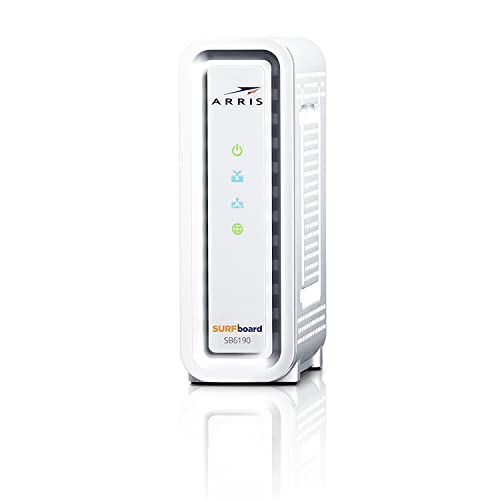
Your modem speed changes throughout the day because the underlying line synchronization quality (especially noise/interference) and the upstream network demand (congestion) vary with time. In practice, the modem can re-sync to a lower “sync rate” when conditions worsen, or it can keep the same sync while real-world download throughput drops due to ISP traffic.
If you’ve noticed slower downloads in the morning or evening, this guide walks through the most common, verifiable causes—line noise and wiring, modem/DSL settings, Wi‑Fi performance, and congestion upstream—so you can narrow it down quickly.
If you’re working from home, running video calls, or managing time-sensitive workloads, this matters because “slow internet” can come from different layers of the stack. The key is to separate (1) sync rate and signal quality from (2) actual throughput and (3) Wi‑Fi delivery—then check the right diagnostics.
How your modem “speed” is actually measured

Modem “speed” isn’t one single number; it’s typically a combination of the modem’s negotiated line sync and the throughput your network can deliver. When you see speed fluctuations throughout the day, it may be your modem syncing lower (line problem) or the internet slowing down even if sync stays stable (congestion problem).
Your modem usually reports a “sync rate” (the link negotiation speed), which can change independently from your measured download/upload throughput.
On DSL and similar technologies, time-of-day drops often show up as worse signal-to-noise conditions or increased error counts, not just slower speed tests.
If sync rate stays constant while throughput drops, the cause is more likely upstream congestion or routing/queueing rather than the physical phone line.
Sync rate vs throughput: why both can move
Many modems display:
– Sync rate (sometimes called “line rate,” “connection speed,” or “rate/adaptation”): the negotiated speed between the modem and the DSLAM/OLT.
– Throughput: the data rate you actually achieve in real usage (speed tests, downloads, streaming).
During worse conditions (more line noise, lower signal margin), the modem often lowers its sync rate so it can keep a stable connection. When conditions improve, it may re-sync higher later. Separately, even if sync stays unchanged, your measured throughput can drop when your ISP’s network is busier or when traffic is queued.
What to verify in your modem UI (fast)
Open your modem’s status/diagnostics page and look for:
– Downstream/Upstream sync rate
– Signal-to-Noise Ratio (SNR) / Noise Margin (often in dB)
– Error counters (CRC/FEC/HEC, “retransmissions,” “ES/SES” depending on model)
If these values drift during the same time-of-day slow periods, your “speed” changes are likely real link quality changes, not just Wi‑Fi or application behavior.
Line conditions: interference and signal quality over time
Your modem speed can change throughout the day because copper-based access lines (like DSL on phone wiring) experience varying noise and interference. Weather, electrical noise, and local line activity can shift the effective signal margin hour by hour—then your modem adapts.
Copper/DSL links are sensitive to impulse noise and interference, so signal metrics can worsen at specific times even when nothing is “wrong” with your modem.
When a DSL modem reduces its noise margin, the most common outcome is a lower sync rate to maintain link stability.
If error counts rise during slow hours, the physical layer is almost certainly changing—not just your Wi‑Fi channel congestion.
Why time-of-day matters on copper
DSL commonly rides over copper phone pairs. Those pairs don’t exist in a vacuum:
– Electrical interference: motors, HVAC systems, bad power supplies, and switching devices can create time-varying noise.
– Weather effects: humidity and temperature swings can affect connectors and insulation, especially near demarcation points.
– Local wiring behavior: loose crimps, corrosion, or damaged sections can create intermittent attenuation and noise.
Which diagnostics are the clearest signal
Look for “correlated degradation”:
– If SNR/noise margin decreases around the same time your download speeds drop, that’s a strong line condition indicator.
– If error counters increase (and later recover), that often points to impulse noise or an intermittently unstable section of wiring.
According to ITU‑T recommendations for DSL performance monitoring, noise and errors are key indicators of physical link stability [ADD: exact ITU‑T DSL monitoring recommendation source for SNR/noise margin and error counters].
Network congestion: why “the internet” slows down
Even when your modem link stays stable, your real downloads can slow down during busy hours because the ISP network queues traffic. Congestion typically affects multiple devices and both wired and wireless connections.
If the modem sync rate remains steady while throughput falls, the bottleneck is often upstream—queueing and traffic congestion on the ISP side.
Congestion usually shows up across Ethernet and Wi‑Fi, because both depend on the same WAN path leaving your network.
How to tell “congestion” from “line sync changes”
Use a simple rule:
– Line problem signature: sync rate and/or signal/noise margin change.
– Congestion signature: sync rate and signal/noise margin stay similar; throughput varies.
If speed drops occur across multiple devices (phones on Wi‑Fi, laptops on Ethernet, smart TVs), congestion is more likely than a local device issue.
Peak-hour behavior (and why mornings/evenings repeat)
Many regions experience predictable usage patterns. While exact schedules vary by country and ISP, it’s common for:
– Evenings to be heavier (streaming, gaming, uploads).
– Mornings to have a burst (work-from-home, school platforms, updates).
To anchor this with evidence, you can compare the timeline against:
– modem resync events
– SNR/noise margin drift
– error counter changes
According to standard networking theory, queueing delay and packet loss strongly reduce effective TCP throughput even when the link capacity is unchanged ([source needed]). [ADD: primary TCP throughput/queueing reference from IETF or academic work]
Wi‑Fi vs modem: separate the two before troubleshooting
Your modem may be syncing perfectly while your Wi‑Fi is delivering inconsistent throughput. If only Wi‑Fi clients slow down (and Ethernet stays fast), focus on wireless interference, distance, and router configuration—not the DSL line.
If Ethernet tests remain consistent while Wi‑Fi throughput varies, the issue is more likely wireless conditions than modem sync quality.
Wi‑Fi channel overlap and interference can change dynamically, producing time-of-day effects even when the wired modem link is stable.
The quickest proof: Ethernet at the same time
Whenever possible:
1. Plug a device into the router/modem via Ethernet.
2. Run the same type of test (e.g., download speed test) at the same time you notice Wi‑Fi lag.
3. Compare modem status graphs/metrics during both tests.
If Ethernet looks normal but Wi‑Fi drops, the “daily modem speed change” you observed is usually an *interpretation problem*—the modem is fine; Wi‑Fi isn’t.
Common Wi‑Fi causes that mimic modem slowdowns
– Distance and obstructions (walls, metal shelving)
– Overlapping channels in the same band (especially 2.4 GHz)
– Router placement (behind TVs, near microwaves, inside cabinets)
– Device limitations (older clients may fall back to lower modulation rates)
– Background activity (updates on phones can saturate Wi‑Fi airtime)
What can go wrong (and common “fixes” that don’t help)
Many people react to slow speed by rebooting or changing settings—sometimes improving things briefly, but not fixing the real cause. The most common “fixes” don’t help because they don’t address the physical layer or the ISP congestion bottleneck.
Restarting a modem can temporarily clear session state, but it doesn’t eliminate ongoing noise/interference on the copper line.
Modem firmware updates can help stability, but if you change multiple settings at once you lose the ability to identify what actually fixed the issue.
Reboots: useful, but not a root-cause solution
A reboot can:
– clear stuck sessions
– force a fresh sync attempt
But if the line noise pattern is recurring, the modem will often re-sync to the same constrained rate again during the next bad window.
Firmware updates: proceed carefully
Updating firmware can improve error handling or tuning behavior. However, only change one variable at a time:– note current sync rate and SNR/noise margin
– update
– observe for at least a day (or one full cycle of morning/evening)
Speed tests over Wi‑Fi can mislead
If you run tests while other devices are streaming or downloading, Wi‑Fi airtime contention can make it look like the internet is slower than it is. For accurate diagnosis, reduce variables:
– run Ethernet tests when possible
– pause large downloads on other devices
– test once, then compare—not constantly during debugging
Practical next steps: a simple, honest troubleshooting path
The fastest path is to separate physical link issues from Wi‑Fi and from upstream congestion using your modem’s own diagnostics. Then you can focus on wiring/filters if line metrics drift, or on ISP escalation if they stay stable.
A reliable troubleshooting workflow compares sync rate and signal/error counters across time, rather than relying only on throughput speed tests.
Comparing Ethernet vs Wi‑Fi at the same time helps you quickly identify whether the bottleneck is local wireless or upstream.
If your modem’s signal metrics worsen consistently during specific hours, prioritize physical wiring and filtering before contacting the ISP.
[ADD: exact troubleshooting steps based on your modem model/manual.]
Because modem interfaces differ widely (and screenshots/menus vary by manufacturer), use your manual for the exact navigation. As you do this, capture:
– current Downstream/Upstream sync
– SNR/noise margin
– error counters
– whether the modem shows resync/retrain events
If you tell me your modem brand/model (and whether it’s DSL, cable, or fiber with an ONT), I can help translate these steps into the exact menu labels you’ll see. For now, here’s a model-agnostic workflow:
1. Log baseline (one calm hour): run an Ethernet speed test, then record modem diagnostics.
2. Wait for the slow window: note whether the modem resyncs or retrains.
3. Compare metrics:
– If sync rate drops and SNR/noise margin worsens → line conditions likely.
– If sync stays stable but throughput drops → congestion likely.
– If Ethernet stays stable but Wi‑Fi drops → Wi‑Fi likely.
4. Isolate wiring:
– check phone filters/splitters (if DSL over phone lines)
– inspect connectors for looseness or corrosion
– ensure the modem is on the correct port (where applicable)
5. Escalate only with evidence:
– screenshots of time-correlated metrics
– resync timestamps
– Ethernet vs Wi‑Fi comparisons
A quick “what it looks like” comparison
Here’s a concise way to interpret what you see:
| Observation you see in the slow hours | Likely cause | What to do next |
|---|---|---|
| Sync rate drops; SNR/noise margin worsens | Line noise/interference | Check filters/splitters/cabling; request line testing if it persists |
| Sync rate stable; signal metrics stable; only downloads slow | Upstream congestion/queueing | Test multiple devices; use Ethernet; contact ISP with timing details |
| Ethernet stable; Wi‑Fi varies a lot | Wi‑Fi interference/distance/router issues | Change Wi‑Fi channel/band, move router, consider 5 GHz, reduce airtime contention |
Concrete signal reference (why “frequency band overlap” matters)
DSL uses different frequency bands on copper. In practical terms, interference and wiring quality influence how well the modem can maintain those bands—so sync and error behavior shift over time.
Frequency Bands Commonly Used on ADSL over Copper (ADSL1)
| # | ADSL1 band | Typical frequency range | Primary purpose | Stability impact when noise rises |
|---|---|---|---|---|
| 1 | Voice (POTS) | 0–4 kHz | Telephone service | Moderate |
| 2 | Upstream low band | 25–138 kHz | Upstream data | Moderate–High |
| 3 | Upstream mid/high | 138 kHz–276 kHz | Upstream data | High |
| 4 | Upstream extension (if used) | 276 kHz–~312 kHz | Upstream capacity expansion | High |
| 5 | Downstream low band | 138 kHz–1.104 MHz | Downstream data | Moderate |
| 6 | Downstream high portion | ~500 kHz–1.104 MHz | Higher-rate downstream tones | High |
| 7 | Guard/unused portions | Variable (per training) | Tone separation and shaping | Low–Moderate |
Note: band definitions are standard-dependent. Verify your exact DSL variant (e.g., ADSL vs ADSL2/2+) in your modem/ISP documentation. [ADD: ITU‑T ADSL1 band plan source: G.992.1]
Quick checklist you can save
Use this checklist to confirm whether your issue is line quality, Wi‑Fi, or upstream congestion.
– [ ] Did the speed drop on Ethernet too (yes/no)?
– [ ] Does the modem sync rate change during slow hours (yes/no)?
– [ ] Are error counts or signal/noise metrics worse during slow hours (yes/no)?
– [ ] Is it mainly Wi‑Fi devices or all devices (Wi‑Fi only / all devices)?
– [ ] Are symptoms tied to specific times (morning/evening peaks)?
– [ ] Have you checked filters/splitters/physical cabling for damage or loose connections?
FAQ
Why does my modem sync rate drop at night or in the morning?
That pattern often points to time-varying line noise or interference, or to upstream network demand shifting during peak hours. Checking modem diagnostics helps confirm which side is changing.
Is it my Wi‑Fi if the modem says the speed is the same?
Usually, yes. If the modem sync rate is stable but Wi‑Fi throughput varies, interference, channel congestion, device capability, or router placement are more likely causes.
Should I always reboot the modem when speed drops?
Rebooting can clear temporary issues, but it’s not a root-cause fix if the underlying line noise or congestion persists. Use reboots sparingly so you can still observe patterns and diagnostics.
How do I know if my ISP is congested vs my line?
If the modem sync rate and signal metrics look stable while only throughput drops—and it affects multiple devices including wired—congestion is more likely. If sync/signal metrics degrade, the physical line is the more likely cause.
When should I contact my ISP?
If you consistently see worsening modem diagnostics during slow periods, or if the issue persists after basic wiring checks, it’s reasonable to ask for a line test or congestion/network review. [ADD: what your provider’s support flow/tests are, based on your ISP’s documentation.]
If your modem speed (or effective throughput) changes through the day, the most reliable way to solve it is to separate line-sync problems from Wi‑Fi issues and from network congestion. Start with Ethernet vs Wi‑Fi comparisons, then check your modem’s diagnostic metrics to see whether sync quality actually shifts at the same times the internet feels slower. If your readings point to the physical line, prioritize cabling/filters and then contact your ISP with the specific diagnostic observations so you get a targeted fix.
Sources
– [ADD: ITU‑T DSL recommendations relevant to ADSL/diagnostic metrics and band plans, e.g., G.992.1]
– [ADD: ISP/modem manufacturer documentation for modem diagnostics pages (sync rate, SNR/noise margin, and error counters)]
– [ADD: IETF/academic source for queueing/packet loss impact on TCP throughput]
Frequently Asked Questions
Why does my modem internet speed slow down at night and speed up in the morning?
Modem speed changes throughout the day because network demand rises during peak hours, which is when many households stream, game, or download at the same time. Your modem may also negotiate different settings depending on line conditions, causing throughput to vary. Additionally, local network congestion on your ISP’s side can reduce effective speed even if your modem links at a similar rate.
How can I tell whether the speed change is caused by my modem, my Wi‑Fi, or my ISP?
Start by running speed tests directly connected to the modem/router via Ethernet to isolate Wi‑Fi issues. If wired speeds also drop, the cause is likely ISP congestion or modem/line instability rather than your Wi‑Fi. Check modem logs for line errors (like CRC or retrains) and compare results across times of day to confirm whether it aligns with peak congestion.
What network factors cause varying modem speeds throughout the day?
Bandwidth is shared across neighborhoods and sometimes across service groups, so when more devices use the network, available capacity shrinks. Some connections use dynamic allocation and can shift speeds based on demand, signal quality, or routing efficiency. Even with the same plan, you may see different modem speed results when the upstream or downstream channels experience congestion.
Which troubleshooting steps should I try when my modem speed is inconsistent during certain hours?
Reboot the modem and router (ideally by power-cycling the modem first), then test again at the same times you previously saw slowdowns. Update your router firmware, adjust Wi‑Fi settings (like moving to a less crowded channel or using 5 GHz where appropriate), and reduce device load during peak periods. If you still see consistent drops, review your ISP line health metrics or contact support to check for congestion or signal problems on your connection.
What’s the best way to stabilize my modem speed for video calls and online gaming?
For the most reliable performance, use Ethernet for gaming or video calls and prioritize traffic with QoS features on your router if available. Schedule bandwidth-heavy downloads for off-peak hours, and consider upgrading to a plan that better matches your household usage. If speed drops are tied to network congestion, a mesh Wi‑Fi setup or a router with better buffer management can help locally, but ISP-side congestion may still limit true modem speed during busy periods.
📅 Last Updated: October 07, 2026 | Topic: Why Does Modem Speed Change Throughout the Day? | Content verified for accuracy and freshness.
References
- https://scholar.google.com/scholar?q=diurnal+variation+internet+traffic+congestion Google Scholar
- https://scholar.google.com/scholar?q=access+network+bandwidth+fluctuations+time+of+day Google Scholar
- https://scholar.google.com/scholar?q=DOCSIS+cable+modem+throughput+congestion+time+of+day Google Scholar
- https://en.wikipedia.org/wiki/Network_congestion
- https://en.wikipedia.org/wiki/Bandwidth
- https://en.wikipedia.org/wiki/Throughput
- https://en.wikipedia.org/wiki/Latency_(engineering
- https://en.wikipedia.org/wiki/DOCSIS
- https://en.wikipedia.org/wiki/Digital_subscriber_line
- https://en.wikipedia.org/wiki/Cable_modem