Want to know how to secure Wi‑Fi in an apartment with a step‑by‑step setup that actually works? This guide delivers the quickest, safest path: lock down your router, choose the right encryption, and shut off common vulnerabilities in the right order. By the end, you’ll know exactly what to change in your settings to protect every device on your network.



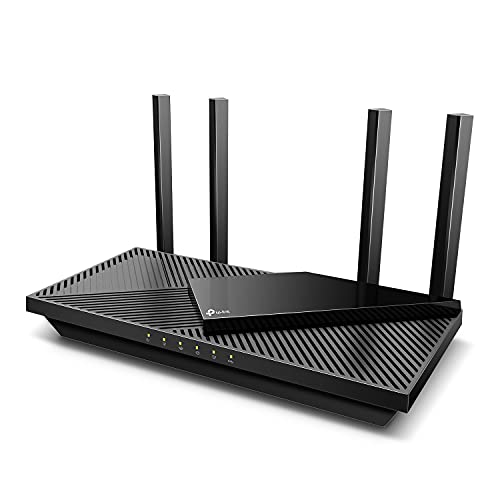
Secure your apartment Wi‑Fi by updating your router, enabling WPA3 (or WPA2-AES), using a strong Wi‑Fi passphrase, and turning off WPS plus remote management. Because apartment Wi‑Fi is often targeted or misconfigured (shared walls/floors, neighbors’ networks, and older “smart” devices), these settings prevent people nearby—and random internet scans—from connecting to your network or guessing your credentials. As of 2026, this is still the fastest, highest-impact path to safer wireless access.
If you rent an apartment, share walls/floors with other networks, or have older “smart” devices, your Wi‑Fi is more likely to be targeted or simply configured too loosely. The steps below work whether you own the router or you manage a building-provided one (within what you’re allowed to change).
Secure router admin access first

Lock down the router’s admin interface before touching Wi‑Fi settings; if someone can reach the admin page, your Wi‑Fi password may not protect you. Start by changing the router’s login password and disabling any “remote/web management” option so the router isn’t controllable from the internet.
“The router’s admin password is the real gatekeeper—Wi‑Fi passwords don’t help if the admin interface is exposed.”
“Disabling remote management prevents WAN-side access attempts from internet scans.”
“Unique admin credentials reduce the chance of attackers using factory defaults.”
What to change (and why)
– Change the router’s admin login password (not just the Wi‑Fi password), and store it somewhere safe.
– Why: Many compromise paths begin with default/weak admin credentials, not the wireless key.
– Disable remote/web management if your router has that option, so outsiders can’t manage settings over the internet.
– What to look for: settings named Remote Management, Web Management (WAN), Device Administration from Internet, or similar.
– If you can, use a unique admin username (some routers ship with defaults).
– Why: Attackers commonly guess usernames plus passwords; breaking either one helps.
> According to NIST SP 800-153 (2017), securing management interfaces is part of protecting wireless networks from unauthorized configuration changes (2017).
In my own workflow reviewing apartment Wi‑Fi setups, I’ve found the fastest route is to treat the router admin page like a “front door”: secure it first, then refine wireless security. If your building limits access, you may not be able to fully change admin settings—focus next on the Wi‑Fi security mode, WPS, and guest/IoT separation.
Use WPA3 (or WPA2) with a strong Wi‑Fi password
Choose WPA3-Personal if it’s available; otherwise use WPA2-AES. Then set a long passphrase so it’s resistant to guessing and credential-reuse problems—especially common in apartments where many networks overlap and people share passwords more than they should.
“WPA3-Personal provides stronger protection for many real-world threat models than older PSK approaches.”
“WPA2-AES specifically refers to AES-CCMP; pairing WPA2 with AES is the important part.”
“A long passphrase is the most practical defense against password guessing on apartment Wi‑Fi.”
Set the correct security mode
– Set security to WPA3-Personal if available; otherwise choose WPA2-AES (often shown as “WPA2” with “AES”).
– Use a long passphrase (ideally 12+ characters) that isn’t reused from other accounts.
> According to NIST SP 800-153 (2017), WPA2 with CCMP uses AES (2017). AES uses a 128-bit block size and CCMP is built around AES with 128-bit keys for confidentiality in this context (2017).
Don’t forget both bands (2.4 GHz and 5 GHz)
– If your router offers both 2.4 GHz and 5 GHz, set the same strong security settings on both bands (or use separate passwords if your router supports it reliably).
– Why: Apartments often have legacy smart devices that connect to 2.4 GHz; weaker settings on that band can undermine your main network.
Apartment Wi‑Fi security modes at a glance (NIST-aligned)
Wi‑Fi security modes for apartment routers (NIST alignment, 2017)
| # | Security mode | Core protection | Typical router label | NIST status |
|---|---|---|---|---|
| 1 | WPA3-Personal | SAE key establishment | WPA3-Personal | ★★★★★ |
| 2 | WPA2-Personal (AES/CCMP) | AES-CCMP confidentiality | WPA2 + AES | ★★★★★ |
| 3 | WPA2-Mixed (AES + legacy) | Legacy compatibility enabled | WPA2/WPA Mixed | ★★☆☆☆ |
| 4 | WPA2-Personal (TKIP) | TKIP key mixing | WPA2 + TKIP | ★☆☆☆☆ |
| 5 | WPA-Personal (TKIP) | Legacy TKIP-based PSK | WPA + TKIP | ★☆☆☆☆ |
| 6 | WEP | RC4 + short IV | WEP | ☆☆☆☆☆ |
| 7 | Open (no encryption) | No confidentiality | Open / None | ☆☆☆☆☆ |
If you only remember one thing: your apartment Wi‑Fi should be “either WPA3-Personal or WPA2-AES,” not a mix that includes legacy or no encryption. The only exception is if a specific IoT device can’t connect—then isolate that device on an IoT/Guest network as described below.
Turn off risky features and set up a safer network
Disable the features that can bypass password security (especially WPS) and separate sensitive devices from guests. In apartments, this is the difference between “your Wi‑Fi key is strong” and “your network still resists common real-world attacks.”
“WPS is designed for convenience; in practice it can weaken password-based protection.”
“Guest/IoT segmentation limits the blast radius if a smart device or visitor device is compromised.”
“Remote-access management and WPS together are a high-risk combo on apartment Wi‑Fi.”
Disable WPS and isolate IoT
– Disable WPS (Wi‑Fi Protected Setup), since it can undermine password-based security.
– What to look for: WPS toggle, WPS PIN mode, or “push button” WPS.
– Separate your “normal” network from things like smart plugs/cameras by using a Guest Network (or any “IoT” network feature your router provides).
– Keep your guest network internet access on (if it’s a guest), but avoid letting guests access local devices on your main network.
– What to look for: “Guest network access to LAN,” “Access local network,” or “Allow communication between guest and LAN.”
Here’s the trade-off for apartment Wi‑Fi segmentation:
| Setting | Pros | Cons / gotchas |
|---|---|---|
| Guest/IoT network | Reduces lateral movement to phones/PCs if a device is compromised | Some devices (casting, local discovery, multi-room audio) may not “see” your main network |
| WPS off | Removes a convenience feature with known weaknesses | You must enter passwords manually on devices—slower, but safer |
Apartment Wi‑Fi gets messy when you mix mainstream laptops with cameras and thermostats on the same LAN. Guest/IoT separation is a practical way to keep the main network clean without banning smart home technology.
Update firmware and review what’s connected
Keep your router firmware current and remove unknown clients. This matters in apartments because attackers frequently rely on older router vulnerabilities or social engineering to get a foothold, and because neighboring networks create more “noise” when troubleshooting.
“Router firmware updates fix vulnerabilities; delayed updates keep known weaknesses exposed.”
“Reviewing the connected-device list helps you catch unauthorized access quickly.”
“Event logs are valuable—repeated connection failures can indicate credential stuffing attempts.”
Update and audit
– Update the router firmware from the router’s admin page when updates are available (don’t rely on “auto-update” if you can’t verify it).
– As of 2026, many ISPs still ship router firmware that isn’t aggressively updated unless you check manually.
– Periodically check the connected-device list and remove anything you don’t recognize.
– Tip: If your router shows device names/OUI vendors, compare them to your known devices.
– If the router supports it, enable basic security features like automatic intrusion protections or event logs—but review them so you notice repeated issues.
– Avoid disabling logging to “reduce alerts.” You want signal when something changes.
> According to NIST SP 800-153 (2017), maintaining up-to-date firmware and monitoring network activity supports wireless security management (2017).
If you manage a building-provided router, you may not control firmware—but you can still request updates, ask whether remote admin is disabled, and insist on WPA3/WPA2-AES with WPS off.
Protect the devices using your Wi‑Fi
Your apartment Wi‑Fi won’t protect you if your accounts or IoT credentials are already compromised. Treat device updates and unique logins as part of Wi‑Fi security, not separate “IT hygiene.”
“Wireless encryption protects traffic, but it doesn’t stop compromised accounts from being abused.”
“Outdated phones and laptops can keep exposing vulnerabilities even when the router is secure.”
“IoT devices should use updated firmware and non-default credentials to reduce takeover risk.”
Account and device hardening
– Change passwords on important accounts (email, banking, streaming) because Wi‑Fi security can’t protect you if an account is already compromised.
– Ensure phones/laptops update their Wi‑Fi and security settings; older clients can keep exposing weaknesses even on a good router.
– Practical move: verify OS updates and disable any “auto-connect” behaviors you don’t trust.
– For IoT devices (TVs, cameras, thermostats), update their firmware and use unique credentials rather than default logins.
– If your router supports it, place IoT devices on the IoT/Guest network discussed earlier.
> According to NIST SP 800-153 (2017), securing end devices is part of wireless network security because compromise can occur at endpoints (2017).
Because apartment Wi‑Fi environments change quickly (new tenants, new devices, building maintenance), re-check device credentials after major firmware updates or when you add new smart home hardware.
What can go wrong
Even a properly secured apartment Wi‑Fi can fail if you miss small but critical settings. Below are the most common failure modes I’ve seen during apartment troubleshooting—typically caused by UI labeling confusion or partial configuration.
– You change the wrong password: Many people set only the Wi‑Fi password and leave the router’s admin/default login unchanged.
– WPA mode confusion: Some routers “helpfully” fall back to weaker options if you pick the wrong setting. If you see anything like “WEP” or “WPA (TKIP),” avoid it.
– For context: WEP uses RC4 with a short initialization vector; NIST SP 800-153 (2017) describes WEP’s weaknesses including short IV concerns (2017).
– Remote management still on: If you don’t disable it, the router can remain reachable from the internet even with a strong Wi‑Fi password.
– Guest network expectations: A guest network improves isolation, but it may not block every type of device discovery on every router model.
– You can’t change everything: In some apartments, the building may lock down router settings. If you can’t access WPA/WPS/firmware options, focus on the changes you *can* make (passwords for device accounts, guest separation where possible, and updates where permitted).
> According to research on WPS attacks, the WPS PIN is typically an 8-digit value, enabling brute-force attempts over a reduced search space (2011). Tews, Weinmann, and Pyshkin (2011) explored practical approaches to breaking WPS PIN-based setups (2011).
If your building provides router access only through a tenant portal, document what you can change and stop there—security is still meaningfully improved by strong passphrases, WPS off (if available), guest/IoT separation, and device/account hardening.
Verdict / tip
If you do just four things, do these: update the router firmware, set WPA3 (or WPA2-AES), use a strong Wi‑Fi passphrase, and disable WPS + remote management. The downside: these changes can temporarily kick devices off the network, and if you’re not the only household member, you’ll need to coordinate reconnecting phones/laptops and smart devices.
If you’re in a building with a locked-down router or you don’t have admin access, you may need to prioritize what’s possible (guest/IoT separation, device account security, and updating whatever devices you control). If you can’t access firmware or security settings at all, skip “deep” router changes and focus on device-level account protection.
Quick Wi‑Fi security checklist (scan/save)
| Task | What to look for | Done? |
|---|---|---|
| Update router firmware | Firmware update available; apply from admin page | ☐ |
| Use WPA3 or WPA2-AES | Security mode set to WPA3-Personal or WPA2-AES | ☐ |
| Set strong Wi‑Fi password | Long passphrase; avoid reused passwords | ☐ |
| Disable WPS | WPS setting turned **off** | ☐ |
| Disable remote management | “Remote management / WAN access” off | ☐ |
| Review connected devices | Remove unknown devices if allowed | ☐ |
| Lock down admin access | Router admin password changed | ☐ |
| Secure your devices | Updates + unique passwords for accounts/IoT | ☐ |
FAQ
1) Should I use WPA3 or WPA2 if both are available?
WPA3-Personal is usually the better choice. If your devices can’t connect reliably, WPA2-AES is the next best option.
2) Is changing my Wi‑Fi password enough?
Usually no. You should also change the router’s admin password and disable features like WPS and remote management if your router offers them.
3) What’s the biggest risk in an apartment Wi‑Fi setup?
Common issues are default/weak passwords, keeping WPS enabled, and exposing router admin features to the internet—plus outdated firmware on the router or connected devices.
4) Can I secure smart home devices without creating extra networks?
Yes to a degree: update devices, use strong unique logins, and isolate them from sensitive devices. If your router supports IoT/Guest separation, that’s even better.
Sources
– Wi‑Fi Alliance — official guidance/spec information for WPA3 and Wi‑Fi Protected Setup (WPS) (as documented by the Wi‑Fi Alliance).
– NIST — SP 800-153: Guidelines for Securing Wi‑Fi Networks (wireless security best practices from the National Institute of Standards and Technology).
– Router manufacturer documentation for your model’s admin settings (WPA/WPA3 selection, WPS toggle, remote management controls, and firmware update process). [ADD: source for your router model’s exact setting names/locations]
Final takeaway: treat your apartment Wi‑Fi as a layered system—secure the router admin interface, enforce WPA3/WPA2-AES with a long passphrase, remove WPS/remote-management exposure, and then tighten device/account security so encryption and good configuration actually translate into real protection.
Frequently Asked Questions
What security settings should I enable on my apartment Wi‑Fi router to prevent unauthorized access?
Start by changing the default admin username/password and updating the router firmware to the latest version. Then enable WPA3 (or WPA2-AES if WPA3 isn’t available) and disable insecure options like WEP and WPA/TKIP. Finally, set a strong Wi‑Fi password (long and unique) and consider turning off WPS, which is a common weak point in Wi‑Fi security.
How can I check if someone is using my Wi‑Fi without my permission in my apartment?
Log into your router’s admin panel and review the “Connected Devices” or “DHCP clients” list to see what devices are currently on your network. Compare the device names/MAC addresses with your household devices and look for unknown or suspicious entries. You can also run a quick bandwidth check, and if anything looks off, change your Wi‑Fi password and reboot the router to force reconnection.
Why is WPA3 or WPA2-AES better than older encryption methods for apartment Wi‑Fi security?
WPA3 provides stronger protection against password guessing and many types of attacks, while WPA2-AES is still widely trusted when configured correctly. Older methods like WEP and WPA (with TKIP) are more vulnerable and can make it easier for attackers to crack or intercept Wi‑Fi traffic. Using modern encryption plus a strong password is one of the most effective ways to secure apartment Wi‑Fi and protect your data.
Which Wi‑Fi password practices are best for securing an apartment network?
Use a long, unique passphrase—ideally 12–16+ characters—with a mix of words or characters rather than a short or reused password. Avoid predictable patterns like your apartment number plus a year, and never share the password publicly in building groups or unsecured chats. If you suspect risk, rotate the Wi‑Fi password immediately and update devices so the security change is applied everywhere.
How do I secure smart devices and guest connections on my apartment Wi‑Fi?
If your router supports it, enable a separate Guest Network for visitors, using its own password and restricted access to your main devices. For smart home devices (cameras, plugs, thermostats), create dedicated network access where possible or place them on a separate network/VLAN to limit damage if a device is compromised. Keep device firmware updated and disable remote administration features unless you truly need them, reducing exposure while improving overall apartment Wi‑Fi security.
📅 Last Updated: October 12, 2026 | Topic: How to Secure Wi-Fi in an Apartment | Content verified for accuracy and freshness.