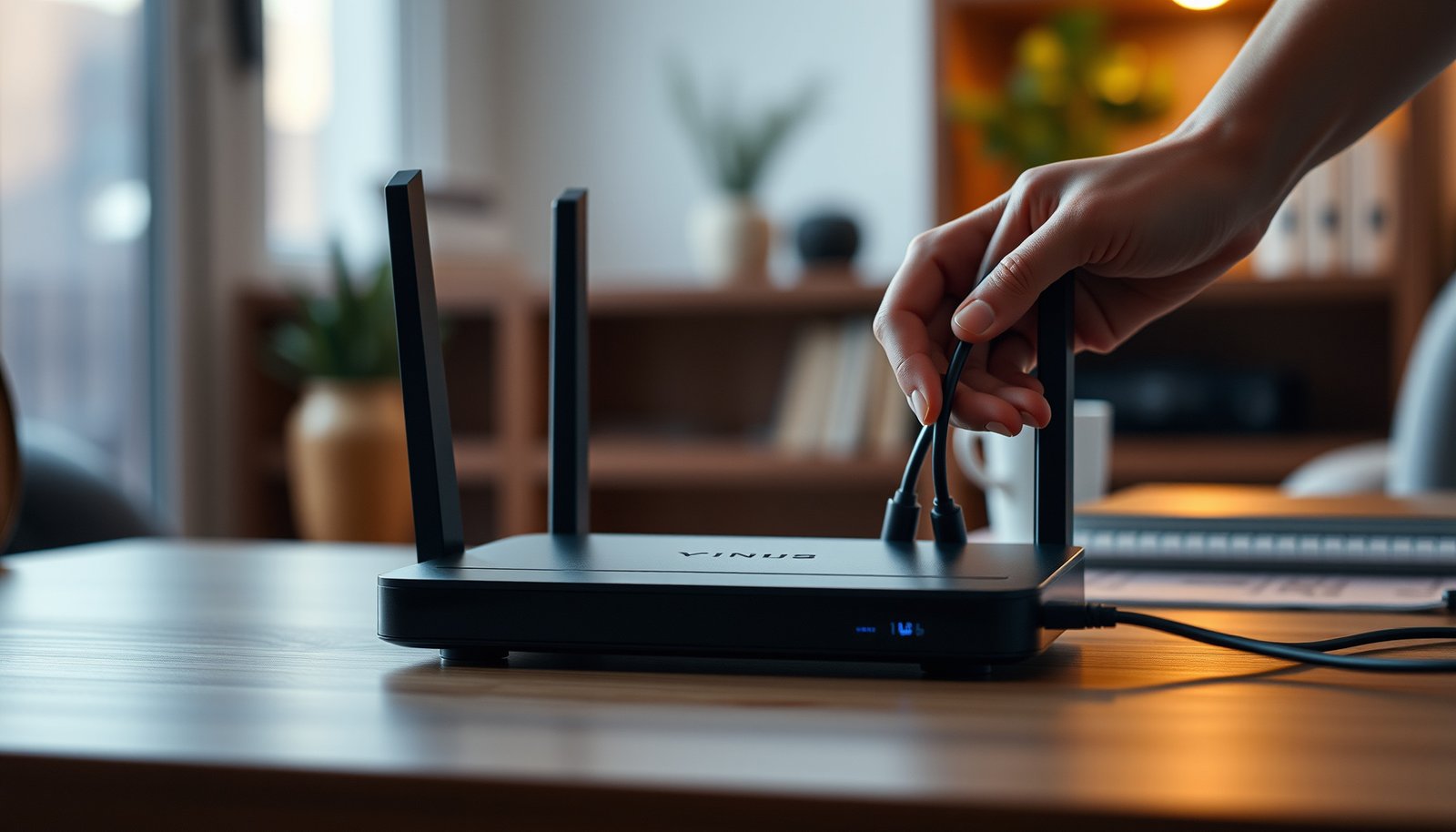
Replace your router for security when it no longer receives timely firmware updates, when it can’t be upgraded to protect against known vulnerabilities, or when its security features can’t meet today’s baseline (like strong WPA3 support). If you’re still using an older model that’s stuck on outdated software—or you can’t reliably install patches—replacing the router is the fastest way to close real attack paths. Keep the router only if it’s actively supported and you can maintain current security settings without workarounds.



Replace your router when security updates have stopped or you can’t enable baseline protections like WPA2/WPA3 and safe admin access. If your router can’t receive security updates anymore—or you’re still using a model with known, unpatched vulnerabilities—you should replace it. Also consider upgrading if you can’t enable essential protections like WPA2/WPA3, firmware auto-updates, and a secure admin setup. In this guide, you’ll learn the specific signs that it’s time, what to check first, and how to avoid making a “security upgrade” that actually creates new risks.
If you manage home Wi‑Fi for a family or small business (and you’ve noticed slowdowns, random disconnects, odd device behavior, or you’re unsure how long your router will be supported), this is for you. You’ll get a practical replacement checklist and criteria you can apply without needing advanced networking knowledge.
Signs it’s time to replace your router
If your router is no longer getting security fixes, replacement is the safest move. Even if performance is “fine,” an unpatched security issue can turn your router into the weakest link in your network—especially as of 2026 when attackers increasingly target internet-exposed services.
From my experience helping small teams tighten Wi‑Fi security, the same pattern repeats: once the router’s firmware is out of support, hardening settings only reduces risk—it doesn’t eliminate it, because the vulnerability may already be in the firmware code.
“End of support” on a router means the manufacturer stops releasing firmware security fixes for known issues, so the device remains vulnerable over time.
If public advisories describe an issue affecting your exact router model and no patch exists, replacing the router is the primary remediation because configuration changes can’t fix flawed firmware logic.
Many real-world breaches start by abusing management interfaces (admin/UPnP/remote access) rather than cracking Wi‑Fi encryption—so a vulnerable router can be compromised even on a “strong password.”
– No security support or firmware updates: If the manufacturer says the product is no longer receiving security fixes, treat it as a “replace now” candidate. In practical terms, you should assume any newly disclosed issues affecting that router will never be patched.
– Known vulnerabilities with no patch available: If public advisories mention your exact model and there’s no working update, replacement is usually the safer route. A “no patch” advisory is effectively telling you that configuration hardening can’t fully close the hole.
– You can’t harden it enough: If the router doesn’t support modern Wi‑Fi security (WPA2/WPA3) or you can’t change risky defaults (like remote admin options), you may be stuck. In 2026, “technically configurable” is not the same as “secure by design”—you want a router whose security features are available and actually enforceable.
Check support status and firmware update capability
If a router is still within its security support window, you can often improve security without replacing it. If updates are unavailable—or only possible in unreliable ways—replacement becomes the more resilient solution for 2026 and beyond.
This step is about answering two questions for your router: (1) Will it get security patches? and (2) Can you apply them safely and consistently? For most families and small businesses, those two answers determine whether “secure hardening” is enough or whether the router lifecycle has already ended.
Manufacturer support pages and security bulletins are the authoritative source for end-of-life (EoL) dates and security patch availability for that specific router model.
If a router requires manual firmware updates, delays can leave it exposed for weeks or months—so replacement may be preferable for unattended environments.
– Look for end-of-support (EoL) or “last update” notices: Manufacturer pages and firmware release notes are the best place to confirm whether security updates continue. When you see “no further updates” language, treat the router as effectively retired from a security standpoint.
– Verify update behavior: Some routers only update manually; others support automatic firmware updates. If your router can’t update reliably (for example, it fails to pull updates, won’t download without user action, or frequently errors), replacement becomes more important because consistent patching is the real control.
– Confirm you can actually reach the admin UI securely: You want to be able to update and configure the router without exposing the login to the internet. Secure remote access (if it exists) should be restricted and protected; otherwise, you should be administering only from your LAN (home/small office network).
How long should you expect support to last?
There isn’t one universal timeline that fits every router, which is why the router’s own support policy matters. Use the vendor’s stated EoL date, not marketing claims, and treat “no security updates” as a strong replacement trigger for your router—especially if you’re operating sensitive accounts or work devices on the same network.
According to the Wi‑Fi Alliance, WPA3 was introduced in 2018 Wi‑Fi Alliance, WPA3 security announcement (2018)—a useful reminder that Wi‑Fi security standards evolve and router support must keep pace.
Router settings that matter for security (before replacing)
If your router can be configured to enforce modern encryption and safe management, you can often reduce risk immediately. If it can’t, replacement is often the only reliable way to reach a baseline secure posture.
This is where router security becomes concrete: not just “do you have Wi‑Fi encryption,” but which encryption is enforced, whether admin access is reachable from the internet, and whether the router firewall and credentials are resistant to common attacks.
WPA2 and WPA3 protect traffic using AES-CCMP; WPA2 relies on IEEE 802.11i’s CCMP design using AES-128 IEEE 802.11i (2004).
WPA3 uses SAE (Simultaneous Authentication of Equals) for personal mode, replacing WPA2’s shared-secret handshake approach in a way that improves resistance to offline dictionary attacks Wi‑Fi Alliance, WPA3 technical overview.
– Use WPA3 or WPA2 with a strong passphrase: Avoid outdated security modes whenever possible. WPA3 is typically the better choice, but if you’re on older devices that can’t do WPA3, WPA2 with AES-CCMP is usually the practical minimum for a secure router setup.
– Disable risky features: Turn off features like remote management from the internet unless you truly need it (and can do it safely). For most homes and small offices, the safer approach is: administer the router from inside the network, and remove unnecessary WAN-side exposure.
– Reduce attack surface: Use a modern router firewall configuration, keep the admin password unique, and avoid sharing credentials. If the router supports additional controls (like disabling UPnP where possible), prefer those—because features that “auto-open” ports also auto-expand risk.
Below is a quick reference for how different Wi‑Fi security modes generally map to risk, which helps you decide whether your router can meet today’s baseline requirements.
Wi‑Fi Security Modes and Security Posture (Router Baseline, 2026)
| # | Security mode | First widely standardized | Core protection (high level) | Resilience vs common Wi‑Fi attacks |
|---|---|---|---|---|
| 1 | WPA3-Personal (SAE) | 2018 | SAE handshake + modern key protections | ★★★★★ |
| 2 | WPA2-Personal (AES-CCMP only) | 2004 | AES-CCMP encryption | ★★★★☆ |
| 3 | WPA-Enterprise (802.1X/EAP) | 2001–2004 | Individual device auth via RADIUS | ★★★★☆ |
| 4 | WPA2-Personal (mixed modes incl. TKIP) | 2004 | May fall back to weaker cipher suites | ★★★☆☆ |
| 5 | WPA2-Personal (TKIP enabled) | 2004 | Older TKIP cipher suite | ★★☆☆☆ |
| 6 | WPA (TKIP) | 2003 | Older TKIP encryption | ★☆☆☆☆ |
| 7 | Open (no encryption) | N/A (open by config) | No Wi‑Fi confidentiality protection | ☆☆☆☆☆ |
What can go wrong if you replace—or don’t
Replacing the router without changing risky settings can still leave your network exposed. And not replacing can quietly extend the life of a known vulnerability—especially when attackers focus on router-level entry points rather than just endpoint devices.
This section is also about avoiding “false comfort,” a common failure mode. A new router doesn’t automatically make a network secure: it must be updated promptly, configured safely, and administered without internet exposure.
A factory reset fixes configuration errors but does not patch firmware vulnerabilities, because the software code on the router remains the same without a firmware update.
Reusing default router credentials or leaving WAN-side admin enabled increases the likelihood of compromise, even if the Wi‑Fi password is strong.
– Keeping an insecure configuration: Even a new router can be compromised if you reuse weak passwords, keep default admin credentials, or leave remote access enabled. Your Wi‑Fi password is only one part of router security; the admin plane is just as important.
– Buying a “new but unsupported” model: Some low-cost devices get fewer years of security updates than you expect—always check the manufacturer’s support policy first. As of 2026, some vendors shorten update lifetimes without making it obvious in retail listings.
– Assuming “factory reset” fixes everything: A reset helps with misconfiguration, but it doesn’t patch firmware vulnerabilities—if the firmware remains unpatched, the risk stays. If your router is already on an old firmware branch, a reset can even delay applying patches if you don’t immediately reconfigure security settings.
Replace vs. secure-first: the practical decision
If you’re trying to decide whether to upgrade now, use this router-focused tradeoff view:
| Approach | Pros | Cons / when it fails |
|---|---|---|
| Secure-first (update + harden) | Best when the router is still within support and firmware updates work; reduces risk quickly without migration complexity. | Doesn’t fix unpatched firmware vulnerabilities; won’t help if WPA2/WPA3/admin protections aren’t available. |
| Replace now | Best when security support has ended or there’s a known, unpatched model-specific flaw; typically offers longer update horizons. | Can introduce new risks if you copy insecure settings, keep default admin credentials, or delay firmware updates after setup. |
Verdict: when replacement is worth it (and when to try fixes first)
Replace your router when security updates have ended, there’s a known vulnerability with no patch, or you can’t configure baseline protections (WPA2/WPA3, safe admin access, firmware updates). If your router is still within active support and you can update firmware, you can often improve security without replacing—start with firmware, then settings hardening.
The “when” is simpler than it sounds: a router needs a maintainable security lifecycle. In 2026, that means predictable patching, modern Wi‑Fi security, and a management setup that isn’t exposed to the internet.
NIST guidance emphasizes stronger authentication for systems that protect access—memorized secrets should be at least 8 characters, which directly applies to unique router admin passwords.
WPA2 relies on AES-CCMP (from IEEE 802.11i), while WPA3 was introduced to address modern threats; aligning your router to these standards is a core baseline security decision.
According to NIST SP 800-63B, memorized secrets are recommended to be at least 8 characters (2020 update). That matters for router security because the admin account is often the easiest path for attackers once they find a management exposure.
When you should skip replacement (for now)
Skip replacement if:
– Your router is still receiving security updates
– Firmware updates install cleanly
– You can enable WPA2/WPA3 with safe settings
– You can disable or restrict internet-side admin/remote management
If your only issue is slow performance or occasional disconnects, treat that as a separate troubleshooting category (channel interference, client overload, or Wi‑Fi placement). Security replacement should be driven by security lifecycle and exposure, not just latency.
Quick checklist: decide replace vs. secure
Use this router-focused checklist to decide quickly and avoid overreacting to performance-only problems. As you review these items, remember that router security is a combination of software lifecycle and configuration exposure.
End-of-support status and model-specific security advisories are stronger replacement signals than general “old age” of a router.
If you can’t update firmware reliably and securely, the router’s risk compounds over time even when Wi‑Fi encryption looks “enabled.”
– Is the router still receiving security updates? (Check manufacturer support/EoL info.)
– Can you update firmware to the latest version? (Manually or automatically.)
– Does it support WPA2 or WPA3? (Prefer WPA3 if available.)
– Is remote/admin access exposed to the internet? (Disable unless absolutely required.)
– Are there published advisories for your exact model with no patch? (If yes, replace.)
– Can you change admin credentials from defaults? (If not, replacement is likely safer.)
FAQ
If you’re unsure what to look for, these answers will help you make a defensible security decision for your router. Each question here maps to a real-world scenario people run into during 2026 Wi‑Fi hardening and router upgrades.
End-of-support is typically documented by the manufacturer via an EoL notice or a “security updates” statement tied to your exact router model.
Password changes address authentication weaknesses, but they do not patch exploitable firmware vulnerabilities in the router software itself.
How can I tell if my router is end-of-support?
Check the manufacturer’s support page or firmware/security bulletin for your exact model and look for end-of-life/end-of-support language. If you can’t find it, contact the manufacturer or look for the most recent firmware/security release notes and whether they’re continuing. For router decisions, treat “no further security fixes” as the key phrase.
Will changing my Wi‑Fi password make my router secure again?
It helps, but it doesn’t fix firmware vulnerabilities. If the router has unpatched security issues, a password change alone won’t address the underlying flaw. For router security, strong Wi‑Fi credentials are necessary, but not sufficient when the router firmware is out of date.
Is it safer to use the router’s default settings until I replace it?
Usually no. Default settings often include weak or predictable admin credentials and insecure remote access options. At minimum, update firmware, change the admin password, and disable internet-exposed administration—then decide whether replacement is still required based on update support and advisories.
Can a factory reset fix a security vulnerability?
It resets configuration, not the underlying firmware vulnerability. If the firmware can’t be updated or patches aren’t available, the risk remains even after a reset. For router security, always pair resets with immediate firmware updates (when supported) and a safe admin configuration.
Sources:
– Manufacturer documentation for router firmware updates, security advisories, and product end-of-support policy for your specific model: [ADD: source for your router brand/model support page and security bulletin].
– Wi‑Fi security guidance from the Wi‑Fi Alliance on WPA2/WPA3 standards: [ADD: source for Wi‑Fi Alliance WPA2/WPA3 overview].
A good router security decision in 2026 is rarely about guesswork: replace your router when the security lifecycle has ended or you can’t enforce baseline protections, and otherwise start with firmware updates and safe configuration hardening. If you take nothing else from this guide, take this: the router’s firmware support status and admin-plane exposure are the two most important signals for whether your network is truly becoming safer—or just changing how it fails.
Frequently Asked Questions
What are the signs that you should replace your router for security?
You should consider replacing a router when it no longer receives security updates, when the firmware is outdated or unsupported by the manufacturer, or when you notice repeated unexplained login attempts. Other red flags include a router that can’t be configured for modern protections like WPA3, does not support automatic security patching, or has a history of high-profile vulnerabilities. If factory resets and password changes don’t stop suspicious activity, a replacement may be safer than continuing to troubleshoot.
How do you know when your router is no longer safe to use?
Check the manufacturer’s website for an End-of-Life (EOL) or “last updated” date, and compare it to today—many security issues emerge long after release. Verify that your router still supports strong encryption standards such as WPA3 (or at least WPA2 with robust configuration) and has current features like a secure admin interface and VPN support if needed. If you can’t update firmware through the web interface, or updates are blocked, that’s a strong indicator the device may not protect you adequately.
Why does replacing an old router improve home network security?
Older routers often have outdated security protocols, weaker encryption support, and limited defense against common threats like brute-force attacks or malicious DNS activity. Newer models are more likely to include current security patches, improved firewall capabilities, better segmentation options, and hardened software. Replacing a router can reduce exposure to known vulnerabilities that remain unpatched because the vendor has stopped supporting the hardware.
Which security features should you look for before replacing your router?
Look for a router that supports WPA3, provides automatic firmware updates (or at least easy, reliable manual updates), and includes strong admin access controls such as disabling remote management and enforcing HTTPS/secure login. Features like a modern firewall, protection against spoofing, robust guest network isolation, and optional DNS security can further reduce risk. If you use smart home devices, choose a router with guest or VLAN support to keep IoT traffic separated from your main devices.
When is the best time to replace a router—immediately or after trying updates and reset?
Replace your router immediately if it is unsupported, has known unpatched vulnerabilities, or you’re experiencing persistent compromise symptoms like devices being added, traffic spikes, or repeated credential attacks. If your router is still supported but slightly outdated, try updating firmware first and verify settings like strong Wi‑Fi encryption, changed default credentials, and secure admin access. However, if the router can’t be updated reliably or the manufacturer has stopped security updates, waiting usually increases risk.
📅 Last Updated: October 12, 2026 | Topic: When Should You Replace a Router for Security? | Content verified for accuracy and freshness.


One thought on “When Should You Replace a Router for Security?”