
If your JBL headphones are producing sound only on one side, don’t worry—there are several quick fixes you can try to get them working properly again. Issues with sound can often be traced back to simple problems, and addressing them swiftly can save you time and frustration. In this article, we’ll explore common issues and solutions that can help restore sound to both sides of your headphones, ensuring you enjoy your audio experience to the fullest.


Check the Audio Source

The first step in troubleshooting sound issues with your JBL headphones is to check the audio source. Whether you’re using a smartphone, tablet, or computer, it’s essential to confirm that the device is functioning correctly. Start by playing audio on your device and ensuring that it is not muted or set to a low volume. If you hear sound from the device’s speakers but not through the headphones, it indicates a potential issue with the headphone connection.
To further isolate the problem, test your headphones with different devices. For instance, if your headphones are not working with your phone, try them on a laptop or another smartphone. If the sound works on other devices, the issue may lie with your original audio source rather than the headphones themselves.
Inspect the Headphone Jack
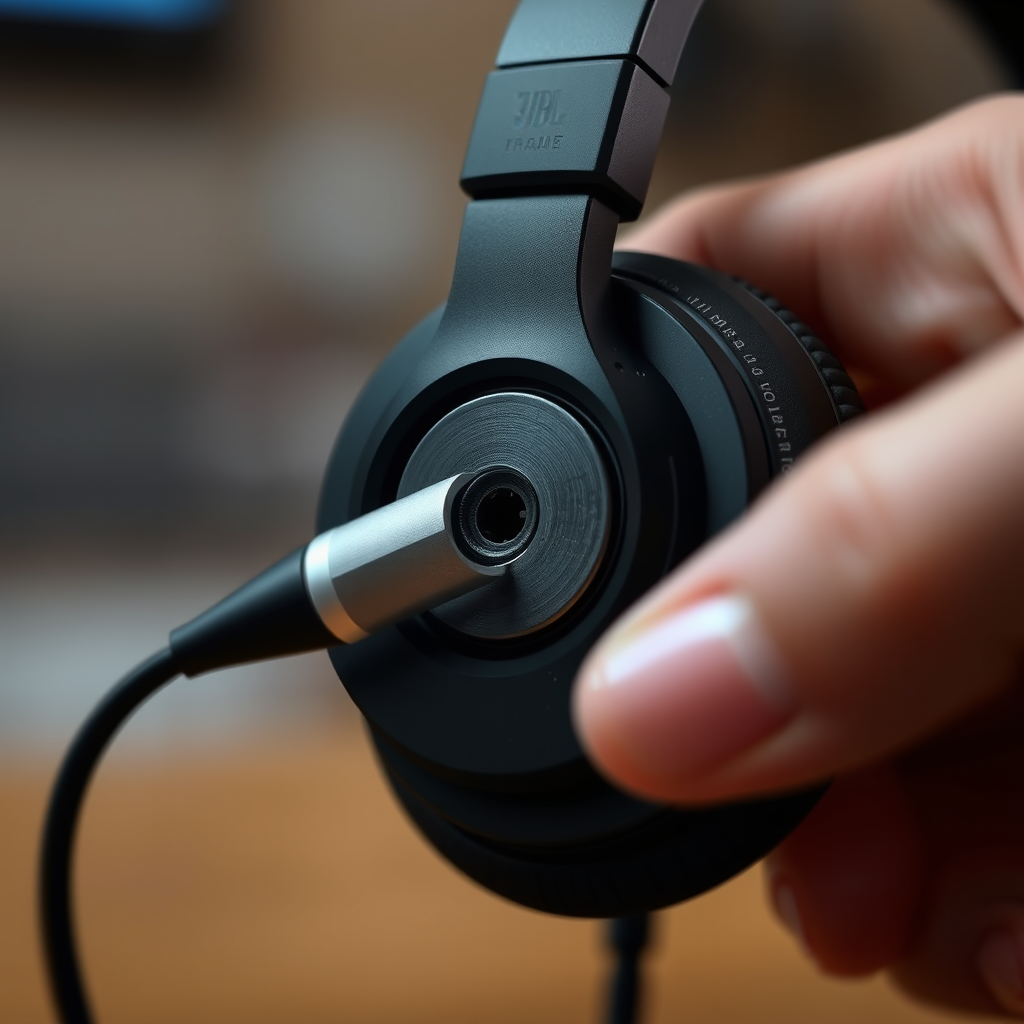
Next, turn your attention to the headphone jack. A common cause of sound issues is debris or dirt that can obstruct the connection between the headphone plug and the jack. Begin by visually inspecting the headphone jack for any visible obstructions. If you notice dirt or lint, use a soft brush or a can of compressed air to gently clean the area.
Additionally, check the headphone plug itself for any signs of corrosion or damage. A damaged plug can create a poor connection, leading to sound issues. If everything appears clean but sound issues persist, it may be time to explore other troubleshooting options.
Examine the Headphone Cable
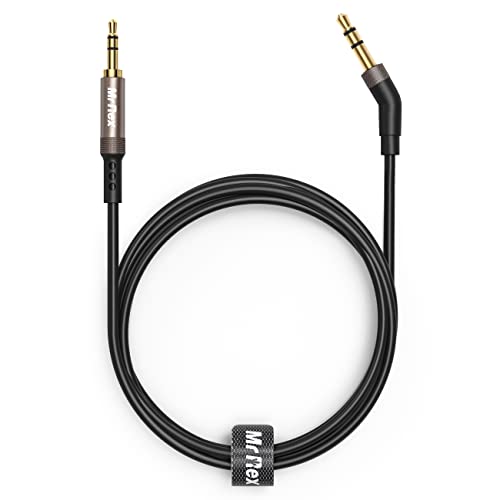
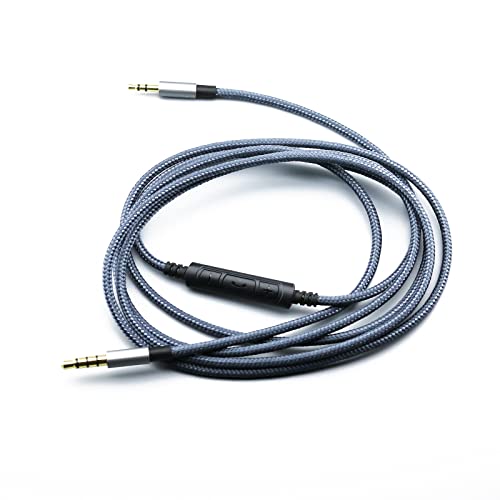
Another area to assess is the headphone cable. Inspect the length of the cable for any visible signs of damage, such as fraying, cuts, or kinks. These imperfections can disrupt the audio signal and result in sound only coming from one side.
To perform a quick check, gently wiggle the cable while listening for sound. If you notice sound returning intermittently on the affected side, the cable may be damaged internally, necessitating replacement. For some users, simply adjusting the cable or the connection can temporarily resolve the sound issue, but be mindful that this is often a sign of a more significant problem.
Reset Your Headphones
For those using Bluetooth JBL headphones, performing a factory reset can often resolve connectivity or sound issues caused by software glitches. Every model has a different reset process, so it’s crucial to consult the manufacturer’s instructions for your specific headphones. Typically, this involves holding down certain buttons for a set duration to clear existing connections and restore factory settings.
Resetting your headphones can refresh the connection and eliminate any software-related problems, allowing you to reconnect to your devices without issues. After resetting, test the headphones with various devices again to see if the sound issues have been resolved.
Update Firmware or Drivers
Keeping your device’s audio drivers and the headphone firmware up to date is critical for optimal performance. Outdated drivers can cause compatibility issues that may lead to sound problems. Visit the JBL website or use their dedicated app to check for firmware updates specific to your headphone model.
For computers, ensure that the audio drivers are current by checking the device manager or the manufacturer’s website. Installing the latest updates can often rectify sound issues and enhance the overall functionality of your headphones.
Use Stereo Balance Settings
Sometimes, the problem might not be with the headphones themselves but rather with the audio settings on your device. Many devices have a stereo balance setting that allows users to adjust the volume distribution between the left and right channels. If this setting is skewed to one side, it could result in sound only coming from the unaffected side.
Check your device’s audio settings to ensure the balance is centered. Adjusting this setting can often restore sound to both sides and enhance your overall listening experience.
Seek Professional Help
If none of the above solutions work, it may be time to seek professional assistance. Contacting JBL customer support can provide you with additional troubleshooting steps tailored to your specific model. They may also inform you about warranty service options if your headphones are still covered.
In cases where repair is necessary, relying on professional services ensures that your headphones receive the proper care and attention they require to restore functionality without risking further damage.
Common Causes of JBL Headphone Sound Issues
| # | Issue | Possible Cause | Solution |
|---|---|---|---|
| 1 | No Sound | Device Issue | Check Audio Source |
| 2 | Sound Only on One Side | Dirty Jack | Clean Headphone Jack |
| 3 | Intermittent Sound | Cable Damage | Inspect and Replace Cable |
| 4 | Bluetooth Connectivity Issues | Software Glitch | Factory Reset |
| 5 | Distorted Sound | Driver Issues | Update Drivers |
| 6 | Audio Balance Issue | Settings Misconfiguration | Adjust Balance Settings |
| 7 | Warranty Issues | Manufacturing Defects | Contact Support |
Headphone Sound Issues by Frequency
By following these steps, you should be able to identify and resolve the issue of sound only coming from one side of your JBL headphones. Taking the time to troubleshoot can often lead to a quick fix, allowing you to return to enjoying your favorite audio content. If problems persist, don’t hesitate to reach out for professional assistance to ensure your listening experience is back to normal. Remember, a well-maintained set of headphones can provide you with years of quality sound, enhancing your enjoyment of music, podcasts, and calls.
Frequently Asked Questions
What are the common reasons for JBL headphones having no sound on one side?
Common reasons for JBL headphones having no sound on one side include a faulty audio source, damaged cables, or a malfunctioning speaker driver. Additionally, dirt or debris in the headphone jack can also cause connectivity issues. Checking these factors can help identify the root cause of the sound problem.
How can I quickly fix my JBL headphones if there’s no sound on one side?
To fix JBL headphones with no sound on one side, first, try plugging them into a different audio device to rule out source issues. Next, inspect the audio cable for any visible damage and clean the headphone jack with compressed air to remove any debris. If the problem persists, consider resetting the headphones or updating the firmware if applicable.
Why do my JBL headphones only work on one side after being used for a long time?
Over time, wear and tear can lead to internal components loosening or wiring fraying, which may cause sound issues in JBL headphones. This can especially happen if the headphones have been exposed to moisture or physical stress. Regular maintenance and careful handling can help prevent these issues from occurring.
Which troubleshooting steps should I take if my JBL headphones have no sound on one side?
Start by checking the audio source and trying different devices to ensure the issue isn’t with the media playback. Next, inspect the headphone cable for any signs of damage and clean the headphone jack. If the problem persists, you may want to reset your headphones or seek professional repair services if they are still under warranty.
What is the best way to maintain my JBL headphones to prevent sound issues?
To maintain your JBL headphones and prevent sound issues, regularly clean the ear cups and headphone jack to avoid debris buildup. Store your headphones in a protective case when not in use, and avoid exposing them to moisture or extreme temperatures. Additionally, handle the cables gently to prevent fraying and check for software updates to ensure optimal performance.
References
- https://www.wikihow.com/Fix-Headphones-That-Only-Play-in-One-Ear
https://www.wikihow.com/Fix-Headphones-That-Only-Play-in-One-Ear - https://www.lifewire.com/fix-headphones-playing-in-one-ear-5077738
https://www.lifewire.com/fix-headphones-playing-in-one-ear-5077738 - https://www.nytimes.com/2020/06/23/technology/personaltech/headphones-repair.html
https://www.nytimes.com/2020/06/23/technology/personaltech/headphones-repair.html - https://www.theguardian.com/technology/2021/jun/16/how-to-fix-your-headphones-not-working-one-ear
https://www.theguardian.com/technology/2021/jun/16/how-to-fix-your-headphones-not-working-one-ear - Google Scholar Google Scholar
https://scholar.google.com/scholar?q=JBL+headphones+no+sound+one+side+fix - Google Scholar Google Scholar
https://scholar.google.com/scholar?q=headphones+troubleshooting+no+sound+one+side - Google Scholar Google Scholar
https://scholar.google.com/scholar?q=audio+issues+headphones+one+ear+not+working - Google Scholar Google Scholar
https://scholar.google.com/scholar?q=JBL+Headphones+No+Sound+on+One+Side?+Fix+It+Fast - JBL Headphones No Sound on One Side? Fix It Fast – Search results
https://en.wikipedia.org/wiki/Special:Search?search=JBL+Headphones+No+Sound+on+One+Side?+Fix+It+Fast - https://www.ncbi.nlm.nih.gov/search/research-articles/?term=JBL+Headphones+No+Sound+on+One+Side?+Fix+It+Fast
https://www.ncbi.nlm.nih.gov/search/research-articles/?term=JBL+Headphones+No+Sound+on+One+Side?+Fix+It+Fast
