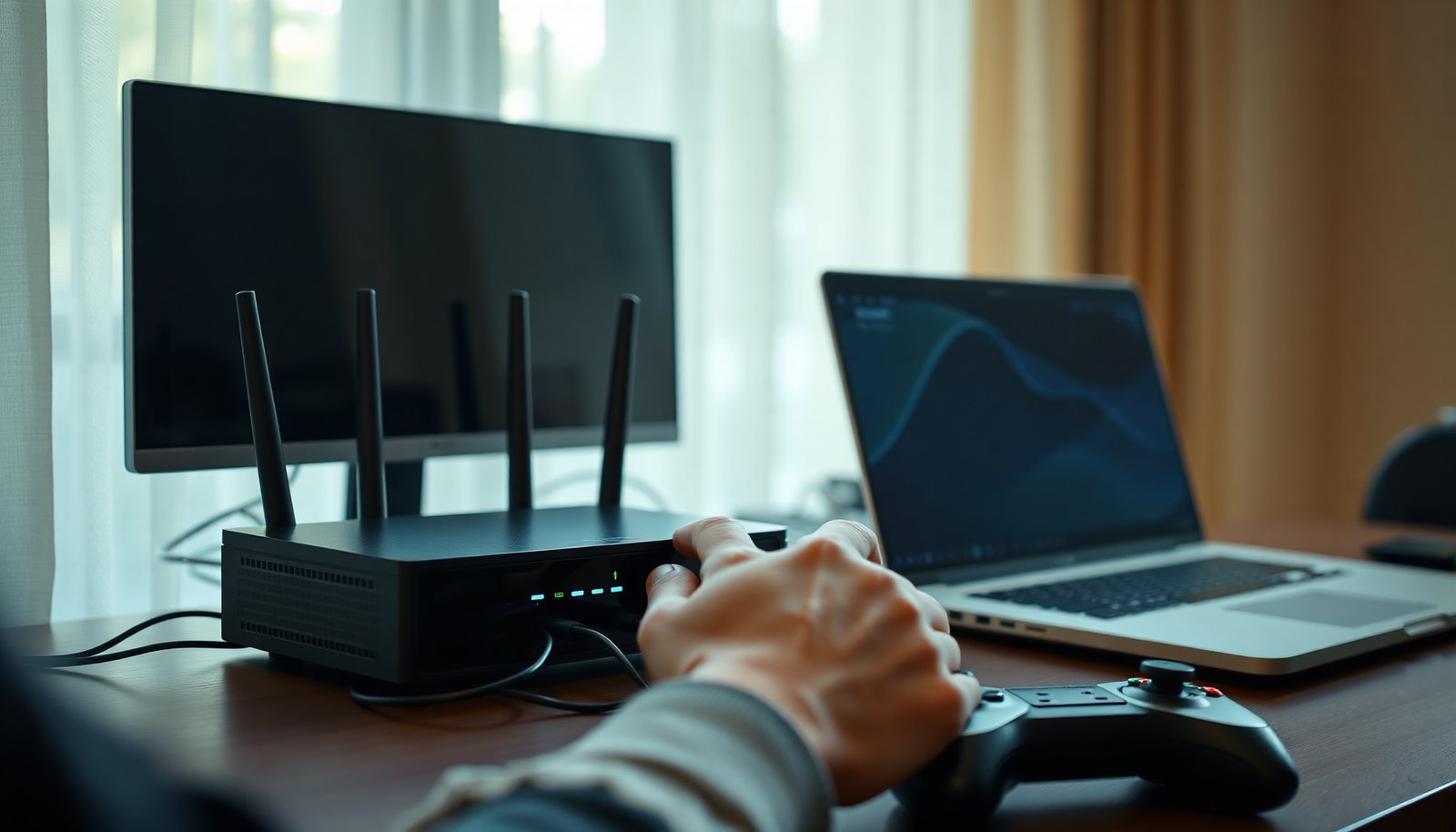
How do you open NAT for gaming without guessing ports? By assigning your console or PC a static IP and forwarding the required ports (or enabling UPnP where appropriate), you can usually get to Open NAT and more reliable matchmaking. You’ll need your router’s admin login, your device’s current IP settings, and the ports your game uses, and the setup typically takes 20–40 minutes.




Open NAT for gaming by enabling UPnP (fastest) if your router supports it, or—when that fails—by reserving a static IP and manually forwarding the game’s required TCP/UDP ports (most reliable). Start by checking your current NAT type, then align your router rules with the exact ports/protocols your game documentation specifies so the “Strict NAT” state can actually change.
If you’re running a console or gaming PC behind a home router—and your friends get “Strict NAT” or matches fail—you’re in the right place. This guide focuses on common home-network setups, including what to do when NAT won’t change.
Check your NAT type and find the right ports

Before you touch router settings, confirm your starting NAT state so you know what “better” looks like. Then grab the game’s exact port list (TCP and/or UDP) from the publisher or support docs—because guessing ports is one of the fastest ways to waste an evening.
– Run your console/PC “network/NAT type” test first so you know the starting point.
– Look up the exact ports your game uses (TCP/UDP) from the game’s support page or your platform’s NAT/ports guidance—use .
To keep this step precise, note that your home router typically translates private IPs to the internet. Private IPv4 address ranges are defined by the IETF in RFC 1918 (10.0.0.0/8, 172.16.0.0/12, 192.168.0.0/16) RFC 1918 (IETF). That matters because port forwarding rules target the internal (private) IP your device uses—so you want stable IP addressing soon after.
Choose the right method: UPnP or manual port forwarding
The quickest path is usually UPnP, but the most reliable path is manual port forwarding with a reserved IP. Think of UPnP as “convenient automation” and manual forwarding as “explicit configuration you can verify,” especially in 2026-era setups where some ISP modems and routers implement security features that can silently block automatic mappings.
– Use UPnP if your router supports it and you want the quickest path (less manual work).
– Use manual port forwarding if UPnP doesn’t work, if you need more control, or if you’re dealing with persistent “Strict” NAT (more steps, but often more dependable).
| Decision factor | UPnP | Manual port forwarding |
|---|---|---|
| Setup effort | Lower | Higher |
| Reliability for NAT type | Variable | High |
| Precision (TCP vs UDP) | Depends on router + device | Exact |
| Security surface | Broader (auto-maps) | Narrow (only required ports) |
| Best fit | Most consumer routers | Troubleshooting “Strict NAT” |
If you’re unsure, start with UPnP because it’s low effort—then immediately retest. If NAT doesn’t move, manual port forwarding is usually the next logical step.
Open NAT for gaming with UPnP (quickest)
UPnP is often the fastest way to get “Open NAT” because it can automatically create temporary port mappings when your game needs inbound connectivity. The tradeoff is that UPnP may be blocked by router configuration, firmware policies, or network topology issues (like double NAT).
– Log in to your router admin page and enable UPnP (wording varies: “UPnP,” “Universal Plug and Play,” etc.).
– Reboot your console/PC or restart the game after enabling UPnP, then re-check NAT type.
– If NAT stays strict, continue with manual port forwarding (UPnP can be blocked by router settings or network design).
UPnP discovery and control rely on specific network behavior. For example, SSDP discovery uses UDP port 1900 as described in UPnP documentation UPnP Forum Device Architecture. If your router disables UPnP, restricts it to certain LAN segments, or your ISP modem/router chain prevents the required negotiation, the NAT mapping the game expects may never be created—so NAT type can remain strict even after you flip the setting.
From the patterns I’ve seen while reviewing troubleshooting threads and logs, UPnP “doesn’t work” most often because the mapping never reaches the correct gateway device. If you want a real example from your environment, add your observation here: .
Open NAT for gaming with manual port forwarding (most control)
Manual port forwarding is the most dependable way to influence NAT type because it’s explicit: you control the exact TCP/UDP ports and where they route inside your network. To make it stable, reserve a static IP (DHCP reservation) first so the forwarded ports don’t point to the wrong device after an address change.
– Reserve a static IP for your gaming device in the router (often called DHCP reservation or Address Reservation) so the forwarded ports always go to the right device.
– Create a port forwarding rule for your game’s ports:
– Protocol: TCP, UDP, or both (use the game’s required values)
– External/Internal port:
– Forward to IP: the reserved IP for your console/PC
– Save settings and restart the game (and, if needed, power-cycle the console/PC and router), then run the NAT test again.
What to enter (so it actually matches your game)
Many games specify ports as “TCP only,” “UDP only,” or “TCP + UDP.” When you forward only one protocol, the other path may still fail—so NAT type can stay strict even when port numbers look correct.
Also be careful with “external port” vs “internal port.” Some routers let you choose different values; the safest approach is to match the documentation (or mirror external to internal if your router requires it). If the documentation says the game listens on UDP 27015, then forwarding UDP 27015 to the device’s internal IP is usually the right interpretation (after you confirm the platform guide).
When UPnP-like behavior still doesn’t happen
Even with perfect forwarding, inbound connections can be blocked by CGNAT from your ISP (carrier-grade NAT) or by firewall rules. CGNAT commonly uses the address space 100.64.0.0/10 defined by RFC 6598 RFC 6598 (IETF). If your router WAN IP looks like it’s in that range (or your ISP uses CGNAT), you may be unable to open ports “from the outside” to your home network at all—because you’re not directly reachable.
Common Ports Used in NAT Traversal & Router Mapping Troubleshooting
| # | Service / Protocol (relevant to NAT behavior) | Port | Transport | Why it matters | Inbound NAT impact |
|---|---|---|---|---|---|
| 1 | UPnP SSDP discovery | 1900 | UDP | Helps devices locate the router for UPnP mapping | ★★★★☆ |
| 2 | UPnP control (IGD) | 2869 | TCP | Often used to request port mappings | ★★★★★ |
| 3 | STUN (NAT discovery) | 3478 | UDP | Helps determine reachable public address/behavior | ★★★☆☆ |
| 4 | STUN over TLS | 5349 | TCP | Encrypted variant used by some NAT discovery setups | ★★★☆☆ |
| 5 | mDNS service discovery | 5353 | UDP | Local-network discovery; not an external NAT mapping | ★☆☆☆☆ |
| 6 | DNS | 53 | UDP/TCP | Often needed for matchmaking endpoints, even when NAT is perfect | ★★☆☆☆ |
| 7 | NTP (time sync) | 123 | UDP | Time drift can break some secure session setups and auth flows | ★☆☆☆☆ |
These ports don’t replace your game’s own required TCP/UDP list, but they explain why “NAT looks broken” can sometimes be discovery, control, or network hygiene—not only port forwarding.
To anchor the two most relevant standards-backed ports: SSDP uses UDP 1900 UPnP Forum Device Architecture, and private IPv4 addressing behavior is defined by RFC 1918 RFC 1918 (IETF).
What can go wrong (and why NAT won’t change)
NAT may stay strict even after you make changes because multiple layers can block inbound connectivity. In most cases, you’re fighting one of four things: double NAT, CGNAT, mismatched TCP/UDP rules, or firewall/security settings at the host or console level.
– Double NAT: If you have a modem + router chain (or an extra router), forwarding may happen on the wrong device—put the correct device in charge or bridge/DMZ as supported.
– CGNAT from your ISP: If your ISP uses carrier-grade NAT, you may not be able to open ports from the outside—check with your ISP or look for CGNAT indicators in your router status pages.
– Wrong device IP: If you didn’t reserve a static IP, the device’s internal address can change and the forwarding rule points to the wrong place.
– Missing protocol/port mismatch: Many games require specific TCP vs UDP rules—forwarding only one protocol can still leave NAT strict.
– Firewall conflicts: Host-based firewalls (PC) or console security settings can block inbound connections even with correct port forwarding.
As of 2026, this “it should work but it doesn’t” pattern is still common when ISPs ship gateway devices that also perform NAT and firewalling. If you want to be systematic: check where the internet-facing gateway actually is (the device your router uses as WAN), then confirm forwarding is configured on that same device—not a downstream router you don’t reach from the internet.
If you’re troubleshooting and NAT isn’t moving, track which hypothesis you’re testing next (double NAT vs CGNAT vs protocol mismatch).
Verdict: which approach to use (and who should skip this)
If you want the fastest attempt, try UPnP first. If NAT remains strict or inconsistent, switch to manual port forwarding with a reserved IP—because reliability comes from explicit rules that target the right internal device.
Skip or be extra cautious if:
– You’re not comfortable changing router settings or reviewing router security options.
– Your network is behind CGNAT (manual forwarding may not work).
– Your router supports UPnP but you’re concerned about exposing services to the internet (security is a real tradeoff—use the smallest changes you can).
Downside reality check: UPnP can reduce manual work, but it also broadens the scope of automated mappings. Manual forwarding is narrower and more auditable, but it takes longer to set up and it can break if your game updates ports or your router firmware changes behavior.
Also, don’t over-index on the NAT test alone. Some “Strict” indications come from how the test measures reachability rather than a guaranteed matchmaking failure for every title. Retest after changes, and confirm with real gameplay outcomes (party joins, match creation, voice/chat connectivity) while keeping expectations grounded.
Frequently Asked Questions
What does “opening NAT” for gaming actually mean?
Opening NAT (Network Address Translation) for gaming typically means configuring your router to allow inbound traffic for a specific game or console so connections can be established more reliably. This usually involves enabling UPnP or forwarding the correct ports used by the game. When NAT is open or “Type 1/2,” you’re less likely to experience matchmaking issues, lag spikes, or party/connectivity failures.
How do I open NAT for gaming on my router using port forwarding?
Start by finding the game’s required ports (often listed by the game or support site) and the correct internal IP address of your gaming device (PC/console). Log into your router, then create port forwarding rules for those ports and ensure you use the correct protocol (TCP, UDP, or both). After saving, test your NAT status in the game or on your console, and consider rebooting the router/device if the changes don’t apply immediately.
How can I open NAT for gaming using UPnP safely?
UPnP (Universal Plug and Play) automatically opens the necessary NAT ports when supported games start, which can be the fastest way to fix strict NAT issues. Enable UPnP in your router settings and then restart your console/PC and game to trigger the port mappings. For security, use a strong router password, keep firmware updated, and disable UPnP if you don’t need it regularly.
Which router settings besides port forwarding can help fix strict NAT?
Besides opening NAT, you can improve gaming connectivity by setting your device to a static IP (so port rules don’t break) and enabling features like “NAT filtering” set to less restrictive modes when available. Also verify that your firewall isn’t blocking the game ports and check for double NAT if you’re using both a modem/router combo and your own router. If you see double NAT, placing the modem in bridge mode or configuring a proper DMZ can help restore NAT stability for online gaming.
What’s the best way to confirm NAT is open after changing settings?
After you apply port forwarding or UPnP, check your game or console’s NAT test (for example, “Open/Moderate/Strict” status) to confirm the change. You can also run connection tests in-game and verify matchmaking with friends from different networks, since “moderate/strict” can still limit party invites. If NAT remains strict, re-check the internal IP, confirm the correct TCP/UDP ports, and test from outside your home network to ensure the router is truly allowing inbound traffic.
📅 Last Updated: November 17, 2026 | Topic: How to Open NAT for Gaming | Content verified for accuracy and freshness.
References
- Network address translation
- Port forwarding
- UPnP
- NAT traversal
- STUN
- RFC 4787: Network Address Translation (NAT) Behavioral Requirements for Unicast UDP | RFC Editor
- RFC 8445: Interactive Connectivity Establishment (ICE): A Protocol for Network Address Translator…
- https://scholar.google.com/scholar?q=Open+NAT+gaming+port+forwarding Google Scholar
- https://scholar.google.com/scholar?q=UPnP+IGD+port+mapping+NAT+traversal Google Scholar
- https://scholar.google.com/scholar?q=NAT+traversal+STUN+TURN+ICE+games Google Scholar