To extend the lifespan of your laptop display, prioritize regular maintenance, careful handling, and optimal usage conditions. By following a few simple tips, you can significantly reduce wear and tear on your screen, ensuring it remains functional and clear for years to come. A well-cared-for display not only enhances your overall computing experience but also saves you money in the long run by delaying the need for repairs or replacements.



Regular Cleaning and Maintenance

One of the simplest yet most effective ways to ensure your laptop display lasts is through regular cleaning and maintenance. Dust and smudges can accumulate on the screen, which not only diminishes visibility but can also lead to longer-term damage if left unaddressed. To clean your display, use a microfiber cloth, which is soft enough to avoid scratches while effectively removing dirt and fingerprints. Lightly dampen the cloth with water or a specialized screen-cleaning solution, and gently wipe the screen in circular motions. This method helps to avoid streaks while keeping your display pristine.
It’s crucial to steer clear of harsh chemicals such as ammonia-based cleaners, which can strip away the protective coatings on your screen. Instead, consider natural alternatives like a solution of vinegar and water if you need to tackle tougher grime. Regular cleaning, ideally every few weeks, can preserve the clarity and vibrancy of your laptop display, making it easier on your eyes and improving your overall user experience.
Optimal Brightness and Contrast Settings

Adjusting your laptop’s brightness and contrast settings can significantly impact both your comfort and the lifespan of the display. High brightness levels can contribute to eye strain over time, especially in low-light environments. Setting the brightness to a comfortable level not only reduces strain but can also help in conserving battery life, especially when you’re on the go.
If your laptop has an automatic brightness adjustment feature, take advantage of it! This function adjusts the brightness based on ambient lighting conditions, ensuring that you’re not straining to see the screen or over-brightening it unnecessarily. Remember, finding that sweet spot where your display is neither too dim nor too bright will contribute to the longevity of the display and enhance your overall computing experience.
Avoiding Direct Sunlight and Extreme Temperatures
Environmental factors play a significant role in the longevity of your laptop display. Keeping your device out of direct sunlight can prevent overheating, which can lead to display fading or even permanent damage over time. Sunlight can not only make it difficult to see your screen but can also cause the internal components to expand and contract, leading to potential malfunctions.
Additionally, extreme temperatures—whether too hot or too cold—can adversely affect your laptop’s display. Using your laptop in environments that are excessively hot can lead to overheating, while extremely cold conditions can cause components to contract, potentially leading to cracks or other damage. To ensure your laptop remains in good shape, aim to use it in a temperature-controlled environment whenever possible.
Safe Handling and Transport
How you handle and transport your laptop is vital for protecting its display. Always close the laptop before moving it; this simple practice prevents unnecessary pressure on the screen. A common mistake many people make is leaving their laptop open while moving, which can result in screen cracks or damage if the device is jostled.
When transporting your laptop, invest in a quality protective case or sleeve designed for your specific model. These accessories provide cushioning and protection against bumps and drops, minimizing the risk of physical damage to the display. Additionally, make a habit of keeping your laptop away from edges of tables or desks to avoid accidental falls. Taking these precautions will go a long way in preserving the integrity of your laptop’s display.
Managing Screen Time and Usage
In our digital age, screen time management is essential not just for eye health, but also for the longevity of your laptop display. Prolonged use of static images can lead to screen burn-in, where ghost images remain visible even when the display changes. To mitigate this risk, take regular breaks during extended use. The 20-20-20 rule is a popular guideline: every 20 minutes, look at something 20 feet away for at least 20 seconds. This practice not only provides relief for your eyes but also reduces the risk of burn-in.
Utilizing screen savers or automatic sleep settings can also help minimize static images on your display when it’s not in use. These features prevent prolonged exposure to a single image, allowing your screen to rest. By managing your screen time consciously, you can protect your display from unnecessary wear and enhance your overall computing experience.
Connecting to External Displays
Connecting your laptop to external displays can be a great way to enhance productivity, but it’s essential to be cautious about compatibility and settings. Ensure that any external monitors you’re connecting to are compatible with your laptop to avoid potential display issues. An incompatible resolution can strain both your laptop’s internal display and the external monitor, leading to diminished performance.
When adjusting resolution settings, be sure to choose the appropriate settings that match your laptop’s capabilities. This not only helps in providing the best visual experience but also reduces stress on your laptop’s internal display. Taking a few moments to ensure compatibility and correct settings can significantly contribute to the lifespan of your laptop display.
Utilizing Screen Protectors
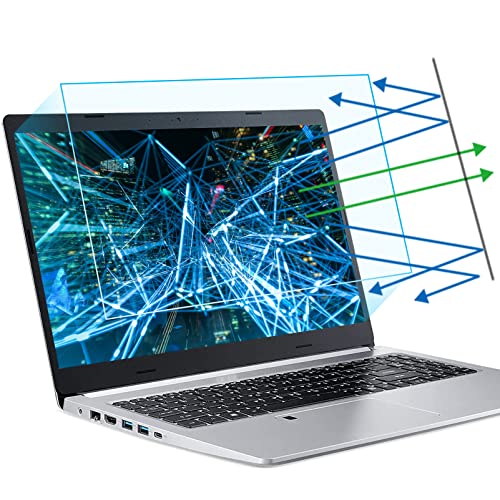
Consider applying a screen protector to shield your laptop display from scratches, fingerprints, and other potential damage. Screen protectors come in various materials, from tempered glass to plastic films, each offering its own level of protection. When choosing a screen protector, ensure it is compatible with your laptop model for the best fit and effectiveness.
Using a screen protector not only helps maintain the clarity and functionality of your display but also makes cleaning easier. Fingerprints and smudges are less likely to adhere to a protector than to the screen itself, meaning you can keep your display looking great with minimal effort. This small investment can pay off in the long run by helping to keep your display in top-notch condition.
Reducing wear and tear on your laptop display is achievable with simple yet effective practices. By regularly cleaning, handling your device carefully, and managing your usage, you can significantly enhance the longevity of your screen. Take the first step today by implementing these tips and ensuring your laptop display remains in top condition for years to come. Remember, a little care goes a long way in preserving the quality of your laptop and enhancing your overall experience!
Frequently Asked Questions
What are the best practices for cleaning my laptop display without damaging it?
To clean your laptop display safely, use a microfiber cloth slightly dampened with water or a dedicated screen cleaner. Avoid using paper towels, rough fabrics, or any cleaners containing alcohol, ammonia, or strong solvents, as these can scratch or damage the screen. Always ensure the laptop is turned off and unplugged before cleaning to prevent any electrical issues.
How can I prevent screen burn-in on my laptop display?
To prevent screen burn-in on your laptop display, avoid leaving static images on the screen for prolonged periods. Use a screensaver, set your laptop to automatically turn off the display after a short duration of inactivity, and regularly change your desktop wallpaper. Additionally, consider using dark mode settings in applications to minimize the risk of burn-in.
Why is it important to adjust the brightness settings on my laptop display?
Adjusting the brightness settings on your laptop display is crucial for both your eye health and the longevity of the screen. Excessively high brightness can lead to faster wear of the display components and can also cause eye strain during prolonged use. It’s recommended to set your brightness to a comfortable level that allows for easy viewing without overexerting your eyes.
Which types of laptop displays are more durable and have longer lifespans?
Generally, IPS (In-Plane Switching) displays are known for their better color accuracy and viewing angles, while OLED (Organic Light Emitting Diode) displays offer vibrant colors and deeper blacks. However, IPS panels tend to be more durable and less prone to issues like burn-in compared to OLED screens. When purchasing a laptop, consider these technologies for a display that can withstand daily use and maintain visual quality over time.
How can I protect my laptop display from physical damage?
To protect your laptop display from physical damage, always use a padded laptop sleeve or case when transporting it. Avoid placing heavy objects on top of the laptop, and be cautious when closing the lid to ensure nothing is trapped inside. Additionally, consider using screen protectors designed for your specific laptop model, as these can help prevent scratches and minor impacts.
References
- https://www.wikihow.com/Extend-the-Lifespan-of-Your-Laptop
- https://www.lifewire.com/how-to-extend-the-lifespan-of-laptop-display-4782985
- https://www.techrepublic.com/article/how-to-extend-the-lifespan-of-your-laptop/
- https://www.howtogeek.com/720956/how-to-extend-the-lifespan-of-your-laptop/
- https://www.pcmag.com/how-to/how-to-extend-the-life-of-your-laptop