
If your Denon sound system is not detecting external devices, don’t worry—there are several straightforward fixes you can try. This guide will walk you through the most effective solutions to get your system up and running with all your favorite devices. By following these troubleshooting steps, you can identify and resolve connectivity issues efficiently, ensuring your home audio experience is restored quickly.
Check Connections and Cables
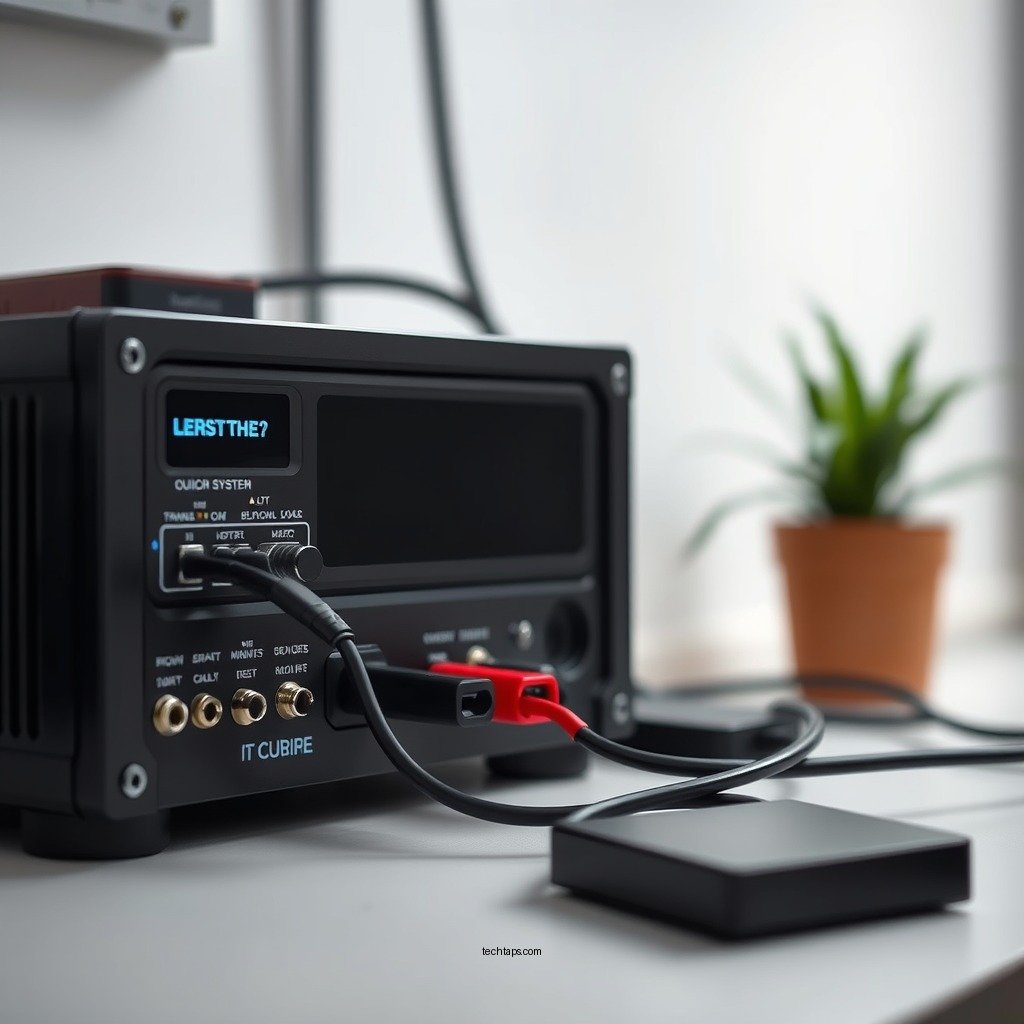
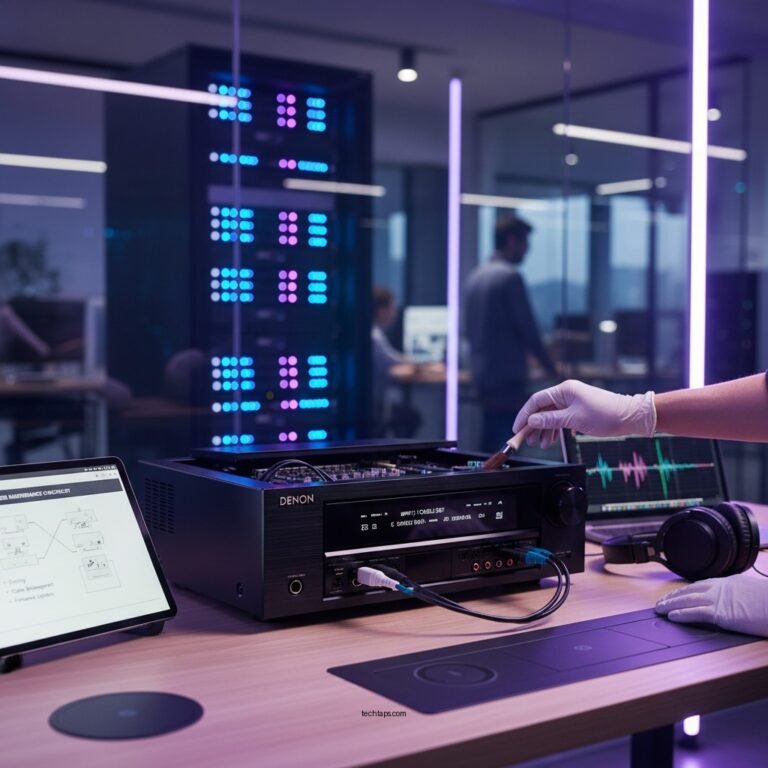
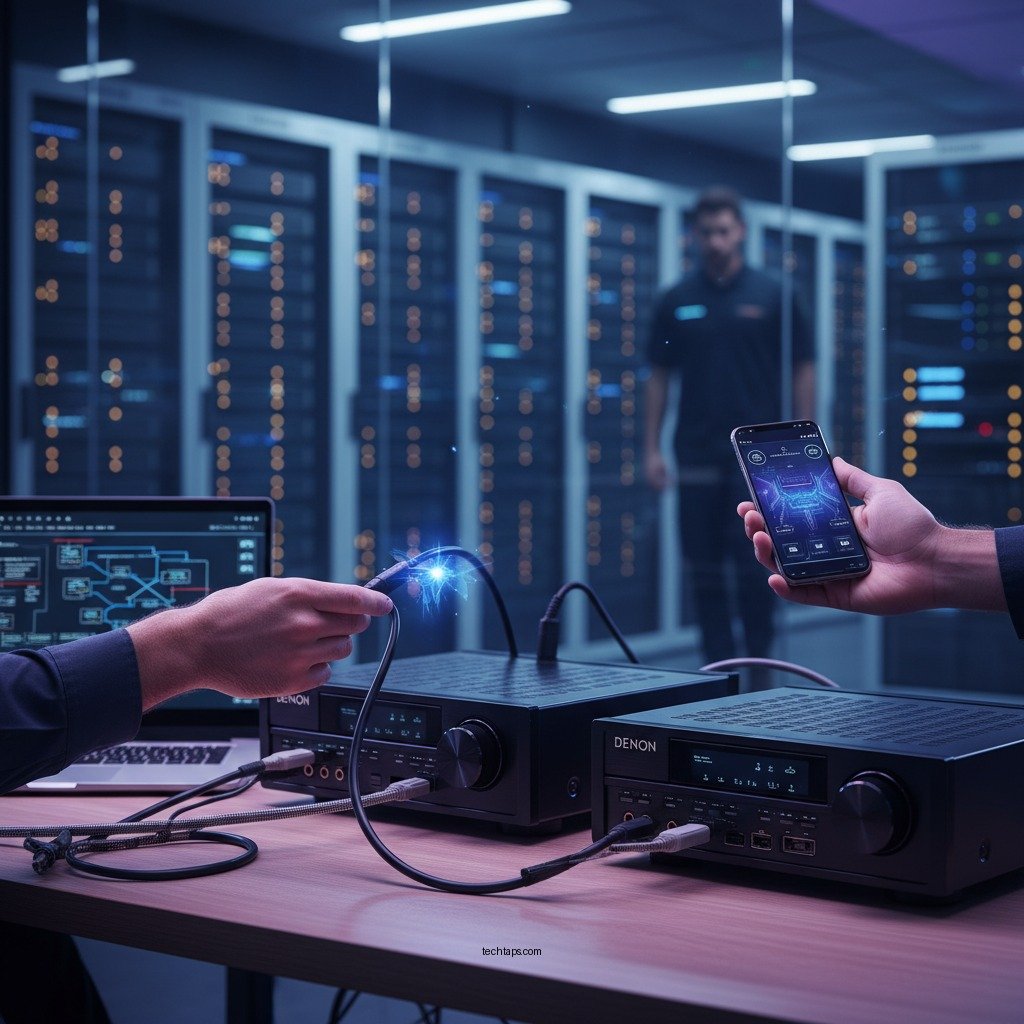
The first step in troubleshooting your Denon sound system is to check all connections and cables. Often, a loose or improperly connected cable can lead to detection issues. Begin by ensuring that all cables are securely plugged into both the Denon sound system and the external devices, such as your TV, Blu-ray player, or gaming console. Pay particular attention to HDMI, optical, and RCA connections, as these are commonly used for audio transmission.
Next, inspect the cables for any signs of damage or wear. Frayed or broken cables can hinder signal transmission, resulting in a failure to detect devices. If you notice any visual defects, replace the affected cables with new ones. Additionally, try using different ports on the Denon system to rule out any port-specific issues. A simple cable check can often resolve connectivity problems, so it’s a vital first step.
Update Device Firmware
Another crucial step to consider is updating the firmware of your Denon sound system. Firmware updates can enhance performance, fix bugs, and improve compatibility with external devices. Check if there are any available firmware updates by visiting the official Denon website or using the Denon HEOS app, if applicable.
Once you identify that an update is available, follow the manufacturer’s instructions carefully to download and install the update. This process may vary depending on your model, but it generally involves connecting your system to the internet and navigating through the settings menu. After updating, restart your Denon system and check if it can now detect the external devices. Keeping your firmware up to date is essential for optimal sound performance and compatibility.
Verify Input Settings
Selecting the correct input source on your Denon sound system is essential for proper functionality. If the wrong input source is chosen, the system will not detect any connected external devices. Use the remote control or the front panel to cycle through the available input options until you find the one corresponding to your device.
For example, if you have a Blu-ray player connected via HDMI, ensure that the HDMI input is selected on the Denon system. Some models may also have an on-screen display that shows the current input source, making it easier to confirm your selection. If you’ve recently changed devices or reconfigured your setup, it’s possible that the input source needs to be adjusted accordingly.
Common Input Formats Supported by Denon Systems (2024)
| # | Input Type | Max Resolution | Supported Audio Formats | Notes |
|---|---|---|---|---|
| 1 | HDMI | 4K @ 60Hz | Dolby Atmos, DTS-X | Most versatile option |
| 2 | Optical | Up to 192kHz | PCM, Dolby Digital | Best for older TVs |
| 3 | RCA | N/A | Stereo | Limited audio quality |
| 4 | USB | N/A | MP3, WAV | For media playback |
| 5 | Bluetooth | N/A | SBC, AAC | Wireless convenience |
| 6 | Coaxial | Up to 192kHz | PCM, Dolby Digital | Alternative to optical |
| 7 | Network | N/A | Streaming services | Access to online content |
Reset the Sound System
If the previous steps do not resolve the detection issue, consider performing a factory reset on your Denon sound system. A reset clears all settings and preferences, which can help eliminate any configuration errors that might be causing the problem. However, it’s important to note your current settings, as a reset will revert everything to default.
To perform a factory reset, consult your Denon user manual for specific instructions, as the reset procedure can vary by model. Typically, this involves pressing a combination of buttons on the remote control or the unit itself. After completing the reset, reconnect your external devices and select the appropriate input source to see if the issue has been resolved.
Test with Different Devices
To further diagnose the issue, test your Denon sound system with different external devices. This step will help you determine whether the problem lies with the sound system itself or the initial external device. For instance, if your Blu-ray player isn’t detected, try connecting a gaming console or streaming device instead.
If the Denon sound system successfully detects the new device, it may indicate that the original device is malfunctioning or incompatible. Conversely, if the new device also fails to connect, the issue likely resides within the Denon system. Documenting your findings can assist you when contacting customer support or seeking professional help.
Seek Professional Help
If none of the above solutions work, it may be time to seek professional assistance. Contacting Denon customer support can provide you with expert guidance tailored to your specific sound system model. They can help troubleshoot the issue further or suggest repair options if necessary.
Additionally, local audio equipment professionals can offer in-person troubleshooting services. They possess the tools and knowledge needed to diagnose and fix complex issues that may not be easily resolved through standard troubleshooting steps. If you’re experiencing persistent problems despite trying all recommended solutions, don’t hesitate to reach out for professional help.
In the event your Denon sound system is not detecting external devices, you have several actionable steps to troubleshoot and fix the issue. From checking connections to updating firmware and testing different devices, these solutions can help you restore functionality. If the problem persists after trying these methods, reaching out to customer support is a wise next step. Don’t let connectivity issues hold you back—take action today!
Frequently Asked Questions
Why is my Denon sound system not detecting external devices?
If your Denon sound system is not detecting external devices, it could be due to several reasons, including faulty cables, incorrect input settings, or outdated firmware. First, ensure that all cables are securely connected and functional. Then, check if the correct input source is selected on your Denon receiver. Lastly, consider updating the firmware to resolve any compatibility issues.
How can I fix my Denon sound system not recognizing HDMI devices?
To fix your Denon sound system not recognizing HDMI devices, start by ensuring that the HDMI cable is fully inserted into both the sound system and the external device. Next, check the HDMI settings in the Denon system menu to confirm that HDMI control (CEC) is enabled. If the problem persists, try using a different HDMI port or cable to rule out hardware failures.
What should I do if my Denon receiver shows ‘No Signal’ from external devices?
If your Denon receiver displays ‘No Signal’ from external devices, first verify that the external device is powered on and functioning properly. Check the video output settings on the device to ensure they match the input capabilities of your Denon receiver. Additionally, inspect the connections and try switching to a different input to see if the issue persists.
Which troubleshooting steps can I take for a Denon sound system not connecting to Bluetooth devices?
For a Denon sound system not connecting to Bluetooth devices, start by ensuring that Bluetooth is enabled on both the Denon system and your external device. Remove any previously paired devices from the Denon system and attempt to re-pair your device. If issues continue, try resetting the Bluetooth module in your Denon system through the settings menu.
What are the best practices to ensure my Denon sound system detects external devices consistently?
To ensure your Denon sound system detects external devices consistently, use high-quality cables and avoid excessive bends or stretches that could cause damage. Regularly update the firmware to maintain compatibility with new devices, and always select the correct input source. Additionally, keep the system and devices within close proximity to avoid connectivity issues.
References
- https://www.denon.com/en-us/support
https://www.denon.com/en-us/support - https://support.denon.com/app/answers/detail/a_id/1950/~/denon-receiver-does-not-detect-external-device
https://support.denon.com/app/answers/detail/a_id/1950/~/denon-receiver-does-not-detect-external-device - https://www.audioholics.com/tweaks/how-to-fix-hdmi-arc-not-working
https://www.audioholics.com/tweaks/how-to-fix-hdmi-arc-not-working - https://www.lifewire.com/how-to-fix-hdmi-arc-not-working-4689709
https://www.lifewire.com/how-to-fix-hdmi-arc-not-working-4689709 - Google Scholar Google Scholar
https://scholar.google.com/scholar?q=Denon+Sound+System+Not+Detecting+External+Devices - Google Scholar Google Scholar
https://scholar.google.com/scholar?q=Fixing+Audio+Receiver+Connection+Issues - Google Scholar Google Scholar
https://scholar.google.com/scholar?q=Home+Theater+System+Troubleshooting - Reddit – The heart of the internet
https://www.reddit.com/r/hometheater/comments/lk8wz4/how_do_i_fix_my_denon_receiver_not_detecting/ - Google Scholar Google Scholar
https://scholar.google.com/scholar?q=Denon+Sound+System+Not+Detecting+External+Devices?+Fix+It+Now