
To ensure compatibility between your TV and audio system, it’s essential to evaluate connection types, audio formats, and settings. A seamless integration of these elements will enhance your viewing experience, allowing you to enjoy high-quality sound that complements the visuals. This article will walk you through the critical steps involved in achieving this compatibility, ensuring that your audio system elevates your home entertainment setup.
Check Connection Types
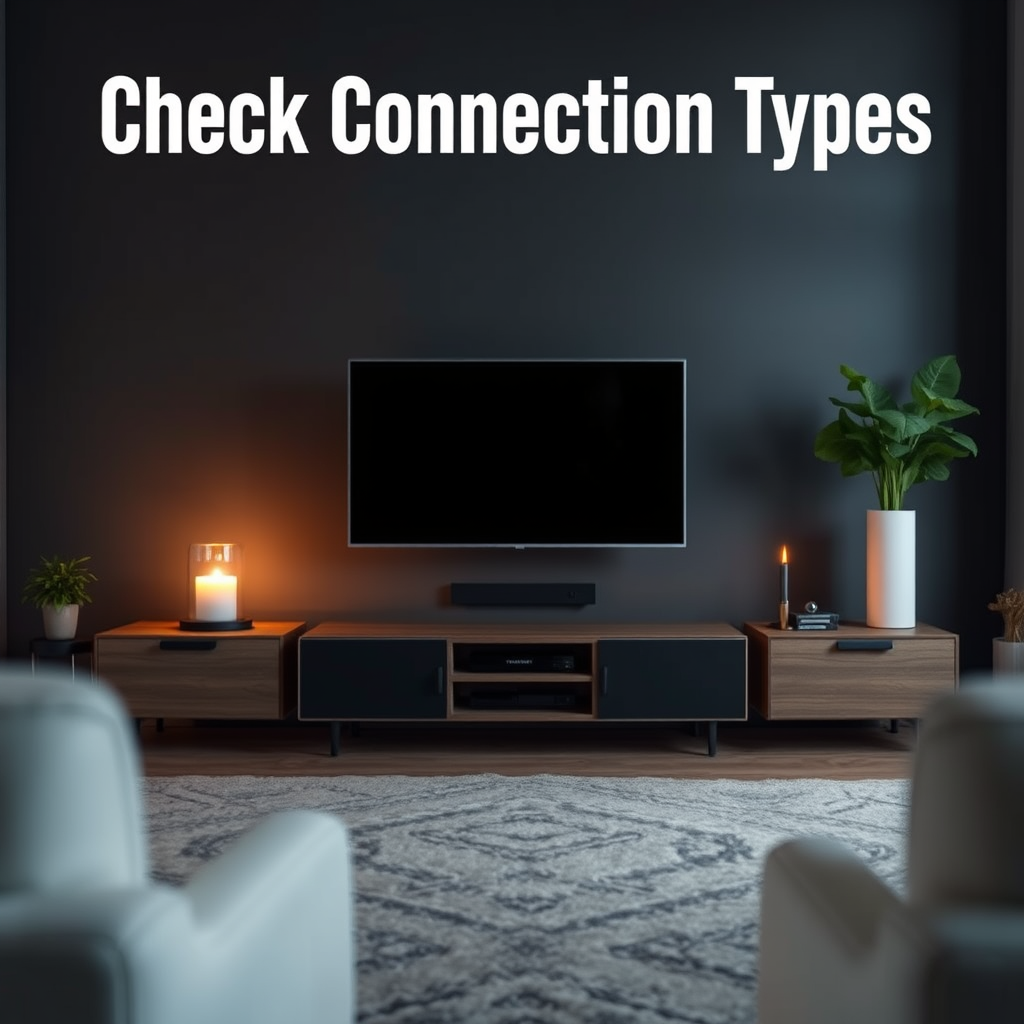
The first step in ensuring compatibility between your TV and audio system is to identify the available connection ports on your devices. Common connection types include HDMI, Optical, and RCA, each with its own advantages and use cases:
1. HDMI (High-Definition Multimedia Interface): This is the most widely used connection type for modern TVs and audio systems. HDMI cables can transmit both audio and video signals, making them ideal for high-definition content.
2. Optical (TOSLINK): Optical connections use fiber optics to transfer digital audio signals. They are commonly found on both TVs and soundbars, especially for high-quality audio formats, and are a good alternative when HDMI is not available.
3. RCA (Red and White Connectors): While older technology, RCA connections are still found on many devices. They are typically used for analog audio and might be the only option for older audio equipment.
When evaluating compatibility, ensure that your audio system has matching inputs for the ports available on your TV. If your audio system lacks certain ports, consider using an adapter or upgrading to a more compatible model to facilitate seamless connectivity.
Understand Audio Formats
Understanding the audio formats supported by your TV and audio system is crucial for optimal performance. Some of the most common audio formats include:
– Dolby Digital: A standard audio codec for surround sound, widely supported by most TVs and audio systems.
– DTS (Digital Theater Systems): Another popular surround sound format that offers higher audio quality than standard stereo.
– PCM (Pulse Code Modulation): This format is used for uncompressed audio and is compatible with virtually all audio systems.
To ensure compatibility, check your TV’s specifications for the audio formats it supports and confirm that your audio system can decode these formats. If they do not match, you may experience a loss of audio quality or even silence. Upgrading your audio system to one that supports the same formats as your TV can significantly enhance your listening experience.
Explore Advanced Features
Modern audio systems come equipped with advanced features that simplify connectivity and improve sound quality. Here are some to consider:
– ARC (Audio Return Channel): This feature allows audio signals to travel in both directions over a single HDMI cable. It simplifies the connection between your TV and audio system, reducing the number of cables needed.
– Wireless Options: Many contemporary audio systems offer Bluetooth or Wi-Fi connectivity, allowing for a clutter-free setup. Wireless connections can also facilitate multi-room audio systems, where sound can be played throughout your home from a single source.
When exploring these features, it is essential to ensure that both your TV and audio system support the same wireless technology or protocols. This compatibility will allow you to take full advantage of the advanced features available.
Top Audio Formats Supported by TVs and Audio Systems (2024)
| # | Audio Format | Supported by TV | Supported by Audio System | Quality Rating |
|---|---|---|---|---|
| 1 | Dolby Digital | Yes | Yes | ★★★★☆ |
| 2 | DTS | Yes | Yes | ★★★★☆ |
| 3 | PCM | Yes | Yes | ★★★★★ |
| 4 | Dolby Atmos | Yes | Yes | ★★★★★ |
| 5 | DTS:X | Yes | Yes | ★★★★★ |
| 6 | AAC (Advanced Audio Codec) | Yes | Yes | ★★★★☆ |
| 7 | WAV (Waveform Audio File Format) | No | Yes | ★★☆☆☆ |
Adjust Audio Settings
Once you’ve established a physical connection and confirmed audio format compatibility, the next step is to adjust the audio settings on both your TV and audio system. Here are some best practices:
1. Access TV Sound Settings: Navigate to the sound settings menu on your TV. Here, you can select the audio output format that best suits your audio system, ensuring it is set to the highest quality format available (like Dolby Digital or DTS if supported).
2. Configure the Audio System: Make adjustments on your audio system to match the output settings of the TV. For instance, if your TV is outputting in Dolby Digital, ensure your audio system is set to decode that format for optimal sound.
3. Speaker Configuration: If you are using a surround sound system, ensure that the speaker configuration settings accurately reflect your setup (e.g., 5.1 or 7.1 channels). This will enhance the surround sound experience.
4. Volume Levels: Set appropriate volume levels to avoid distortion or clipping, especially during loud scenes. Many audio systems have an auto-calibration feature that can optimize speaker levels based on your room’s acoustics.
By carefully adjusting these settings, you can maximize the audio performance of your system, allowing for a richer and more immersive viewing experience.
Test the Setup
Once everything is connected and configured, it’s time to test your setup. Here’s how to ensure everything is functioning as it should:
1. Play Various Content: Start by playing a range of audio and video content, including movies, music, and shows that utilize different audio formats. This will help you identify any issues with sound quality or compatibility.
2. Adjust Settings as Needed: During playback, listen for any discrepancies in audio quality, such as lag, dropouts, or poor surround sound performance. Make adjustments to volume, bass, treble, and surround sound settings as necessary to achieve the desired sound.
3. Check for Sync Issues: Ensure that the audio and video are in sync. If you notice any delay, consider adjusting the audio delay settings on your TV or audio system to correct the timing.
4. Explore Additional Features: If your audio system has equalization settings or presets, experiment with them to find the best sound profile for your listening environment.
By thoroughly testing your setup, you can ensure that your audio and visual components work harmoniously together, providing an enhanced entertainment experience.
Troubleshooting Common Issues
If you encounter issues, here are some common problems and solutions:
1. No Audio Output: Ensure that all connections are secure and that the correct audio output is selected on your TV. Check the audio settings on your audio system as well.
2. Audio Lag: If there is a noticeable delay between the audio and video, adjust the audio delay settings in your TV or audio system. Some systems also offer a lip-sync correction feature.
3. Intermittent Sound: This could be due to a loose cable or interference from other devices. Verify connections and consider moving wireless devices away from your audio system.
4. Firmware Updates: Ensure that both your TV and audio system have the latest firmware updates. Manufacturers often release updates to improve compatibility and performance.
5. Factory Reset: If issues persist, perform a factory reset on your devices, which can resolve persistent software glitches.
By recognizing and addressing these common issues, you can maintain a high-quality audio experience.
Consider Future Upgrades
As technology continues to evolve, staying informed about new audio technologies will help you maintain compatibility and performance in your setup. Here are some considerations for future upgrades:
1. Next-Gen Formats: Be aware of emerging audio formats like Dolby Atmos and DTS:X, which provide enhanced surround sound experiences. Upgrading your audio system to support these formats can significantly improve your home theater experience.
2. Wireless Technology: Consider investing in wireless audio systems that allow for greater flexibility in speaker placement and multi-room audio capabilities.
3. Streaming Services: As streaming services increasingly offer high-resolution audio formats, ensure your audio system can handle these new formats to take full advantage of the quality improvements.
4. Smart Features: Look for audio systems that integrate with smart home technology, allowing for voice control and automation, which can enhance user convenience.
5. Long-Term Planning: As you plan upgrades for either your TV or audio system, ensure that new purchases are compatible with existing equipment to avoid future compatibility issues.
By planning for future upgrades, you can ensure that your audio system remains relevant and capable of delivering the best sound quality for years to come.
In conclusion, ensuring compatibility between your TV and audio system involves careful consideration of connection types, audio formats, and settings. By following the outlined steps—checking connections, understanding audio formats, exploring advanced features, adjusting settings, testing your setup, troubleshooting issues, and planning for future upgrades—you can create a harmonious audio-visual experience that enhances your entertainment enjoyment. Take the necessary time to assess your setup today, and enjoy the rich, immersive sound quality that complements your favorite shows and movies.
Frequently Asked Questions
What are the key specifications to check for compatibility between my TV and audio system?
To ensure compatibility between your TV and audio system, check the audio output options on your TV, such as HDMI ARC, optical audio, or 3.5mm headphone jack. Additionally, verify the input types available on your audio system to ensure they can connect directly without requiring additional adapters.
How can I connect my TV to an audio receiver for optimal sound quality?
To connect your TV to an audio receiver for optimal sound quality, use an HDMI cable that supports ARC (Audio Return Channel) if both devices have this feature. Alternatively, you can use an optical cable for digital audio or RCA cables for analog connections, depending on the available ports on your TV and receiver.
Why is my audio system not syncing with my TV, and how can I fix it?
Audio sync issues between your TV and audio system can occur due to processing delays in either device. To fix this, check your TV settings for audio delay options, ensure you are using a direct HDMI connection, and update the firmware on both devices if necessary, as updates can resolve compatibility issues.
Which audio formats should I consider for the best experience with my TV and audio system?
For the best audio experience, consider audio formats like Dolby Digital, DTS, and Dolby Atmos if your TV and audio system support them. These formats provide surround sound capabilities and enhance the overall immersive experience, making them ideal for movies and gaming.
What is the best way to troubleshoot audio compatibility issues between my TV and soundbar?
The best way to troubleshoot audio compatibility issues between your TV and soundbar is to check all cable connections and ensure they are properly seated. Additionally, verify that the soundbar is set to the correct input source and try different connection methods, such as HDMI ARC, optical, or Bluetooth, to find the most reliable setup.
References
- https://www.lifewire.com/how-to-connect-a-sound-system-to-your-tv-1846638
https://www.lifewire.com/how-to-connect-a-sound-system-to-your-tv-1846638 - Google Scholar Google Scholar
https://scholar.google.com/scholar?q=TV+audio+system+compatibility - Google Scholar Google Scholar
https://scholar.google.com/scholar?q=connecting+TV+to+audio+system - Google Scholar Google Scholar
https://scholar.google.com/scholar?q=home+theater+setup+guidelines - https://www.tweaktown.com/guides/9004/how-to-connect-your-tv-to-an-audio-system/index.html
https://www.tweaktown.com/guides/9004/how-to-connect-your-tv-to-an-audio-system/index.html - Google Scholar Google Scholar
https://scholar.google.com/scholar?q=How+to+Ensure+Compatibility+Between+Your+TV+and+Your+Audio+System - How to Ensure Compatibility Between Your TV and Your Audio System – Search results
https://en.wikipedia.org/wiki/Special:Search?search=How+to+Ensure+Compatibility+Between+Your+TV+and+Your+Audio+System - https://www.ncbi.nlm.nih.gov/search/research-articles/?term=How+to+Ensure+Compatibility+Between+Your+TV+and+Your+Audio+System
https://www.ncbi.nlm.nih.gov/search/research-articles/?term=How+to+Ensure+Compatibility+Between+Your+TV+and+Your+Audio+System