
If your speaker has no sound, the first step is to check the power source and connections. Often, simply ensuring that the device is powered on, connected properly, and the volume is adjusted can resolve the issue. However, if you find that these basics don’t fix the problem, don’t worry! In this article, we’ll explore common causes of sound issues and provide step-by-step solutions to help you restore audio to your speaker.
Check Power and Connections
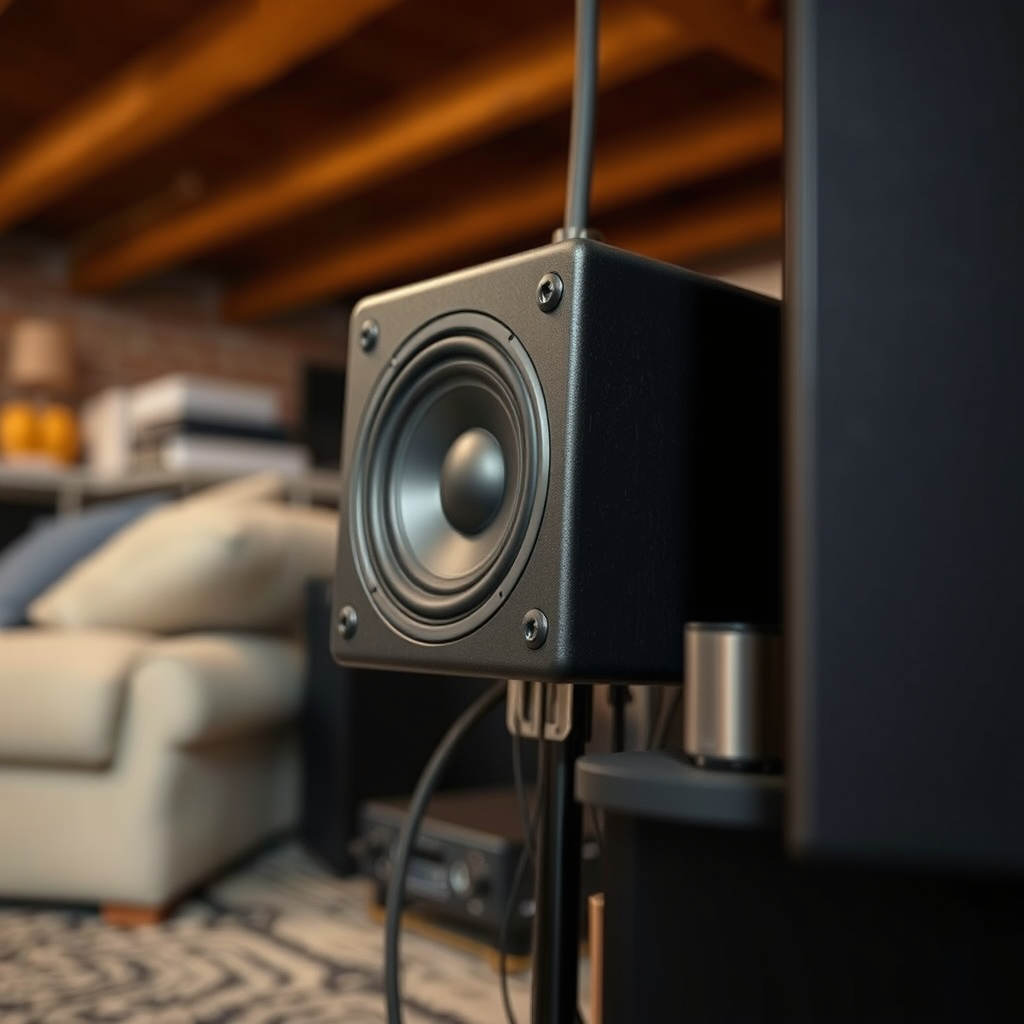
The first step in troubleshooting a speaker that is not producing sound is to ensure it is receiving power and that all connections are secure.
– Ensure the speaker is plugged in and turned on: Start by checking if your speaker is plugged into a working power outlet. If it’s a battery-operated device, ensure that the batteries are charged or replaced if necessary. Look for power indicators, like lights that signal the speaker is on, and listen for any initial sounds when powering on.
– Verify that all cables are securely connected and undamaged: Loose or damaged cables can easily interrupt the audio signal. Check the connection points of the speaker to the audio source, whether it’s a smartphone, computer, or TV. If you notice any frayed or broken cables, replace them with new ones to avoid any connectivity issues.
Inspect Volume Settings
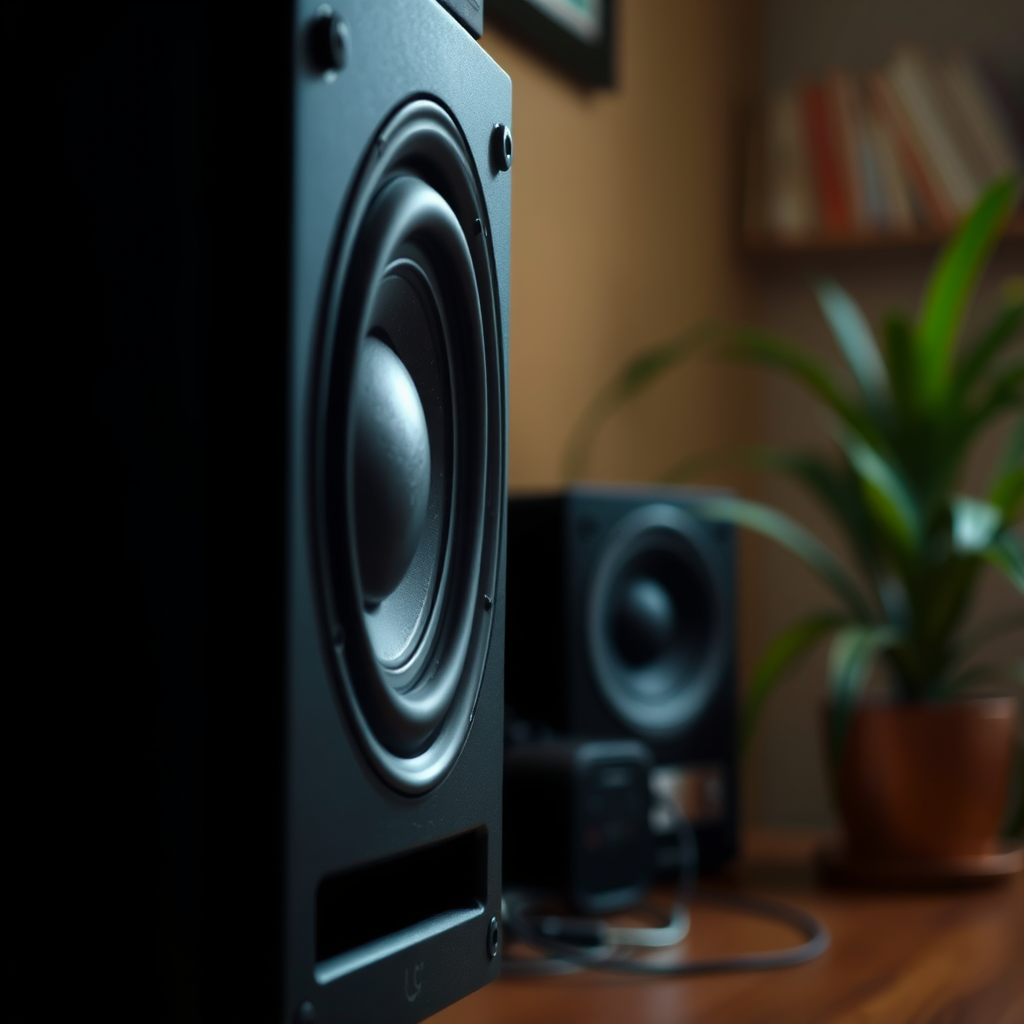
Next, let’s dive into the volume settings, which can often be the culprit behind a silent speaker.
– Check the volume levels on both the speaker and the connected device: Make sure that the volume is turned up on both the speaker itself and the device it’s connected to. Sometimes, the speaker volume is muted or set too low, leading to the assumption that the speaker isn’t working at all.
– Look for any mute settings that may be activated: Many devices have a mute function that can be accidentally turned on. Check your device’s audio settings to ensure that it isn’t silenced. If your speaker has a physical mute button, make sure it’s not engaged.
Examine Audio Source
After verifying connections and volume settings, it’s time to examine the audio source itself.
– Test the speaker with different devices to isolate the issue: If your speaker isn’t producing sound, try connecting it to a different device. This will help you determine whether the problem lies with the speaker or the original device.
– Ensure the audio source is functioning properly by playing known working media: Play a song or audio track that you know works well on another speaker or headphones. This can help confirm that the audio source is functioning properly and that the issue is with the speaker.
Update Drivers and Firmware
Sometimes, sound issues can stem from outdated software, especially with Bluetooth or smart speakers.
– Check for software updates for the speaker and the connected device: Visit the manufacturer’s website or use the corresponding app to check for any firmware updates for your speaker. Many modern speakers often receive updates that can enhance performance or fix bugs related to sound output.
– Install any available driver updates to ensure compatibility: If you are using a computer, make sure that the audio drivers are up to date. Outdated drivers can lead to sound issues. You can do this by visiting your computer’s device manager and checking for any available updates for your audio devices.
Look for Physical Damage
Physical damage can often be a hidden cause of sound issues.
– Inspect the speaker for any visible signs of damage, such as cracks or frayed wires: Look closely at the exterior of the speaker and the cables. Damage might not always be obvious, so take your time to thoroughly inspect the hardware.
– Test the speaker with a different pair of cables if applicable: If you suspect that the cables may be faulty, swapping them out for a new pair can help confirm whether the issue lies with the cables or the speaker itself.
Reset the Speaker
If none of the previous steps have worked, resetting the speaker can often clear up any lingering software issues.
– Refer to the manufacturer’s instructions for performing a factory reset: Most speakers have a specific method for resetting them to factory settings. This can usually be found in the user manual or on the manufacturer’s website.
– This can often resolve software-related issues causing the sound problem: A reset will erase any custom settings, so be prepared to set it up again. However, it can also clear up any glitches that may be preventing sound output.
Seek Professional Help
If you’ve tried all of the above and your speaker still has no sound, it might be time to get professional help.
– Consider reaching out to customer support or a professional technician: Many manufacturers provide excellent customer support that can guide you through more advanced troubleshooting steps.
– They can provide specialized assistance or repair options if needed: If your speaker is still under warranty, they may offer repair services or replacements if the issue is beyond simple fixes.
Addressing sound issues can often be straightforward with a few simple checks and adjustments. By following these steps, you can potentially restore your speaker to working order. And remember, if you still experience problems, don’t hesitate to seek expert assistance to get your speaker back in working order. Getting your audio back can enhance your listening experiences immensely, whether it’s for music, movies, or gaming. Happy listening!
Frequently Asked Questions
What are the common reasons why my speaker has no sound?
There are several common reasons your speaker may not be producing sound. These can include issues such as a loose or damaged audio cable, incorrect audio settings on your device, or the speaker being muted. Additionally, hardware problems like blown drivers or internal circuitry failures can also result in a lack of sound, so it’s essential to troubleshoot each potential cause.
How can I troubleshoot a speaker that is not producing any sound?
To troubleshoot a speaker with no sound, start by checking the power supply and ensuring it’s properly plugged in. Next, verify that the audio cable is securely connected to both the speaker and the audio source. Additionally, check the volume settings on your device and ensure that the speaker is not muted. If you’re using Bluetooth, confirm that the speaker is paired correctly with your device.
Why is my Bluetooth speaker not making any sound?
A Bluetooth speaker may not produce sound due to several factors, including poor connectivity or being out of range from the paired device. Additionally, the speaker might be connected to a different audio source or could have a low battery. To resolve this, ensure the Bluetooth connection is active, the speaker is fully charged, and it’s selected as the output device on your phone or computer.
What is the best way to fix a speaker that suddenly stopped working?
The best way to fix a speaker that has suddenly stopped working is to systematically eliminate potential issues. Start by resetting the speaker, checking all connections, and replacing any damaged cables. If these steps do not resolve the problem, consider testing the speaker with another device to rule out device-specific issues, and if it still doesn’t work, it may be time to consult a professional repair service.
Which tools do I need to repair a speaker with no sound?
To repair a speaker that has no sound, you will typically need basic tools such as a screwdriver set for opening the speaker casing and possibly a multimeter to test electrical connections. Additionally, you might need replacement parts like wires, drivers, or capacitors, depending on the issue. For non-technical users, it might be best to consult a repair guide or seek professional help to avoid further damage.
References
- Loudspeaker
- https://www.howtogeek.com/694185/how-to-troubleshoot-and-fix-your-computer-speakers/
- https://www.lifewire.com/how-to-fix-speakers-that-arent-working-1844931
- https://support.microsoft.com/en-us/windows/fix-sound-problems-63b92f27-2c84-9877-3e6e-5be7f5b0e2a2
- https://www.techradar.com/how-to/how-to-fix-your-speakers-not-working-issue
- https://www.digitaltrends.com/computing/how-to-fix-your-computer-speakers/
- https://www.pcgamer.com/how-to-fix-no-sound-on-your-pc/