
To fix crackling or distorted audio in your speakers, start by checking all connections and ensuring that your audio source is functioning properly. This initial troubleshooting step can often resolve common issues quickly. If problems persist, this article will delve into the frequent causes of audio distortion and provide comprehensive, step-by-step solutions to restore clear sound quality.
Common Causes of Crackling Audio
Crackling and distorted audio can be incredibly frustrating, and understanding the underlying causes is essential for effective troubleshooting. Two primary culprits often contribute to this issue: hardware and software problems.
1. Loose or Damaged Cables: One of the most common causes of audio distortion is the presence of loose or damaged cables. Over time, cables can wear out, become frayed, or suffer from poor connections. This can lead to intermittent sound or crackling noises, making the listening experience unpleasant.
2. Software Issues: Another significant factor is software-related problems. Outdated audio drivers, incorrect sound settings, or conflicts with other applications can interfere with audio playback. Ensuring that all software components are functioning optimally is crucial for clear sound.
Checking Hardware Connections
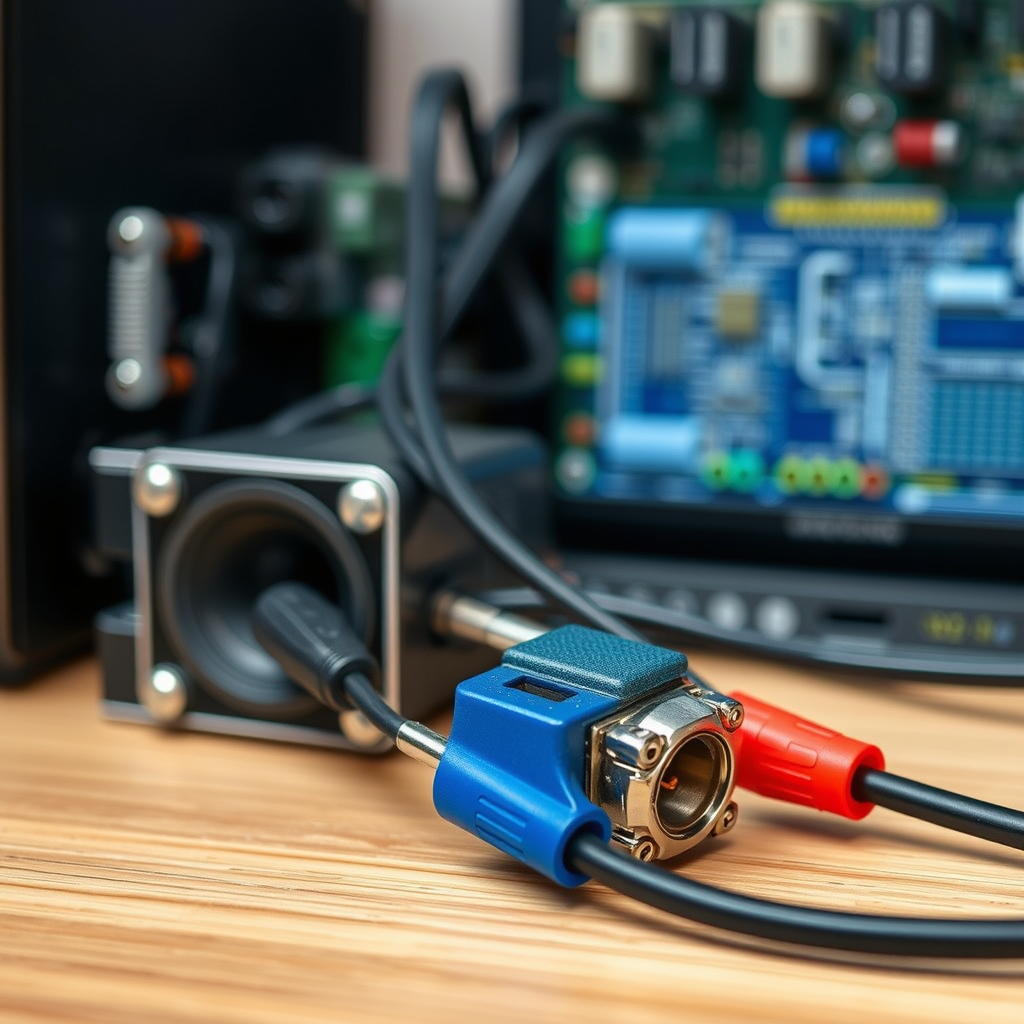
Before delving into software solutions, it is essential to inspect your hardware connections thoroughly.
– Inspect Connections: Start by checking all speaker and audio source connections. Look for signs of wear or damage, including frayed cables or bent connectors. If any cables appear damaged, replacing them is a straightforward solution.
– Secure All Cables: Ensure that all cables are securely plugged in. Loose connections can lead to audio distortion, so make it a habit to check your connections regularly, especially if you frequently move your equipment.
Updating Audio Drivers
Keeping your audio drivers up to date can significantly improve sound quality. Here’s how to do it effectively:
– Visit the Manufacturer’s Website: Go to the manufacturer’s website of your audio device to download the latest drivers. Ensure you select the correct model to avoid compatibility issues.
– Device Management Tools: Alternatively, use built-in device management tools on your computer. For Windows users, this can be done through the Device Manager by right-clicking on the audio device and selecting “Update Driver.” This method can automatically check for and install the latest updates.
Adjusting Audio Settings
Sometimes, the issue may lie within the audio settings of your device. Adjusting these configurations can lead to significant improvements.
– Access Audio Control Panel: Open the audio control panel on your device to review the sound settings. Look for enhancements or equalizer settings that may be enabled, as these can sometimes distort the audio.
– Experiment with Formats: Try different audio formats or sampling rates in the settings. Some formats may work better with your specific hardware, so it’s worth experimenting to find the optimal configuration.
Testing Different Audio Sources
To identify whether the problem lies with the speakers or the original audio source, testing different devices is essential.
– Connect to Another Device: Try connecting your speakers to a different audio source, such as a smartphone or another computer. If the crackling persists, the issue may be with the speakers themselves.
– Play Various Audio Files: Test different types of audio files and streaming services. This will help determine if the distortion is present across all formats or isolated to specific types of content.
📋 Data Table: Common Speaker Issues and Solutions
Common Speaker Issues and Solutions
| # | Issue | Possible Cause | Solution |
|---|---|---|---|
| 1 | Crackling Sound | Loose Cables | Check and secure all connections |
| 2 | Distorted Bass | Faulty Speakers | Test speakers with another source |
| 3 | Volume Fluctuation | Software Glitch | Update audio drivers |
| 4 | No Sound | Disconnected Cables | Reconnect all cables |
| 5 | Echoing Sounds | Room Acoustics | Adjust speaker placement |
| 6 | Static Noise | Interference | Change audio source location |
| 7 | High-Pitched Noise | Impedance Mismatch | Check speaker specifications |
Cleaning Speakers and Ports
Dust and debris can significantly affect sound quality, leading to distortion. Regular cleaning can prevent these issues.
– Dust Speaker Grills and Ports: Use a soft cloth or a microfiber cloth to gently clean the speaker grills and ports. Avoid using harsh chemicals, which can damage the speaker surface.
– Use Compressed Air: For harder-to-reach areas, using compressed air can help remove any obstructions from the speaker components. Ensure the speakers are turned off and unplugged before cleaning.
Seeking Professional Help
If all troubleshooting efforts fail and the crackling or distorted audio continues, it may be time to consult a professional.
– Consult a Technician: A qualified technician can diagnose more complex issues that may not be easily identifiable through basic troubleshooting methods. They can offer specialized knowledge and repair services.
– Consider Warranty Options: If your speakers are still under warranty, reach out to the manufacturer for repair services or replacements. This can save you time and money while ensuring quality service.
📈 Bar Chart: Causes of Audio Distortion
Common Causes of Audio Distortion
By following these steps, you can effectively address the crackling or distorted audio in your speakers. Remember to check your connections, update your drivers, and test different audio sources to pinpoint the issue. If all else fails, don’t hesitate to seek professional assistance to ensure your audio experience is as clear as possible. With proper care and maintenance, you can enjoy high-quality sound for years to come.
Frequently Asked Questions
What are the common causes of crackling or distorted audio in speakers?
Common causes of crackling or distorted audio in speakers include faulty cables, low-quality audio sources, and speaker damage. Additionally, issues with the audio driver software or incorrect audio settings on your device can contribute to these problems. Identifying the root cause is essential for effective troubleshooting.
How can I troubleshoot crackling audio from my speakers?
To troubleshoot crackling audio, start by checking all connections and cables for damage or loose fittings. Next, test the audio source by playing different files or using another device to rule out issues with the audio source itself. Updating audio drivers and adjusting settings can also help resolve distorted sound.
Why is my audio distorted only at certain volumes?
Audio distortion at certain volumes often occurs when the speaker is pushed beyond its limits, leading to clipping or overloading. This can also happen if there are incorrect settings on your device or if the audio files are of poor quality. It’s important to adjust the volume gradually and ensure your audio settings are optimized for your speakers.
What is the best way to fix speaker crackling on a laptop?
To fix speaker crackling on a laptop, first, ensure that the audio drivers are updated and that the sound settings are correctly configured. If the problem persists, try using external speakers or headphones to determine if the issue lies in the laptop’s built-in speakers. Additionally, checking for software conflicts or background applications that may interfere with audio playback can help.
Which types of speakers are most prone to audio distortion and why?
Speakers that are low-quality or poorly constructed are often most prone to audio distortion due to their inability to handle high power levels or wide frequency ranges. Additionally, older speakers or those with physical damage may also exhibit crackling. Investing in high-quality speakers and ensuring they are properly matched to your audio equipment can help minimize these issues.
References
- Audio signal processing
https://en.wikipedia.org/wiki/Audio_signal_processing - Page Not Found – Site Help – Mayo Clinic
https://www.mayoclinic.org/diseases-conditions/hearing-loss/symptoms-causes/syc-20345599 - https://www.ncbi.nlm.nih.gov/pmc/articles/PMC6423371/
https://www.ncbi.nlm.nih.gov/pmc/articles/PMC6423371/ - https://www.sciencedirect.com/topics/engineering/audio-signal-processing
https://www.sciencedirect.com/topics/engineering/audio-signal-processing - https://www.bbc.com/news/technology-50043530
https://www.bbc.com/news/technology-50043530 - https://www.theguardian.com/technology/2020/jan/15/sound-quality-music-streaming-spotify-apple
https://www.theguardian.com/technology/2020/jan/15/sound-quality-music-streaming-spotify-apple - https://www.hindawi.com/journals/jece/2020/2019035/
https://www.hindawi.com/journals/jece/2020/2019035/ - Google Scholar Google Scholar
https://scholar.google.com/scholar?q=crackling+distorted+audio+speakers - Google Scholar Google Scholar
https://scholar.google.com/scholar?q=audio+signal+processing+distortion - Google Scholar Google Scholar
https://scholar.google.com/scholar?q=fix+crackling+audio+speakers