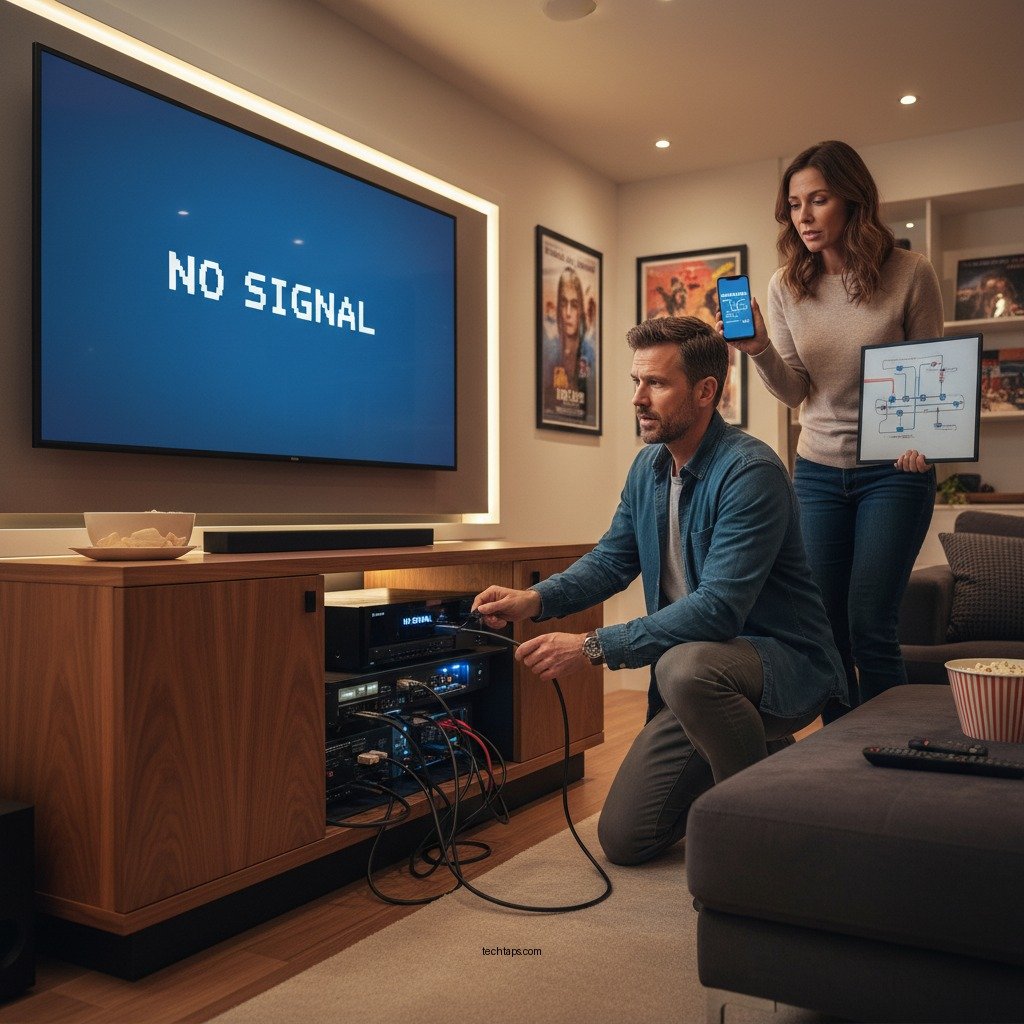

Experiencing HDMI connectivity issues between your AV receiver and TV can be frustrating, but there are several straightforward steps you can take to resolve the problem. Start by verifying the cable connections and ensuring that both devices are powered on. This article will guide you through common troubleshooting steps and solutions to effectively address HDMI issues, allowing you to enjoy your home entertainment system without interruptions.
Verify Cable Connections
The first step in troubleshooting HDMI connectivity issues is to ensure that all cable connections are secure. HDMI cables can sometimes become loose or disconnected, especially if they are frequently plugged and unplugged. Start by checking that the HDMI cable is firmly attached to both the AV receiver and the TV. If the connection appears secure, inspect the cable for any visible signs of damage, such as fraying or bent connectors. A damaged cable can lead to ineffective signal transmission, which may result in no picture or sound. If you notice any damage, it is advisable to replace the HDMI cable with a new one to ensure optimal performance.
Check Device Settings
Once you have verified your cable connections, the next step is to check the settings on both your TV and AV receiver. On your TV, confirm that the correct input source is selected. Most TVs have multiple HDMI ports, and it is crucial to select the one that corresponds to where your AV receiver is connected. You can usually do this by pressing the “Input” or “Source” button on your remote control.
Next, access the settings on your AV receiver. Ensure that HDMI output is enabled and that the receiver is set to the appropriate mode for the type of media you are trying to play. Some receivers have a dedicated HDMI setup menu, which can help you confirm that everything is configured correctly.
Test with Different HDMI Ports
If the issue persists after checking the cable and device settings, try connecting the HDMI cable to a different HDMI port on your TV. This can help determine if a specific port is faulty. Additionally, if you have access to another HDMI cable, use it to rule out the possibility that the original cable is defective. Testing with different ports and cables can often pinpoint the source of the problem.
Common HDMI Connection Issues and Solutions
| # | Issue | Possible Cause | Solution |
|---|---|---|---|
| 1 | No Signal | Loose connection or incorrect input | Re-plug HDMI cables and verify input source |
| 2 | Audio Issues | Improper audio settings | Adjust audio settings on both devices to PCM |
| 3 | Flickering Screen | Poor cable quality | Replace HDMI cable with a higher-quality one |
| 4 | Resolution Mismatch | Incompatible resolutions | Set both devices to a common resolution |
| 5 | Intermittent Sound | Bad cable connection | Re-seat HDMI cable or use a new cable |
| 6 | Black Screen | Device power issues | Check power connections and reset devices |
| 7 | HDMI Handshake Failure | Incompatible settings | Power cycle devices to reset handshake |
Update Firmware
If you have confirmed that the connections and settings are correct, it is time to consider firmware updates for both your TV and AV receiver. Manufacturers often release firmware updates to enhance device performance, fix bugs, and improve compatibility with new technologies. Check the manufacturer’s website or your device’s settings menu for firmware update options. Installing the latest firmware can resolve existing HDMI connectivity issues and help prevent future problems.
Perform a Power Cycle
Another effective method to solve HDMI connectivity problems is performing a power cycle on both devices. To do this, turn off your AV receiver and TV, and then unplug them from the power source. Wait for about one minute to allow residual power to dissipate. Afterward, plug them back in and power them on. This process can refresh the devices and often resolves minor glitches that may be causing the connectivity issues.
Use HDMI Troubleshooting Features
Many modern TVs and AV receivers come equipped with built-in troubleshooting features designed to address HDMI issues. Consult the user manuals for your devices to learn how to access these features. They may provide specific troubleshooting steps or diagnostic tests that can help pinpoint the issue. Utilizing these built-in tools can save time and provide tailored solutions based on the specific problem.
Seek Professional Help
If you have tried all the above steps and are still experiencing HDMI connectivity issues, it may be time to consult a professional technician. They can conduct a more thorough diagnostic assessment and identify any underlying hardware problems. Additionally, check the warranty options for your devices, as repairs or replacements may be covered, potentially saving you time and money.
In summary, troubleshooting HDMI connectivity issues between your AV receiver and TV involves a systematic approach, starting with verifying cable connections and checking device settings. Testing different HDMI ports, updating firmware, and performing power cycles can further resolve issues. If problems persist, utilizing built-in troubleshooting features can provide additional support, and professional help may be necessary for complex problems. By following these steps, you can ensure a seamless home entertainment experience.
Frequently Asked Questions
What are the common causes of HDMI connectivity issues between my AV receiver and TV?
Common causes of HDMI connectivity issues include faulty HDMI cables, incorrect input settings on your TV or AV receiver, and outdated firmware. Additionally, physical damage to HDMI ports or interference from other electronic devices can also disrupt the connection. Ensuring all devices are powered on and properly configured can help eliminate these issues.
How can I troubleshoot HDMI connection problems between my AV receiver and TV?
To troubleshoot HDMI connection problems, start by checking all cable connections to ensure they are secure. Next, try using a different HDMI cable or port on both the AV receiver and TV. If issues persist, perform a factory reset on both devices and update their firmware, as this can often resolve compatibility issues.
Why is my TV displaying “No Signal” when connected to my AV receiver via HDMI?
The “No Signal” message usually indicates that the TV is not receiving a signal from the AV receiver. This can be due to incorrect input selection on the TV, a faulty or incompatible HDMI cable, or an issue with the AV receiver’s output settings. Ensure that you select the correct HDMI input on your TV and check the settings on your AV receiver.
What is the best HDMI cable to use for connecting my AV receiver to TV?
The best HDMI cable for connecting your AV receiver to TV is one that supports at least HDMI 2.0 or higher, as this ensures compatibility with 4K video and high dynamic range (HDR). Look for cables that are labeled as “high-speed” and consider options with gold-plated connectors for better signal quality and durability.
Which settings should I check on my AV receiver to fix HDMI issues with my TV?
To fix HDMI issues, check the HDMI output settings on your AV receiver to ensure the correct output format is selected. Additionally, verify the audio settings to ensure they are compatible with your TV. It’s also important to enable CEC (Consumer Electronics Control) if available, as this can simplify device communication and control.
References
- HDMI
https://en.wikipedia.org/wiki/HDMI - HDMI Licensing Administrator, Inc.
https://www.hdmi.org/spec/ - https://www.lifewire.com/how-to-fix-hdmi-issues-4144205
https://www.lifewire.com/how-to-fix-hdmi-issues-4144205 - https://www.hdmi.org/consumer/
https://www.hdmi.org/consumer/ - Google Scholar Google Scholar
https://scholar.google.com/scholar?q=HDMI+connectivity+issues - Google Scholar Google Scholar
https://scholar.google.com/scholar?q=AV+receiver+HDMI+troubleshooting - Google Scholar Google Scholar
https://scholar.google.com/scholar?q=HDMI+connection+fixes - Google Scholar Google Scholar
https://scholar.google.com/scholar?q=How+to+Fix+HDMI+Connectivity+Issues+Between+Your+AV+Receiver+and+TV - How to Fix HDMI Connectivity Issues Between Your AV Receiver and TV – Search results
https://en.wikipedia.org/wiki/Special:Search?search=How+to+Fix+HDMI+Connectivity+Issues+Between+Your+AV+Receiver+and+TV - https://www.ncbi.nlm.nih.gov/search/research-articles/?term=How+to+Fix+HDMI+Connectivity+Issues+Between+Your+AV+Receiver+and+TV
https://www.ncbi.nlm.nih.gov/search/research-articles/?term=How+to+Fix+HDMI+Connectivity+Issues+Between+Your+AV+Receiver+and+TV