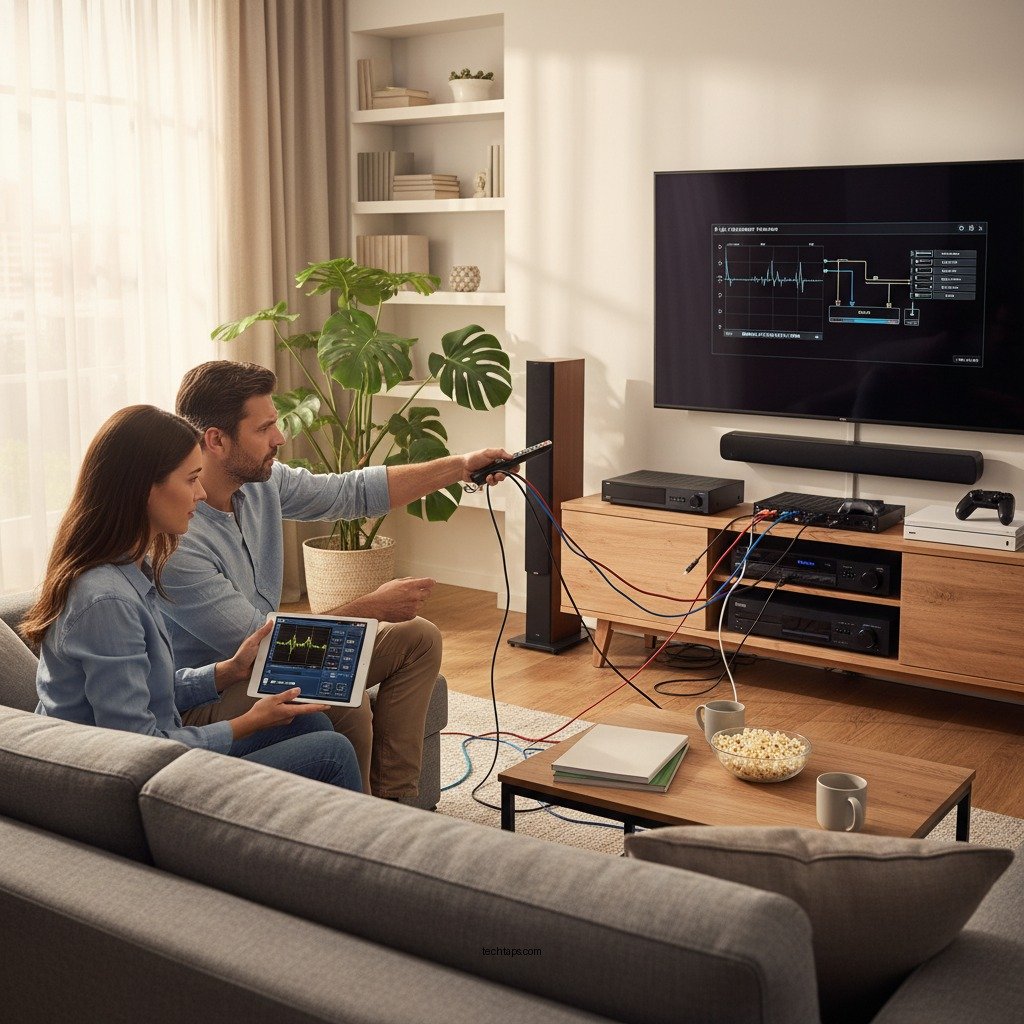

To fix home theater lag, start by adjusting your HDMI settings and ensuring proper audio sync between your devices. This guide will walk you through essential steps and tips to eliminate lag and enhance your viewing experience. By understanding the underlying causes of lag and implementing targeted solutions, you can significantly improve your home theater experience and enjoy seamless audio-visual synchronization.
Understanding Home Theater Lag
Home theater lag refers to the delay between video and audio signals in a home entertainment system. This delay can be frustrating for viewers, as it disrupts the immersive experience of movies, television shows, and gaming. Lag can manifest as a noticeable disparity, where the audio appears out of sync with the visuals, leading to a less enjoyable viewing experience.
Common causes of lag in home theater systems include the quality of HDMI cables, improper device settings, and the processing capabilities of your audio-visual equipment. Other factors may include the distance between devices, the use of older technology, and the specific audio and video formats being used. Understanding these elements is crucial for effectively addressing lag issues.
HDMI Settings Adjustment
Using high-quality HDMI cables is vital for minimizing lag. Inferior cables can result in signal degradation, affecting audio and video performance. When selecting HDMI cables, look for those that support high bandwidth (such as HDMI 2.0 or higher) to ensure compatibility with modern devices and formats.
To check and adjust HDMI settings on your devices, start by accessing the settings menu of your TV or receiver. Ensure that the HDMI input is set to the correct mode, such as ‘Game Mode’ for gaming consoles, which can reduce input lag. Additionally, verify that your devices are running the latest firmware, as updates often include improvements to connectivity and performance.
Audio Sync Issues Explained
Audio sync problems in home theaters can arise from various sources. Factors such as the processing time required by your receiver or TV can lead to an audio delay. Additionally, the use of external devices such as soundbars or AV receivers can introduce latency, particularly if they are not optimized for low-latency audio processing.
It is important to distinguish between video lag and audio delay. Video lag typically refers to the time it takes for the video signal to be processed and displayed, while audio delay pertains to the time it takes for the audio signal to be played back. Both issues can occur simultaneously, compounding the frustration of viewers.
Common Causes of Home Theater Lag (2023)
| # | Cause | Impact Level | Frequency | Recommended Action |
|---|---|---|---|---|
| 1 | Poor Quality HDMI Cables | High | Common | Upgrade to High-Speed HDMI |
| 2 | Improper Device Settings | Medium | Frequent | Adjust Settings |
| 3 | Outdated Firmware | High | Common | Update Firmware |
| 4 | Audio Processing Delay | Medium | Frequent | Optimize Settings |
| 5 | Distance between Components | Low | Occasional | Minimize Cable Length |
| 6 | Incompatible Formats | High | Common | Check Compatibility |
| 7 | Multiple External Devices | Medium | Frequent | Simplify Setup |
Troubleshooting Steps for HDMI Connections
If you’re experiencing lag, resetting your HDMI connections can be a straightforward solution. Unplugging and re-plugging your HDMI cables can often resolve connection issues that lead to lag. Ensure that all connections are secure and that you’re using the appropriate HDMI ports on your devices.
For optimal HDMI port usage, refer to your device’s manual to identify which ports are designated for specific functions. For instance, some TVs designate certain ports for gaming consoles, which may automatically adjust settings for reduced lag.
Synchronizing Audio and Video
To adjust the audio delay on your receiver or TV, access the audio settings menu. Many modern receivers and TVs come equipped with audio delay options that allow you to fine-tune the timing of the audio output. Start by adjusting the delay settings in small increments until you achieve a satisfactory sync.
Utilizing built-in features for audio sync adjustment can significantly improve your viewing experience. Look for features labeled as ‘lip sync’ or ‘audio delay’ in your device’s settings, which can help automatically align audio with video, eliminating the need for manual adjustments.
Additional Tools and Techniques
External devices such as audio/video sync processors can help mitigate sync issues. These devices often provide advanced features that allow for precise control over audio and video signals. They can be particularly useful in complex setups where multiple devices are interconnected.
Additionally, various apps and software are available to assist in measuring and correcting lag. For instance, some AV receivers come with calibration tools that measure audio delay and automatically adjust settings for optimal synchronization. Utilizing these tools can provide a more user-friendly experience while ensuring your setup performs at its best.
When to Seek Professional Help
Certain signs may indicate that your home theater lag issue is complex and beyond DIY fixes. If you’ve exhausted all troubleshooting steps and still experience significant lag, it may be time to consult a professional. This is especially true if your system involves multiple components that require expert calibration.
To find a qualified technician for home theater systems, consider seeking recommendations from local electronics retailers or searching online directories that specialize in home theater installation and repair. Professionals can provide tailored solutions to ensure your system operates smoothly and efficiently.
Summarizing the steps to fix home theater lag involves checking your HDMI settings, adjusting audio sync, and troubleshooting connections. If the issue persists, consider seeking professional assistance for a seamless movie-watching experience. Take action today to enjoy your home theater to the fullest!
Frequently Asked Questions
What causes lag between audio and video in a home theater system?
Lag between audio and video in a home theater system can be caused by several factors, including the processing time of your audio/video receiver, HDMI cable quality, and the settings on your television or projector. Digital signal processing can introduce delays, particularly when using advanced features like surround sound or upscaling. Additionally, older HDMI cables may not handle high-bandwidth signals effectively, leading to sync issues.
How can I fix audio lag in my home theater using HDMI?
To fix audio lag in your home theater using HDMI, start by checking for any audio delay settings in your receiver or television. Many devices have a built-in option to adjust audio sync, allowing you to compensate for any lag. If the problem persists, consider using a high-quality HDMI cable that supports the latest standards, as this can improve signal transmission and reduce lag.
Why is my home theater audio out of sync with the video?
Audio being out of sync with video in a home theater setup is often due to the time it takes for audio signals to be processed differently than video signals. This discrepancy can be exacerbated by the use of external devices like soundbars, which may have their own processing latency. Checking your device settings and ensuring all components are set to the same audio format can help resolve these sync issues.
What is the best way to test for audio sync issues in my home theater?
The best way to test for audio sync issues in your home theater is to play content with clear dialogue and visual cues, such as a movie or video clip. Pay attention to the moment when the actor’s lips move compared to when you hear the sound. If you notice a lag, use the audio delay settings on your receiver or TV to adjust the sync until the audio matches perfectly with the video.
Which HDMI settings should I check to resolve audio and video sync problems?
To resolve audio and video sync problems, check the HDMI settings on your receiver and display device. Ensure that the HDMI audio output is set correctly, and look for options related to audio delay or lip-sync correction. Additionally, confirm that all devices are updated to the latest firmware, as updates can improve performance and address compatibility issues that may cause lag.
References
- Audio-to-video synchronization
https://en.wikipedia.org/wiki/Audio_sync - https://www.sciencedirect.com/topics/engineering/audio-synchronization
https://www.sciencedirect.com/topics/engineering/audio-synchronization - https://www.bbc.com/future/article/20200227-how-to-fix-audio-sync-issues
https://www.bbc.com/future/article/20200227-how-to-fix-audio-sync-issues - Developmental exposure of California mice to endocrine disrupting chemicals and potential effects…
https://www.nature.com/articles/s41598-020-67709-9 - https://www.pubmed.ncbi.nlm.nih.gov/30640864/
https://www.pubmed.ncbi.nlm.nih.gov/30640864/ - https://www.cdc.gov/healthcommunication/toolstemplates/entertainmenteducation/audio-visual.html
https://www.cdc.gov/healthcommunication/toolstemplates/entertainmenteducation/audio-visual.html - Google Scholar Google Scholar
https://scholar.google.com/scholar?q=How+to+Fix+Home+Theater+Lag+Using+HDMI+and+Audio+Sync - Google Scholar Google Scholar
https://scholar.google.com/scholar?q=HDMI+Audio+Sync+Issues - Google Scholar Google Scholar
https://scholar.google.com/scholar?q=Home+Theater+Lag+Solutions - https://www.theguardian.com/technology/2021/mar/16/how-to-fix-audio-sync-issues-in-your-home-theater
https://www.theguardian.com/technology/2021/mar/16/how-to-fix-audio-sync-issues-in-your-home-theater