
Fixing low or muted audio in wireless speakers often involves a few simple adjustments. First, ensure the volume is set correctly on both the speaker and the connected device. If that doesn’t solve the problem, check for interference or connectivity issues. In this article, you’ll learn several effective methods to troubleshoot and enhance your speaker’s audio performance.
Wireless speakers are renowned for their convenience and portability. However, users frequently encounter issues with low or muted audio, which can diminish the overall listening experience. Understanding the root causes of audio problems is essential to restoring optimal sound quality. This article provides comprehensive steps to diagnose and address common audio issues, ensuring you enjoy your favorite music, podcasts, or movies without interruptions.
Check Volume Settings

The first step in addressing low or muted audio is to check the volume settings on both the wireless speaker and the source device. Often, users may inadvertently set the speaker volume too low or mute it completely.
– Speaker Volume: Look for the volume controls on the speaker itself. Many wireless speakers have physical buttons or touch-sensitive controls. Make sure that the volume is adequately raised and not muted.
– Source Device Volume: Whether you are using a smartphone, tablet, computer, or television, check the volume settings on the device. It’s also helpful to verify if the device has its own sound settings or equalizer settings that may be affecting audio output.
– Specific Controls: Some wireless speakers come with built-in equalizer (EQ) settings that can impact audio levels. Check the user manual for guidance on adjusting these settings to achieve desired sound quality.
Inspect Bluetooth Connection
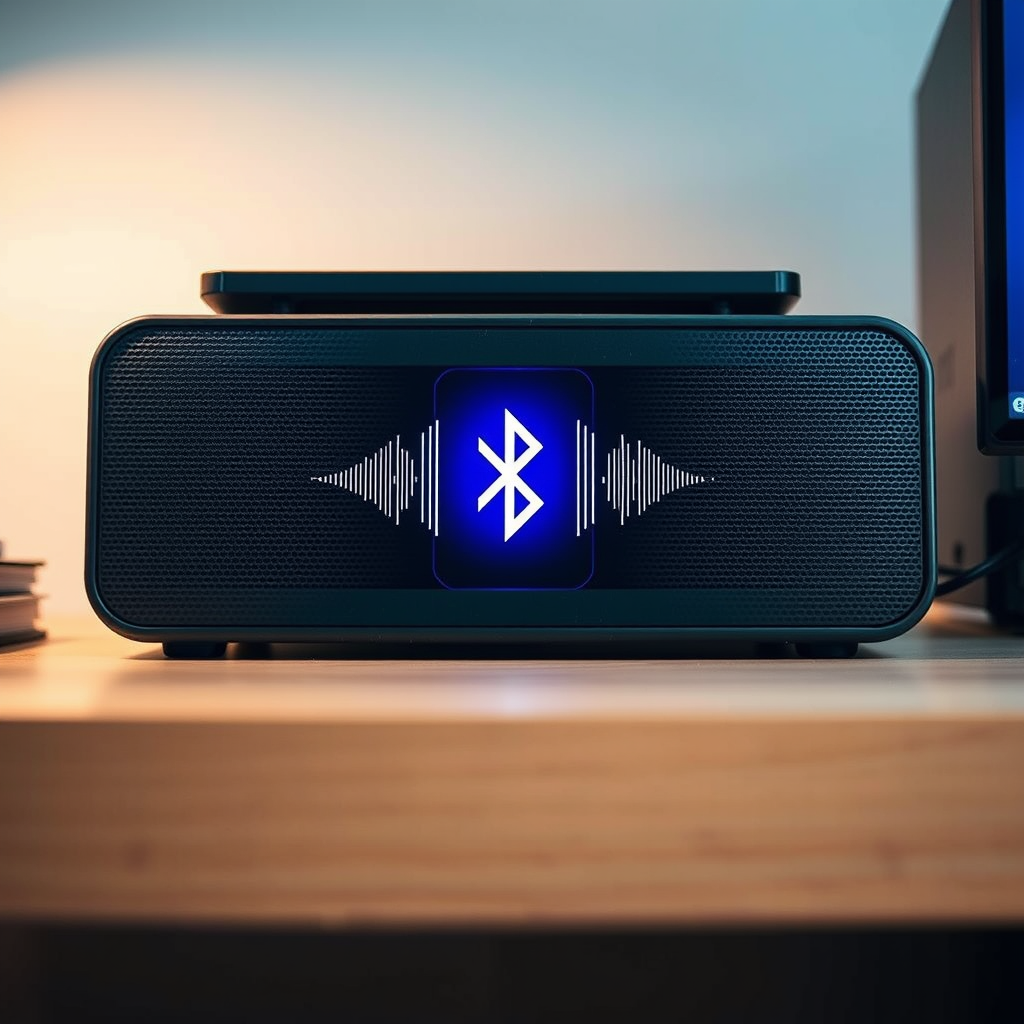
A stable Bluetooth connection is crucial for optimal audio performance. Connection issues can significantly affect sound quality, leading to low or muted audio.
– Disconnect and Reconnect: Start by disconnecting the Bluetooth connection and then reconnecting it. This can refresh the connection and resolve any temporary glitches.
– Proximity: Ensure that your source device is within the recommended range for Bluetooth connectivity, typically around 30 feet. Walls or other obstacles can interfere with the signal, leading to audio issues.
– Device Compatibility: Verify that your source device and wireless speaker are compatible. Sometimes, older devices may not work well with newer speaker technology, which can lead to performance issues.
Examine Audio Source
The source of the audio can also play a significant role in the audio experience. Testing different sources can help identify where the problem lies.
– Test with Different Devices: If you suspect that the audio is muted or low, try connecting the speaker to another device. If the audio works well on another device, the issue may be with the original device.
– Specific Apps or Media Files: Sometimes, certain applications or media files may have low audio levels. Ensure that the content you are trying to play is not inherently quiet. Testing with various apps can help isolate the issue.
– Audio Formats: Be aware that some audio formats may not be compatible with your wireless speaker. Check the specifications of your speaker to ensure compatibility with the audio formats you’re using.
Top 7 Wireless Speaker Brands for Audio Clarity (2024)
| # | Brand | Audio Clarity Rating | Battery Life (Hours) | Price (USD) |
|---|---|---|---|---|
| 1 | Bose | 9.5/10 | 12 | $199 |
| 2 | Sonos | 9.2/10 | 10 | $249 |
| 3 | JBL | 8.8/10 | 15 | $149 |
| 4 | Sony | 8.5/10 | 8 | $179 |
| 5 | Ultimate Ears | 9.0/10 | 20 | $199 |
| 6 | Bang & Olufsen | 9.4/10 | 9 | $399 |
| 7 | Anker | 8.0/10 | 24 | $79 |
Update Firmware and Drivers
Keeping your wireless speaker and source device updated is crucial for optimal performance. Manufacturers frequently release firmware updates that can improve audio quality and fix bugs.
– Firmware Updates: Check the manufacturer’s website or the accompanying app for any available firmware updates for your wireless speaker. Keeping the speaker’s software up-to-date can enhance sound quality and overall functionality.
– Bluetooth Driver Updates: Similarly, ensure that your source device’s Bluetooth drivers are current. This is particularly important for computers and laptops, where outdated drivers can lead to connectivity and audio issues.
– Installation of Updates: Follow the manufacturer’s instructions on how to install updates correctly. Sometimes, updates may require a reset of the device or speaker, so be prepared to follow through on any necessary steps.
Reduce Interference
Interference from other electronic devices can significantly impact audio quality. Identifying and mitigating these interferences can improve your listening experience.
– Distance from Electronics: Move your wireless speaker away from other electronic devices, such as microwaves, Wi-Fi routers, or cordless phones, which may cause signal interference.
– Testing Locations: Try using the speaker in different locations within your home or office. This can help determine if certain areas are prone to interference.
– Wireless Network: If your wireless speaker connects via Wi-Fi, ensure that your network is stable and not overloaded. A crowded network can lead to poor audio quality.
Reset the Speaker
If all else fails, performing a factory reset can resolve persistent issues. Resetting returns the speaker to its original settings, which can correct audio problems caused by misconfigurations.
– Factory Reset Process: Refer to the user manual for specific instructions on how to perform a factory reset for your model. The procedure usually involves pressing and holding specific buttons for a set duration.
– Reconfiguration: After resetting, you’ll need to reconnect your device and reconfigure any personalized settings you had previously set.
Consider Hardware Issues
Physical damage or defects in the speaker can also lead to low or muted audio.
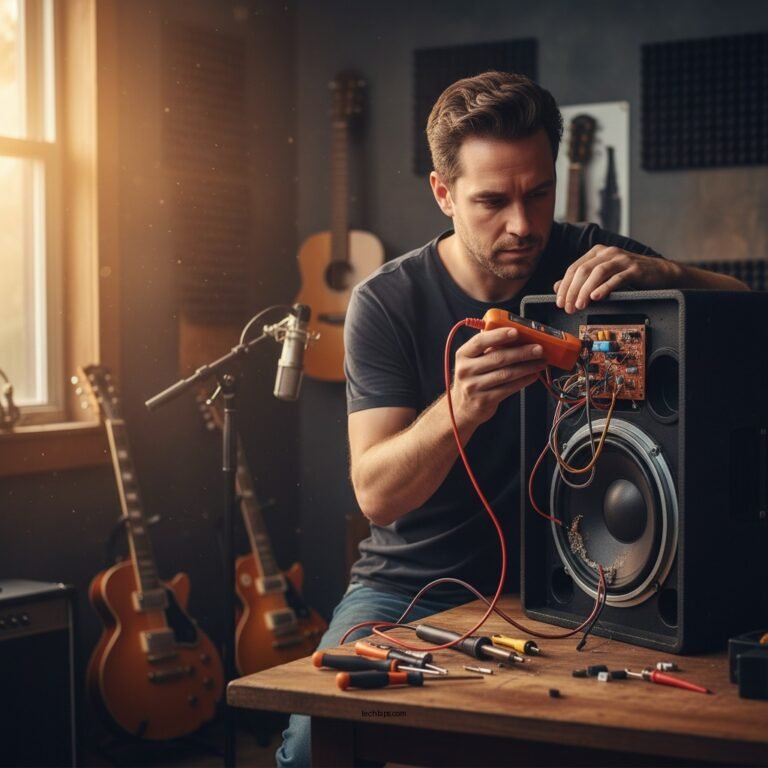
– Visual Inspection: Examine the speaker for any visible signs of damage, such as cracks, dents, or loose components. Physical damage can severely affect audio output.
– Sound Tests: Conduct sound tests at different volumes to identify if the audio quality is persistently low or if it varies with volume changes.
– Manufacturer Support: If the issue persists despite all troubleshooting efforts, contact the manufacturer’s customer support for assistance. They may offer repairs or replacements if the speaker is still under warranty.
Audio Quality Issues in Wireless Speakers (2024)
Summarizing the steps outlined above, you can effectively address low or muted audio in your wireless speakers by checking volume settings, inspecting connections, and ensuring your devices are updated. If problems continue, consider reaching out to customer support for further assistance. Take action now to enjoy a better listening experience!
Frequently Asked Questions
What are the common causes of low or muted audio in wireless speakers?
Common causes of low or muted audio in wireless speakers include low battery levels, poor Bluetooth connectivity, and incorrect audio settings on the connected device. Additionally, physical obstructions or interference from other wireless devices can impact audio quality. Checking these factors can help identify the source of the problem.
How can I troubleshoot low audio volume in my wireless speakers?
To troubleshoot low audio volume in wireless speakers, start by checking the speaker’s volume control and ensuring it’s turned up. Next, verify the volume settings on your connected device, as they may also affect output. Additionally, try disconnecting and reconnecting the Bluetooth connection or resetting the speaker to factory settings if the issue persists.
Why is my wireless speaker’s audio muted even when the volume is high?
If your wireless speaker’s audio is muted despite high volume settings, it may be due to a faulty connection or compatibility issues with the device. Another possibility is that the audio source itself is muted or has a low output level. Ensure that all devices are properly synced and test the speaker with different audio sources to isolate the issue.
What is the best way to enhance audio quality in wireless speakers?
The best way to enhance audio quality in wireless speakers is to ensure they are placed in an optimal location, away from walls or obstructions that can muffle sound. Additionally, use high-quality audio sources and check for any software updates for the speaker. Investing in speakers with better audio technology can also significantly improve sound quality.
Which settings should I adjust to fix low audio in my wireless speakers?
To fix low audio in your wireless speakers, adjust the volume levels on both the speaker and the connected device. Check the equalizer settings to ensure they are balanced, as certain presets can reduce audio clarity. Moreover, disable any sound enhancements or sound effects that may distort the audio output.
References
- Sound system
https://en.wikipedia.org/wiki/Sound_system - Resilience: Build skills to endure hardship – Mayo Clinic
https://www.mayoclinic.org/healthy-lifestyle/consumer-health/in-depth/hearing-loss/art-20046311 - https://www.ncbi.nlm.nih.gov/pmc/articles/PMC6231738/
https://www.ncbi.nlm.nih.gov/pmc/articles/PMC6231738/ - https://www.cdc.gov/nceh/hearing_loss/what_is_hearing_loss.html
https://www.cdc.gov/nceh/hearing_loss/what_is_hearing_loss.html - https://www.sciencedirect.com/topics/engineering/audio-signal-processing
https://www.sciencedirect.com/topics/engineering/audio-signal-processing - Google Scholar Google Scholar
https://scholar.google.com/scholar?q=fix+low+audio+in+wireless+speakers - Google Scholar Google Scholar
https://scholar.google.com/scholar?q=muted+audio+wireless+speakers - Google Scholar Google Scholar
https://scholar.google.com/scholar?q=wireless+speaker+audio+issues - https://www.bbc.com/news/technology-52979593
https://www.bbc.com/news/technology-52979593 - https://www.theguardian.com/technology/2021/apr/12/how-to-fix-your-wireless-speakers
https://www.theguardian.com/technology/2021/apr/12/how-to-fix-your-wireless-speakers