
If you’re experiencing no sound from one of your home theater speakers, the first step is to check your connections and settings. Often, the issue stems from loose cables, incorrect configurations, or faulty components. By following a systematic troubleshooting process, you can pinpoint the problem and restore sound to your speaker. In this article, we’ll guide you through various techniques to troubleshoot the issue effectively.
Check Speaker Connections
A common reason for sound issues in home theater systems is poor connectivity. Start by inspecting all cable connections to ensure they are secure and properly plugged in. Look for any frayed wires, loose plugs, or disconnected cables that might be contributing to the problem. It is advisable to disconnect and reconnect each cable to ensure a firm connection.
Additionally, pay attention to the type of cables used. For instance, using subpar or damaged cables can significantly degrade audio quality or cause total sound failure. If you suspect any visible damage on the wires, consider replacing them with high-quality alternatives. Also, ensure that the speaker wires are correctly connected to the respective terminals on both the speaker and the receiver, as polarity can affect sound output.
Verify Receiver Settings
Once you have confirmed that all physical connections are intact, the next step is to check the audio settings on your receiver. Modern receivers often come equipped with numerous settings that can inadvertently mute or lower the output from a specific speaker. Access the audio settings menu and confirm that the affected speaker is enabled.
Furthermore, examine the balance and fade settings. These controls adjust the sound output to different speakers in your home theater system. If the balance is skewed towards another speaker or if the fade is set incorrectly, it can result in a lack of sound from one speaker. Adjust these settings to ensure that all speakers receive an equal amount of audio.
Test with Different Audio Sources
If the speaker still isn’t producing sound, test it with different audio sources. This can help you determine whether the issue lies with the speaker itself or the audio source you are using. Play audio from various devices, such as a Blu-ray player, streaming device, or gaming console.
Additionally, switch between different inputs on your receiver to isolate the problem. For instance, if your speaker works with one device but not another, the issue may not be with the speaker but rather with the source or the specific input on your receiver. This step is crucial as it narrows down the potential causes of the audio issue.
Swap Speakers to Diagnose
To further diagnose the problem, you can temporarily connect the non-functioning speaker to a different channel on the receiver. This step allows you to determine if the issue is specific to the speaker or if it is related to the channel on the receiver. If the speaker works when connected to a different channel, the problem may reside in the original channel or its settings.
This method can also help you identify whether the receiver itself is malfunctioning. If another speaker experiences issues when connected to the same channel, you may need to delve deeper into the receiver’s settings or consider potential hardware faults.
Common Causes of Speaker Sound Issues (2023)
| # | Issue | Cause | Resolution |
|---|---|---|---|
| 1 | No Sound | Loose Connections | Check all cables |
| 2 | Distorted Sound | Faulty Cables | Replace cables |
| 3 | Uneven Sound | Receiver Settings | Adjust balance settings |
| 4 | No Audio from One Source | Source Device Issues | Test with different sources |
| 5 | Intermittent Sound | Poor Connections | Secure all connections |
| 6 | Low Volume | Volume Settings | Adjust volume |
| 7 | No Sound After Setup | Incorrect Setup | Reconfigure settings |
Update Firmware and Settings
Keeping your receiver’s firmware updated is crucial for optimal performance. Manufacturers frequently release updates to fix bugs and enhance functionality, which may include resolving audio output issues. Check the manufacturer’s website for the latest firmware version and follow the instructions to update your device appropriately.
If updating the firmware does not resolve the issue, consider resetting your receiver to factory settings. This step should be taken as a last resort, as it will erase all custom configurations. However, if you suspect that a configuration error is causing the sound issue, this may be a necessary step to restore functionality.
Check for Speaker Damage
If after all previous steps your speaker still does not produce sound, it may be time to inspect the speaker for physical damage or wear that could affect performance. Look for noticeable cracks, dents, or tears in the speaker cone, which can impede sound production.
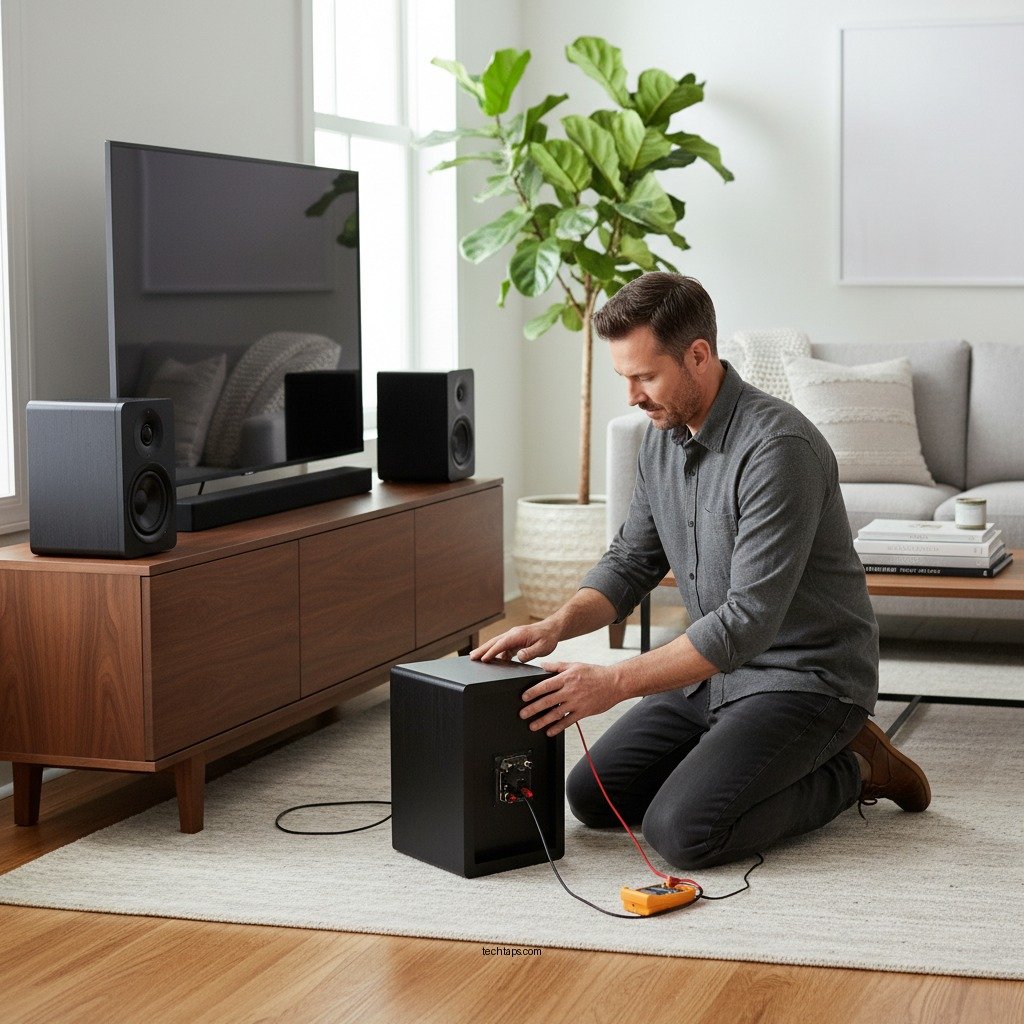
Using a multimeter to test the speaker’s resistance can also provide insight into its condition. A functioning speaker typically has a resistance of around 4 to 8 ohms. If the reading is significantly lower or higher than this range, the speaker may be faulty and require replacement.
Seek Professional Help
If all else fails, consulting with a professional technician is advisable. They can provide a thorough diagnosis and repair services that may be beyond the scope of typical troubleshooting. Whether it’s an issue with the receiver or the speaker itself, a professional can help you identify the problem and suggest the best course of action.
Additionally, reaching out to the manufacturer for support can provide insights into warranty options or repairs that may be covered. Knowing your options can save you time and money, especially if the issue requires expert intervention.
By following these troubleshooting steps, you can identify the source of the audio issue and take the necessary actions to restore sound to your home theater speaker. It’s essential to be methodical in your approach, as audio issues can often stem from multiple sources. Don’t hesitate to reach out for professional assistance if needed, as sometimes the issue may require expert intervention.
Frequently Asked Questions
What are the common reasons for no sound in one of my home theater speakers?
Common reasons for no sound in a home theater speaker include loose or damaged speaker wires, incorrect speaker settings on your receiver, or a faulty speaker. Additionally, issues with the audio source or configuration can also lead to sound problems. Checking these components can help identify the root cause.
How can I troubleshoot a home theater speaker that has no sound?
To troubleshoot a home theater speaker with no sound, start by checking the speaker connections and ensuring they are secure. Next, verify the audio settings on your receiver to make sure the speaker is enabled. Finally, test the speaker with a different audio source to determine if the issue lies with the speaker or the receiver.
Why is one of my home theater speakers not producing sound, even when others are working?
One speaker may not produce sound due to a variety of reasons, including a blown driver, improper wiring, or incorrect configuration on the audio receiver. It’s important to isolate the problem by checking the speaker itself and testing it on a different channel to see if the issue persists.
What is the best way to check if a home theater speaker is faulty?
The best way to check if a home theater speaker is faulty is to connect it to a different audio source or receiver to see if it produces sound. If the speaker works with a different device, the issue is likely with your original setup. Additionally, visually inspect the speaker for any physical damage or signs of wear.
Which settings should I check on my receiver if one home theater speaker has no sound?
If one home theater speaker has no sound, check the receiver’s speaker configuration settings to ensure that the affected speaker is set to “on” and not muted. Also, look at the balance settings to make sure sound isn’t incorrectly directed away from the faulty speaker. Ensuring the audio output format is compatible with your setup can also help resolve the issue.
References
- Home cinema
https://en.wikipedia.org/wiki/Home_theater - https://www.lifewire.com/home-theater-speaker-troubleshooting-1847010
https://www.lifewire.com/home-theater-speaker-troubleshooting-1847010 - Best bookshelf speakers for 2025 – SoundGuys
https://www.soundguys.com/home-theater-speaker-not-working-23757/ - https://www.crutchfield.com/S-8q0sK1vF0z9/learn/home-theater-speaker-setup-troubleshooting.html
https://www.crutchfield.com/S-8q0sK1vF0z9/learn/home-theater-speaker-setup-troubleshooting.html - https://www.audiogurus.com/resources/home-theater-speaker-sound-issues
https://www.audiogurus.com/resources/home-theater-speaker-sound-issues - https://www.audioholics.com/home-theater-setup/home-theater-speaker-troubleshooting
https://www.audioholics.com/home-theater-setup/home-theater-speaker-troubleshooting - Google Scholar Google Scholar
https://scholar.google.com/scholar?q=Home+theater+speaker+no+sound+troubleshooting - Google Scholar Google Scholar
https://scholar.google.com/scholar?q=Home+theater+audio+issues - Google Scholar Google Scholar
https://scholar.google.com/scholar?q=Home+theater+speaker+setup+problems - Google Scholar Google Scholar
https://scholar.google.com/scholar?q=How+to+Solve+No+Sound+in+One+of+Your+Home+Theater+Speakers