
To resolve the no sound issue when using HDMI ARC with your receiver, start by checking your cable connections and settings. Ensuring that your HDMI cable is securely connected and the correct audio settings are configured can often solve the problem. HDMI ARC (Audio Return Channel) technology simplifies audio and video transmission between devices, but when sound fails to transmit, it can be frustrating. In this article, you will learn the essential steps to troubleshoot and fix this common issue.
Understanding HDMI ARC

HDMI ARC (Audio Return Channel) allows audio to be sent from your TV back to your receiver, eliminating the need for separate audio cables. This feature is particularly beneficial for home theater systems, allowing users to enjoy high-quality audio without the clutter of multiple cables. HDMI ARC operates using a single HDMI cable, enabling not only video transmission but also audio return from the TV to the receiver. This means that you can stream audio from smart TV apps directly to your home audio system, providing a seamless entertainment experience.
Check Your HDMI Cable
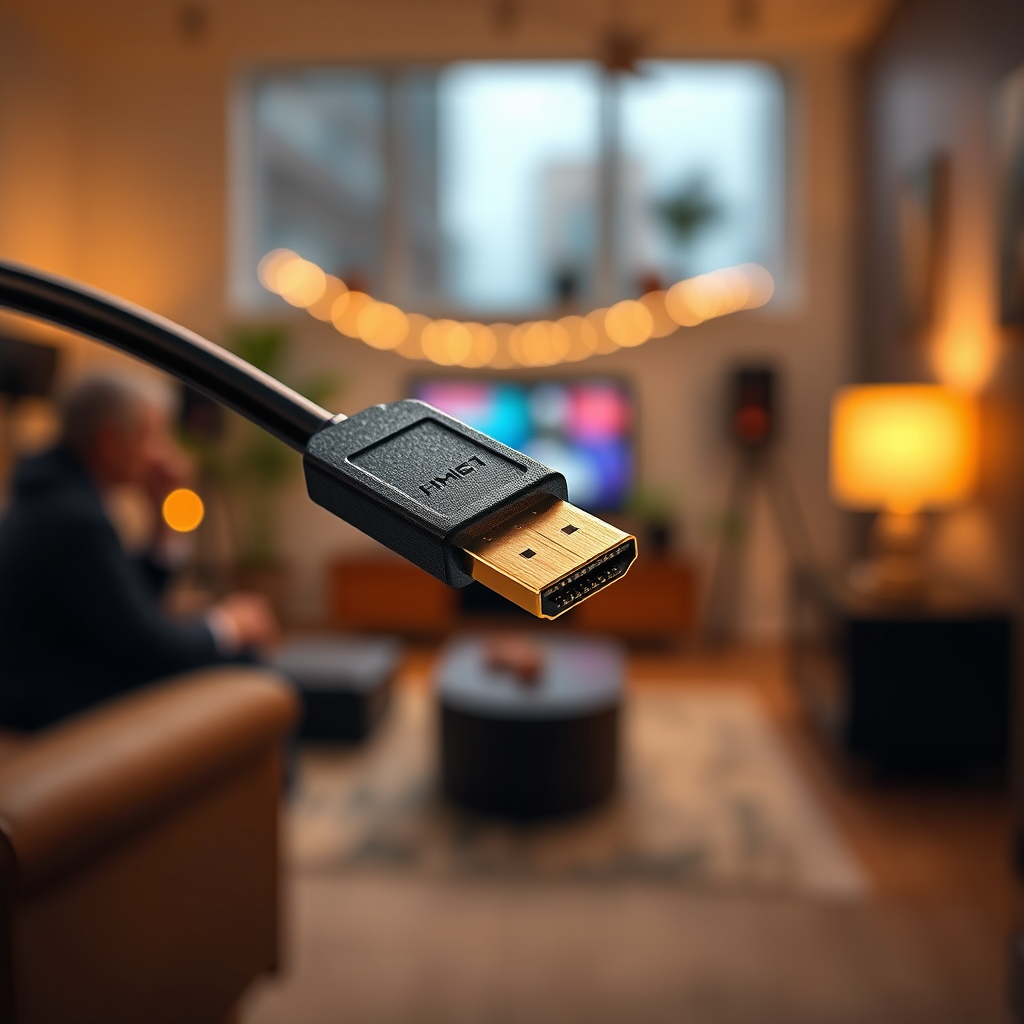
The first step in troubleshooting HDMI ARC issues is to ensure you are using a high-speed HDMI cable that supports ARC. Not all HDMI cables are created equal; older or lower-quality cables may not support the necessary bandwidth for audio return. Check the cable for any visible damage or wear, as even minor physical issues can lead to sound transmission problems. If you suspect that the cable may be the issue, try swapping it with a known good cable to see if that resolves the problem.
Verify Receiver Settings
Accessing your receiver’s settings menu is critical to ensuring that ARC functionality is enabled. Look for options related to HDMI settings, and confirm that HDMI ARC is turned on. Additionally, check the audio output settings; you may need to select the correct HDMI ARC input to ensure that sound is routed properly. Some receivers may have multiple HDMI inputs, so make sure the correct port is selected for audio output.
Configure TV Audio Settings
Next, navigate to your TV’s audio settings. It is essential to ensure that the audio output is set to HDMI ARC. This setting directs the audio signal through the HDMI cable to your receiver instead of the TV’s built-in speakers. To avoid any conflicts, disable any additional audio outputs, such as internal TV speakers or optical audio outputs. This can prevent the sound from routing incorrectly and ensure a smooth audio experience.
Top HDMI Cables for ARC Support
| # | Cable Brand | Length | ARC Support | Price |
|---|---|---|---|---|
| 1 | Belkin Ultra HD | 6ft | Yes | $19.99 |
| 2 | AmazonBasics | 10ft | Yes | $15.99 |
| 3 | Cable Matters | 15ft | Yes | $24.99 |
| 4 | Mediabridge | 25ft | Yes | $39.99 |
| 5 | BlueRigger | 10ft | Yes | $16.99 |
| 6 | Ultra Clarity Cables | 8ft | Yes | $18.99 |
Update Firmware
Outdated firmware can lead to compatibility issues between your TV and receiver, impacting audio performance. Check for firmware updates for both devices; many manufacturers release updates to improve functionality and fix known issues. To perform an update, refer to the manufacturer’s instructions, typically found on their website or within the device’s settings menu. Regularly updating your devices can help prevent future issues and enhance overall performance.
Test with Different Devices
If you are still experiencing sound issues, try connecting a different HDMI device to the ARC port. This can help you determine whether the problem lies with the receiver, the TV, or the original device. For example, if you have a gaming console or Blu-ray player, connect it to the ARC port and see if sound is transmitted. This step can help isolate the issue and streamline your troubleshooting process.
Audio Formats Supported by HDMI ARC
Consider Hardware Limitations
Lastly, it is essential to consider the hardware limitations of your devices. Ensure both your TV and receiver support HDMI ARC and are compatible with each other. This compatibility is crucial; not all HDMI ports on devices support ARC functionality. Review the user manuals for both devices to understand any limitations or specific configurations required for optimal performance. If either device does not support HDMI ARC, you may need to explore alternative audio connection solutions, such as optical audio cables.
Summarizing the troubleshooting steps can help you quickly resolve the no sound issue when using HDMI ARC with your receiver. Start by checking connections, verifying settings, and ensuring compatibility. If problems persist, consider reaching out to customer support for further assistance or consult the device manuals for additional guidance. By following these steps, you can restore audio functionality and enjoy your home entertainment experience without interruptions.
Frequently Asked Questions
What are the common reasons for no sound when using HDMI ARC with my receiver?
No sound when using HDMI ARC can be caused by several issues, including improper settings on your TV or receiver, faulty HDMI cables, or incompatibility between devices. Ensure that HDMI ARC is enabled on both your TV and receiver, and check that the correct input source is selected on your receiver.
How do I enable HDMI ARC on my TV and receiver?
To enable HDMI ARC, first connect the HDMI cable to the ARC HDMI port on both your TV and receiver. Then, access your TV’s audio settings and ensure that HDMI ARC is selected as the audio output. On your receiver, navigate to the settings menu and enable HDMI ARC functionality.
Why is my TV showing video but no audio when using HDMI ARC?
If your TV displays video but no audio through HDMI ARC, it may indicate that the audio output settings are misconfigured. Check the audio settings on your TV to confirm that the correct sound output is set to HDMI ARC and that any internal TV speakers are turned off.
Which HDMI cable is best for ensuring sound through HDMI ARC?
For optimal performance with HDMI ARC, use a high-speed HDMI cable that supports ARC functionality. Look for cables labeled as “High Speed with Ethernet” or “Premium High Speed,” as these are designed to handle higher bandwidth and ensure reliable audio transmission.
What should I do if my receiver still has no sound after troubleshooting HDMI ARC issues?
If troubleshooting does not resolve the sound issue with HDMI ARC, try resetting both your TV and receiver to factory settings. Additionally, consider testing the HDMI ARC connection with different devices to determine if the problem lies with a specific piece of equipment. If problems persist, consult the user manuals or contact customer support for further assistance.
References
- Google Scholar Google Scholar
https://scholar.google.com/scholar?q=HDMI+ARC+sound+issues - Google Scholar Google Scholar
https://scholar.google.com/scholar?q=HDMI+ARC+troubleshooting - Google Scholar Google Scholar
https://scholar.google.com/scholar?q=HDMI+ARC+receiver+no+sound - Google Scholar Google Scholar
https://scholar.google.com/scholar?q=How+to+Fix+the+Issue+of+No+Sound+When+Using+HDMI+ARC+with+Your+Receiver - How to Fix the Issue of No Sound When Using HDMI ARC with Your Receiver – Search results
https://en.wikipedia.org/wiki/Special:Search?search=How+to+Fix+the+Issue+of+No+Sound+When+Using+HDMI+ARC+with+Your+Receiver - https://www.ncbi.nlm.nih.gov/search/research-articles/?term=How+to+Fix+the+Issue+of+No+Sound+When+Using+HDMI+ARC+with+Your+Receiver
https://www.ncbi.nlm.nih.gov/search/research-articles/?term=How+to+Fix+the+Issue+of+No+Sound+When+Using+HDMI+ARC+with+Your+Receiver