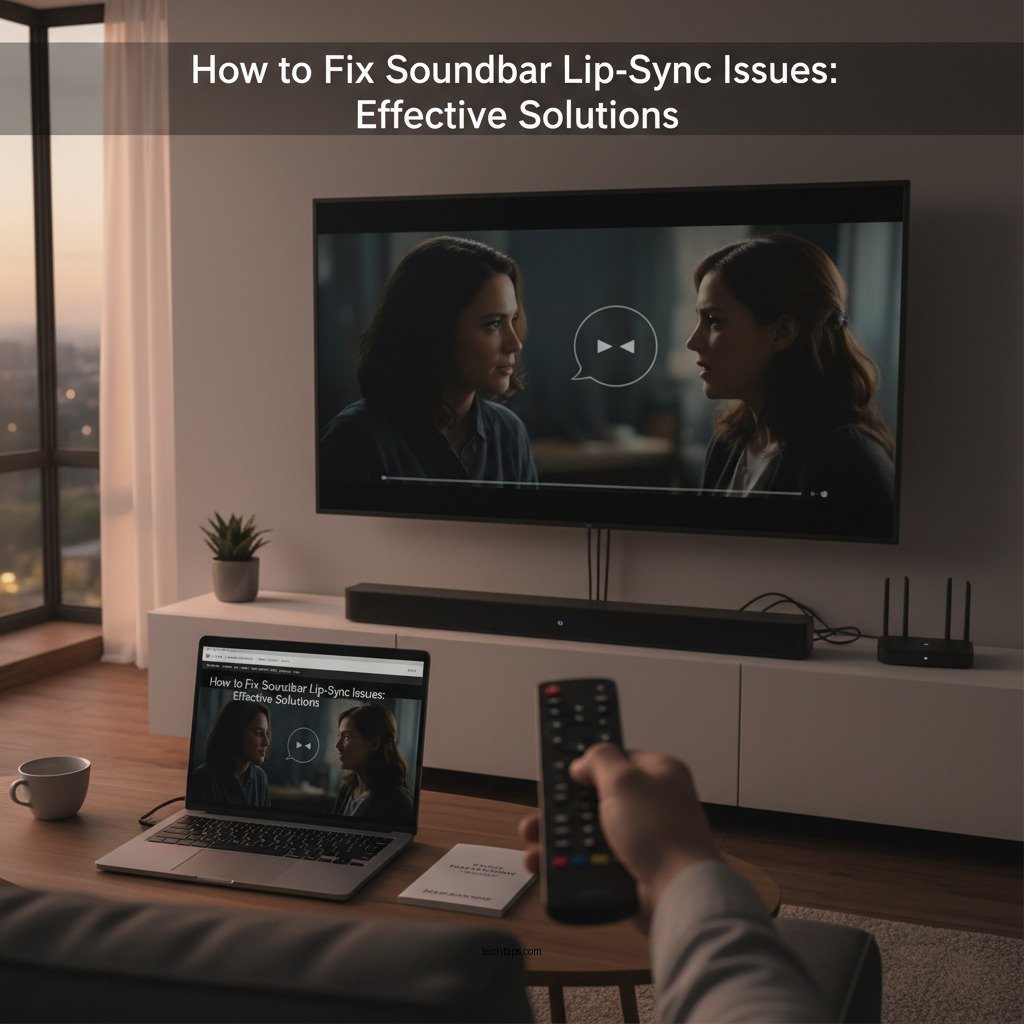

To resolve soundbar lip-sync problems, start by adjusting the audio delay settings on your TV or soundbar. This quick fix often aligns sound with video perfectly. Lip-sync issues can be frustrating, especially during critical movie scenes or while enjoying your favorite music. In this article, we’ll explore various methods and tips to help you troubleshoot and eliminate these annoying delays to enhance your overall audio-visual experience.
Understanding Lip-Sync Issues

Lip-sync problems occur when there is a noticeable delay between the audio and the video, leading to a disjointed viewing experience. This mismatch can be especially evident during dialogue-heavy scenes, where the viewer can clearly see that the audio does not align with the speaker’s lip movements.
The common causes of lip-sync issues include processing delays inherent in the audio decoding process, connection problems between devices, and the inherent latency of certain audio formats. For instance, if you are using Bluetooth to connect your soundbar, the wireless transmission can introduce a delay. Additionally, some TV models process video faster than audio, further compounding the issue. Understanding these causes is the first step in effectively troubleshooting and fixing lip-sync problems.
Adjusting Audio Delay Settings
One of the most straightforward methods to rectify lip-sync issues is to adjust the audio delay settings on your devices. Here’s how you can do that:
1. Accessing TV Audio Settings:
– Navigate to your TV’s settings menu, often found under “Audio” or “Sound”.
– Look for an option labeled “Audio Delay,” “Lip Sync,” or “AV Sync”.
– Use the provided slider to adjust the delay until the audio matches the video.
2. Modifying Soundbar Settings:
– For most soundbars, access the settings via remote control or an accompanying app.
– Look for “Audio Settings” or “Sound Adjustment”.
– Find the audio delay feature and adjust it accordingly. Some soundbars, like those from Samsung and LG, even have built-in calibration tools to help you achieve optimal synchronization.
By making these adjustments, you can often resolve minor sync issues without needing additional equipment or technical expertise.
Checking Connection Types
The type of connection you use between your TV and soundbar can significantly affect sound quality and synchronization. Here’s an overview of the two most common connection types:
– HDMI (ARC/eARC): This is generally the preferred method as it provides higher bandwidth for audio signals and allows for faster processing with less latency. Using HDMI ARC (Audio Return Channel) or eARC (enhanced Audio Return Channel) ensures that audio is transmitted without significant delays.
– Optical Cables: While optical cables can deliver excellent sound quality, they may introduce latency, especially if the devices are not properly synced. They are a good alternative for older soundbars or TVs lacking HDMI ports.
Investing in high-quality cables is crucial for optimal performance. Inferior cables can result in signal degradation and further exacerbate lip-sync problems.
Top Audio Connection Types for Lip-Sync Efficiency (2024)
| # | Connection Type | Latency (ms) | Audio Quality | Best For |
|---|---|---|---|---|
| 1 | HDMI ARC | < 5 | High | Modern TVs |
| 2 | Optical Cable | < 10 | Good | Older Systems |
| 3 | Bluetooth | 20-30 | Moderate | Wireless Convenience |
| 4 | 3.5mm AUX | < 15 | Good | Basic Devices |
| 5 | Digital Coaxial | < 10 | High | Home Theater Systems |
| 6 | RCA Cables | < 15 | Decent | Legacy Devices |
| 7 | Ethernet (for Smart Soundbars) | < 5 | Very High | Smart Features |
Updating Firmware and Software
Keeping your devices updated is crucial for ensuring optimal performance and eliminating potential lip-sync issues. Most manufacturers release firmware updates that can enhance audio processing capabilities, fix bugs, or improve overall device functionality. Here’s how to check for updates:
1. Updating Your TV:
– Access the settings menu and look for “System” or “About”.
– Choose “Software Update” and follow the prompts to check for available updates.
– If an update is available, ensure your TV is connected to the internet and proceed with the installation.
2. Updating Your Soundbar:
– Similar to your TV, navigate to the soundbar’s settings via the remote or app.
– Look for “Firmware Update” or “Software Update” options.
– Follow the instructions to check for and install updates.
Regular updates not only improve synchronization but also ensure that you benefit from the latest features and enhancements provided by the manufacturers.
Using External Solutions
If you continue to experience lip-sync issues despite making adjustments, consider using an external audio/video receiver (AVR) or a dedicated audio processor. These devices can help manage audio signals more efficiently and provide advanced synchronization options.
– AVR: An audio/video receiver can help streamline the connection between your TV and sound system, providing features that address lip-sync issues directly.
– Apps and Devices: Certain apps, such as those used for calibrating sound systems, can help you analyze and adjust audio sync more effectively. Devices like the Sync Playback app or hardware solutions like the Synchro Audio Delay can also assist in achieving the desired synchronization.
Choosing the right external solution can greatly enhance your audio experience, especially for complex setups involving multiple devices.
Testing Different Audio Modes
Most modern soundbars come equipped with various audio modes designed to enhance the listening experience. Exploring these settings can sometimes resolve lip-sync issues:
– Stereo Mode: Provides a balanced sound without any enhancements but might not always be the best for dialogue clarity.
– Surround Sound Mode: While immersive, this mode can sometimes introduce latency, depending on the processing capabilities of your soundbar.
– Night Mode: Designed to compress dynamic range, this mode can also affect audio timing. Testing different modes can help identify which setting provides the best synchronization and overall sound quality for your setup.
Experimenting with these audio settings will allow you to find a configuration that minimizes lip-sync issues while optimizing your audio experience.
Seeking Professional Help
If you have attempted all the above solutions and still face persistent lip-sync issues, it may be time to consult customer support for your soundbar or TV. When reaching out for assistance, ensure you provide the following information:
– Make and model of your TV and soundbar
– Description of the issue, including when it occurs
– Steps you have already taken to try and resolve the problem
This information will help customer support diagnose the issue more effectively and provide tailored advice.
Summarizing the steps to fix lip-sync problems can save you a lot of frustration. By adjusting settings, checking connections, and possibly updating software, you can greatly improve your audio-visual experience. If issues persist, don’t hesitate to seek professional assistance to ensure your setup functions perfectly. Take action today to enjoy your entertainment without the annoyance of mismatched audio and video.
Frequently Asked Questions
What causes soundbar lip-sync problems?
Soundbar lip-sync problems often arise from audio and video signals being processed at different speeds. This can happen due to delays in digital processing, the type of connection used (like HDMI, optical, or Bluetooth), and even the settings on your TV or soundbar. Understanding these factors can help you identify the root cause of the sync issue.
How can I fix lip-sync issues with my soundbar?
To fix lip-sync issues with your soundbar, start by checking your audio settings on both the TV and soundbar. Look for options like audio delay or sync adjustments; many devices allow you to manually adjust the timing. Additionally, ensure that you are using a high-quality cable and consider switching between connection types (like HDMI ARC or optical) to see if it improves the sync.
Why is my soundbar out of sync with my TV?
Your soundbar may be out of sync with your TV due to latency issues that occur during audio processing. Factors such as the type of content being played, the connections used, and settings like surround sound modes can all contribute to this problem. Identifying these variables can help you troubleshoot and resolve the sync discrepancy.
What is the best way to achieve perfect audio and video synchronization with a soundbar?
The best way to achieve perfect audio and video synchronization with a soundbar is to use a direct HDMI ARC connection, as it minimizes latency. Additionally, ensure that your soundbar and TV firmware are updated to the latest versions, and utilize any built-in lip-sync correction features. Regularly check your settings and make adjustments as needed for optimal performance.
Which soundbars are equipped with features to automatically correct lip-sync issues?
Many modern soundbars come with features designed to automatically correct lip-sync issues, such as those from brands like Sonos, Bose, and Samsung. Look for soundbars that offer audio delay adjustment capabilities or “lip-sync” settings in their configuration menus. Reading user reviews and product specifications can help you find a model that effectively addresses lip-sync problems.
References
- https://www.lifewire.com/fix-soundbar-lip-sync-issues-4689622
https://www.lifewire.com/fix-soundbar-lip-sync-issues-4689622 - Google Scholar Google Scholar
https://scholar.google.com/scholar?q=Fix+Soundbar+Lip-Sync+Problems - Google Scholar Google Scholar
https://scholar.google.com/scholar?q=Soundbar+Audio+Video+Sync - Google Scholar Google Scholar
https://scholar.google.com/scholar?q=Lip-Sync+Issues+in+Audio+Devices - Google Scholar Google Scholar
https://scholar.google.com/scholar?q=How+to+Fix+Soundbar+Lip-Sync+Problems - How to Fix Soundbar Lip-Sync Problems – Search results
https://en.wikipedia.org/wiki/Special:Search?search=How+to+Fix+Soundbar+Lip-Sync+Problems - https://www.ncbi.nlm.nih.gov/search/research-articles/?term=How+to+Fix+Soundbar+Lip-Sync+Problems
https://www.ncbi.nlm.nih.gov/search/research-articles/?term=How+to+Fix+Soundbar+Lip-Sync+Problems