
To prevent motion blur on high-refresh-rate monitors, it’s essential to adjust settings such as response time, refresh rate, and utilize technology like motion blur reduction. By fine-tuning these elements, you can significantly enhance your gaming and viewing experience, ensuring that every movement is crisp and clear. This article will guide you through effective strategies to minimize motion blur, so you can enjoy your favorite games and media without distractions.
Understanding Motion Blur

Motion blur is the visual artifact that occurs when fast-moving objects appear smeared or blurred in digital displays. This phenomenon can be particularly pronounced during high-paced gaming or action sequences in movies. Motion blur is primarily caused by two factors: the refresh rate of the monitor and the pixel response time.
The refresh rate, measured in hertz (Hz), indicates how many times per second the screen refreshes the image. A higher refresh rate results in smoother motion, as the screen can display more frames per second. On the other hand, pixel response time refers to how quickly a pixel can change from one color to another. A slow response time can lead to ghosting effects, where previous images linger on the screen, contributing to that unwanted blur. Thus, both of these factors play a crucial role in motion clarity, and understanding them is the first step toward improving your viewing experience.
Adjusting Monitor Settings
Setting your monitor to its optimal refresh rate is the first step in preventing motion blur. Most high-refresh-rate monitors can support refresh rates of 120Hz, 144Hz, or even 240Hz. To ensure you are maximizing performance, navigate to your display settings on your computer and confirm that the monitor is set to its highest supported refresh rate. This adjustment can often be done through the graphics settings in your operating system or via the monitor’s on-screen display menu.
Additionally, adjusting the response time settings on your monitor can significantly enhance performance. Many modern monitors come with options for different response time presets, such as “Fast,” “Faster,” or “Extreme.” While these settings can reduce blur, they may also introduce artifacts or overshoot, so it’s important to find a balance that works for your specific monitor. Test each setting while playing fast-paced games or watching action-packed films to determine which response time option yields the best results for your eyes.
Utilizing Motion Blur Reduction Technologies
Many high-refresh-rate monitors feature advanced technologies designed to combat motion blur. Two of the most popular are NVIDIA G-SYNC and AMD FreeSync. These technologies synchronize the monitor’s refresh rate with the frame rate output of your graphics card, effectively eliminating screen tearing and reducing motion blur during gameplay.
Enabling motion blur reduction features in your monitor settings can also yield significant improvements. Some monitors come equipped with their own motion blur reduction technologies, often referred to as “ULMB” (Ultra Low Motion Blur) or similar. To enable this feature, access the monitor’s settings menu and look for the motion blur reduction option. While this may slightly reduce brightness, the trade-off is often worth it for the improved clarity during fast movements.
Choosing the Right Cables and Connections
The quality of the cables you use to connect your monitor to your computer can have a substantial impact on performance, especially at high refresh rates. High-quality HDMI or DisplayPort cables are essential for transmitting the necessary data without any loss. When selecting cables, ensure they support the specifications required for your monitor. For instance, HDMI 2.1 is capable of supporting refresh rates up to 240Hz at 4K resolution, while DisplayPort 1.4 can also handle high refresh rates and resolutions.
Look for cables that are labeled as “high-speed” or “premium” to ensure they meet the required standards. It’s also a good idea to check your graphics card specifications to confirm that it can support high refresh rates and resolutions, as using subpar cables will lead to performance bottlenecks, ultimately contributing to motion blur and other visual artifacts.
Optimizing Game and Application Settings
Adjusting in-game settings can significantly help in reducing motion blur and enhancing overall performance. Start by lowering graphical settings such as shadows, anti-aliasing, and post-processing effects, which can be demanding on your system. Enabling features like “motion blur” in-game might seem counterintuitive, but many modern games provide more refined settings that can actually enhance the clarity of movement when tuned correctly.
Keeping your graphics drivers updated is equally important for optimal compatibility and performance. Graphics card manufacturers frequently release updates that improve performance in newer games and fix known issues, including those related to motion blur. Make it a habit to check for driver updates regularly or enable automatic updates if the option is available.
Maintaining Your Monitor
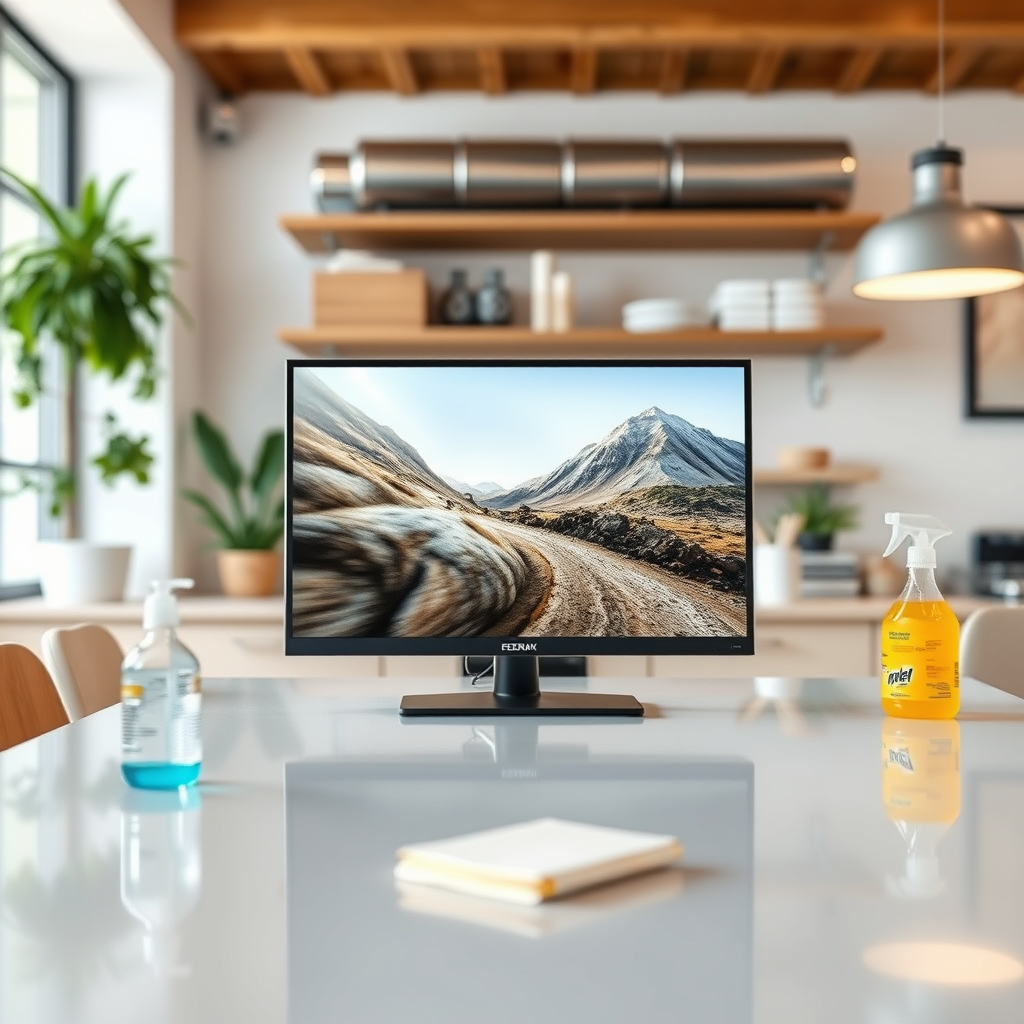
Regular maintenance of your monitor is essential for sustained performance and clarity. Dust and smudges on the screen can interfere with your viewing experience, so clean your monitor using a microfiber cloth and screen-safe cleaner. Calibration is also crucial; many monitors come with built-in calibration tools to help adjust brightness, contrast, and color settings for an optimal experience.
Environmental factors such as lighting conditions can also affect display quality. Position your monitor away from direct sunlight or bright lights that can create glare, making motion blur more noticeable. Additionally, maintaining a stable temperature and humidity level in your gaming area can prevent screen issues over time.
In summary, preventing motion blur on high-refresh-rate monitors involves a combination of adjusting settings, utilizing advanced technologies, and maintaining your equipment properly. By following the steps outlined above, you can significantly improve your viewing experience and enjoy smoother, clearer motion in your gaming and media adventures. For more tips and tricks on optimizing your gaming setup, stay tuned to our blog!
Frequently Asked Questions
What causes motion blur on high-refresh-rate monitors?
Motion blur on high-refresh-rate monitors is primarily caused by the persistence of vision effect, where the image displayed doesn’t change quickly enough to keep up with fast-moving content, resulting in a trailing effect. Other factors include the response time of the monitor’s pixels, the speed at which they can change color, and the settings on your graphics card or monitor itself. Understanding these elements can help you take steps to minimize motion blur in gaming and video playback.
How can I reduce motion blur while gaming on a high-refresh-rate monitor?
To reduce motion blur while gaming, first ensure that your monitor’s refresh rate is set to its maximum level in the display settings. You should also enable features such as Motion Blur Reduction or Black Frame Insertion if your monitor supports them. Additionally, adjusting the graphics settings in your game to lower quality can help increase frame rates, which in turn reduces motion blur by providing smoother transitions during fast movements.
Why is my high-refresh-rate monitor still showing motion blur despite having a fast response time?
Even with a fast response time, motion blur can occur if the refresh rate is not synchronized with the frame rate being produced by your graphics card. This desynchronization can lead to tearing, which exacerbates the perception of motion blur. To address this, consider enabling V-Sync or using technologies such as NVIDIA G-SYNC or AMD FreeSync, which help synchronize frame rates with your monitor’s refresh rate for a smoother experience.
What settings should I adjust on my monitor to minimize motion blur?
To minimize motion blur on your monitor, adjust the overdrive setting in the monitor’s menu; increasing it can help pixels change colors faster. Additionally, turn off any post-processing effects that may add blurriness, like anti-aliasing or motion smoothing. Lastly, ensure that you are using the correct display cable (such as DisplayPort or HDMI) that supports the monitor’s full capabilities, as this can also impact performance.
Which high-refresh-rate monitors are best for reducing motion blur?
When looking for high-refresh-rate monitors that excel at reducing motion blur, consider models that feature advanced technologies such as OLED or fast IPS panels with low response times (1ms or lower). Monitors with refresh rates of 144Hz or higher, such as those from brands like ASUS, Acer, or Dell, often come equipped with motion blur reduction features. Reading reviews and checking specifications for features like G-SYNC or FreeSync support can also help you find a monitor that minimizes motion blur effectively.
References
- Display motion blur
- https://www.techradar.com/how-to/how-to-set-up-your-high-refresh-rate-monitor
- https://www.pcgamer.com/how-to-reduce-motion-blur-in-video-games/
- https://www.nvidia.com/en-us/geforce/guides/monitor-refresh-rate-guide/
- https://www.tomsguide.com/how-to/how-to-reduce-motion-blur-in-gaming
- https://support.microsoft.com/en-us/windows/change-your-screen-resolution-4b01f8c2-c8b1-4e8f-8f4d-68c6e1d3cabc
- https://www.digitaltrends.com/computing/how-to-adjust-refresh-rate/
- https://www.howtogeek.com/736061/how-to-reduce-motion-blur-in-video-games/