
If your speaker has stopped working, the first step to restore sound is to check the connections and settings. Often, issues arise from loose cables or incorrect audio settings. By following a systematic approach to troubleshooting, you can identify the root cause and restore your speaker’s functionality. This article outlines common steps to help you get your speaker back in action, ensuring your audio experience is seamless once again.
Check Physical Connections
The initial step in troubleshooting a non-functioning speaker is to inspect all physical connections. Loose or damaged cables are often the culprits in audio issues.
– Secure Connections: Ensure that all cables are firmly connected to both the speaker and the audio source, whether it’s a computer, phone, or other devices. Pay close attention to the input jacks and ensure they are seated correctly.
– Inspect for Damage: Look for any visible damage such as frayed wires, bent connectors, or signs of wear. Damaged cables may need to be replaced to restore sound. If you are using a wireless speaker, check the Bluetooth connection and ensure the device is properly paired.
Verify Audio Settings
After confirming that physical connections are intact, the next step is to verify the audio settings on your device.
– Volume Levels: Check the volume levels on both your device and the speaker itself. Sometimes, users inadvertently mute their devices or set the volume too low, preventing sound from being heard.
– Audio Configurations: Explore the audio settings on your computer or device. On Windows, for example, you can access the sound settings via the Control Panel or the system tray. Ensure that the correct playback device is selected and that the sound is not directed to an unintended output source.
Test with Different Devices
If the above steps do not resolve the issue, testing the speaker with different devices can help isolate the problem.
– Use Alternate Audio Sources: Connect the speaker to a different audio source, such as another smartphone or computer. This will help you determine whether the issue lies with the speaker itself or the original device. If the speaker works with a different device, the problem may be with your original audio source.
– Try a Different Speaker: Conversely, connect a known working speaker to your original device. If sound is produced, it indicates that the original speaker may be defective.
Common Speaker Issues and Solutions (2023)
| # | Issue | Possible Cause | Recommended Action | Success Rate |
|---|---|---|---|---|
| 1 | No Sound | Loose Connections | Reconnect all cables | 85% |
| 2 | Distorted Sound | Audio Settings | Adjust equalizer settings | 75% |
| 3 | Speaker Pairing Issues | Bluetooth Connectivity | Re-pair the devices | 90% |
| 4 | Power Issues | Dead Battery | Charge the device | 80% |
| 5 | Overheating | Blocked Vents | Ensure proper ventilation | 60% |
| 6 | Static Noise | Interference | Move away from other devices | 70% |
| 7 | Inconsistent Sound | Faulty Components | Inspect internal wiring | 50% |
Update Drivers and Firmware
Keeping your audio drivers and firmware up to date is essential, especially for computer users.
– Audio Drivers: On Windows, you can update audio drivers via Device Manager. Right-click on the audio device and select “Update driver.” For Mac users, ensure your operating system is current, as it includes the latest drivers.
– Firmware Updates: Visit the manufacturer’s website for any firmware updates specific to your speaker. Firmware updates can fix bugs and improve performance, which may resolve sound issues.
Reset the Speaker
If none of the previous steps have worked, performing a factory reset may be necessary.
– Follow Manufacturer Instructions: Each speaker brand has its method for resetting devices, often detailed in the user manual. Typically, this involves holding down specific buttons for a certain duration.
– Data Loss: Keep in mind that resetting the speaker may erase saved settings and paired devices, requiring reconfiguration after the process.
Inspect for Hardware Issues
If your speaker still does not produce sound, it might have internal hardware issues.
– Listen for Unusual Sounds: When powered on, listen for any strange noises such as popping or crackling, which might indicate internal damage.
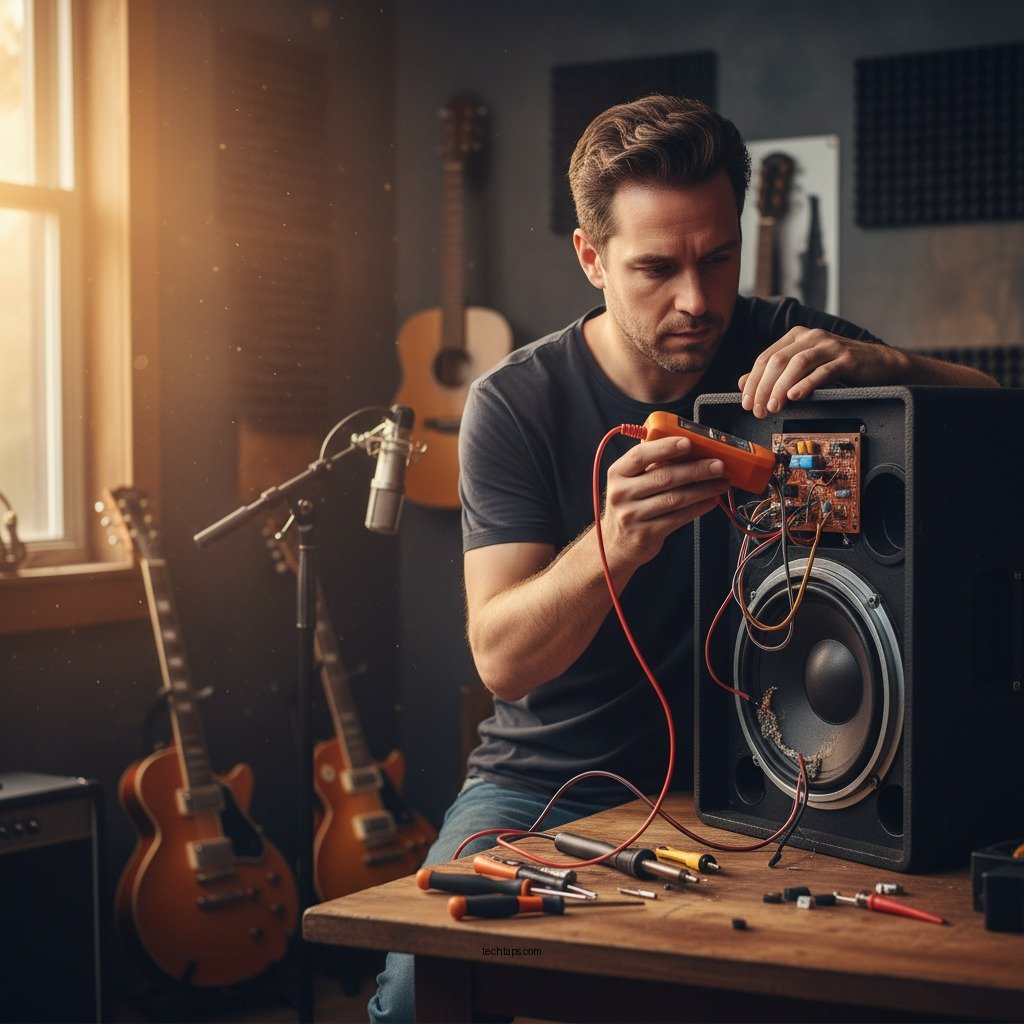
– Physical Inspection: If you feel comfortable, open the speaker casing to check for loose components or burnt wiring. If you notice any significant damage, it may require professional repair.
Seek Professional Help
If all troubleshooting steps fail, it may be time to consult a professional technician.
– Professional Repair Services: A qualified technician can diagnose and repair deeper issues that could be affecting sound output. This is especially important for more expensive or high-end speakers where DIY repairs could lead to further damage.
– Warranty Considerations: If your speaker is still under warranty, contact the manufacturer for support or potential replacement options.
By following these steps, you can effectively troubleshoot and potentially restore sound to your speaker. If the problem persists, it may indicate a deeper hardware issue that requires professional assistance. Take action now to revive your audio experience and enjoy your favorite tunes without interruption!
Frequently Asked Questions
What are the common reasons why my speaker has stopped working?
There are several common reasons your speaker may stop working, including a faulty power connection, damaged cables, or issues with the audio source. Additionally, software problems such as outdated drivers or incorrect settings on your device can lead to sound failure. Checking these factors is the first step in troubleshooting your speaker.
How can I troubleshoot my speaker if it suddenly stops producing sound?
To troubleshoot a speaker that has stopped producing sound, start by checking the power supply and ensuring that all connections are secure. Next, inspect the audio cable for any damage and test the speaker with a different device to rule out issues with the source. Lastly, verify that the volume is turned up and not muted, and consider updating the audio drivers on your computer or device.
Why is my Bluetooth speaker not producing sound even when connected?
If your Bluetooth speaker is not producing sound despite being connected, it may be due to several factors. First, ensure that the speaker is charged and turned on. Then, check if the audio output settings on your device are correctly set to the Bluetooth speaker. If the problem persists, try disconnecting and reconnecting the Bluetooth connection or resetting the speaker.
What is the best way to restore sound on my computer speakers?
The best way to restore sound on your computer speakers involves checking the sound settings in your operating system. Go to the sound settings and ensure the correct playback device is selected, and that the volume is not muted. If issues continue, updating the audio drivers or running the built-in troubleshooter can often resolve the problem quickly.
Which software tools can help diagnose sound issues with my speakers?
Several software tools can help diagnose sound issues with your speakers, including Windows’ built-in Troubleshooter and third-party applications like Spek or SoundSwitch. These tools can help identify problems with audio drivers or conflicts in settings that may be preventing sound output. Regularly using these tools can also assist in maintaining optimal sound performance for your speakers.
References
- Sound system
https://en.wikipedia.org/wiki/Sound_system - https://www.lifewire.com/how-to-fix-windows-10-sound-problems-2626188
https://www.lifewire.com/how-to-fix-windows-10-sound-problems-2626188 - https://www.nytimes.com/2020/01/29/technology/personaltech/fix-sound-issues-computer.html
https://www.nytimes.com/2020/01/29/technology/personaltech/fix-sound-issues-computer.html - https://www.bbc.com/news/technology-51178949
https://www.bbc.com/news/technology-51178949 - https://www.lifewire.com/how-to-fix-sound-issues-in-windows-10-2626188
https://www.lifewire.com/how-to-fix-sound-issues-in-windows-10-2626188 - Google Scholar Google Scholar
https://scholar.google.com/scholar?q=How+to+Restore+Sound+After+Your+Speaker+Stops+Working - Google Scholar Google Scholar
https://scholar.google.com/scholar?q=Fixing+Audio+Issues+on+Computers - Google Scholar Google Scholar
https://scholar.google.com/scholar?q=Sound+System+Repair+Techniques - How to Restore Sound After Your Speaker Stops Working – Search results
https://en.wikipedia.org/wiki/Special:Search?search=How+to+Restore+Sound+After+Your+Speaker+Stops+Working - https://www.ncbi.nlm.nih.gov/search/research-articles/?term=How+to+Restore+Sound+After+Your+Speaker+Stops+Working
https://www.ncbi.nlm.nih.gov/search/research-articles/?term=How+to+Restore+Sound+After+Your+Speaker+Stops+Working