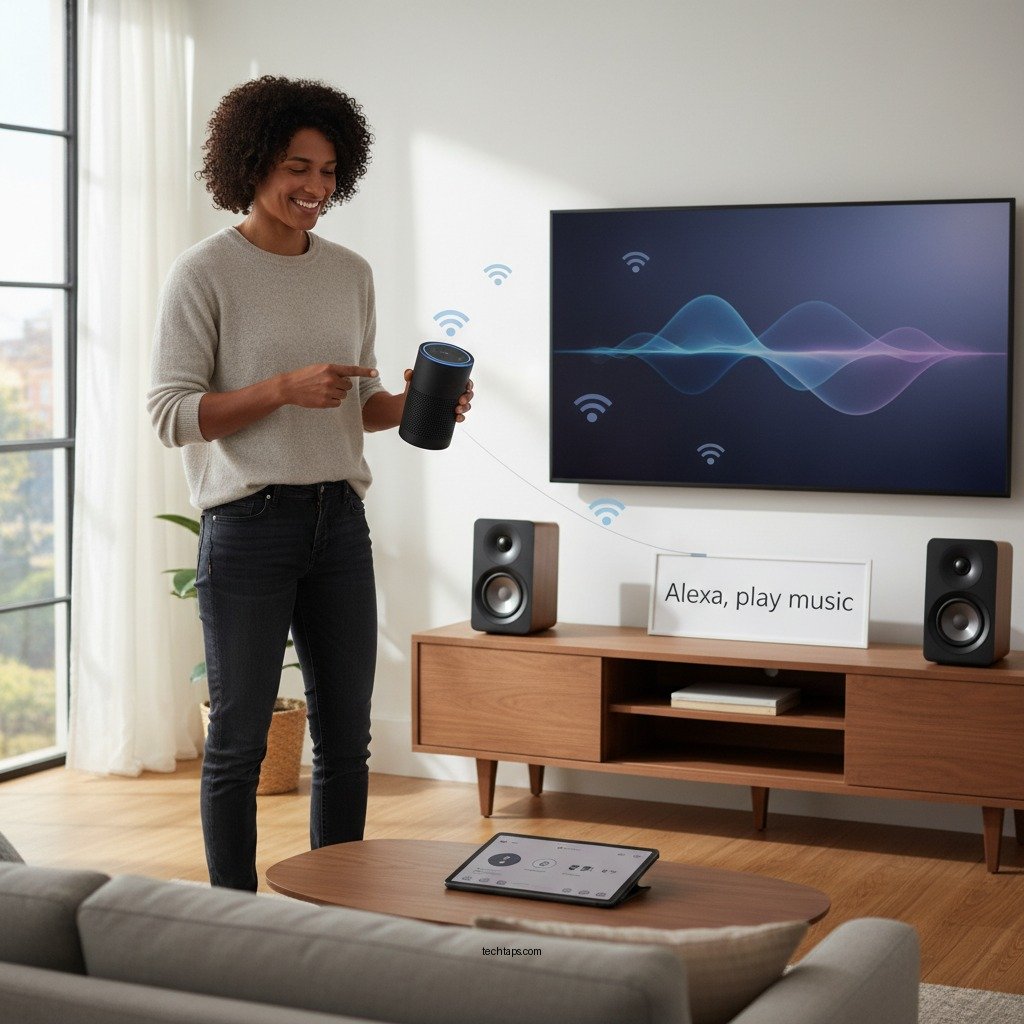

To set up a Wi-Fi enabled speaker system with Alexa, start by connecting your speakers to the same Wi-Fi network as your Alexa device. Then, use the Alexa app to discover and manage your speakers, ensuring seamless integration for voice control and music streaming. This article will guide you through the entire process, step-by-step, for a smooth setup experience.
Understanding Your Wi-Fi Enabled Speaker System
Wi-Fi enabled speaker systems have revolutionized how we experience music and audio in our homes. Unlike traditional wired systems, Wi-Fi speakers offer the convenience of wireless connectivity, allowing you to place your speakers anywhere within your Wi-Fi range without the clutter of cables. The benefits include high-quality audio streaming, multi-room audio capabilities, and compatibility with various music services such as Spotify, Apple Music, and Amazon Music.
Integrating Alexa into your Wi-Fi speaker system elevates the user experience even further. With voice control, you can easily play music, adjust volume levels, or switch between different audio sources with simple voice commands. The compatibility with Alexa ensures that your speaker system can become part of a broader smart home ecosystem, allowing for seamless interaction between devices.
Preparing for Setup
Before you start the setup process, it’s essential to gather all necessary equipment. You will need your Wi-Fi enabled speakers, details of your Wi-Fi network (SSID and password), and a compatible device with the Alexa app installed, whether it’s a smartphone or tablet. Additionally, ensure that your Alexa device and speakers are updated to the latest firmware. This step helps in avoiding connection issues and enhances compatibility.
Updating your devices is typically straightforward. For the Alexa device, you can check for updates in the Alexa app under Device Settings. Likewise, most Wi-Fi speakers have an associated app or settings menu that allows you to verify and perform updates.
Connecting Speakers to Wi-Fi
Now that you are prepared, it’s time to connect your Wi-Fi enabled speakers to the network. Follow these steps:
1. Power on Your Speakers: Ensure that your Wi-Fi speakers are plugged in and powered on.
2. Connect to Wi-Fi: Use the speaker’s companion app (often available on both iOS and Android) to connect the speakers to your Wi-Fi network. This typically involves selecting your network from a list and entering the Wi-Fi password.
3. Wait for Connection Confirmation: Most apps will notify you once the speaker is connected successfully. If you encounter any issues, check the following:
– Ensure your Wi-Fi signal is strong in the area where the speakers are located.
– Restart your router to resolve any potential connectivity issues.
– Verify that you are using the correct Wi-Fi password.
If you continue to experience problems, consult the user manual for troubleshooting tips specific to your model.
Top 7 Wi-Fi Enabled Speaker Systems (2024)
| # | Speaker Model | Wi-Fi Compatibility | Voice Assistant | Price |
|---|---|---|---|---|
| 1 | Sonos One | 802.11b/g/n | Alexa, Google Assistant | $199 |
| 2 | Amazon Echo Studio | 802.11a/b/g/n/ac | Alexa | $199 |
| 3 | Bose Home Speaker 500 | 802.11b/g/n | Alexa, Google Assistant | $399 |
| 4 | Ultimate Ears Megablast | 802.11a/b/g/n | Alexa | $199 |
| 5 | Google Nest Audio | 802.11b/g/n | Google Assistant | $99 |
| 6 | JBL Link Portable | 802.11b/g/n | Google Assistant | $149 |
| 7 | Apple HomePod Mini | 802.11a/b/g/n/ac | Siri | $99 |
Integrating Speakers with Alexa
Once your speakers are connected to Wi-Fi, the next step is to integrate them with Alexa. Follow these steps to ensure your speaker system is recognized by Alexa:
1. Open the Alexa App: Launch the app on your smartphone or tablet.
2. Go to ‘Devices’: Tap on the ‘Devices’ icon located at the bottom of the screen.
3. Add Device: Select the ‘+’ sign in the upper right corner and choose ‘Add Device’.
4. Select Your Speaker Brand: Choose the brand of your Wi-Fi speaker from the list.
5. Follow On-Screen Instructions: The app will guide you through the process of linking your speaker to your Alexa account.
After your speakers are added, you can create speaker groups for multi-room audio. This feature allows you to play music simultaneously in multiple rooms. To create a group, return to the ‘Devices’ tab in the app, tap on ‘+’, select ‘Add Group’, and then choose the speakers you want to include.
Customizing Your Alexa Speaker Experience
To maximize your enjoyment of your new Wi-Fi enabled speaker system, take the time to customize your Alexa experience. Here are a few tips:
– Personalize Music Preferences: Within the Alexa app, you can link your favorite music streaming services and create personalized playlists. Alexa can also learn your listening habits and suggest songs you might enjoy.
– Utilize Alexa Routines: Routines allow you to automate multiple actions with a single command. For instance, you can set a routine that plays a particular playlist at a specific time each day, adjusts the volume, or even controls other smart home devices.
By personalizing your setup, you can create a tailored audio experience that fits seamlessly into your daily routine.
Troubleshooting Common Issues
As with any technology, you may face occasional issues with connectivity or responsiveness. Here are some common problems and their solutions:
– Connectivity Problems: If your speaker loses connection to Wi-Fi, try resetting your router and ensuring your speaker is within range of the Wi-Fi signal. Additionally, restarting the speaker can often resolve temporary glitches.
– Speaker Responsiveness: If Alexa is not responding to voice commands, check if the microphone on your device is muted. Make sure the Alexa device and your Wi-Fi speakers are powered on and connected to the same network.
If problems persist, resetting your devices to factory settings may be necessary. Refer to the user manual for instructions specific to your speaker model.
Enjoying Your New Setup
With your Wi-Fi enabled speaker system successfully set up and integrated with Alexa, it’s time to enjoy the benefits. To maximize sound quality and user experience, consider the following tips:
– Optimize Speaker Placement: Position your speakers strategically to take advantage of acoustics. For instance, placing them away from walls can minimize sound distortion.
– Explore Additional Features: Beyond music playback, your Alexa-enabled speakers can control smart home devices, provide weather updates, and even set timers or reminders. Experiment with various voice commands to familiarize yourself with your speaker’s capabilities.
By exploring all available features, you can elevate your audio experience and enjoy the seamless integration of your smart home ecosystem.
In conclusion, setting up a Wi-Fi enabled speaker system with Alexa enhances your home audio experience with convenience and versatility. By following the outlined steps, you create a powerful audio setup that allows for voice-controlled music streaming and integration with other smart devices. Be sure to explore the customization options available to tailor the experience to your preferences, ensuring that your home entertainment is both enjoyable and efficient.
Frequently Asked Questions
How do I connect my Wi-Fi enabled speaker system to Alexa?
To connect your Wi-Fi enabled speaker system to Alexa, first ensure that your speaker is powered on and connected to the same Wi-Fi network as your Alexa device. Open the Alexa app on your smartphone, go to the “Devices” tab, tap on the “+” icon to add a new device, and select your speaker from the list. Follow the prompts to complete the setup, and you’ll be able to control your speaker using voice commands.
What are the benefits of using a Wi-Fi enabled speaker system with Alexa?
Using a Wi-Fi enabled speaker system with Alexa offers several benefits, including high-quality audio streaming and the ability to control your music hands-free. You can easily play music from various streaming services, set alarms, and control smart home devices, all through voice commands. Additionally, Wi-Fi speakers typically provide better sound quality than Bluetooth speakers and can be integrated into a multi-room audio setup.
Why is my Alexa not recognizing my Wi-Fi enabled speaker?
If Alexa is not recognizing your Wi-Fi enabled speaker, ensure that both devices are connected to the same Wi-Fi network and that the speaker is powered on. Check for any software updates for both your Alexa device and speaker. If the issue persists, try resetting the speaker and reconnecting it through the Alexa app, ensuring you follow the setup instructions accurately.
Which Wi-Fi enabled speakers work best with Alexa?
Some of the best Wi-Fi enabled speakers that work seamlessly with Alexa include the Amazon Echo Studio, Sonos One, and Bose Home Speaker 500. These speakers not only deliver excellent sound quality but also offer robust Alexa integration, allowing you to access Alexa’s features easily. Consider your audio preferences, budget, and desired features when choosing the best speaker for your needs.
How can I troubleshoot common issues with my Alexa and Wi-Fi enabled speaker system?
To troubleshoot issues with your Alexa and Wi-Fi enabled speaker system, start by ensuring both devices are connected to the same Wi-Fi network and that your internet connection is stable. Restart both devices, check for firmware updates, and verify that the speaker is correctly set up in the Alexa app. If problems persist, consult the manufacturer’s support documentation or the Alexa help section for further assistance.
References
- Amazon Alexa
https://en.wikipedia.org/wiki/Amazon_Alexa - About the security content of iOS 10 – Apple Support
https://support.apple.com/en-us/HT207143 - https://www.lifewire.com/how-to-set-up-amazon-echo-4178344
https://www.lifewire.com/how-to-set-up-amazon-echo-4178344 - Google Scholar Google Scholar
https://scholar.google.com/scholar?q=Wi-Fi+enabled+speaker+system+with+Alexa - Google Scholar Google Scholar
https://scholar.google.com/scholar?q=setting+up+Alexa+smart+home+devices - Google Scholar Google Scholar
https://scholar.google.com/scholar?q=How+to+Set+Up+a+Wi-Fi+Enabled+Speaker+System+with+Alexa - How to Set Up a Wi-Fi Enabled Speaker System with Alexa – Search results
https://en.wikipedia.org/wiki/Special:Search?search=How+to+Set+Up+a+Wi-Fi+Enabled+Speaker+System+with+Alexa - https://www.ncbi.nlm.nih.gov/search/research-articles/?term=How+to+Set+Up+a+Wi-Fi+Enabled+Speaker+System+with+Alexa
https://www.ncbi.nlm.nih.gov/search/research-articles/?term=How+to+Set+Up+a+Wi-Fi+Enabled+Speaker+System+with+Alexa