
To set up Amazon Alexa and Google Assistant with your speakers, start by ensuring your speakers are compatible and connected to Wi-Fi. This guide will walk you through the process of linking these powerful voice assistants to your audio devices, allowing you to enhance your listening experience through convenient voice commands. By following these steps, you’ll be able to access your favorite music, control volume, and enjoy a seamless smart home experience all from your voice.
Understanding Compatibility
Before diving into the setup process, it’s essential to ensure that your speakers are compatible with Amazon Alexa or Google Assistant. Most modern smart speakers, and many traditional speakers with smart capabilities, support one or both of these voice assistants.
1. Check Speaker Specifications: Refer to the specifications of your speakers—this information can typically be found in the user manual or on the manufacturer’s website. Look for mentions of “Alexa built-in” or “Google Assistant compatible” logos.
2. Review Manufacturer’s Guidelines: Different manufacturers may have unique procedures for connecting their devices. Familiarize yourself with these instructions, as they will provide the most accurate steps for integrating the voice assistant with your speakers.
Setting Up Amazon Alexa
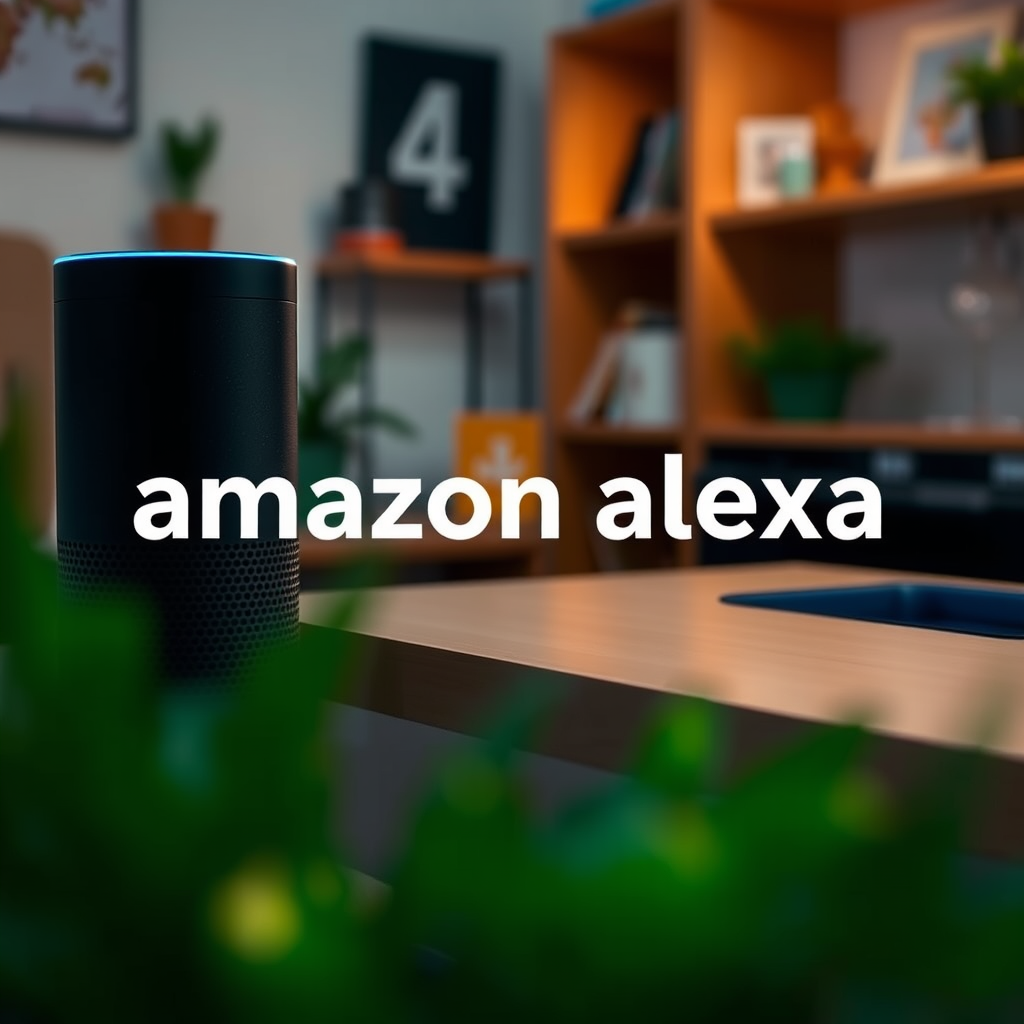
Setting up Amazon Alexa with your speakers is a straightforward process. Follow these steps to begin:
1. Download the Amazon Alexa App: The first step is to download the Amazon Alexa app from the Google Play Store or Apple App Store. The app is essential for configuring Alexa-enabled devices.
2. Create or Sign In to Your Amazon Account: Open the app and either create a new Amazon account or sign in using your existing credentials. This account will allow you to manage your Alexa devices seamlessly.
3. Connect Your Speakers: In the Alexa app, navigate to the “Devices” tab and select “Add Device.” Choose “Speaker” and follow the on-screen instructions to put your speaker in pairing mode. The app will guide you through connecting your speakers to Wi-Fi and linking them to your Alexa account.
4. Customize Your Settings: Once your speakers are connected, you can customize various settings, such as assigning a name to your speaker or linking your favorite music services directly within the app.
Setting Up Google Assistant
Similarly, setting up Google Assistant is user-friendly. Here’s how to do it:
1. Install the Google Home App: Download the Google Home app from the Google Play Store or Apple App Store.
2. Sign In with Your Google Account: Open the app and sign in with your Google account. This account will be used to manage and control your connected devices.
3. Add Your Speakers: Tap on the “Add” button, select “Set up device,” and then choose “New devices.” The app will search for compatible devices nearby. Once your speakers appear, follow the prompts to connect them to your Wi-Fi network.
4. Configure Settings: After your speakers are linked, you can customize settings such as voice preferences and linking music services. The Google Home app also allows you to create routines for automated actions.
Linking Streaming Services
To maximize your audio experience, you should link your preferred streaming services to both Amazon Alexa and Google Assistant.
1. Connect Streaming Services in Alexa: In the Alexa app, go to the “Settings” menu, tap on “Music & Podcasts,” and select your preferred services such as Spotify, Apple Music, or Amazon Music. You can also set a default music service, so Alexa knows where to pull your tunes from.
2. Link Streaming Services in Google Assistant: Open the Google Home app and navigate to “Settings.” Under the “Music” section, select your preferred streaming services and set them as default if desired. This will enhance your music playback experience, allowing for quick access through voice commands.
Testing Voice Commands
After completing the setup and linking services, it’s time to test voice commands to ensure everything is functioning correctly.
1. Basic Commands for Alexa: Try commands such as, “Alexa, play my favorite playlist,” or “Alexa, increase the volume.” These commands will help you gauge how well your speakers respond.
2. Basic Commands for Google Assistant: Test Google Assistant with commands like, “Hey Google, play some jazz music,” or “Hey Google, skip this track.” This will ensure your speaker is not only linked but also responsive to your commands.
3. Check Responsiveness: It’s essential that both assistants respond accurately and promptly. If they do not, revisit the setup steps to ensure everything is configured correctly.
Troubleshooting Common Issues
While setting up your speakers with voice assistants is generally straightforward, you may encounter issues. Here are some common problems and their solutions:
1. Connectivity Issues: If your speakers are not connecting, ensure they are within range of your Wi-Fi network. Restart your router and the speakers if necessary.
2. App Updates: Make sure both the Amazon Alexa and Google Home apps are updated to the latest versions. Outdated apps can cause connectivity problems.
3. Re-linking Devices: If either assistant is unresponsive, try unlinking and re-linking your speakers within the respective apps. This can often resolve persistent issues.
4. Factory Reset: As a last resort, consider performing a factory reset on your speakers. This will wipe all settings but can resolve deeper configuration issues.
Enhancing Your Setup
Once your speakers are set up with Amazon Alexa and Google Assistant, consider exploring further enhancements for a more integrated experience.
1. Multi-Room Audio: Both Alexa and Google Assistant support multi-room audio setups. You can synchronize multiple speakers throughout your home for a seamless listening experience. Check your apps for instructions on how to group devices.
2. Smart Home Integration: Connect your speakers with other smart home devices such as lights, thermostats, and security systems. This creates a cohesive smart home environment that can be controlled entirely through voice commands.
3. Voice Customization: Experiment with different voice settings available in both the Alexa and Google Assistant apps. You can change voice accents, select favorite wake words, and even enable voice match features for personalized responses.
4. Routines and Automation: Set up routines in both apps that trigger multiple actions with a single command. For example, saying “Good morning” could turn on lights, start your coffee maker, and play your morning news briefing.
By following these steps, you can easily set up Amazon Alexa and Google Assistant with your speakers, allowing you to enjoy hands-free control of your audio experience. Whether you’re a music lover or looking to streamline your smart home, starting this setup is simple. Begin today to enhance your entertainment with voice commands!
Top 7 Smart Speakers Compatible with Alexa and Google Assistant (2024)
| # | Speaker | Voice Assistant | Price | Audio Quality |
|---|---|---|---|---|
| 1 | Amazon Echo Studio | Alexa | $199 | ★★★★☆ |
| 2 | Google Nest Audio | Google Assistant | $99 | ★★★★☆ |
| 3 | Sonos One | Alexa & Google Assistant | $199 | ★★★★★ |
| 4 | Apple HomePod Mini | Siri, Alexa | $99 | ★★★☆☆ |
| 5 | Bose Smart Speaker 500 | Alexa | $349 | ★★★★☆ |
| 6 | Ultimate Ears Megablast | Alexa | $199 | ★★★★☆ |
| 7 | JBL Link Portable | Google Assistant | $149 | ★★★★☆ |
Smart Speaker Market Share by Voice Assistant (Q4 2024)
In conclusion, setting up Amazon Alexa and Google Assistant with your speakers not only enhances your audio experience but also integrates your smart home functionality. By ensuring compatibility, following the setup procedures, linking your streaming services, and exploring additional features, you can create a responsive and enjoyable environment. With voice commands, you can easily control your music and smart home devices, making your lifestyle more convenient and efficient. Start your setup today and enjoy the benefits of voice-activated technology!
Frequently Asked Questions
How do I set up Amazon Alexa on my Bluetooth speakers?
To set up Amazon Alexa on your Bluetooth speakers, first, ensure your speakers are in pairing mode. Then, open the Alexa app on your smartphone, go to “Devices,” select “Add Device,” and choose “Bluetooth.” Follow the prompts to pair your Alexa device with your speakers, enabling you to play music and use Alexa’s features through the speakers.
What is the best way to connect Google Assistant to my speakers?
The best way to connect Google Assistant to your speakers is to use the Google Home app. Open the app, tap on the “+” icon to add a device, select “Set up device,” and then choose “Works with Google.” Find your speaker brand, follow the on-screen instructions to link your account, and ensure your speakers are connected to the same Wi-Fi network.
Why isn’t my Alexa device recognizing my Bluetooth speakers?
If your Alexa device isn’t recognizing your Bluetooth speakers, ensure that the speakers are powered on and in pairing mode. Check if the Bluetooth feature is enabled on your Alexa device in the Alexa app under “Devices.” If issues persist, try resetting both the Alexa device and the speakers, and then attempt to pair them again.
Which speakers are compatible with Amazon Alexa and Google Assistant?
Many speakers are compatible with both Amazon Alexa and Google Assistant, including brands like Sonos, Bose, and JBL. When purchasing speakers, look for labels indicating “Works with Alexa” or “Google Assistant Built-In” to ensure compatibility. Researching user reviews can also help you find speakers that best suit your needs.
How can I improve the voice recognition of Alexa and Google Assistant on my speakers?
To improve voice recognition of Alexa and Google Assistant on your speakers, ensure they are placed in a central location away from walls or obstructions that might muffle sound. Reduce background noise and consider using an external microphone if necessary. Regularly update the firmware of your speakers and voice assistants to benefit from the latest improvements in voice recognition technology.
References
- Amazon Alexa
https://en.wikipedia.org/wiki/Amazon_Alexa - Google Assistant
https://en.wikipedia.org/wiki/Google_Assistant - https://www.bbc.com/news/technology-49528238
https://www.bbc.com/news/technology-49528238 - https://www.theguardian.com/technology/2020/jun/19/alexa-google-assistant-smart-speakers
https://www.theguardian.com/technology/2020/jun/19/alexa-google-assistant-smart-speakers - https://www.sciencedirect.com/science/article/pii/S235291482100018X
https://www.sciencedirect.com/science/article/pii/S235291482100018X - Google Scholar Google Scholar
https://scholar.google.com/scholar?q=How+to+Set+Up+Amazon+Alexa+and+Google+Assistant+with+Your+Speakers - Google Scholar Google Scholar
https://scholar.google.com/scholar?q=Smart+Speakers+Setup+Guide - Google Scholar Google Scholar
https://scholar.google.com/scholar?q=Voice+Assistant+Configuration+for+Smart+Speakers - How to Set Up Amazon Alexa and Google Assistant with Your Speakers – Search results
https://en.wikipedia.org/wiki/Special:Search?search=How+to+Set+Up+Amazon+Alexa+and+Google+Assistant+with+Your+Speakers - https://www.ncbi.nlm.nih.gov/search/research-articles/?term=How+to+Set+Up+Amazon+Alexa+and+Google+Assistant+with+Your+Speakers
https://www.ncbi.nlm.nih.gov/search/research-articles/?term=How+to+Set+Up+Amazon+Alexa+and+Google+Assistant+with+Your+Speakers