
To eliminate audio static or buzzing in your AV receiver, start by checking and securing all cable connections, ensuring that they are properly plugged in and free from damage. Additionally, adjusting the grounding and isolating power sources can significantly reduce unwanted noise. In this article, we will explore various troubleshooting steps and solutions to effectively resolve these audio issues, ensuring you enjoy a top-notch audio experience.
Audio static and buzzing can be disconcerting, disrupting your enjoyment of movies, music, and gaming. Understanding the root causes and addressing them is crucial for maintaining optimal sound quality. By following the steps outlined below, you can effectively troubleshoot and resolve these audio disturbances.
Check Cable Connections
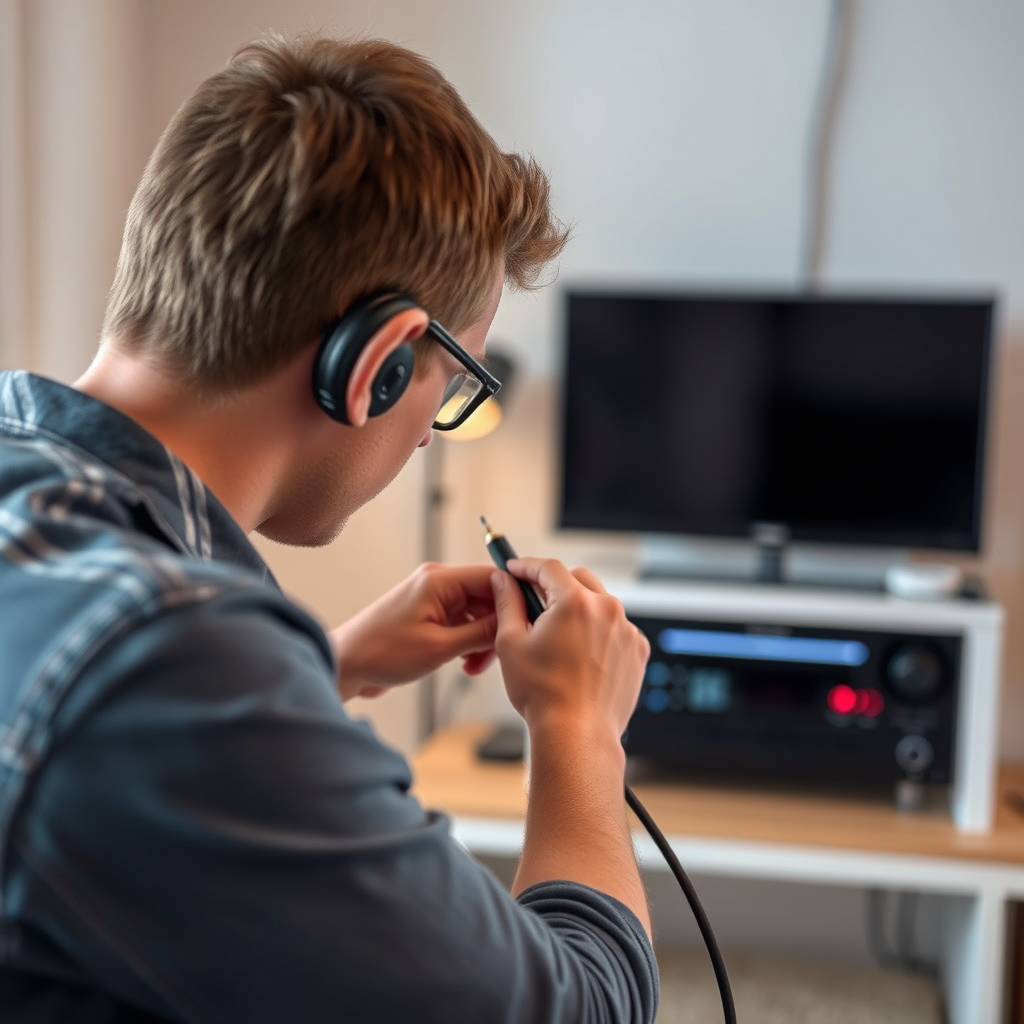
The first step in addressing audio static or buzzing is to check the cable connections. Loose or damaged cables can significantly impact audio quality, leading to unwanted noise.
– Secure All Connections: Ensure that all cables are firmly plugged into your AV receiver and connected devices such as speakers, televisions, or gaming consoles. A loose connection can result in static or buzzing sounds.
– Inspect for Damage: Examine all audio and video cables for any signs of wear and tear. Frayed cables or damaged connectors can introduce noise into your audio system. If you find any damaged cables, replace them with new, high-quality alternatives.
Additionally, it’s beneficial to categorize your cables based on their function (e.g., HDMI, optical, coaxial) and ensure they are routed neatly to avoid tangling, which can lead to interference.
Adjust Grounding Issues
Grounding issues can be a common culprit for audio static and buzzing. Proper grounding ensures that electrical interference is minimized, enhancing audio clarity.
– Verify Proper Grounding: Ensure that your AV receiver is connected to a grounded outlet. An ungrounded receiver can pick up noise from surrounding electronic devices, leading to static.
– Use a Power Conditioner: Consider investing in a power conditioner that not only provides surge protection but also filters out electrical noise. This device can help maintain a clean power supply to your AV receiver, improving overall audio performance.
Moreover, if your AV receiver is connected to a power strip, ensure that the strip itself is well-grounded.
Isolate Power Sources
Isolating your AV receiver from other electronic devices can greatly reduce the potential for interference, which often manifests as buzzing or static.
– Physical Separation: Position your AV receiver away from other electronic devices, especially those that generate significant electromagnetic interference such as microwaves, routers, and computers.
– Dedicated Power Outlet: Use a dedicated power outlet for your AV receiver. This will help prevent noise from other appliances or devices sharing the same circuit.
By minimizing electrical noise from adjacent devices, you can create a more stable and interference-free audio environment.
Common Causes of Audio Static in AV Receivers (2024)
| # | Cause | Frequency | Recommended Action |
|---|---|---|---|
| 1 | Loose Connections | High | Secure all cables |
| 2 | Grounding Issues | Medium | Check grounding |
| 3 | Interference from Other Devices | High | Isolate devices |
| 4 | Damaged Cables | Medium | Replace cables |
| 5 | Improper Receiver Settings | Medium | Adjust settings |
| 6 | Firmware Issues | Low | Update firmware |
| 7 | Environmental Factors | Medium | Optimize setup |
Use Quality Cables
Investing in quality audio cables is essential for maintaining clear sound and reducing interference. Poor-quality cables can introduce noise and diminish audio quality.
– High-Quality Options: Look for cables that are specifically designed for audio applications, such as high-grade HDMI, coaxial, or optical cables. These cables often feature better shielding and construction, which can minimize static and interference.
– Shielded Cables: If you need long cable runs, consider using shielded cables. Shielding helps protect the audio signal from external noise sources, ensuring a cleaner sound.
Additionally, ensure that your cables are not excessively long; longer runs can lead to signal loss and increased susceptibility to interference.
Configure Receiver Settings
Optimizing your AV receiver’s settings can also play a significant role in eliminating static and buzzing.
– Audio Settings: Check the audio settings on your AV receiver. Ensure that the input source is correctly selected and that any equalizer settings are appropriately configured to suit your audio setup.
– Volume Levels: Experiment with the volume levels. Overdriving your receiver can lead to distortion, which may manifest as buzzing. Make sure the volume is within a reasonable range.
Consult the user manual for guidance on optimizing settings specific to your receiver model.
Update Firmware
Keeping your AV receiver’s firmware up-to-date is critical for performance and stability.
– Regular Updates: Manufacturers often release firmware updates to fix bugs and enhance functionality. Regularly check the manufacturer’s website or the receiver’s settings menu for available updates.
– Follow Instructions: When updating firmware, carefully follow the manufacturer’s instructions to avoid any issues during the process.
Updating your firmware can resolve known issues and improve your AV receiver’s overall performance.
Common Audio Issues and Solutions
By following these steps, you can effectively address and mitigate audio static and buzzing in your AV receiver.
Ultimately, resolving audio issues often requires a combination of approaches. Start by ensuring all connections are secure, then adjust grounding and isolate power sources to eliminate interference. Don’t forget to invest in quality cables, optimize your receiver settings, and keep firmware updated. Should your efforts not yield results, consulting the user manual or reaching out to customer support can provide additional assistance. With these strategies, you can enjoy a seamless audio experience without the annoyance of static or buzzing.
Frequently Asked Questions
What causes audio static or buzzing in my AV receiver?
Audio static or buzzing in your AV receiver can be caused by various factors, including interference from nearby electronic devices, poor cable connections, or faulty equipment. Ground loops, which occur when multiple devices are connected to different power sources, can also contribute to this issue. Identifying the source of the interference is crucial for effective troubleshooting.
How can I eliminate audio buzzing from my AV receiver?
To eliminate audio buzzing from your AV receiver, start by checking all cable connections to ensure they are secure and free from damage. You can also try repositioning any electronic devices that might cause interference, or using shielded cables to reduce noise. Additionally, plugging all devices into the same power outlet can help prevent ground loop issues.
Why does my AV receiver buzz only when connected to certain devices?
If your AV receiver buzzes only when connected to specific devices, it may be due to compatibility issues or ground loop problems between the devices. The buzzing can also stem from electromagnetic interference generated by those devices, particularly if they are high-powered or not properly shielded. Testing with different devices or configurations can help isolate the cause.
What is the best way to troubleshoot audio static in my AV receiver?
The best way to troubleshoot audio static in your AV receiver is to systematically isolate potential sources of interference. Start by disconnecting all devices and reconnecting them one at a time to identify which one causes the static. Additionally, check for loose cables, consider using a power conditioner, and ensure your audio settings are configured correctly.
Which cables should I use to reduce audio buzzing in my AV receiver setup?
To reduce audio buzzing in your AV receiver setup, it is advisable to use high-quality, shielded cables, such as HDMI or optical cables, which are designed to minimize interference. Additionally, using RCA cables with good shielding can help reduce noise from analog connections. Ensuring that all cables are properly connected and not running parallel to power cables can also enhance sound quality.
References
- https://www.lifewire.com/how-to-fix-audio-static-4686971
https://www.lifewire.com/how-to-fix-audio-static-4686971 - https://www.audioholics.com/audio-video-reviews/understanding-audio-static
https://www.audioholics.com/audio-video-reviews/understanding-audio-static - https://www.sciencedirect.com/topics/engineering/audio-static
https://www.sciencedirect.com/topics/engineering/audio-static - Google Scholar Google Scholar
https://scholar.google.com/scholar?q=How+to+Stop+Audio+Static+or+Buzzing+in+Your+AV+Receiver - Google Scholar Google Scholar
https://scholar.google.com/scholar?q=AV+Receiver+audio+static+fixes - Google Scholar Google Scholar
https://scholar.google.com/scholar?q=Audio+static+solutions - https://www.bbc.com/news/technology-48317998
https://www.bbc.com/news/technology-48317998 - How to Stop Audio Static or Buzzing in Your AV Receiver – Search results
https://en.wikipedia.org/wiki/Special:Search?search=How+to+Stop+Audio+Static+or+Buzzing+in+Your+AV+Receiver - https://www.ncbi.nlm.nih.gov/search/research-articles/?term=How+to+Stop+Audio+Static+or+Buzzing+in+Your+AV+Receiver
https://www.ncbi.nlm.nih.gov/search/research-articles/?term=How+to+Stop+Audio+Static+or+Buzzing+in+Your+AV+Receiver