
If you’re experiencing HDMI signal issues in your home theater system, the solution often lies in checking your connections, cables, and settings. HDMI signal problems can disrupt your viewing experience, but with a systematic approach, you can identify and resolve these issues effectively. This guide will walk you through common troubleshooting steps to help you restore that seamless viewing experience you desire.
Check Connections and Cables
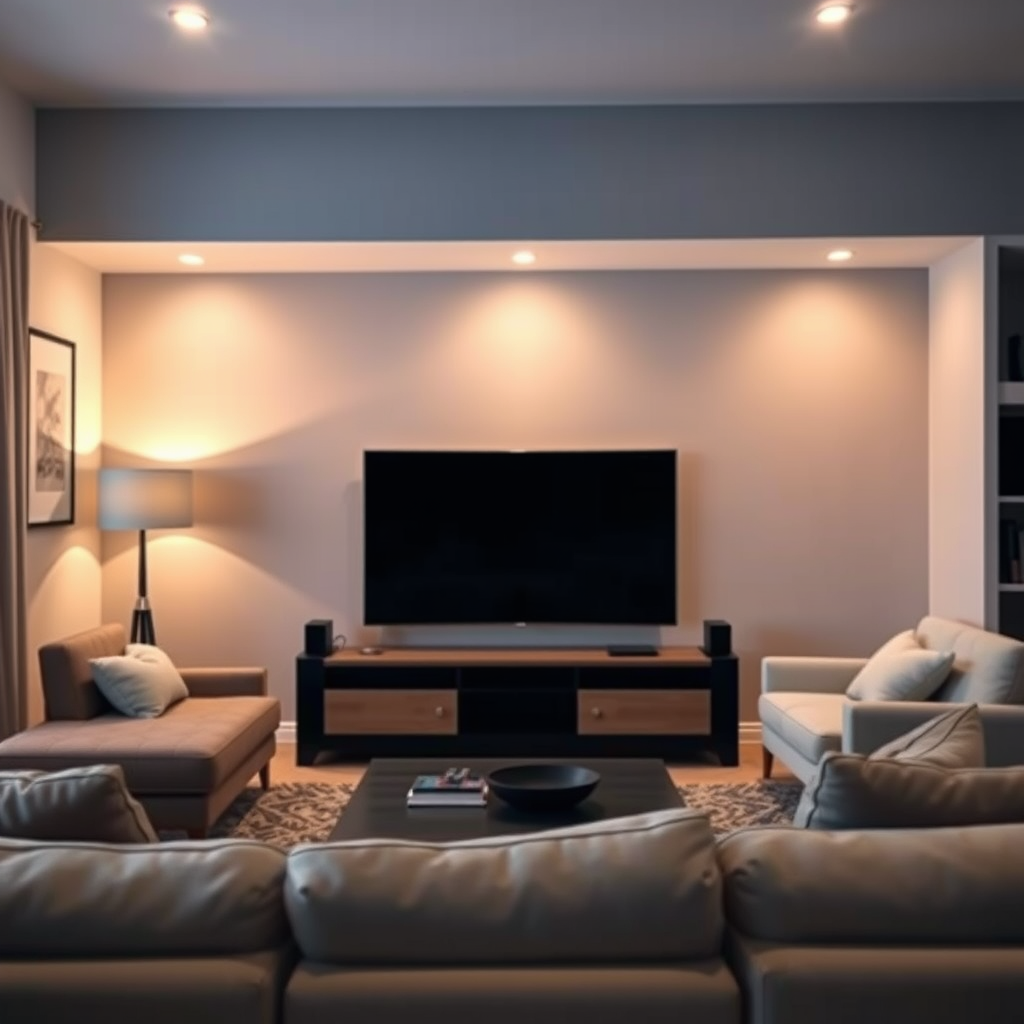
The first step in troubleshooting HDMI signal problems is to check the connections and cables. Make sure that all HDMI cables are securely connected to both the source device, such as a DVD player or gaming console, and the display device, which could be your TV or projector. Loose connections can easily lead to signal loss or degradation, resulting in a blank screen or distorted visuals.
Inspect all HDMI cables for any physical damage or wear. Look for signs of fraying, cuts, or kinks in the cables, as these can significantly affect signal quality. If you notice any damage, replacing the cable is often the quickest and most effective solution. Additionally, consider using high-speed HDMI cables that are certified for the latest specifications, especially if you are using 4K or 8K devices.
Verify Device Compatibility
Next, verify that all devices connected via HDMI support the same resolution and refresh rate. Mismatched settings can lead to compatibility issues, resulting in no signal or an unstable connection. For example, if your TV is set to 4K resolution but the HDMI source device is only outputting 1080p, you may encounter problems.
Check for any firmware updates on your devices, as manufacturers frequently release updates to enhance compatibility and performance. This is especially important for smart TVs and streaming devices that may have added features or improved support for newer HDMI standards.
Test with Different HDMI Ports
If the problem persists, try connecting your HDMI cable to different ports on your TV or receiver. Sometimes, a specific port may be malfunctioning or not functioning correctly. By testing different ports, you can isolate the issue and determine whether it lies with the port or the device.
Additionally, connect a known working device to the same HDMI port using the same cable. This will help you eliminate the possibility of a faulty source device or cable. If the new device works flawlessly, the original source device may need further investigation or repair.
Common HDMI Issues & Solutions (2024)
| # | Issue | Possible Causes | Solutions |
|---|---|---|---|
| 1 | No Signal | Loose connections, incompatible settings | Check and secure connections, verify settings |
| 2 | Flickering Image | Cable interference, low-quality cables | Use high-quality, shielded HDMI cables |
| 3 | Color Distortion | Incompatible color settings | Reset display color settings |
| 4 | Audio Issues | Incorrect audio output settings | Check audio settings on both devices |
| 5 | Resolution Mismatch | Different supported resolutions | Match resolution settings between devices |
| 6 | HDCP Errors | HDCP incompatibility | Ensure all devices support HDCP |
| 7 | No 4K Signal | Using non-4K devices | Upgrade cables and devices to 4K compatible |
Check for Signal Interference
Signal interference can also lead to HDMI issues, particularly in setups with multiple electronic devices. Move any potential sources of interference, such as wireless routers, cordless phones, or other electronic devices, away from the HDMI cable.
Consider using high-quality HDMI cables that are shielded against interference. These cables are designed to minimize signal loss and maintain a clear signal, even in environments with multiple devices. Additionally, avoid running HDMI cables parallel to power cables, as this can create electrical interference.
Adjust Display Settings
Access the settings of your TV or projector to ensure the correct input source is selected. A common oversight is having the wrong input source active. If your device has multiple HDMI inputs, ensure you have selected the correct one corresponding to your active device.
If issues persist, reset display settings to their default configurations. This can often resolve conflicts that arise from user adjustments or changes in connected devices. Remember, resetting will restore all settings, so take note of any custom configurations you may want to reapply later.
Use HDMI Signal Boosters or Extenders
If your HDMI cable is longer than 25 feet, you may need to consider using an HDMI signal booster or extender to maintain signal integrity. Long cable runs can lead to signal degradation, which is especially common with 4K or high-definition signals.
HDMI signal boosters amplify the signal, ensuring that it reaches the display without losing quality. Alternatively, HDMI extenders allow you to transmit the signal over CAT5e or CAT6 cables, which is a more reliable option for longer distances. These solutions can be particularly useful in larger home theater setups.
HDMI Cable Length vs. Signal Quality
Perform a Factory Reset
As a last resort, if none of the above steps resolve your issues, consider performing a factory reset on your devices. This will eliminate any corrupted settings or configurations that may be causing signal problems. However, be sure to back up any important settings or data before proceeding with a reset.
Factory resets can resolve deep-seated issues that may not be easily identified through standard troubleshooting. After the reset, you will need to set up your devices again, so take this step only after exhausting all other options.
In conclusion, resolving HDMI signal problems can often be a straightforward matter of checking connections and settings. By following the outlined troubleshooting steps from verifying device compatibility to using signal boosters, you can identify and rectify the issues affecting your home theater system. If problems persist, consider consulting with a professional or reaching out to customer support for your devices. A little diligence can go a long way in preserving your viewing enjoyment.
Frequently Asked Questions
What are the common signs of HDMI signal problems in home theater systems?
Common signs of HDMI signal problems include a blank screen, distorted images, flickering visuals, or no audio output. You may also see error messages indicating a “no signal” or “HDMI connection lost.” Identifying these symptoms early can help you troubleshoot the issue effectively.
How can I troubleshoot a “no signal” error from my HDMI device?
To troubleshoot a “no signal” error, first, check all cable connections to ensure they are secure and undamaged. Next, try switching HDMI ports on your TV or receiver, and if possible, test the HDMI cable with another device to rule out cable issues. Additionally, ensure that both devices are powered on and set to the correct input source.
Why does my HDMI connection sometimes drop out unexpectedly?
HDMI connections can drop out due to various reasons, such as loose cables, incompatible devices, or signal interference. It may also be caused by using an HDMI cable that is too long or of poor quality, which can weaken the signal. Ensuring that you’re using high-speed HDMI cables and properly securing connections can minimize these dropouts.
What is the best way to fix HDMI audio issues in my home theater system?
To fix HDMI audio issues, start by checking the audio settings on both your TV and connected device to ensure they are set correctly. Make sure the HDMI audio output is selected, and try changing the audio format to PCM if you’re experiencing compatibility issues. If the problem persists, consider using a different HDMI cable or port.
Which devices are most likely to cause HDMI signal problems in a home theater setup?
Devices that often cause HDMI signal problems include older Blu-ray players, gaming consoles, and streaming devices that may not support the latest HDMI standards. Additionally, incompatible audio/video receivers can also contribute to signal issues. Regularly updating device firmware can help mitigate these problems and ensure better compatibility across your home theater system.
References
- https://www.lifewire.com/troubleshooting-hdmi-issues-1846167
https://www.lifewire.com/troubleshooting-hdmi-issues-1846167 - Google Scholar Google Scholar
https://scholar.google.com/scholar?q=HDMI+signal+problems+troubleshooting - Google Scholar Google Scholar
https://scholar.google.com/scholar?q=HDMI+troubleshooting+home+theater - Google Scholar Google Scholar
https://scholar.google.com/scholar?q=troubleshoot+HDMI+signal+issues - Google Scholar Google Scholar
https://scholar.google.com/scholar?q=How+to+Troubleshoot+HDMI+Signal+Problems+in+Home+Theater+Systems - How to Troubleshoot HDMI Signal Problems in Home Theater Systems – Search results
https://en.wikipedia.org/wiki/Special:Search?search=How+to+Troubleshoot+HDMI+Signal+Problems+in+Home+Theater+Systems - https://www.ncbi.nlm.nih.gov/search/research-articles/?term=How+to+Troubleshoot+HDMI+Signal+Problems+in+Home+Theater+Systems
https://www.ncbi.nlm.nih.gov/search/research-articles/?term=How+to+Troubleshoot+HDMI+Signal+Problems+in+Home+Theater+Systems