
Audio lag in wireless audio systems can often be resolved by optimizing your device settings, ensuring a strong Bluetooth connection, or using low-latency audio codecs. In this article, you’ll learn practical steps to identify and fix audio lag issues, enhancing your listening experience. By following these guidelines, you can enjoy a seamless audio experience, whether for gaming, watching movies, or listening to music.
Understanding Audio Lag
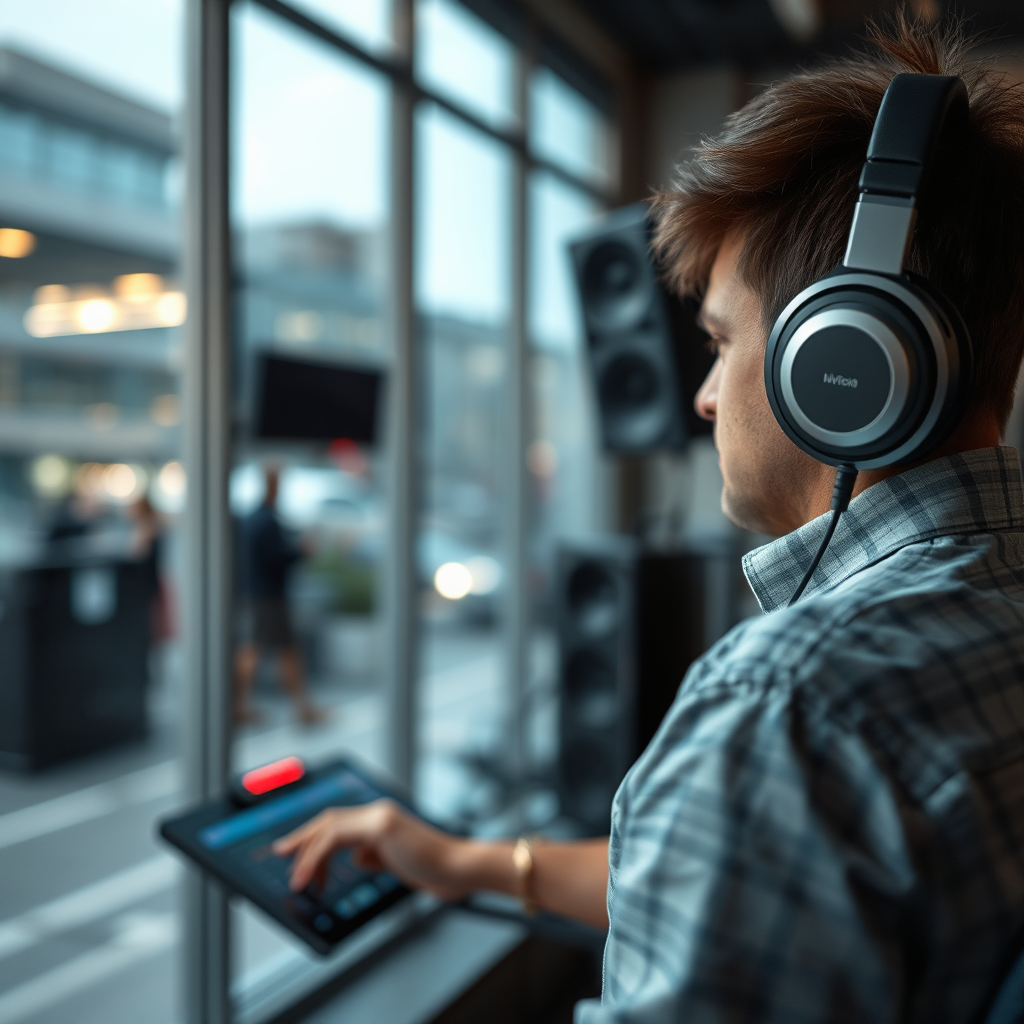
Audio lag, often referred to as latency, is the delay between the audio signal being sent and the sound being heard. This delay can be attributed to various factors, including the technology used in the wireless transmission, the processing speed of the device, and the quality of the audio codecs employed. Common causes of audio lag include inadequate Bluetooth bandwidth, interference from other wireless devices, and the inherent delays introduced by digital signal processing.
Audio lag is particularly noticeable in scenarios where audio must sync with visual content, such as in video games, movies, or video conferencing. For example, a gamer might experience a delay between the action on-screen and the corresponding sound effects, leading to a less immersive experience. Similarly, in a video call, participants may find themselves speaking over one another due to a mismatch between voice and video.
Checking Your Device Settings
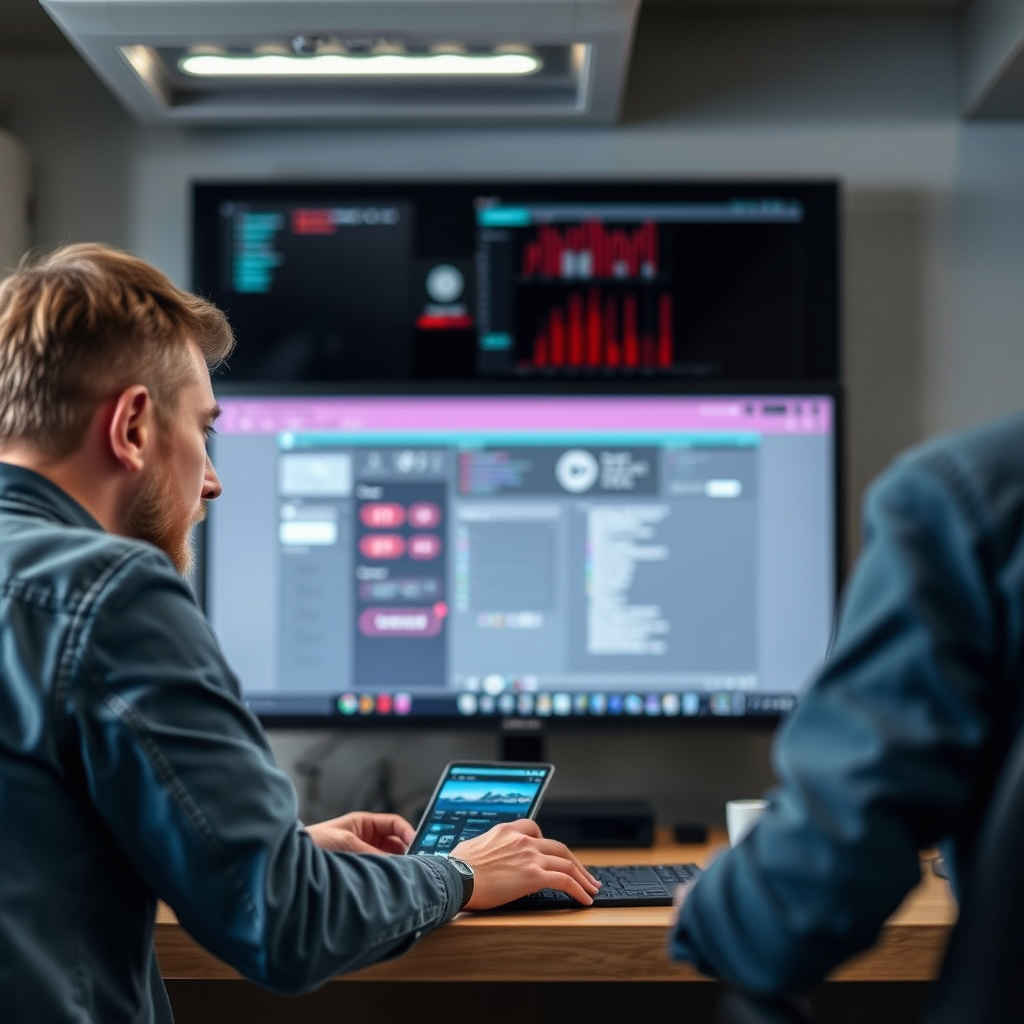
To begin troubleshooting audio lag, the first step is to ensure that your audio output settings are configured correctly. On most devices, you can access these settings through the system preferences or sound settings menu. Verify that the correct audio output device is selected, especially if you have multiple audio devices connected.
Some devices also provide options to adjust latency settings. This could include features like “Gaming Mode” or “Low Latency Mode,” which prioritize real-time audio processing. Enabling these settings can significantly reduce audio lag and enhance your overall experience.
Optimizing Bluetooth Connection
The strength and quality of your Bluetooth connection play a crucial role in audio performance. Proximity to the audio source can significantly affect the quality of the connection. Ideally, you should keep your audio source and receiving device within a few feet of each other to minimize latency and interference.
Interference from other devices can also impact audio quality. Common culprits include Wi-Fi routers and microwave ovens, which operate on similar frequencies to Bluetooth. To minimize interference, try to keep your wireless audio devices away from these potential sources of disruption. Additionally, if you have multiple Bluetooth devices connected, consider disconnecting those that are not in use to enhance the connection quality.
Top Wireless Audio Technologies (2024)
| # | Technology | Latency (ms) | Audio Quality | Compatibility |
|---|---|---|---|---|
| 1 | aptX Low Latency | 30 | High | Android |
| 2 | AAC | 40 | High | iOS |
| 3 | SBC | 250 | Medium | Universal |
| 4 | LDAC | 90 | Very High | Android |
| 5 | LHDC | 70 | High | Android |
| 6 | AptX HD | 80 | High | Android |
| 7 | HWA | 60 | Very High | Huawei |
Using Low-Latency Audio Codecs
To further mitigate audio lag, consider utilizing low-latency audio codecs. Two of the most notable options are aptX Low Latency and AAC. AptX Low Latency offers a latency as low as 30 milliseconds and is widely used in many Bluetooth headphones and transmitters. AAC, while not as low in latency, provides excellent audio quality and is the standard for iOS devices.
To check if your devices support these codecs, look for specifications on the manufacturer’s website or within the device settings. Many modern smartphones and audio devices are equipped with these options, which can dramatically improve both audio quality and synchronization.
Updating Firmware and Drivers
Keeping your devices updated is crucial for optimal performance. Manufacturers often release firmware updates that address known issues, improve performance, and enhance compatibility with other devices. To check for updates, navigate to the settings menu on your device, usually found under the “About” section.
For audio devices, such as headphones and speakers, you may need to download a specific app provided by the manufacturer to install updates. Regularly checking for updates can help ensure you are benefiting from the latest enhancements and fixes, potentially resolving any lingering audio lag issues.
Troubleshooting Physical Setup
Environmental factors can also contribute to audio lag. Assess your surroundings for potential distractions and obstacles that may interfere with the wireless signal. Walls, furniture, and electronic devices can all hinder the performance of wireless audio systems.
For optimal performance, position your audio devices in a way that minimizes obstructions. If possible, avoid placing the audio source and receiving device in separate rooms or behind thick walls. Additionally, consider using stands or mounts to elevate devices to reduce physical barriers.
Testing with Different Devices
If audio lag persists after attempting the above solutions, it’s important to isolate the problem by testing with different devices. Try connecting your audio system to another smartphone, tablet, or computer to determine if the issue is device-specific.
Wired connections can also serve as a valuable comparison. Using a wired connection can help you ascertain whether the audio lag is a result of the wireless setup or an issue with the audio content itself. If wired connections work seamlessly, it may be time to explore higher-quality wireless audio equipment or seek professional assistance.
Conclusion
By following these troubleshooting steps, you can significantly reduce audio lag in your wireless audio systems and enjoy a more seamless listening experience. Start by checking your device settings, optimizing your Bluetooth connection, and using low-latency audio codecs. Regular updates and careful positioning of your devices can further enhance performance. If issues persist, consider testing with different devices to isolate the problem or seek professional assistance. Ultimately, addressing audio lag effectively leads to a more enjoyable audio experience across all your wireless systems.
Frequently Asked Questions
What are the common causes of audio lag in wireless audio systems?
Common causes of audio lag in wireless audio systems include signal interference from other electronic devices, low battery levels in transmitters or receivers, and inadequate bandwidth in the Wi-Fi network. Additionally, the distance between the audio source and the receiver can affect latency, as well as the specific codecs being used for audio transmission.
How can I reduce audio lag when using wireless speakers?
To reduce audio lag with wireless speakers, consider placing the speakers closer to the audio source to minimize distance-related delays. Additionally, ensure that there are no physical obstructions and reduce interference by turning off nearby electronic devices. Using high-quality codecs like aptX Low Latency can also significantly improve audio synchronization.
Why is my wireless audio system experiencing delay during video playback?
Audio delay during video playback is often due to the processing time required for audio to sync with video. This can be exacerbated by the wireless technology in use, especially if you’re using Bluetooth, which tends to have higher latency compared to other wireless technologies. Ensuring both your audio source and output devices support low-latency codecs can help resolve this issue.
What is the best way to troubleshoot audio lag in Bluetooth headphones?
The best way to troubleshoot audio lag in Bluetooth headphones includes first checking for software updates on both your headphones and audio source device. Next, try disconnecting and reconnecting the headphones to reset the connection. If the issue persists, consider switching to a device that supports low-latency audio codecs like aptX or AAC to enhance performance.
Which settings should I adjust to fix audio lag in my wireless home theater system?
To fix audio lag in a wireless home theater system, start by adjusting the audio delay settings in your receiver or TV settings. Look for options labeled “lip sync” or “audio delay” and experiment with different values until the audio aligns properly with the video. Additionally, ensure that all components are updated to the latest firmware to enhance compatibility and performance.
References
- https://www.wikiwand.com/en/Wireless_audio
https://www.wikiwand.com/en/Wireless_audio - https://www.sciencedirect.com/topics/engineering/audio-lag
https://www.sciencedirect.com/topics/engineering/audio-lag - https://www.ncbi.nlm.nih.gov/pmc/articles/PMC4832194/
https://www.ncbi.nlm.nih.gov/pmc/articles/PMC4832194/ - https://www.audioholics.com/audio-technologies/latency-in-audio-systems
https://www.audioholics.com/audio-technologies/latency-in-audio-systems - https://www.bbc.com/news/technology-46946283
https://www.bbc.com/news/technology-46946283 - In brief: How does the gallbladder work? – InformedHealth.org – NCBI Bookshelf
https://www.ncbi.nlm.nih.gov/books/NBK279386/ - Google Scholar Google Scholar
https://scholar.google.com/scholar?q=troubleshooting+audio+lag+issues+in+wireless+audio+systems - Google Scholar Google Scholar
https://scholar.google.com/scholar?q=wireless+audio+latency+solutions - Google Scholar Google Scholar
https://scholar.google.com/scholar?q=audio+lag+in+wireless+systems - Google Scholar Google Scholar
https://scholar.google.com/scholar?q=Troubleshooting+Audio+Lag+Issues+in+Wireless+Audio+Systems