
To fix power issues in your Bluetooth speakers, first ensure that the battery is charged and the device is properly paired. If problems persist, you may need to reset the speaker or check for firmware updates. This guide will walk you through common troubleshooting steps to get your speakers working again. By understanding these steps, you can quickly identify and resolve power-related issues, ensuring an optimal audio experience.
Bluetooth speakers have become popular for their convenience and portability, but like any electronic device, they can encounter power issues. Whether you’re using them for a party, a presentation, or simply enjoying music at home, unexpected power problems can be frustrating. This article will provide a systematic approach to diagnosing and resolving these issues, allowing you to enjoy uninterrupted sound.
Check the Battery Level
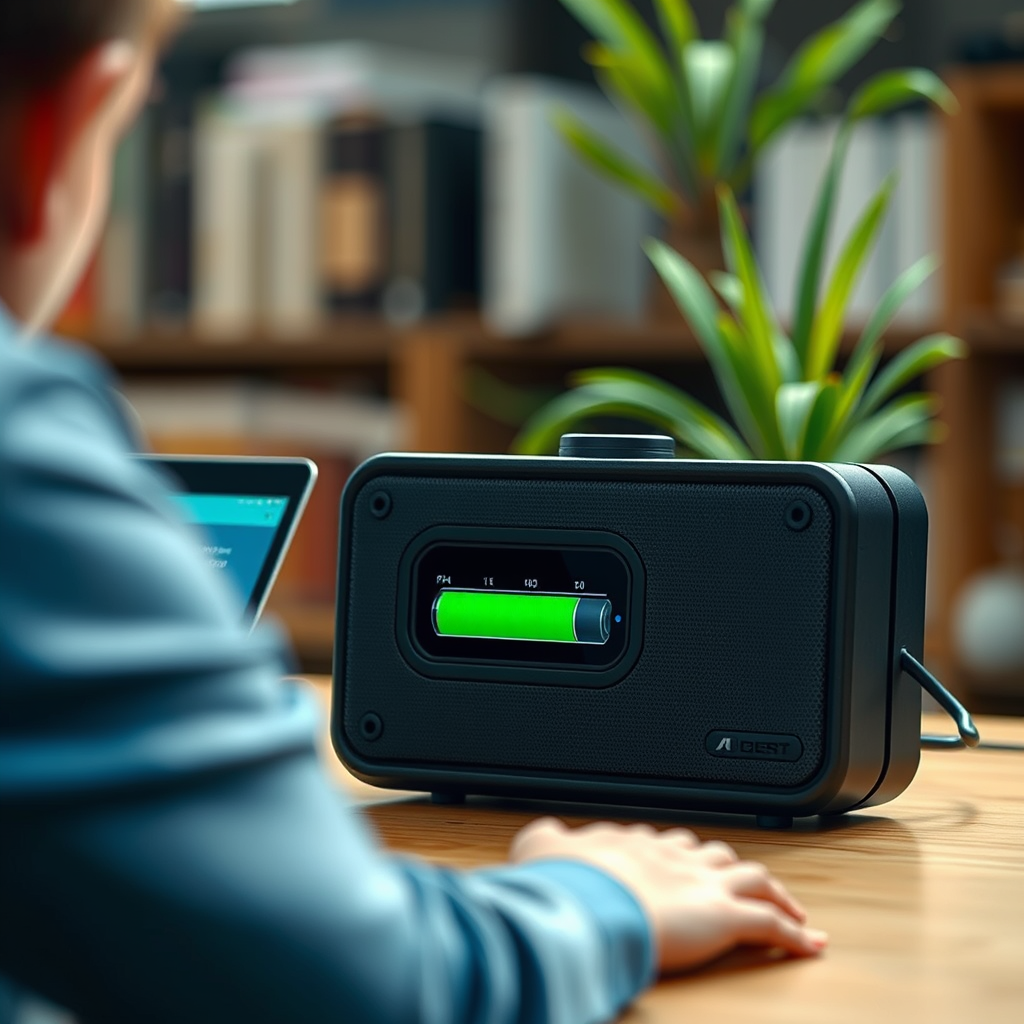
The first step in troubleshooting power issues is to check the battery level of your Bluetooth speaker. Many speakers come with a battery status indicator that can show whether the device is running low on power. A low battery is often the simplest explanation for why a speaker may not turn on or function properly.
– Inspect the battery status indicator for low power: Most Bluetooth speakers have an LED indicator that changes color or blinks when the battery is low. Familiarize yourself with your speaker’s specific indicator signals as outlined in the user manual.
– Charge the speaker using the manufacturer-recommended charger: Using the right charger is crucial. An incompatible charger may not supply enough power or could damage the battery. Connect the speaker to the charger and allow it to charge for a sufficient duration, typically a few hours, depending on the model.
Ensure Proper Pairing

If the battery is charged, the next step is to ensure that your Bluetooth speaker is properly paired with your device. An improper pairing can lead to power issues, as the speaker may not receive the necessary signals to operate.
– Verify that your Bluetooth speaker is in pairing mode: Most speakers have a dedicated button or combination of buttons that activate pairing mode. Be sure to follow the manufacturer’s instructions to enter this mode, which usually involves holding down a button until an indicator light flashes.
– Remove any previous connections that may interfere with pairing: If your speaker has been connected to multiple devices, it might struggle to connect to a new one. Unpair or forget the speaker from previously connected devices and attempt to reconnect. This can often clear up any confusion in signal recognition.
Reset Your Bluetooth Speaker
If the speaker still isn’t functioning properly, resetting it may resolve underlying software issues that could be causing power problems.
– Find the reset button or follow the manufacturer’s reset instructions: Consult your user manual to locate the reset button or the specific reset procedure. Some devices require you to press a combination of buttons, while others may have a dedicated reset button.
– Hold the reset button for the recommended duration to restore factory settings: A typical reset process may involve holding the button for 10 to 20 seconds. After resetting, re-try pairing the device with your audio source.
Update Firmware and Software
Firmware updates can significantly enhance the performance of your Bluetooth speaker. Manufacturers often release updates to fix bugs and improve functionality.
– Check the manufacturer’s website or app for firmware updates: Most brands have dedicated apps for their Bluetooth devices. Download the app, connect your speaker, and check for available updates.
– Follow the instructions to update your speaker’s software: Ensure that your device is adequately charged and connected to Wi-Fi if an update requires it. Follow the prompts in the app to complete the update process.
Inspect Charging Cables and Ports
A faulty charging cable or dirty charging port can prevent your speaker from charging properly, leading to power issues.
– Examine the charging cable for any signs of damage or wear: Look for frays, kinks, or other damage that could impede power transfer. If the cable appears damaged, consider replacing it with an OEM (original equipment manufacturer) cable.
– Clean the charging port to remove dust or debris that may hinder connection: Use a soft brush or compressed air to gently clean out the charging port. Dust and lint accumulation can block the connection and prevent charging.
Test with Different Devices
To rule out compatibility issues, it is beneficial to test your Bluetooth speaker with another device.
– Pair your Bluetooth speaker with another device to rule out compatibility issues: Connect your speaker to a different smartphone, tablet, or computer. If it works with another device, the issue may lie with the original device rather than the speaker itself.
– Try using a different Bluetooth-enabled device to see if the problem persists: If the speaker works well with a different device, it may indicate a problem with the initial pairing device’s Bluetooth settings, requiring further troubleshooting on that end.
Customer Support and Warranty
If you’ve followed all the troubleshooting steps and your Bluetooth speaker still isn’t functioning correctly, it may be time to seek professional help.
– Reach out to the manufacturer’s customer support for assistance: Most manufacturers offer support via chat, email, or phone. They can provide specific guidance based on your model and issue.
– Check if your device is still under warranty for potential repairs or replacements: If your speaker is still within the warranty period, you might be eligible for a repair or replacement at no cost. Always keep your purchase receipt and warranty information handy.
Top Bluetooth Speaker Brands by Battery Life (2024)
| # | Brand | Battery Life (Hours) | Charging Time (Hours) | Warranty (Years) |
|---|---|---|---|---|
| 1 | JBL | 20 | 3 | 1 |
| 2 | Bose | 15 | 2 | 2 |
| 3 | Sony | 16 | 4 | 1 |
| 4 | Anker | 24 | 5 | 2 |
| 5 | Ultimate Ears | 20 | 3 | 1 |
| 6 | Bang & Olufsen | 12 | 2.5 | 2 |
| 7 | Marshall | 14 | 3 | 1 |
Battery Life of Popular Bluetooth Speakers (2024)
By following these steps, you can troubleshoot and resolve power issues with your Bluetooth speakers effectively. Remember to check the battery, ensure proper pairing, reset the device, and inspect all connections. If problems continue after trying these solutions, consider contacting customer support for further assistance. Your Bluetooth speaker’s sound experience should return to normal in no time, allowing you to enjoy your favorite music without interruption.
Frequently Asked Questions
What are common reasons why my Bluetooth speaker won’t turn on?
Common reasons your Bluetooth speaker won’t turn on include a drained battery, faulty charging cable, or internal hardware issues. Ensure that the battery is charged by using a different charger and cable to rule out power supply problems. If the speaker still doesn’t respond, there may be a deeper issue requiring professional repair.
How can I troubleshoot Bluetooth speaker power issues?
To troubleshoot power issues with your Bluetooth speaker, start by checking the battery level and charging it fully. Next, inspect the charging port for debris or damage, and try resetting the device by holding down the power button for a few seconds. If the problem persists, consult the user manual for specific reset instructions or contact customer support.
Why does my Bluetooth speaker turn off unexpectedly?
Your Bluetooth speaker may turn off unexpectedly due to low battery, overheating, or a power-saving feature. Many speakers automatically shut down after a period of inactivity to conserve battery life. Check the battery status and consider disabling any power-saving settings if applicable.
What is the best way to maintain battery health in Bluetooth speakers?
To maintain battery health in Bluetooth speakers, avoid letting the battery drain completely before recharging it and try to keep it between 20% and 80% charged. Additionally, store the speaker in a cool, dry place and avoid exposing it to extreme temperatures, which can negatively affect battery performance and lifespan.
Which steps should I take if my Bluetooth speaker won’t charge?
If your Bluetooth speaker won’t charge, first check the charging cable and adapter for any signs of damage and try using a different outlet or charger. Inspect the charging port for dirt or debris that might obstruct the connection. If these steps don’t resolve the issue, the battery might be faulty and may need to be replaced.
References
- Bluetooth
https://en.wikipedia.org/wiki/Bluetooth - https://www.sciencedirect.com/topics/engineering/bluetooth
https://www.sciencedirect.com/topics/engineering/bluetooth - https://www.bbc.com/news/technology-51066473
https://www.bbc.com/news/technology-51066473 - https://www.nytimes.com/2020/01/15/technology/personaltech/bluetooth-speaker-problems.html
https://www.nytimes.com/2020/01/15/technology/personaltech/bluetooth-speaker-problems.html - https://www.hindawi.com/journals/jece/2020/3209451/
https://www.hindawi.com/journals/jece/2020/3209451/ - https://www.ncbi.nlm.nih.gov/pmc/articles/PMC8050886/
https://www.ncbi.nlm.nih.gov/pmc/articles/PMC8050886/ - https://www.reuters.com/article/us-technology-bluetooth-idUSKBN2B10C7
https://www.reuters.com/article/us-technology-bluetooth-idUSKBN2B10C7 - Google Scholar Google Scholar
https://scholar.google.com/scholar?q=Fixing+Power+Issues+in+Bluetooth+Speakers - Google Scholar Google Scholar
https://scholar.google.com/scholar?q=Bluetooth+speaker+troubleshooting - Google Scholar Google Scholar
https://scholar.google.com/scholar?q=Bluetooth+connectivity+issues+solutions