
If your Bluetooth speaker isn’t pairing, the issue could stem from a variety of sources, including connection settings, compatibility issues, or device interference. This guide will walk you through common troubleshooting steps to get your speaker connected and playing music again. Following these steps can help you identify the root of the problem and restore your audio experience seamlessly.
Bluetooth technology has revolutionized the way we connect devices, allowing for wireless audio streaming and hands-free calling. However, pairing issues can still arise, leaving users frustrated. Understanding the common causes of these issues and following a systematic troubleshooting approach can often resolve the problem quickly. Here, we will delve into the steps you can take to troubleshoot your Bluetooth speaker pairing problems.Check Bluetooth Settings
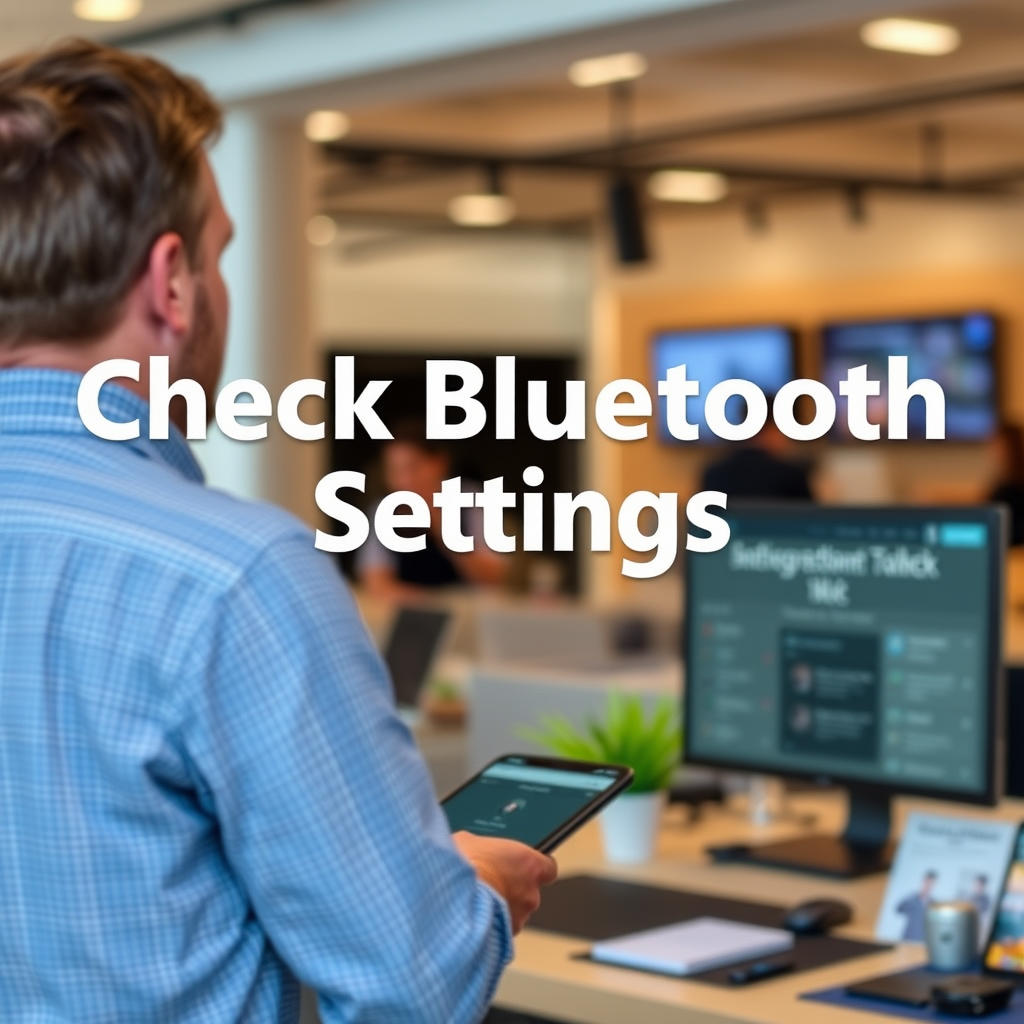
The first step in troubleshooting your Bluetooth speaker is to ensure that both the speaker and the device you are trying to connect are configured correctly.
– Ensure Bluetooth is enabled on your device: On most smartphones and tablets, you can check this in the settings menu under ‘Bluetooth.’ Make sure the toggle is switched on. For laptops or desktops, the Bluetooth feature can often be found in the taskbar or system settings.
– Confirm your Bluetooth speaker is in pairing mode: Most Bluetooth speakers have a dedicated button or combination of buttons that must be pressed to put the speaker into pairing mode. Look for a blinking LED light, which typically indicates that the speaker is ready to connect.
If both of these settings are correct and the speaker still doesn’t pair, it may be time to move on to the next troubleshooting steps.
Restart Your Devices
A simple restart can resolve numerous connectivity issues that might be causing your Bluetooth speaker not to pair.
– Power off your Bluetooth speaker and your audio device, then turn them back on: This action can help reset any temporary glitches affecting the connection. It is often surprising how many issues can be fixed with a quick reboot.
– Try pairing again after the restart: Once both devices are powered back on, reattempt the pairing process. Be sure to keep them close together during this step to avoid any potential connection barriers.
Forget and Reconnect Devices
If the previous steps haven’t resolved the issue, it may be helpful to remove the Bluetooth speaker from your device’s paired list.
– Remove the Bluetooth speaker from your device’s paired list: Go to your device’s Bluetooth settings, find the name of your speaker, and select the option to ‘Forget’ or ‘Remove’ the device.
– Try to pair it again as if it were a new device: After forgetting the device, initiate the pairing process again. This can often clear any problematic data that may have been stored during the initial pairing attempt.
Update Firmware and Drivers
Keeping your devices updated is essential for optimal performance and compatibility.
– Check for firmware updates for your Bluetooth speaker: Manufacturers often release updates to improve performance and fix bugs. Visit the manufacturer’s website or use any companion app to check for updates.
– Ensure your device’s Bluetooth drivers are up to date for optimal compatibility: For computers, especially, outdated drivers can hinder Bluetooth functionality. Check your device manager for any available updates and install them accordingly.
Check Device Compatibility
Sometimes, the issue may lie in the compatibility between your devices.
– Verify that your device is compatible with the Bluetooth speaker: Consult the speaker’s manual or the manufacturer’s website to confirm that your device meets any necessary compatibility requirements.
– Refer to the speaker’s manual for supported devices and versions: This information can save you time and frustration if your device is not supported.
Reduce Interference
Bluetooth connections can be affected by nearby electronic devices and physical obstacles.
– Move away from potential sources of interference: Devices like microwaves, Wi-Fi routers, and other Bluetooth devices can create connection issues. Try to maintain a clear path between your speaker and the device you are pairing.
– Ensure there are no other Bluetooth devices connected: If multiple devices are attempting to connect, this can confuse the Bluetooth signal. Disconnect other devices temporarily to streamline the pairing process.
Reset the Bluetooth Speaker
If all else fails, performing a factory reset on your Bluetooth speaker could be the solution.
– Perform a factory reset on your Bluetooth speaker: This resets the speaker to its original settings, clearing any stored connections that may be causing issues. The process can vary significantly between models, so it is crucial to refer to the user manual for specific reset instructions.
📋 DATA
Top Bluetooth Speaker Brands by Popularity (2024)
| # | Brand | Market Share (%) | Rating |
|---|---|---|---|
| 1 | JBL | 30% | ★★★★☆ |
| 2 | Bose | 25% | ★★★★☆ |
| 3 | Sony | 20% | ★★★★☆ |
| 4 | Ultimate Ears | 15% | ★★★★☆ |
| 5 | Anker | 5% | ★★★☆☆ |
| 6 | Bang & Olufsen | 3% | ★★☆☆☆ |
| 7 | Marshall | 2% | ★★★☆☆ |
📈 CHART
Bluetooth Speaker Connection Success Rate (%)
Summarizing these troubleshooting steps can help you identify and fix the problem with your Bluetooth speaker not pairing. If none of these solutions work, consider reaching out to customer support for further assistance. Remember to troubleshoot methodically, and you’ll likely have your speaker connected in no time! By following these steps, you can enjoy the wireless convenience that Bluetooth speakers offer without the frustration of connectivity issues.
Frequently Asked Questions
Why is my Bluetooth speaker not pairing with my phone?
If your Bluetooth speaker is not pairing with your phone, ensure that Bluetooth is enabled on your phone and that the speaker is in pairing mode. Additionally, check for any obstructions between the devices and ensure they are within the recommended range, typically around 30 feet. Restarting both devices can also help resolve connectivity issues.
How can I troubleshoot my Bluetooth speaker that won’t connect?
To troubleshoot a Bluetooth speaker that won’t connect, first, try unpairing the device from your phone and then re-pairing it. If the issue persists, check for software updates on both your phone and the Bluetooth speaker, as outdated firmware can cause compatibility problems. Resetting the speaker to factory settings may also resolve persistent pairing issues.
What should I do if my Bluetooth speaker keeps disconnecting?
If your Bluetooth speaker keeps disconnecting, ensure that the devices are within close range and there are no physical obstacles interfering with the signal. Check the battery level of both the speaker and your device, as low battery can lead to disconnections. Additionally, try forgetting the device on your phone and reconnecting it to eliminate any software glitches.
Which devices are compatible with my Bluetooth speaker?
Most Bluetooth speakers are compatible with any device that supports Bluetooth technology, including smartphones, tablets, and laptops. However, it’s best to consult the speaker’s user manual for compatibility details, as some older devices may not support the latest Bluetooth profiles. For optimal performance, ensure your device’s Bluetooth version is up-to-date.
Why won’t my Bluetooth speaker pair with my laptop?
If your Bluetooth speaker won’t pair with your laptop, check that Bluetooth is enabled on the laptop and that it is discoverable. Make sure the speaker is in pairing mode, and try moving it closer to the laptop to improve the connection. Additionally, updating your laptop’s Bluetooth drivers can often resolve pairing issues with Bluetooth speakers.
References
- https://www.lifewire.com/how-to-fix-bluetooth-speaker-pairing-4177270
https://www.lifewire.com/how-to-fix-bluetooth-speaker-pairing-4177270 - Solve printing problems on Mac – Apple Support
https://support.apple.com/en-us/HT201539 - Google Scholar Google Scholar
https://scholar.google.com/scholar?q=Bluetooth+speaker+pairing+issues - Google Scholar Google Scholar
https://scholar.google.com/scholar?q=Bluetooth+troubleshooting+guides - Google Scholar Google Scholar
https://scholar.google.com/scholar?q=Bluetooth+connectivity+problems+solutions - Google Scholar Google Scholar
https://scholar.google.com/scholar?q=Why+Is+My+Bluetooth+Speaker+Not+Pairing?+Troubleshooting+Guide - Why Is My Bluetooth Speaker Not Pairing? Troubleshooting Guide – Search results
https://en.wikipedia.org/wiki/Special:Search?search=Why+Is+My+Bluetooth+Speaker+Not+Pairing?+Troubleshooting+Guide - https://www.ncbi.nlm.nih.gov/search/research-articles/?term=Why+Is+My+Bluetooth+Speaker+Not+Pairing?+Troubleshooting+Guide
https://www.ncbi.nlm.nih.gov/search/research-articles/?term=Why+Is+My+Bluetooth+Speaker+Not+Pairing?+Troubleshooting+Guide