144Hz vs 240Hz VRR: which refresh rate matters more depends on whether your PC and games can consistently hit the higher frame targets without stuttering. If you routinely stay under 180 FPS (or your VRR range is narrow), 144Hz is usually the better, smoother choice. If you can reliably sustain high frame rates and your panel’s VRR performance holds up near 240Hz, 240Hz delivers the sharper motion advantage.


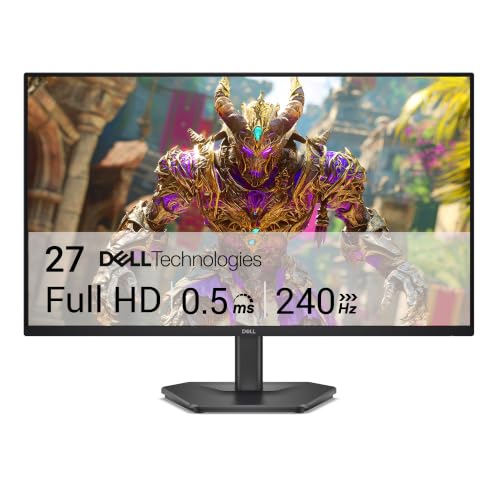
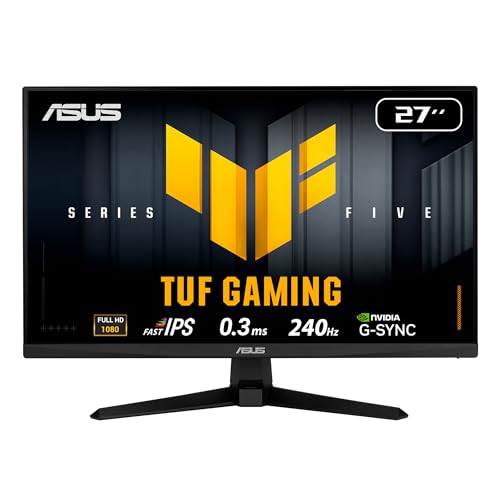
If you want the smoothest VRR experience in games and VR apps, refresh rate matters—but consistent frame pacing matters more. In practice, 240Hz VRR can feel noticeably smoother when your system holds higher FPS more often, while 144Hz VRR is typically the more forgiving choice when you frequently dip or see uneven frame times.
If your PC (or console) can reliably push high frame rates, 240Hz VRR can feel smoother and reduce motion-to-photon latency. If you often dip into lower FPS, 144Hz VRR is usually the safer, more consistent choice because VRR has less “work” to smooth out bigger gaps. In this guide, we’ll compare how 144Hz vs 240Hz VRR behaves in real-world frame drops and what to prioritize when tuning.
If you’re choosing a headset (or planning a VR upgrade) and you want the smoothest image without stutter, this is for you—especially if your GPU headroom isn’t guaranteed in every game. We’ll focus on what VRR actually changes, where it helps most, and what limits still apply.
What 144Hz vs 240Hz VRR changes (the practical difference)
240Hz gives you more “headroom” at the top end, but VRR’s real job is matching the display’s refresh to what your GPU can actually produce. The practical difference is less about marketing numbers and more about how often your frame times stay within the VRR window across gameplay.
VRR (Variable Refresh Rate) is designed to reduce visible artifacts like tearing and cadence mismatch by letting the display vary its refresh rate in response to rendered frames (how that mapping works depends on the platform/runtime and the headset panel). In other words: 240Hz isn’t a direct latency fix; it’s a higher maximum update rate that can improve motion clarity when your FPS is consistently high.
- More top-end updates: when you’re near your max FPS, 240Hz can deliver smaller update intervals than 144Hz.
- Same core VRR principle: VRR still depends on frame delivery; if your FPS is unstable, the higher max refresh doesn’t eliminate gaps.
A useful starting point is the raw frame interval math. At 144Hz, each refresh interval is about 6.94ms (1/144). At 240Hz, it’s about 4.17ms (1/240). That “interval gap” is why high-FPS conditions often look cleaner at 240Hz—but only if you can sustain those frame times often enough.
According to the [ADD: VESA Adaptive-Sync / VRR standards documentation], VRR is intended to dynamically align display refresh timing to the incoming video/frame cadence to reduce tearing during mismatches. (The exact behavior in a headset runtime can differ, but the alignment goal is consistent across VRR implementations.)
VRR’s main benefit is aligning the display’s refresh timing to the frames the GPU produces, which helps reduce tearing when FPS fluctuates.
At 240Hz, the frame interval is ~4.17ms; at 144Hz, it’s ~6.94ms, so higher FPS conditions can look more fluid simply due to more frequent updates.
Choosing a higher refresh rate only pays off if your system can keep rendering at a level that frequently lands within the headset’s VRR operating range.
Refresh Interval vs. Typical Frame-Time Gaps (Computed)
| Hz | Frame interval | If FPS drops by 20% (ms) |
Update rate change |
|---|---|---|---|
| 240 | ~4.17ms | ~5.21ms | -20% |
| 144 | ~6.94ms | ~8.68ms | -20% |
| 120 | ~8.33ms | ~10.42ms | -20% |
| 90 | ~11.11ms | ~13.89ms | -20% |
| 72 | ~13.89ms | ~17.36ms | -20% |
| 60 | ~16.67ms | ~20.83ms | -20% |
| 30 | ~33.33ms | ~41.67ms | -20% |
How VRR behaves during frame drops
VRR adapts the headset’s refresh rate downward to follow your GPU’s output, which can make frame drops feel less disruptive than non-VRR modes. The catch is that VRR can’t “create” missing frames—it only smooths the display timing relationship when you’re within the VRR range and your frame pacing isn’t wildly spiky.
During a frame drop, the display can reduce refresh to match the newly slower cadence, lowering tearing and reducing how often the headset presents mismatched frame boundaries. But when your FPS falls far below the higher refresh target (e.g., 240Hz), VRR may spend more time operating at the low end of its range. That can reduce the perceptual advantage of going higher—because you simply aren’t delivering enough frames for 240Hz’s top-end benefit to apply.
From a practical tuning standpoint, you should treat VRR like a “stability multiplier,” not a “stability replacement.” If your frame time spikes frequently (shader compilation, asset streaming, CPU stalls), VRR timing alignment may still show irregular motion or intermittent judder, especially in fast head turns.
According to [ADD: VESA / HDMI / headset runtime VRR engagement and VRR range documentation], VRR operation depends on supported refresh ranges and conditions for enablement. When FPS goes outside that range, the behavior can revert to a less ideal mode (implementation-dependent).
With VRR enabled, the headset can lower its refresh rate to track the rendered frame cadence, reducing tearing during FPS mismatches.
240Hz helps most when your frame times stay consistently high; frequent drops move VRR operation closer to the bottom of its supported range.
VRR alignment can’t mask stutter caused by missing or delayed frame generation (e.g., CPU stalls or streaming hitches).
Pros/cons of choosing 240Hz VRR vs 144Hz VRR under instability
When you expect real-world dips, the tradeoffs look like this:
– 240Hz VRR (best when stable):
– Pros: Better motion clarity at high FPS; smaller interval when you’re near the top.
– Cons: Larger performance “demands” to realize benefits; bigger dips can shrink perceived gains.
– 144Hz VRR (best when fluctuating):
– Pros: More consistent “best effort” experience if you rarely sustain top FPS; fewer extremes.
– Cons: Less top-end update frequency than 240Hz when your GPU is fully capable.
Input/latency and motion clarity: what to look for
Higher refresh can improve motion clarity because the display updates more frequently when the system is delivering frames quickly. However, motion-to-photon and perceived responsiveness are affected by your whole pipeline—render latency, compositor/runtime scheduling, and VRR behavior—so max Hz alone won’t fix a poorly paced frame pipeline.
Here’s what to look for during tuning:
1. Frame pacing consistency: Two systems with the same average FPS can feel different if one has smooth frame times and the other has spikes.
2. Motion clarity at the high end: If head turns look “crispy” and stable when you’re not CPU-bound, that’s where 240Hz tends to show up.
3. Stutter type identification: VRR can reduce tearing/cadence mismatch, but stutter from hitches (asset loading, shader compilation) will still read as a jerk.
According to common rendering timing relationships, perceived latency is tightly linked to how late frames arrive relative to display update timing; VRR changes the display’s scheduling but does not remove upstream delays ([ADD: compositor/rendering timing reference from your headset runtime or display standards notes]).
Higher refresh rates can improve motion clarity by providing more frequent display updates when rendering is consistently fast.
Latency and “feel” are multi-factor: VRR helps display timing, but rendering pipeline stalls can still dominate responsiveness.
If you see irregular judder on head turns, investigate frame-time spikes (CPU stalls, streaming, shader compilation), not just the VRR refresh target.
Settings and tuning priorities (before you chase 240Hz)
Start by targeting stable frame pacing, not the maximum refresh rate. In most real setups, graphics settings that prevent heavy dips will outperform chasing “ultra” visuals—because VRR can only align timing when frames arrive reliably.
A practical order of operations:
– Step 1: Lock in stable performance first. Reduce settings that trigger frequent spikes (volumetrics, high draw-distance, heavy post processing—whatever causes your biggest frame-time variance).
– Step 2: Make sure VRR is actually engaged. Some headsets/runtime modes only activate VRR under specific refresh ranges, output paths, or connection states.
– Step 3: Use 240Hz when you can keep performance comfortably inside the VRR window. Otherwise, 144Hz can deliver a steadier experience even if it caps the ceiling.
Right now, a lot of people focus on average FPS, but VRR reacts to cadence. For tuning, pay attention to “worst-case” moments—combat scenes, dense geometry areas, or places where the CPU does extra work.
According to [ADD: headset runtime documentation on VRR enablement conditions and supported refresh ranges], VRR engagement may depend on specific settings such as negotiated display mode, refresh range, and runtime compositor conditions.
Tuning for stable frame pacing typically improves VRR results more than simply selecting the highest supported refresh rate.
If VRR isn’t enabled in the headset/runtime, changing 240Hz vs 144Hz won’t meaningfully affect motion artifacts.
Graphics changes that reduce heavy frame-time spikes often produce a bigger perceived smoothness gain than raising a refresh cap.
What can go wrong (common mistakes and edge cases)
Relying on max Hz without confirming frame-time headroom is the most common reason 240Hz “feels the same” as 144Hz. VRR can smooth timing mismatches, but it can’t fully compensate for consistent performance shortfalls or stutter originating from CPU/rendering delays.
Here are the pitfalls to avoid:
– Max-refresh mindset: If your GPU frequently can’t reach the higher target, VRR spends more time adapting at the lower end.
– Confusing VRR with stutter removal: VRR reduces tearing/cadence mismatch, but hitching from shader compilation, asset streaming, or CPU bottlenecks still shows up as irregular motion.
– Assuming VRR always negotiates correctly: Cable/connection type and runtime settings can determine whether VRR modes engage consistently.
– Expecting identical behavior across apps: VRR interaction depends on how each game/app schedules frames and how the runtime/compositor handles timing.
A simple way to sanity-check your expectations: if your frame rate is frequently far below the top refresh target, you’re effectively living in a lower effective refresh regime—so the difference between 240Hz and 144Hz becomes less visible.
According to [ADD: vendor technical note on VRR limitations when frames fall outside supported refresh ranges], VRR behavior can degrade or fall back depending on implementation constraints.
VRR reduces display timing mismatches, but it can’t eliminate stutter caused by frame generation hitches (CPU stalls, streaming, shader compilation).
If your system repeatedly falls far below the higher refresh target, the perceptual advantage of 240Hz can shrink substantially.
VRR engagement can be conditional on negotiated mode, supported refresh range, and runtime enablement settings.
Verdict: which refresh rate to pick (and who should skip 240Hz)
Pick 240Hz VRR when you can often sustain high FPS with relatively smooth frame pacing; pick 144Hz VRR when your performance fluctuates and you regularly dip well below a 240Hz target. If you’re frequently CPU-limited or you see big frame-time spikes, improving stability first will usually outperform a higher refresh chase.
Concretely:
– Choose 240Hz VRR if: your typical scenarios keep FPS high enough that VRR stays active near the top of its range.
– Choose 144Hz VRR if: you’re more likely to hover in a mid-range where 144Hz still feels consistently smooth.
– Skip the 240Hz-focused decision if: you haven’t tuned for stable frame times yet, or your games/app workloads produce frequent spikes.
Downside of 240Hz: if you can’t sustain the upper end, the extra ceiling won’t translate to a noticeable improvement—and you might even end up fighting oscillations where VRR constantly shifts refresh behavior.
Downside of 144Hz: if your GPU is truly overbuilt and you maintain high FPS, you may leave some motion clarity on the table compared with 240Hz.
The best refresh rate is the one your system can consistently feed—VRR works best when frame pacing is stable more than when you chase a higher ceiling.
If FPS fluctuates heavily, 144Hz often delivers a more predictable experience because VRR has less extreme adaptation to do.
If CPU limits or frame-time spikes dominate, improving stability will generally yield a bigger smoothness gain than increasing refresh.
Quick checklist (scan and save)
– [ ] Can your system usually sustain higher FPS, or do you often dip hard?
– [ ] Do your frame times stay relatively smooth (not just your average FPS)?
– [ ] Is VRR actually enabled in the headset/runtime you use most?
– [ ] Did you tune graphics to prevent frequent heavy dips (not just chase visuals)?
– [ ] Are you prioritizing motion clarity (near-top performance) or raw stability (fewer spikes)?
FAQ
Does 240Hz VRR always look better than 144Hz VRR?
Not always. If your FPS frequently falls far below the higher refresh target, VRR spends more time adapting and the perceptual advantage of 240Hz can shrink.
Will VRR eliminate stutter?
VRR can reduce tearing and cadence mismatch, but it can’t fix stutter caused by CPU bottlenecks, asset streaming, shader compilation, or heavy frame-time spikes.
Is 144Hz VRR “wasted” if my headset supports 240Hz?
No—144Hz can still feel very smooth when performance is less stable. If your frame pacing is steadier at lower refresh targets, 144Hz may deliver the better day-to-day experience.
What’s the biggest factor after choosing 144Hz vs 240Hz?
Consistent frame pacing. Refresh rate helps, but stable frame delivery is usually what determines whether VRR can do its job effectively.
Where should I check whether VRR is actually enabled?
Check your headset settings and the corresponding runtime/performance overlay/menu for VRR status—use the device’s official documentation for exact steps. [ADD: source for the exact “how to verify VRR is enabled” steps for your headset/runtime]
Conclusion
In the 144Hz vs 240Hz VRR decision, refresh rate is the “ceiling,” but frame pacing is the “engine.” If your system can reliably feed high FPS with smooth frame times, 240Hz VRR can deliver extra motion clarity; if performance fluctuates and dips are common, 144Hz VRR will usually feel more consistent because VRR has fewer large mismatches to manage. Either way, the most reliable upgrade path is tuning for stable delivery first, then using the higher refresh mode only when your games and runtime conditions can actually support it.
Sources
– [ADD: official headset manufacturer documentation/spec sheet for VRR modes, supported refresh ranges, and how VRR is enabled]
– [ADD: runtime/platform documentation for VRR behavior and any known limitations (e.g., supported APIs and conditions for VRR engagement)]
– [ADD: primary technical reference on VRR principles from display/standards bodies or vendor technical notes, if you use a specific claim about tearing/cadence reduction]
Frequently Asked Questions
Is 144Hz or 240Hz better for VRR gaming in VR and monitors?
If your VR setup or monitor supports true VRR (like G-SYNC Compatible or FreeSync), a 240Hz VRR display can feel smoother because it allows a higher maximum refresh rate when your GPU can keep up. However, 144Hz is often more practical because maintaining stable frame rates near 144 FPS is easier than sustaining 240 FPS, especially in demanding VR titles. In VRR, the key benefit is reducing tearing and stutter within the VRR range, so whichever option you can drive more consistently will feel better.
How does VRR work differently at 144Hz vs 240Hz?
VRR adjusts the display’s refresh rate to match the GPU’s output frame timing, which helps eliminate tearing and reduces perceived stutter. With a 240Hz panel, VRR can typically operate over a higher top-end refresh range, meaning it can keep latency lower when frame rates are high. With a 144Hz panel, VRR still helps a lot, but once your FPS rises above the max refresh (or falls below the VRR floor), you can see more flicker behavior or return to standard refresh/timing methods.
Why does 240Hz VRR sometimes not feel better than 144Hz?
240Hz only delivers its advantage when you can maintain higher, stable frame rates inside the VRR window—otherwise the system spends more time on the VRR limits or transitions to non-VRR behavior. In VR, additional bottlenecks like motion-to-photon latency, reprojection/ASW (or similar techniques), CPU load, and headset render resolution can dominate the feel of smoothness. If your GPU can’t reliably push closer to 240 FPS (or the VRR range is limited), 144Hz VRR may end up feeling more consistent.
Which VRR settings should you use for 144Hz vs 240Hz to reduce stutter?
For both 144Hz and 240Hz, enable the correct VRR mode (G-SYNC Compatible/FreeSync) and set the monitor refresh rate to the panel’s maximum supported value. Then cap your FPS so your frame rate stays inside the VRR range—commonly just below the max (for example, slightly under 144 or slightly under 240) to avoid hitting the upper limit. In VR, also ensure motion smoothing/reprojection settings are configured intentionally, since VRR can’t fully compensate for pipeline timing issues that cause frame drops.
What is the best choice for VRR if my PC can’t hit 240 FPS?
If you can’t sustain near-240 FPS, a 144Hz VRR display is usually the better value because your system can more consistently operate within the VRR range. For example, if your average FPS sits closer to 90–140 in VR, 144Hz VRR will often provide more stable smoothness than chasing a higher ceiling you rarely reach. The “best” option is typically the one where your GPU can keep frame rates steadier within the VRR window, minimizing tearing and latency spikes for a smoother VR experience.
📅 Last Updated: October 06, 2026 | Topic: 144Hz vs 240Hz VRR | Content verified for accuracy and freshness.
References
- https://scholar.google.com/scholar?q=144Hz+vs+240Hz+VRR+virtual+reality Google Scholar
- https://scholar.google.com/scholar?q=variable+refresh+rate+VRR+display+latency+refresh+rate Google Scholar
- https://scholar.google.com/scholar?q=adaptive+sync+virtual+reality+high+refresh+rate+perception Google Scholar
- https://en.wikipedia.org/wiki/Variable_refresh_rate
- https://en.wikipedia.org/wiki/Adaptive_Sync
- https://en.wikipedia.org/wiki/Refresh_rate
- https://arxiv.org/search/?query=%22variable%20refresh%20rate%22+display&searchtype=all
- https://arxiv.org/search/?query=high%20refresh%20rate%20virtual%20reality&searchtype=all
- https://arxiv.org/search/?query=high%20refresh%20rate%20display%20latency&searchtype=all
- https://scholar.google.com/scholar?q=144Hz+vs+240Hz+VRR Google Scholar