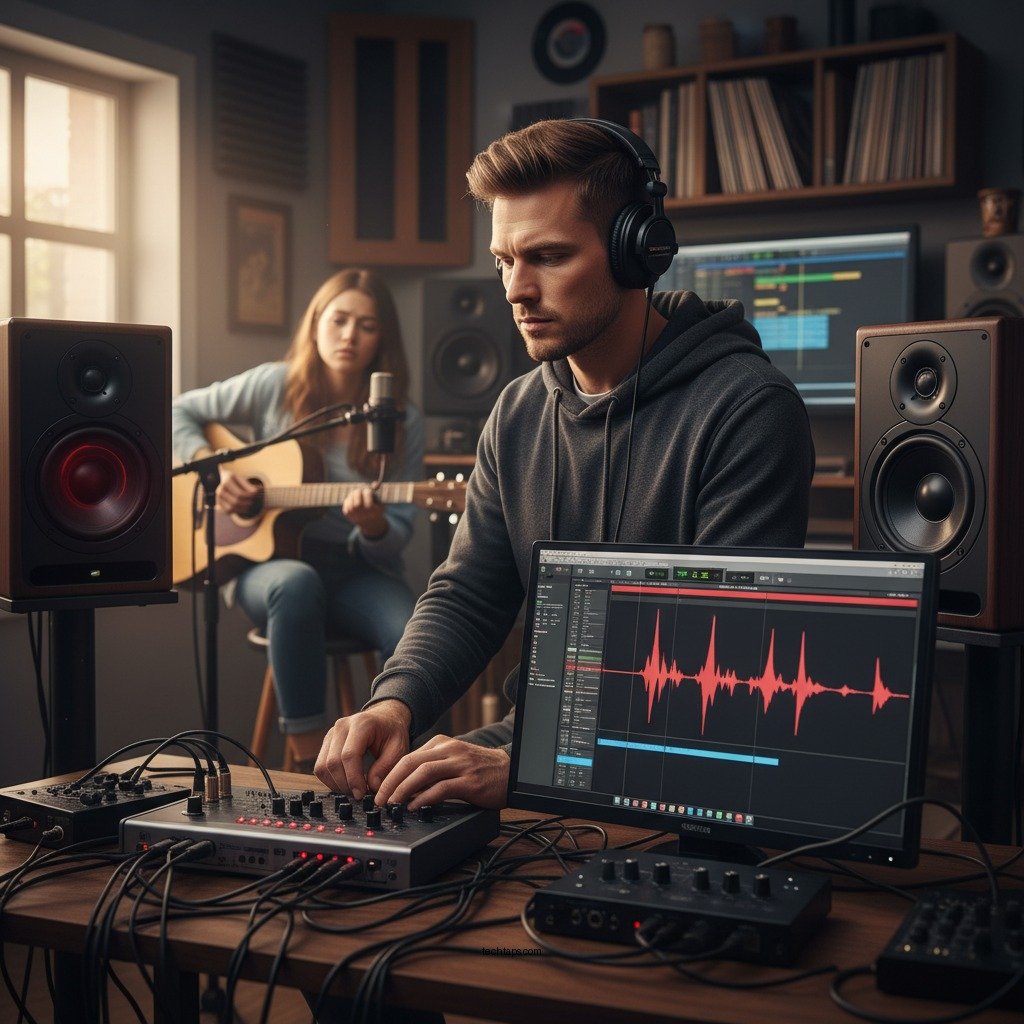
Audio clipping in your speakers typically results from excessive volume levels or incorrect audio settings, but it can be resolved with a few troubleshooting steps. By understanding the causes and taking corrective actions, you can significantly improve your listening experience. This article will guide you through identifying the reasons for audio clipping and effective methods to remedy the issues, ensuring that you enjoy high-quality sound without interruptions.




Understanding Audio Clipping
Audio clipping occurs when an audio signal exceeds the maximum limit that a system can handle, resulting in distortion. This distortion manifests as a harsh, unpleasant sound that can diminish the overall quality of your audio experience. The primary causes of audio clipping include excessive volume levels, improper audio settings, and poor-quality audio files. When clipping occurs, the waveform of the audio signal is truncated, leading to a loss of detail and fidelity. This not only affects sound quality but can also lead to listener fatigue and decreased enjoyment of music, movies, or any audio content.
Check Volume Levels
One of the most straightforward ways to address audio clipping is by checking your volume levels. It is essential to balance the output volume from your sound source—be it a computer, mobile device, or audio interface—with the volume setting on your speakers. If the source is set too high while the speakers are also at peak volume, the risk of clipping increases significantly.
To prevent this, start by setting your audio source to a moderate level, typically around 50-70% of its maximum capacity, and then gradually increase the speaker volume to achieve the desired loudness. This careful balancing act will help maintain audio integrity and prevent distortion.
Inspect Speaker Connections
Poor connections can lead to a variety of audio issues, including clipping. Inspect all cables and connections to ensure they are secure and undamaged. Loose cables can introduce noise and signal loss, leading to audio distortion. Additionally, using low-quality cables can result in interference and further exacerbate clipping problems.
To minimize these risks, consider investing in high-quality cables, such as those with gold-plated connectors, which can provide better conductivity and reduce the chance of interference. Regularly check your connections, especially if you’ve recently moved your audio equipment or made any adjustments to your setup.
Adjust Equalizer Settings
Improper equalizer (EQ) settings can also contribute to audio clipping. If certain frequencies are overly boosted, they can push the audio signal past its limit, leading to distortion. It is crucial to adjust your EQ settings based on the content you are listening to and the characteristics of your speakers.
Begin by resetting your EQ to a flat setting, and then make gradual adjustments, focusing on specific frequency ranges. For instance, if you notice that bass-heavy tracks are clipping, consider reducing the lower frequencies while slightly boosting mids and highs for a more balanced sound.
📋 MANDATORY DATA TABLE
Common Causes of Audio Clipping and Solutions
| # | Cause | Effect | Solution |
|---|---|---|---|
| 1 | Excessive Volume | Distortion | Reduce source volume |
| 2 | Improper EQ Settings | Clipping at certain frequencies | Adjust EQ for balance |
| 3 | Poor Connections | Signal loss | Secure all cables |
| 4 | Low-Quality Cables | Interference | Upgrade to high-quality cables |
| 5 | Overdriven Amplifier | Severe distortion | Reduce amplifier gain |
| 6 | Incorrect Audio File Format | Loss of quality | Use compatible formats |
| 7 | Insufficient Power Supply | Weak audio output | Upgrade power supply |
Update Drivers and Software
Outdated audio drivers can significantly impact sound performance, leading to issues such as audio clipping. Audio drivers serve as the interface between your audio hardware and the operating system, and if they are not updated, they may not function optimally with the latest software or audio formats.
To ensure your audio experience is seamless, regularly check for and install updates for your audio drivers and any associated software. This can usually be done through your computer’s device manager or the manufacturer’s website. Keeping your system updated not only enhances performance but also addresses potential bugs that could lead to audio problems.
Test with Different Audio Sources
If you continue to experience audio clipping, it’s a good idea to test your speakers with different audio sources. This process can help isolate whether the issue lies with the speakers, the audio source, or the files being played.
For effective testing, use a variety of formats and audio files, including high-quality WAV or FLAC files, as well as common formats like MP3. This variety allows you to determine if the problem persists across different media. If clipping only occurs with certain files or applications, you may need to consider adjusting settings specific to those sources.
Seek Professional Help if Necessary
In some cases, audio clipping may be symptomatic of a more significant issue with your equipment. If you have tried all troubleshooting methods and the problem persists, it might be time to consult a professional audio technician.
A professional assessment can provide insights into potential hardware issues, such as problems with the amplifier or speaker components. Additionally, a technician can recommend upgrades or repairs to improve your audio setup. Their expertise can save you time and frustration, ensuring you achieve the best possible sound quality.
By following these steps, you can effectively troubleshoot and fix audio clipping in your speakers. Regular maintenance and adjustments are vital to ensuring optimal sound quality. If problems persist, seeking professional assistance can provide a long-term solution to your audio challenges. Enjoying a clear and distortion-free listening experience is essential for any audio enthusiast, and taking proactive measures can help you achieve that goal.
Frequently Asked Questions
What causes audio clipping in my speakers?
Audio clipping occurs when the audio signal exceeds the maximum limit that the speakers can handle, resulting in distortion. Common causes include overly high volume settings, incorrect equalizer adjustments, or using low-quality audio files. Ensure your audio levels are balanced and use high-fidelity sources to minimize clipping.
How can I identify if my speakers are producing audio clipping?
You can identify audio clipping by listening for distorted sound, especially during loud passages or bass-heavy tracks. Additionally, visual indicators like waveform peaks hitting the maximum level on your audio editing software can confirm clipping. Monitoring the audio levels while playing music can help catch these issues early.
Why does my audio clip only at high volumes?
Audio clipping typically occurs at high volumes because the amplifier is pushed beyond its limits, causing it to produce distorted sound. This can stem from an insufficiently powered amplifier or speakers that are not rated for high output levels. It’s crucial to match your audio equipment’s power ratings to prevent this issue.
What are the best ways to fix audio clipping in my speakers?
To fix audio clipping, start by lowering the volume on your audio source and adjusting the equalizer settings to avoid boosting frequencies that may cause distortion. Additionally, consider upgrading your amplifier or speakers for better compatibility and performance. Regularly check for firmware updates on digital audio devices as well.
Which settings should I adjust to prevent audio clipping in my home audio system?
To prevent audio clipping, adjust the gain settings on your amplifier to ensure they are not set too high. Additionally, lowering the overall volume on your audio source and fine-tuning the equalizer can help maintain a clean sound. Regularly monitor audio levels during playback to catch potential clipping before it occurs.
References
- Clipping (audio)
https://en.wikipedia.org/wiki/Audio_clipping - https://www.sciencedirect.com/topics/engineering/audio-clipping
https://www.sciencedirect.com/topics/engineering/audio-clipping - https://www.britannica.com/topic/audio-clipping
https://www.britannica.com/topic/audio-clipping - https://pubmed.ncbi.nlm.nih.gov/16338058/
https://pubmed.ncbi.nlm.nih.gov/16338058/ - Mondor Disease – StatPearls – NCBI Bookshelf
https://www.ncbi.nlm.nih.gov/books/NBK538282/ - https://www.nature.com/articles/s41598-017-02825-1
https://www.nature.com/articles/s41598-017-02825-1 - https://www.cdc.gov/niosh/topics/noise/default.html
https://www.cdc.gov/niosh/topics/noise/default.html - https://www.nytimes.com/2017/06/01/technology/audio-clipping.html
https://www.nytimes.com/2017/06/01/technology/audio-clipping.html - Google Scholar Google Scholar
https://scholar.google.com/scholar?q=troubleshoot+audio+clipping - Google Scholar Google Scholar
https://scholar.google.com/scholar?q=fix+audio+clipping+speakers



