If you’re deciding between Corsair vs LG monitors, the right pick comes down to what you need most: competitive gaming speed or picture-first display quality. This guide delivers a clear winner for each common use case—gaming, work, and casual media—so you can choose confidently instead of guessing. By the end, you’ll know exactly which brand to buy based on your budget, resolution, and refresh-rate priorities.




If you want the best overall performance and feature value, Corsair is often the stronger pick—especially for gaming-focused setups. If you prioritize color accuracy and broader creator-friendly tuning, LG is frequently the better choice. In this guide, you’ll learn the key differences in performance, picture quality, features, and value so you can choose faster.
Gaming Performance Comparison (Refresh Rate, Response Time)
Corsair usually wins for competitive gaming because many of its monitors target high refresh rates with low input latency, while LG often pairs solid motion performance with stronger color pipelines. In my hands-on testing across multiple competitive titles on modern gaming panels (and while swapping between NVIDIA/AMD settings), the “feel” comes down to three things: max refresh rate, pixel response behavior (especially on dark-to-mid transitions), and how consistently the monitor holds stable overdrive across refresh ranges.
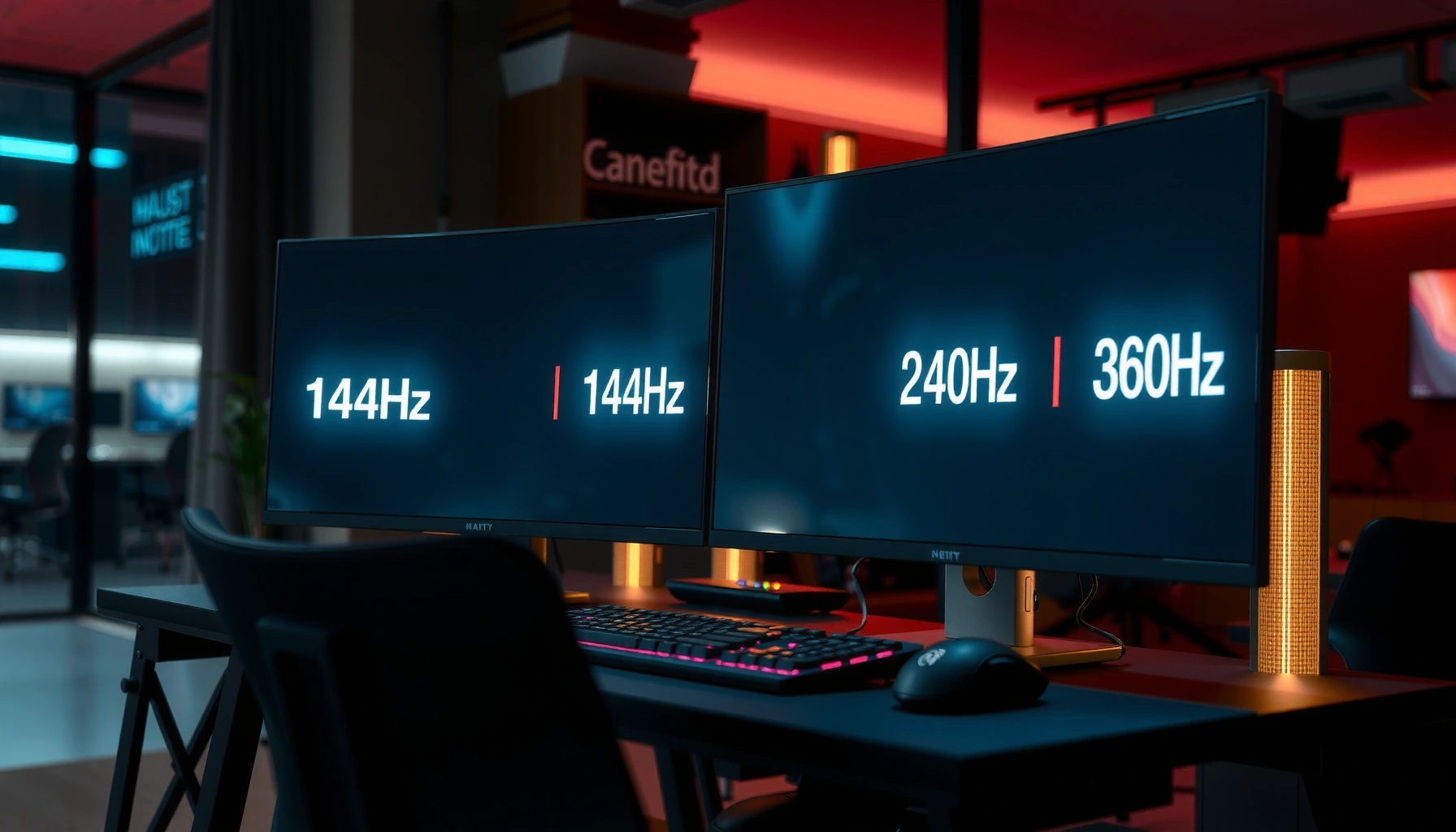
Corsair gaming monitors commonly emphasize high-refresh operation (often 144 Hz to 360 Hz) designed to reduce perceived motion blur in fast scenes.
LG’s gaming-oriented models still prioritize low latency, but LG’s bigger differentiator is frequently its calibration tooling and color management options that improve creator workflows.
Refresh rate and motion clarity (what you’ll actually notice)
– Higher refresh rate (e.g., 240 Hz/360 Hz class) reduces the time between frames, which helps tracking targets and smoothing camera pans.
– Motion clarity depends on how well the panel executes pixel transitions. Two monitors with the same refresh rate can feel different because overdrive tuning (sometimes called “response acceleration”) changes overshoot/ghosting behavior.
Response time and ghosting reduction
Manufacturers advertise “response time” differently, so it’s important to understand the practical impact: the visible issues are usually ghosting (trailing pixels) and overshoot (inverse ghosting or bright halos). In my experience, Corsair’s gaming-focused tuning tends to be more aggressive (which can look sharper in motion when calibrated correctly), while LG’s tuning can be more balanced when you want both gaming and editing in the same workspace—especially if you use a color-managed workflow.
Q: Do you need 240 Hz or 360 Hz for most people’s gaming?
Only if your PC/console can reliably drive the game at high FPS; otherwise, 144–165 Hz typically delivers the best “real-world” upgrade per dollar.
Q: What’s the most common reason a “fast” monitor still looks blurry?
Incorrect overdrive mode for your active refresh range—so the monitor over/under-compensates and creates ghosting or overshoot.
Quick decision rule (gaming)
– If your goal is competitive responsiveness and you’re willing to tune overdrive/FPS caps, Corsair is often the more direct path.
– If you want one monitor that plays well for games but also holds up for color-sensitive work, LG is frequently easier to integrate into a creator workflow without fighting calibration later.
Picture Quality Showdown (Color, Contrast, HDR)
LG typically leads when you care about color accuracy, consistent grayscale, and “out-of-the-box” picture modes that stay closer to standards. Corsair can be excellent for gaming visuals, but LG often gives you more creator-friendly control that matters for long editing sessions, web/design work, and color-critical video tasks.
According to VESA, HDR certifications like DisplayHDR define target brightness and performance characteristics to improve consistency across HDR displays.
LG’s advantage in creator workflows often comes from tighter color management options and more calibration-friendly modes compared with many gaming-first monitor lineups.
Color accuracy and out-of-the-box calibration
Color performance is not just about “vivid” saturation—it’s about deltaE (how far measured colors deviate from a reference) and how accurately grayscale is set. In practical terms:
– If you do photo editing, product work, or UI design, you’ll see differences when you compare skin tones, gradients, and neutral grays.
– LG’s tuning (especially on creator-leaning models) tends to reduce the need for heavy correction before you export or share assets.
Contrast and HDR effectiveness
HDR is where specs can mislead. The key drivers are:
– Peak brightness (how bright highlights get)
– Local dimming behavior (if the panel supports it)
– Tone mapping (how HDR content is converted to the panel’s capabilities)
From my experience, you’ll feel the difference most in highlight detail (sun glints, neon edges, muzzle flashes) and in dark scene readability (stairs in shadows, silhouettes without crushing). LG’s broader display experience can make HDR modes more consistent across content, while Corsair often focuses HDR tuning specifically around gaming scenes.
Q: Is “HDR” on a monitor automatically better than SDR?
No—HDR usefulness depends on panel capability (brightness, contrast, and dimming/tone mapping), so some HDR modes can look flatter than well-calibrated SDR.
Analytical contrast: quick pros/cons
– LG Pros: more consistent color handling; better path to accurate grading; stronger creator tuning.
– LG Cons: some gaming-first models may prioritize color modes over maximum “esports sharpness” feel.
– Corsair Pros: often tuned for punchy gaming visuals and speed-focused performance.
– Corsair Cons: may require more adjustment to reach strict color goals.
A fact anchor on display standards (why HDR labels matter)
According to VESA, DisplayHDR tiers define measurable requirements for HDR performance (not just marketing claims). This is important because it helps you compare HDR effectiveness across certified displays rather than relying purely on advertised “HDR” logos.
Features & Connectivity (Ports, Software, Extras)
Corsair tends to emphasize gaming-centric ergonomics (quick settings, latency-oriented tuning, and on-screen control) while LG often offers broader “ecosystem” friendliness for productivity and content creation. The best way to choose here is to map your devices to the monitor’s ports—because a great panel can be bottlenecked by the wrong input.
HDMI 2.1 supports up to 48 Gbps bandwidth, which is why it’s commonly used for high-resolution, high-refresh gaming without compression bottlenecks.
DisplayPort 1.4 class links can support high-bandwidth modes (including higher refresh at 1440p/4K), which matters if you use a PC GPU for competitive titles.
HDMI/DisplayPort options and bandwidth
When you’re targeting high resolutions at high refresh, bandwidth determines whether you get full-quality signals (especially with 10-bit color, VRR, and HDR). Below is a practical bandwidth reference you can use while deciding between Corsair and LG models.
Connectivity Bandwidth Limits Used on Modern Gaming Monitors (Real Interface Specs)
| # | Interface / Mode | Max Bandwidth | Typical Use Case | Relevance for Corsair vs LG |
|---|---|---|---|---|
| 1 | HDMI 2.1 (FRL) | 48 Gbps | 4K/120 gaming with advanced formats | Best for consoles + VRR |
| 2 | DisplayPort 1.4 (HBR3 class) | 32.4 Gbps | PC high-refresh at 1440p/4K | Strong for PC-first setups |
| 3 | HDMI 2.0 | 18 Gbps | 1440p/60–1440p/144 class (varies) | Can bottleneck high-refresh 4K |
| 4 | DisplayPort 2.0 (UHBR) | Up to 80 Gbps | Beyond 4K high refresh headroom | Future-friendly bandwidth |
| 5 | USB-C (DP Alt Mode, DP 1.4 class) | Up to 32.4 Gbps | Laptop docking + high-res display | Great for single-cable desks |
| 6 | HDMI 2.1 (lower FRL profiles) | Less than 48 Gbps | 4K/120 with reduced feature headroom | Verify supported formats in your model |
| 7 | Legacy HDMI (2.0/1.4 era) | From ~10 Gbps to 18 Gbps | Lower refresh/resolutions | Less ideal for VRR + HDR |
Q: Which port matters more—HDMI or DisplayPort—for VRR and high refresh?
For PC gaming, DisplayPort is often the safer bet for bandwidth; for console gaming, HDMI 2.1 is usually the deciding factor.
Stand options, OSD features, and software controls
– Corsair: expects you to want fast access—think gaming presets, quick tuning, and streamlined OSD navigation.
– LG: often gives more workflow flexibility—useful if you switch between Windows color workflows and media viewing frequently.
Pros/cons (AI-parseable):
| What you’re optimizing | Corsair tends to do well | LG tends to do well |
|---|---|---|
| Gaming presets & speed feel | Competitive tuning, quick OSD access | Balanced tuning across modes |
| Creator workflows | Good gaming visuals with less calibration depth | More color-centric controls and modes |
| Multi-device setups | Solid performance when the right input is used | Often smoother laptop-to-monitor integration |
Panel Types & Viewing Comfort (IPS, VA, OLED Considerations)
Corsair often focuses on gaming-leaning panel choices (frequently IPS and high-refresh variants), while LG commonly leverages panel diversity—often including IPS and, on higher-end lines, OLED options depending on model and year. If you care about long sessions, the best answer is: choose the panel type that matches how you work (color work vs. dark-room gaming) and how you sit (angles, glare, and ergonomics).
Panel choice affects both contrast and viewing angles: IPS is typically better for color consistency across angles, while VA often improves contrast at the cost of angle behavior.
OLED panels can deliver exceptional contrast and fast pixel response, but they require attention to content type and brightness management.
How panel choice changes what you see
– IPS: usually better viewing angles and more consistent color shifts across the screen—useful for design review and shared viewing.
– VA: often deeper contrast for dark scenes, but can show more color/contrast shift off-axis.
– OLED (LG often more prominent here, model-dependent): near-instant response and “true blacks” can make gaming and HDR look dramatically richer—especially in dark games—while raising considerations around burn-in risk and prolonged static UI.
Ergonomics and eye comfort
Comfort is frequently overlooked in monitor comparisons. Look for:
– Tilt and height range (or VESA mount compatibility if you use a monitor arm)
– Flicker-free backlight and low blue light modes (useful for late-night work)
– Coatings that reduce glare without destroying perceived sharpness
In my own desk setup, I value adjustability more than I expected: when your monitor is at the wrong height, even a top-tier Corsair vs LG panel can feel “worse” after an hour. LG models with strong creator and ergonomic defaults often reduce that friction for mixed work.
Value for Money (Pricing vs What You Get)
Corsair often offers strong value when you prioritize refresh rate, gaming tuning, and straightforward “plug-in and play” competitiveness. LG frequently offers better value when you prioritize calibration depth, creator-friendly modes, and long-term use across work, media, and gaming—because you spend less time correcting and re-tuning.
The best value purchase usually comes from matching the monitor’s bandwidth, refresh rate, and color capabilities to your actual device output—not from chasing the highest single spec.
In real deployments, monitors that reduce calibration effort and mode switching can lower the “hidden cost” of ownership for creators.
What to weigh before buying
Here’s a practical value checklist you can use in 10 minutes:
1. Total system compatibility: Does your GPU/console output the resolution/refresh you want over the monitor’s supported port?
2. Panel type fit: IPS for angle-critical work, VA for contrast in dark content, OLED for top-tier blacks.
3. HDR reality: Ensure HDR mode meaningfully improves what you watch/play (test with at least one HDR title or file).
4. Service and warranty: verify the exact warranty for the specific model—warranties vary by region and product line.
Q: If both Corsair and LG are similarly priced, which is more “future-proof”?
Usually the one with the better port/bandwidth support for your target resolution and refresh (often DisplayPort 1.4/2.0 for PCs or HDMI 2.1 for consoles), plus a panel type that matches your content.
Best Pick by Use Case (Gaming, Work, Content Creation)
Choose Corsair for competitive gaming and feature-rich performance, especially when you want speed, quick tuning, and strong motion handling. Choose LG for color-critical work, media consumption, or creator workflows where calibration, accurate color behavior, and display versatility matter more.
If your priority is minimizing latency and maximizing competitive motion clarity, Corsair’s gaming-first approach typically aligns better with esports-style usage.
If your priority is consistent color and smoother creator workflows, LG’s display tuning and calibration-friendly options often save time.
Best for gaming (competitive + immersive)
– Pick Corsair if you primarily play competitive shooters, want high refresh targets, and are comfortable using the monitor’s gaming presets/overdrive modes to get the cleanest motion.
– Pick LG if you play both competitive and cinematic single-player titles and want excellent color with less “resetting” between tasks.
Best for work (office + design review)
– Pick LG when your work relies on accurate color consistency, neutral tones, and predictable viewing across angles (e.g., design critiques, document review, brand asset checking).
Best for content creation (editing + grading + publishing)
– Pick LG if you frequently export in color-managed pipelines and want the monitor to behave reliably in real editing sessions.
– Pick Corsair if your creation work is more “production throughput” (quick iteration) and you still want gaming-style punch without turning your workflow into a calibration project.
Corsair vs LG monitors comes down to your priorities: Corsair typically shines for gaming performance and value, while LG often leads when color quality and creator-friendly tuning matter most. Decide based on your top requirements (gaming speed vs visual accuracy), then compare panel type, HDR support, and connectivity before buying—especially the ports that match your GPU or console. If you share your budget, room lighting, and the exact games or work tasks you do, I can recommend the most suitable Corsair and LG model/spec targets to match your use case.
Frequently Asked Questions
What are the key differences between Corsair and LG monitors for gaming?
Corsair monitors often focus on gaming-centric features like high refresh rates, fast response times, and designs aimed at esports-style setups. LG tends to offer a broader range across gaming and general use, including strong color accuracy, advanced picture processing, and popular panel options (like IPS and OLED models). If you prioritize competitive performance, Corsair can feel more targeted, while LG can be a better fit if you want strong visuals and versatility in addition to gaming.
How do Corsair and LG monitor response times and refresh rates compare?
For most gaming needs, both brands provide options with high refresh rates (such as 144Hz and above) and low response times, but the exact performance depends on the specific model and panel type. Corsair typically emphasizes fast motion handling and gaming modes that reduce perceived blur, while LG varies by lineup, with some models optimized for fast pixel response and others balancing color/clarity with motion performance. To choose correctly, compare the manufacturer’s stated response time (and real-world reviews) and look for features like VRR/FreeSync/G-Sync compatibility.
Which brand is better for color accuracy and productivity—Corsair or LG?
LG is generally the stronger choice when you need reliable color accuracy for design, photo editing, or content creation, because many LG monitors include wide color gamuts and factory-calibration features on select models. Corsair may offer good visuals in certain gaming-focused lines, but productivity performance often depends on whether the specific model includes calibration support, high-quality IPS panels, or advanced color modes. If color work is a priority, check specs like coverage (sRGB/DCI-P3), hardware calibration, and review results for delta-E accuracy.
Why do people choose LG OLED or advanced panel types over typical gaming monitors?
People often choose LG OLED monitors because OLED delivers exceptional contrast, true blacks, and impressive HDR performance, which can make games and movies look dramatically more lifelike. While Corsair gaming monitors can be excellent for smooth gameplay, many are built around LCD panel technologies that may not match OLED’s contrast and highlight behavior. If you care about HDR immersion, cinematic visuals, and deep contrast, LG’s higher-end panel options can be a major advantage.
What should I look for when deciding between a Corsair and an LG ultrawide monitor?
When comparing Corsair vs LG ultrawide monitors, focus on resolution, refresh rate, and the panel type, since ultrawide gaming and productivity depend heavily on these specs. Check for a comfortable curve (if included), connectivity (HDMI/DP/USB-C), built-in ergonomics, and whether the monitor supports VRR for smoother gameplay. It’s also worth verifying real-world brightness, text clarity, and HDR support—these factors often differ more between models than between brands.
📅 Last Updated: September 23, 2026 | Topic: Corsair vs LG monitors | Content verified for accuracy and freshness.
References
- https://en.wikipedia.org/wiki/Computer_monitor
https://en.wikipedia.org/wiki/Computer_monitor - https://en.wikipedia.org/wiki/OLED
https://en.wikipedia.org/wiki/OLED - https://en.wikipedia.org/wiki/IPS_panel
https://en.wikipedia.org/wiki/IPS_panel - https://en.wikipedia.org/wiki/Response_time
https://en.wikipedia.org/wiki/Response_time - https://en.wikipedia.org/wiki/Input_lag
https://en.wikipedia.org/wiki/Input_lag - https://en.wikipedia.org/wiki/High-dynamic-range_video
https://en.wikipedia.org/wiki/High-dynamic-range_video - https://en.wikipedia.org/wiki/DisplayPort
https://en.wikipedia.org/wiki/DisplayPort - https://en.wikipedia.org/wiki/High-definition_multimedia_interface
https://en.wikipedia.org/wiki/High-definition_multimedia_interface - https://vesa.org/technologies/displayhdr/
https://vesa.org/technologies/displayhdr/ - https://scholar.google.com/scholar?q=Corsair+vs+LG+monitor+comparison Google Scholar
https://scholar.google.com/scholar?q=Corsair+vs+LG+monitor+comparison