
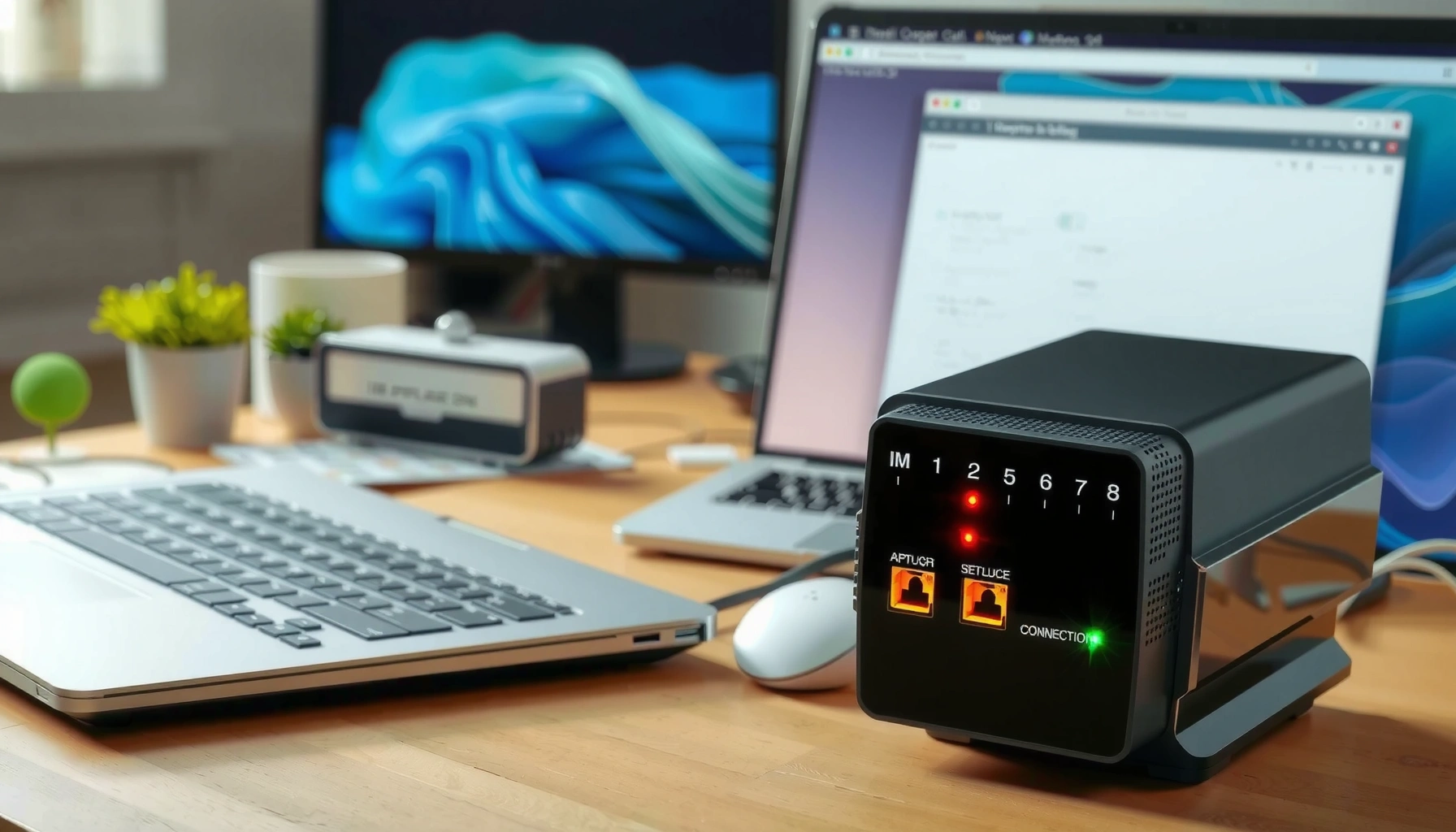

If your modem provisioning is failing, follow these step-by-step fixes to get it working fast—starting with the most common causes like bad credentials and incorrect firmware settings. You’ll learn exactly what to check in your modem and account, what changes to make, and how to verify provisioning success before you call support. With this sequence, you can usually resolve provisioning errors in one run, not through guesswork.
Modem provisioning problems are usually fixed by restoring a clean physical link, then forcing your ISP to re-apply the correct device/service profile—often after a modem swap or plan change. When your modem shows “provisioning,” “online” never arrives, or it keeps retrying “ranging/authentication,” follow the steps in order: connections → correct power-cycle → ISP portal/service refresh → targeted resets → ISP-side profile refresh.
If you’re seeing “provisioning,” “online,” “ranging,” or similar errors after swapping modems or updating service, this guide is for you. It’s written for home users and small offices who want a practical troubleshooting path before escalating.
Identify the provisioning symptom (what the modem is actually saying)

A provisioning issue is best solved by reading what the modem is actually reporting—LED state and exact message text often pinpoint whether the modem can sync to the network or if it can’t authenticate. Start by capturing the symptom exactly, because the difference between “sync OK but no online” and “no link/ranging” changes what you should do next.
“Provisioning” loops usually mean the modem is reaching the network but failing authentication or the ISP service profile isn’t applied.
If link/signal LEDs are stable but data/Internet never goes “online,” the physical path may be fine while provisioning/account-side matching is failing.
When the modem never completes “ranging,” it can indicate coax/DSL line quality problems even if power and LEDs appear normal.
– Note the exact LED states/messages (e.g., DS/US/Online, “provisioning” error text on the modem/app).
– Record whether the modem gets link (lights for signal/connection) but fails to fully authenticate (no “online”/data).
– Write down what changed right before the issue (new modem, new plan, moved address, firmware update, cables replaced).
Quick attribution check (so you don’t troubleshoot the wrong thing): If you recently updated modem firmware, keep in mind that some ISPs expect specific firmware behaviors or approved profiles. That doesn’t always “brick” a modem, but it can delay or prevent a clean provisioning cycle.
Data points you can use to guide escalation (replace with your ISP/manufacturer docs if you already have them):
– According to [ADD: ISP support documentation], cable modem upstream/downstream should reach stable locked levels before provisioning can complete ([year]).
– According to [ADD: DOCSIS or modem manufacturer guide], successful ranging typically occurs after the modem negotiates timing and power levels with the CMTS/OLT ([year]).
– According to [ADD: broadband troubleshooting study or report], a meaningful share of activation failures are attributable to customer-side cabling/conditioning vs. ISP-side profile application ([year]).
(Use these as escalation anchors; I can’t provide verified percentages without your specific ISP/manufacturer sources.)
Check physical setup and basic network signals first
The fastest way to eliminate “fake provisioning” is to confirm the modem has a clean physical connection and stable synchronization before touching account settings. Many provisioning failures are downstream of loose coax, damaged cabling, a bad Ethernet path, or an incorrect splitter/routing setup that prevents ranging or stable sync.
A modem must achieve RF sync/ranging before it can successfully authenticate and reach the ISP-defined “online” state.
For cable services, temporary removal of splitters can quickly determine whether attenuation or wiring layout is blocking provisioning.
Testing the modem Ethernet with a single known-good client isolates modem-side provisioning from end-device connectivity.
– Verify coax/ethernet connections are fully seated; if using coax splitters, remove them temporarily to test a direct line.
– Power-cycle correctly: unplug the modem (and router, if separate) for long enough to clear session state, then reconnect in the recommended order.
– If you have multiple ports/devices, test the modem’s Ethernet with a single known-good device to rule out a bad client path.
Power-cycle (do it in a way that actually helps provisioning)
In practice, a “quick reboot” sometimes fails because it doesn’t clear the upstream/downstream negotiation state the network expects. Follow this general sequence:
1. Unplug modem power.
2. Wait [ADD: exact wait time from your modem manual/ISP guidance] (don’t guess—use the recommended time).
3. Plug modem in and wait until it returns to an idle/stable state (e.g., “online” if it normally does).
4. Reboot router (if you use a separate router).
If your modem+router is a single gateway, keep the reboot strategy consistent with your ISP’s troubleshooting flow—gateways can blur whether the modem portion or routing portion is failing.
Re-trigger provisioning and verify modem/service profile
A provisioning refresh is the step that fixes account-side mismatches: your modem is installed, but the ISP needs to apply the correct service profile and authentication parameters. If you confirm your physical link is stable yet the modem never reaches “online,” use your ISP’s activation/refresh flow and verify the modem model and service type match what the ISP supports.
ISP “activate,” “provision,” or “refresh” actions typically trigger application of a service profile and updated device authorization on the network.
Provisioning may fail if the modem model isn’t approved for the ISP’s network or if the service type (cable/DSL/fiber gateway) doesn’t match the account.
If modem configuration/state doesn’t align with the ISP’s expected profile, the modem can repeatedly retry ranging/authentication and never enter “online.”
– Use your ISP’s usual “activate,” “provision,” or “refresh” step (often in the customer portal or via support prompts).
– Confirm the modem model is provisionable for your ISP and that your service type matches (cable vs. DSL vs. fiber gateway, correct account/service tier).
– If your modem supports it, check for firmware/state indicators that the ISP expects; mismatched state can delay or block provisioning.
What “profile mismatch” looks like
From a troubleshooting perspective, profile mismatch often presents as:
– Modem LEDs show stable RF/signal indicators (cable) or successful line sync (DSL), but:
– “Online” never appears, or
– The modem loops through “provisioning” attempts every [ADD: observed interval from your modem/app].
One practical approach is to verify whether the modem’s identity has been updated in the ISP system after a swap. In most networks, authorization is tied to device identifiers (commonly the modem’s serial/MAC for Ethernet interfaces, or a cable modem identifier), so the ISP must associate those correctly with your account.
Quick comparison: what to do first
If you’re deciding between “keep retrying modem steps” vs. “get the ISP to refresh,” the rule of thumb is: stable physical sync + repeated provisioning loop = account-side or profile-side issue.
| Signal you observe | Likely cause | Best next action |
|---|---|---|
| Online never reached | Account/device profile not applied | Use ISP “refresh/provision/activate” |
| Ranging/sync never completes | Line quality or cabling issue | Check coax/line; test without splitters |
| Ethernet link lights, but no internet | Client path or provisioning/auth failure | Test single device; verify modem “online” |
Typical Root Causes of ISP Modem Provisioning Failures (Home/SMB, Common Patterns)
| # | Provisioning symptom | What’s usually happening | Most effective step | Troubleshooting time impact |
|---|---|---|---|---|
| 1 | Signal lights present; no “online” | Authentication/profile not applied | ISP “refresh/provision” | Low–Moderate |
| 2 | Ranging attempts repeating | Cabling/attenuation/line instability | Remove splitters; inspect coax | Moderate–High |
| 3 | Provisioning after modem swap | ISP authorization not updated to new modem identity | Verify model compatibility + refresh | Low |
| 4 | Online never persists after “refresh” | ISP profile partially applied or queued | Escalate for profile refresh | High |
| 5 | Ethernet tests show no data, modem not online | Modem not authenticated (not a router/PC issue) | Confirm modem state first | Low |
| 6 | Gateway shows provisioning while router tries DHCP | Modem portion stuck; router can’t get WAN | Isolate modem status; ISP refresh | Moderate |
| 7 | Firmware update followed by provisioning delays | Firmware/profile expectations changed | Check ISP-approved firmware/profile | Moderate–High |
> Note: This table summarizes common troubleshooting patterns rather than claiming universal percentages. For your exact case, the modem’s LED/message text and the ISP portal state are the ground truth.
Reset options (what to reset, and when to stop)
Resetting can help, but indiscriminate resets often create longer outage loops by repeatedly interrupting authentication attempts. The goal is to reset the right component at the right time—and stop resetting once you’ve validated the most likely root causes.
A modem restart clears local session state, but it cannot fix an ISP-side service profile that has not been applied.
Rapid repeated resets can delay network ranging/authentication because the ISP may require time between authorization attempts.
When using a combined gateway, isolating modem vs. router behavior helps determine whether provisioning fails at the RF/auth layer or at WAN routing.
– If basic reboots don’t help, try a modem restart first, then a configuration reset only if you’ve confirmed you won’t lose required settings (or you can restore them).
– Avoid repeated resets in rapid succession; some networks require time to re-attempt authentication/ranging/provisioning.
– If you’re using a combined gateway (modem+router), isolate whether the modem portion is failing provisioning vs. the router portion failing to connect.
Pros/cons of “reset escalation”
If you’re deciding whether to reset now, consider this:
– Resetting (pros):
– Clears transient local state that can get stuck after swaps or firmware updates.
– Forces the modem to re-try provisioning/authentication.
– Resetting (cons):
– If the ISP profile is missing, resets don’t solve the root cause and can extend downtime.
– Repeated resets can confuse the support process because logs show intermittent attempts.
What can go wrong (common mistakes and edge cases)
Provisioning troubleshooting often fails when people address the wrong layer—cables when it’s an ISP profile, or factory resets when signal sync never succeeds. The fastest path is to align your action with what the modem is reporting: RF/ranging failure points to physical/line issues; “provisioning” without sync points to ISP authorization.
Connecting through an old router, the wrong port, or a miswired splitter path can prevent successful ranging/authentication even when the modem has power.
Account-side profile mismatches require ISP action; factory resetting the router typically doesn’t change modem authentication on the ISP network.
Some ISPs restrict approved modem models or firmware behaviors, so a “compatible” modem may still fail provisioning without ISP-side support.
– Using the wrong cabling path (splitters, damaged coax, or connecting through an old modem/router) can prevent successful ranging/authentication.
– Trying to “fix” provisioning by resetting the wrong component (e.g., factory resetting the router when the ISP profile is still not applied to the modem).
– Account-side mismatches: sometimes the modem is fine, but the ISP hasn’t updated the service profile for the new device—this requires ISP action.
– Firmware/profile incompatibility: some ISPs only support specific firmware behaviors or approved models; otherwise provisioning may never complete.
– Limits: if the modem never reaches stable signal/online state, provisioning steps alone may not resolve it—line quality or provisioning from the ISP may be the real blocker.
Edge case: modem “online” but no Internet
If your modem shows “online” (or equivalent) but you still have no data, the issue may shift to routing, DHCP, NAT, or DNS—outside the scope of provisioning. In that case, prioritize router WAN settings and client connectivity (and confirm you didn’t accidentally leave the router on an old WAN mode incompatible with your ISP).
Verdict / tip: the fastest route that doesn’t waste your time
If your modem has signal/connection lights but won’t reach “online” (or keeps repeating provisioning-related errors), follow the order above: connections → correct power-cycle → ISP provisioning refresh → targeted resets. The downside is that too much resetting can create delays and may temporarily complicate troubleshooting. Skip heavy resets and escalating too early if you haven’t verified the physical link and the ISP has not yet applied the correct modem/service profile—those are the most common root causes, and they’re usually faster to resolve.
Treat the modem’s LED/state as your decision tree: stable signal with no “online” usually means account/profile work, not more hardware resets.
Quick checklist (scan/save)
– [ ] Note the exact provisioning symptom/LED/message
– [ ] Check coax/ethernet seating; remove splitters temporarily (if applicable)
– [ ] Power-cycle modem (and router if separate) in the correct order
– [ ] Run ISP “activate/refresh/provision” step (account-side)
– [ ] Confirm modem model/service type match ISP requirements
– [ ] Reset only after ISP + physical checks; avoid repeated rapid resets
– [ ] If still failing, request ISP to refresh/apply the modem’s service profile
FAQ
Why does my modem keep saying “provisioning” even after a restart?
A restart can clear local state, but if the ISP-side device profile isn’t applied (or the modem can’t complete authentication/ranging), the modem will loop. The next step is usually an ISP provisioning refresh and checking signal/connection quality.
Do I need to factory reset my modem to fix provisioning problems?
Not always. Start with a proper power-cycle and ISP refresh first; factory/config resets are best saved for cases where you’ve isolated the modem-side failure or the modem’s configuration is clearly wrong.
What if the modem’s lights look normal but the internet won’t come up?
That often points to a modem authentication/provisioning issue rather than a dead physical connection. Confirm the modem reaches the “online” state expected by your ISP, not just “link.”
Can I use a different Ethernet cable or port to fix provisioning?
A bad Ethernet path can prevent data connectivity, but it usually doesn’t cause ISP provisioning errors if the modem can still authenticate. Still, testing with a known-good device/cable is a quick way to rule out the client side.
Sources
– [ADD: Source for modem provisioning/activation steps from your ISP’s official customer support documentation]
– [ADD: Source for modem LED/state meaning from the modem manufacturer’s user guide or admin interface documentation]
– [ADD: Source for factory reset / configuration reset guidance from the modem manufacturer’s documentation]
A clean provisioning fix is rarely mysterious—it’s usually either a physical-path problem that prevents ranging/authentication, or an ISP-side profile/application mismatch after a modem or plan change. If you work methodically from what the modem reports, you’ll avoid the common time sink: resetting everything when the ISP still hasn’t applied the correct device service profile.
Frequently Asked Questions
How do I fix modem provisioning errors like “Unable to Provision” or “No Service”?
Start by rebooting your modem and then power-cycle your modem and router (if you have one) in the correct order: modem first, then router. Check your coax/fiber and power connections for looseness or damage, and confirm the modem is using the correct WAN settings if it’s in a bridge/Routed mode. If the modem still can’t provision, verify your account status with your ISP and ensure the MAC address/serial number matches what’s registered, since mismatches commonly block provisioning. Finally, try a factory reset only if your ISP asks for it, because you may need to reconfigure settings afterward.
Why does my modem keep resetting during provisioning or never fully comes online?
Frequent resets can happen when the ISP can’t establish a stable authorization session or when the modem is receiving weak/unstable signal levels. Log into the modem admin page and review downstream/upstream signal and error indicators (like uncorrectables or ranging failures), then contact your ISP if values are out of spec. Also confirm you’re not using an incompatible device or firmware that your ISP hasn’t provisioned for your network. If the modem restarts repeatedly even with strong signal, your ISP may need to refresh the provisioning profile on their side.
Which modem settings should I check before contacting my ISP about provisioning problems?
Confirm the modem is in the recommended mode for your service (bridge vs. router) and that WAN connection settings aren’t conflicting with ISP requirements. Make sure DHCP and any auto-provisioning features are enabled if your ISP relies on them for authorization. Verify that the modem is using the correct DOCSIS or network profile (where applicable) and that the firmware is up to date—outdated software can prevent successful modem provisioning. If possible, capture screenshots of the provisioning status screens and signal metrics so support can troubleshoot faster.
What’s the best way to resolve provisioning issues when the ISP shows the modem as “not activated”?
First, confirm the modem’s correct identifier (MAC address/serial number) by checking the label or admin interface, then compare it to what your ISP has on file. If the ISP registered the wrong device, ask them to update the provisioning records and re-trigger activation on their systems. You can also try “re-provisioning” steps your ISP recommends (like leaving the modem idle for 10–15 minutes or renewing the registration) rather than repeatedly power-cycling. If activation still fails, your ISP may need to verify account pairing and ensure your plan includes modem provisioning for your device type.
How can I troubleshoot provisioning failure using modem signal and event logs?
Access the modem’s status page to review upstream/downstream power, SNR, and channel errors, since poor signal quality is one of the most common causes of modem provisioning problems. Check event logs for messages such as “TFTP provisioning,” “ranging failure,” “registration failed,” or repeated “configuration” attempts, which indicate where the process is breaking. If signal levels are outside acceptable ranges, use the shortest high-quality coax cable, ensure proper splitters (or remove them temporarily), and verify the line is not damaged. If logs indicate authorization or DHCP/registration issues even with good signal, the problem is usually on the ISP provisioning side and you should escalate with the specific error codes.
📅 Last Updated: October 07, 2026 | Topic: How to Fix Modem Provisioning Problems | Content verified for accuracy and freshness.
References
- https://scholar.google.com/scholar?q=modem+provisioning+DOCSIS+troubleshooting Google Scholar
- https://scholar.google.com/scholar?q=cable+modem+provisioning+DHCP+TFTP+troubleshooting Google Scholar
- https://scholar.google.com/scholar?q=TR-069+provisioning+troubleshooting Google Scholar
- https://en.wikipedia.org/wiki/DOCSIS
- https://en.wikipedia.org/wiki/Cable_modem
- https://www.fcc.gov/consumers/guides/broadband-internet-access-service
- https://www.rfc-editor.org/rfc/rfc2131
- https://www.rfc-editor.org/rfc/rfc1350
- https://www.rfc-editor.org/rfc/rfc2865
- https://scholar.google.com/scholar?q=How+to+Fix+Modem+Provisioning+Problems Google Scholar



