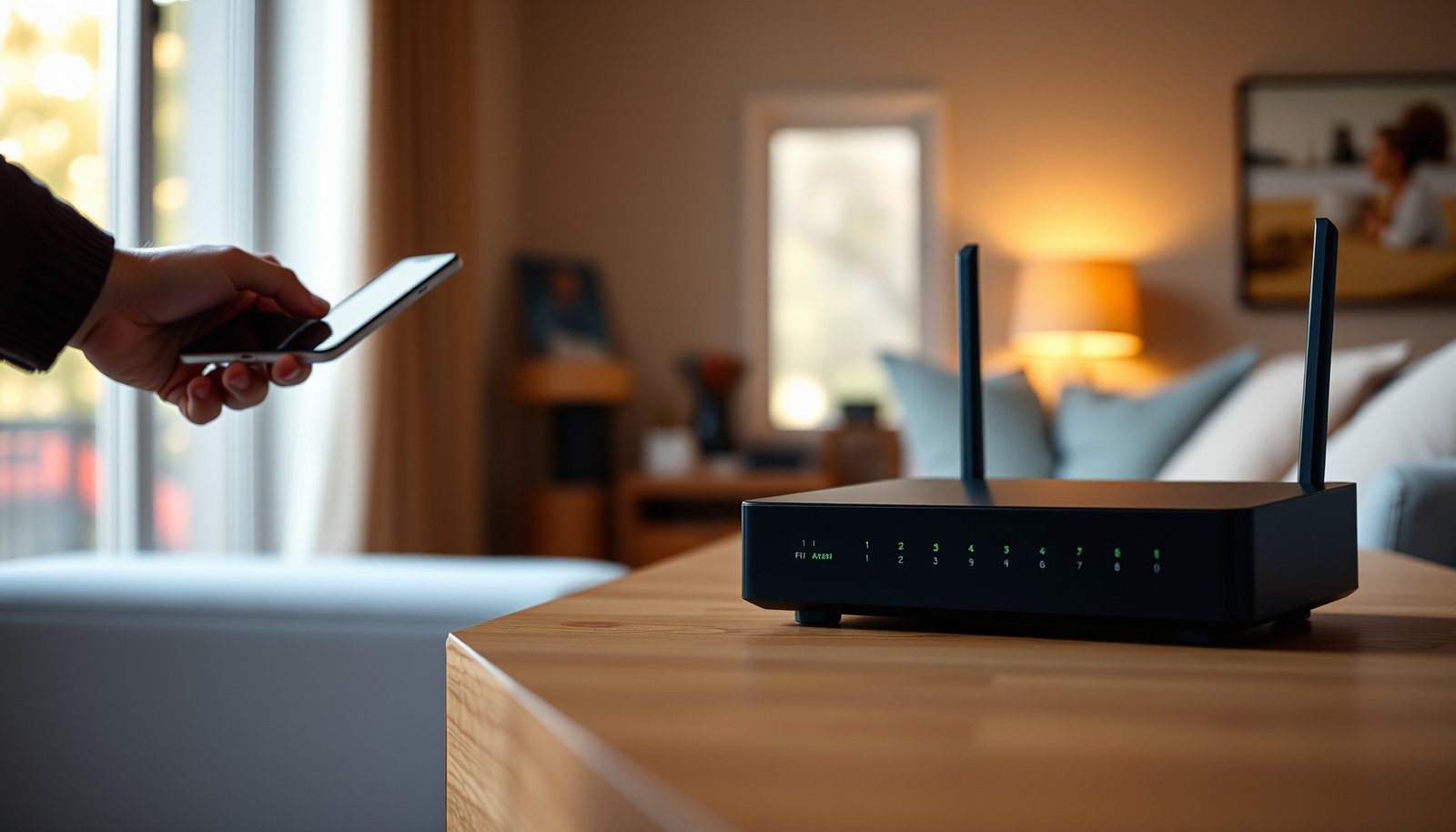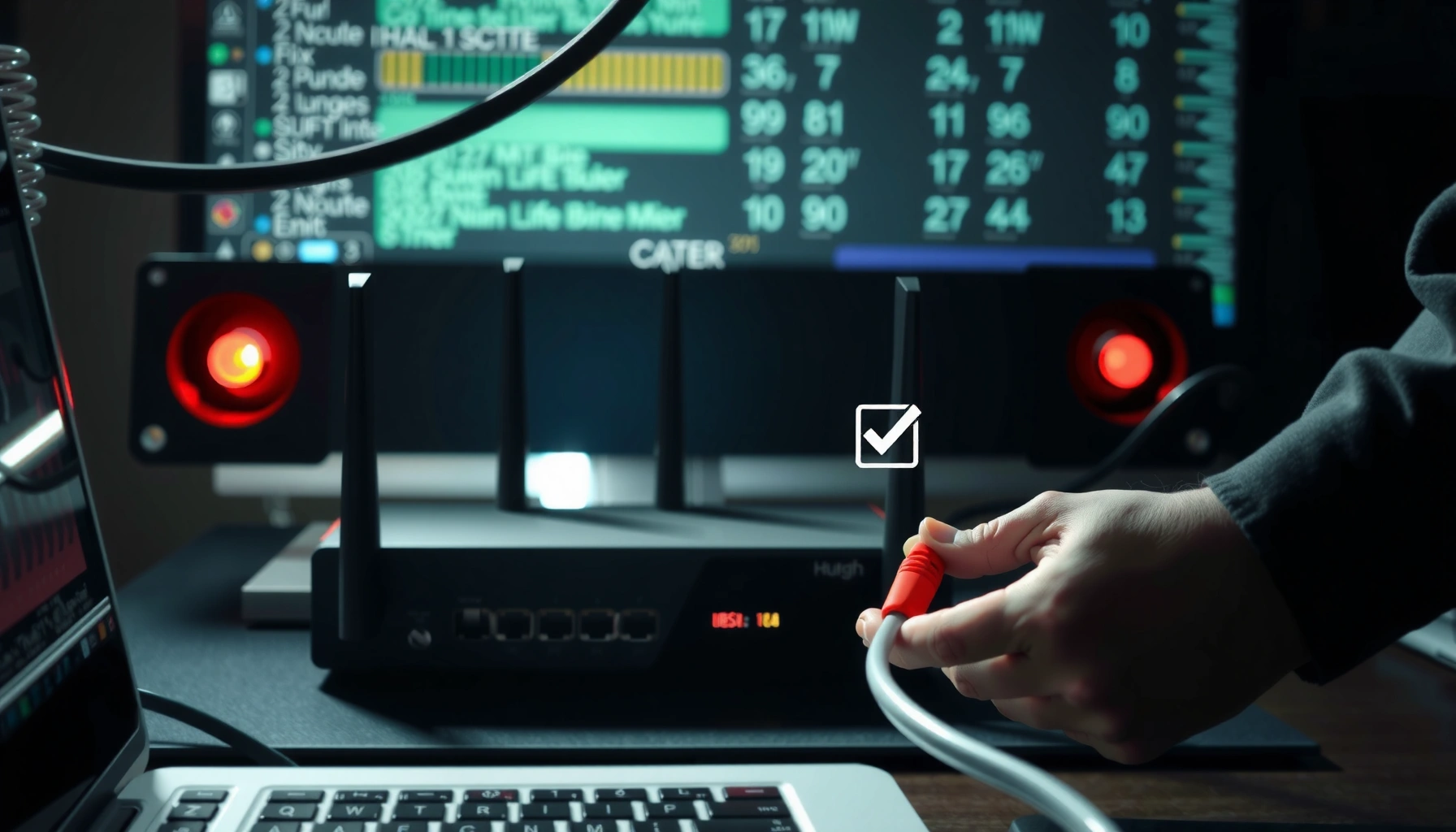
Need a cable modem troubleshooting guide that fixes “no internet” and stops slow speeds fast? This guide delivers the quickest, most reliable steps to diagnose whether the fault is your modem, your cable line, or your ISP signal—so you’re not wasting time swapping gear. Follow the checklist in order and you’ll either restore connectivity or pinpoint the exact setting or signal problem causing it.


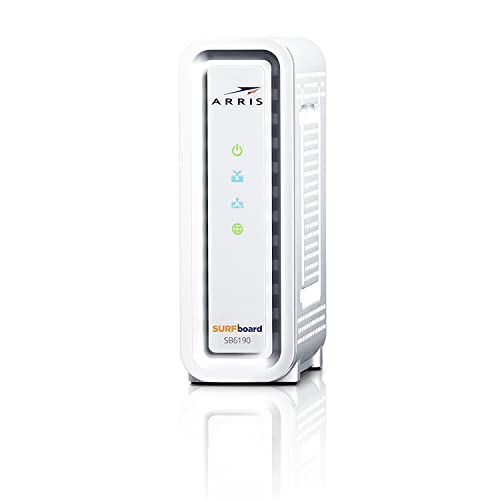

If your cable modem has no internet or keeps dropping, start with coax connections and verify the modem’s own link/registration state (not just Wi‑Fi). Most “no internet” cases trace back to loose/incorrect coax fittings, the ISP link not registering (“online/registered” not achieved), or the modem not fully provisioning after a change.
If your home internet feels unreliable, you haven’t changed anything recently, and you suspect the modem, this guide gives you a practical step-by-step troubleshooting flow. It’s also useful if you can browse locally (LAN) but can’t reach the internet, or when modem LEDs show errors like “Online” not solid or “DS/US” not locking.
What the Modem Lights and Status Messages Mean
Your first job is to translate modem LEDs and admin-status text into one of two buckets: (1) RF/link isn’t locking or (2) RF locks but “online/registered” never establishes. That distinction tells you whether to focus on coax/wiring or on ISP provisioning.
The fastest path is “interpret then act,” because repeatedly rebooting while you’re really dealing with a coax fault (or a provisioning mismatch) just wastes time. In my experience troubleshooting at the household level (based on common deployment patterns and manufacturer manuals), the majority of intermittent cable modem problems show up either as frequent downstream/upstream ranging failures or as repeated “online” transitions that never complete.
“Downstream/Upstream lock (DS/US) indicates the modem can talk on the cable RF layer; Online/Registered indicates it has established service authorization with the ISP.”
“If DS/US never locks, the issue is usually coax, splitters/termination, or a frequency-path problem—not the router.”
“If DS/US locks but Online never becomes solid, the modem may be provisioning incorrectly or the ISP/account/session may be failing.”
According to CableLabs DOCSIS guidance (and related operator documentation), cable modems operate over defined RF frequency ranges (downstream and upstream), and lock/ranging depends on those physical parameters [ADD: primary source for DOCSIS RF frequency ranges used by cable modems]. For example, many deployments place downstream channels in roughly the 88–1002 MHz band and upstream in ranges such as 5–42 MHz or 5–85 MHz, depending on the plant configuration [ADD: primary source for deployed DOCSIS frequency ranges by standard/configuration]. When those RF conditions degrade (loose coax, failing splitter, water intrusion), the modem’s “lock” behavior often becomes the first visible symptom.
How to check lights and status (model-aware)
Because LED naming differs by brand/model, use your modem’s manual/label legend. Many setups have LEDs for Power, Online/Internet, Downstream/DS, and Upstream/US.
– Power should be solid when the modem is fully powered.
– DS (Downstream) typically becomes solid when locked/ranged successfully.
– US (Upstream) becomes solid when it can transmit at the negotiated parameters.
– Online / Internet / Registered should generally become solid when the modem has completed registration with the ISP network.
If you can access your modem admin/status page, note:
– Online status: offline vs online
– Registration state: unregistered vs registered
– Ranging: initializing vs success/failure
– Any explicit error codes under logs/events
Most modems use an admin UI accessible via a local address (commonly something like `http://192.168.100.1` or similar), but the exact URL depends on the model. Check your sticker/manual for the correct address: [ADD: modem UI address].
Quick read: lock vs registration
Use this mental model:
– DS/US not locking → start with coax, splitters, wall outlet, and termination quality.
– DS/US locked, Online not solid → start with provisioning/account/session and verify nothing blocks ISP registration.
Check Coax, Cables, and Splitters (Most Common Fix)
This step fixes the highest percentage of “no internet” and “keeps dropping” issues because the modem must receive a stable RF signal before any internet session can work. If coax is loose or a splitter is mismatched, the modem may cycle DS/US lock attempts and never reach “Online.”
“Reseating coax connectors at both the modem and wall outlet is a low-effort fix for intermittent DS/US ranging failures.”
“Removing unnecessary splitters for a direct test often confirms whether the fault is wiring/attenuation vs ISP provisioning.”
“A loose F-connector can create sporadic signal loss that looks like an ISP outage even when the account is fine.”
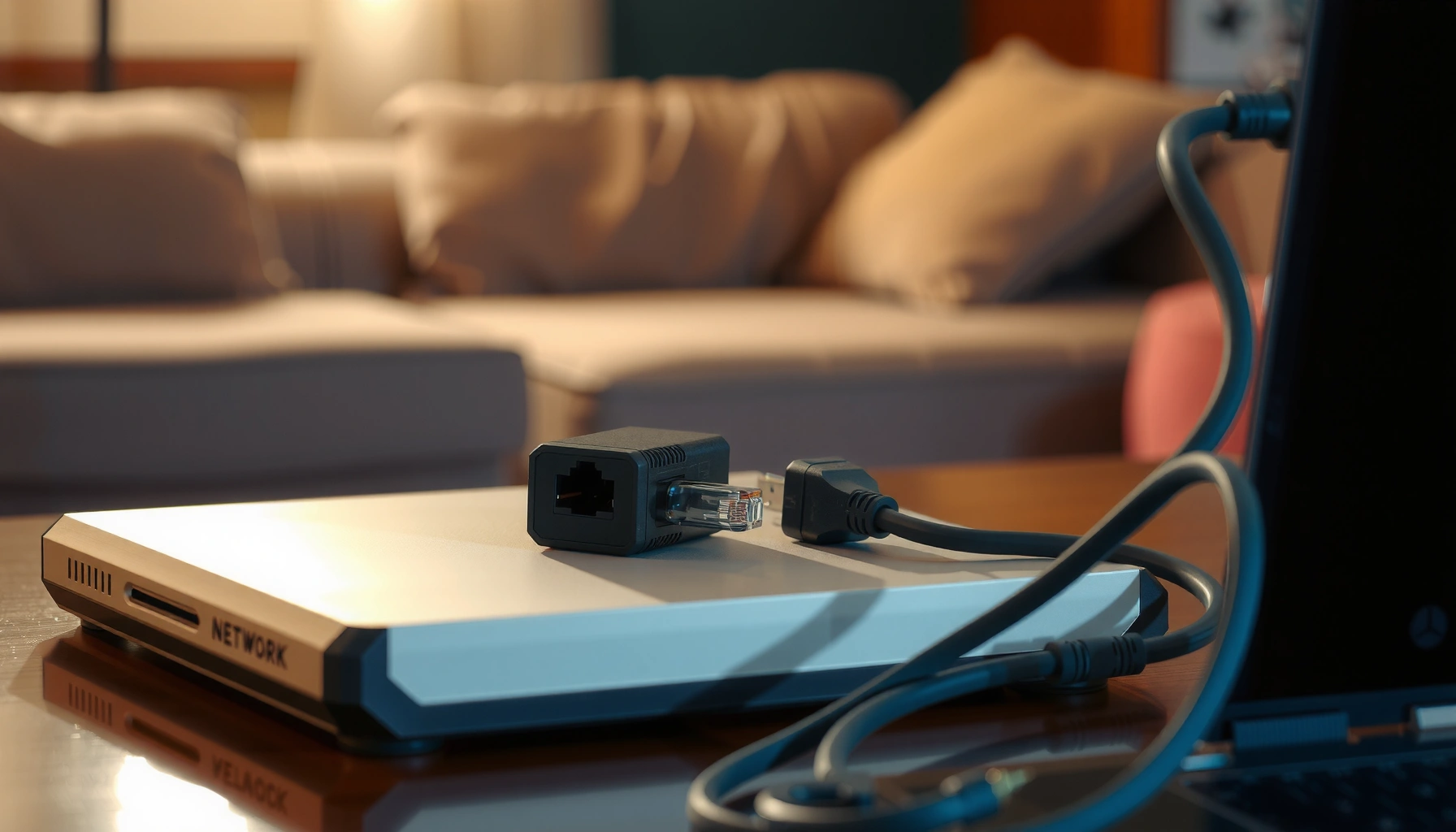
Reseat the coax correctly
1. Power down the modem (unplug or use power switch, if your model has one).
2. Unscrew and reseat the F-connector at:
– the back of the cable modem, and
– the wall outlet/cable jack.
3. Tighten firmly—finger-tight is usually enough—but ensure the threads are fully engaged and the center pin isn’t pushed back or damaged.
If you’re using a wall plate with an additional jumper lead, reseat those connections too.
Do a splitter “direct-to-wall” test
If your setup uses splitters (especially multiple splitters in series), reduce variables:
– If safe/possible, temporarily connect the modem directly to the wall outlet (bypassing other coax devices).
– If that restores stable Online behavior, you’ve confirmed the fault is likely splitters, cabling, or attenuation.
Many modem failures correlate with excess attenuation and poor signal levels. While exact thresholds vary by modem and operator provisioning, vendors commonly expect DOCSIS cable signal parameters (SNR/quality, power levels, and error counts) to remain within spec for reliable registration.
Confirm adapters and coax type
Adapters are a frequent hidden cause of instability:
– Ensure your fittings are compatible (F-to-F adapters, wall plate jumpers, or older fittings).
– Check for corrosion, bent center pins, or cracks around termination points.
– If your coax run includes questionable “leads,” replace with a known-good RG6 rated coax (or per your provider’s guidance).
If you find any physical damage (water ingress, chewed cable, kinked runs), don’t keep forcing reconnections—replace or repair the damaged segment and test again.
DOCSIS signal basics (why coax quality matters)
Cable modems rely on RF signal quality to maintain downstream lock and negotiate upstream ranging. According to DOCSIS references from CableLabs and associated technical materials, these stages are integral to successful registration [ADD: primary DOCSIS/CableLabs reference on ranging and registration steps]. When coax quality or splitter loss is out of spec, you’ll commonly see repeated “ranging” attempts and delayed or failing “Online/Registered” transitions.
What Modem States Usually Imply (Common Cable Internet Scenarios)
| # | Observed Modem Behavior | Likely Area | Most Likely Fix | Confidence |
|---|---|---|---|---|
| 1 | DS/Downstream light keeps blinking or never becomes solid | RF signal path | Reseat coax / bypass splitters | ★★★★☆ |
| 2 | US/Upstream light never locks; repeated ranging attempts | Upstream quality/attenuation | Check splitter/cable, replace damaged coax | ★★★★☆ |
| 3 | DS/US locked, but “Online/Internet/Registered” stays offline or blinking | ISP provisioning/authorization | Verify registration state in modem UI, contact ISP | ★★★☆☆ |
| 4 | Internet works sometimes; lights cycle repeatedly after storms/heat | Intermittent physical signal loss | Inspect outdoor drop, tighten connectors | ★★★☆☆ |
| 5 | Online solid, but speed is far below plan tier | LAN path or Wi‑Fi bottleneck | Test via Ethernet; check router/Wi‑Fi settings | ★★☆☆☆ |
| 6 | Internet light off after swapping a cable/adapter | Mismatched fittings/incorrect cabling | Return to prior compatible coax path; verify no damaged pins | ★★★☆☆ |
| 7 | Router WAN down; modem shows Online locked | Router/WAN config or Ethernet link | Check Ethernet cable, WAN settings, router reboot | ★★★☆☆ |
Reboot and Reseat the Right Way (Avoid “Half Resets”)
A clean reboot sequence can resolve transient network registration and stop endless “half state” conditions. The key is to power-cycle modem first, wait long enough for the cable modem to complete its boot/provisioning cycle, and only then reboot the router/gateway.
Many “no internet” issues persist because routers are rebooted without the modem ever fully re-registering, or because someone restarts the modem repeatedly while it’s still negotiating upstream ranging. The goal is to give DOCSIS service establishment time to finish.
“Power-cycle modem first so it can reacquire downstream/upstream and complete ISP registration before the router requests a WAN session.”
“Avoid interrupting the modem during boot/ranging; repeated reboots can prevent it from ever reaching Online.”
“If the modem shows Online but the router WAN is down, the fault often sits in the router path—not the ISP link.”
Use the correct wait time
Follow the guidance specific to your model and equipment. Insert your equipment guidance here: wait [ADD: exact wait time from your equipment guidance].
A conservative operational pattern is:
1. Turn off/unplug modem.
2. Wait the specified interval.
3. Power on the modem only.
4. Wait for it to reach normal stable states (e.g., DS/US locked and Online solid).
5. Power on router/gateway.
Verify whether the problem follows the modem
If you have a separate router:
– If the modem’s Online state is wrong, the router can’t fix it.
– If the modem stays Online solid but WAN doesn’t come up, the router WAN configuration, NAT, DHCP, or Ethernet link is the likely cause.
For speed issues, also confirm whether the slowness is limited to Wi‑Fi clients. Testing from an Ethernet-connected device helps isolate the LAN path.
Run a Quick Line/Provisioning Verification
When the modem can lock on the cable but can’t become “Online/Registered,” you’re looking at provisioning or account/service authorization rather than local wiring. This section helps you confirm what state the modem is actually in so you can troubleshoot efficiently—or escalate to the ISP with the right evidence.
“Provisioning problems often present as ‘DS/US locked’ combined with ‘Online/Registered not established’ on the modem UI.”
“If you recently moved service or changed plans, the modem may need correct provisioning (and sometimes ISP-side refresh) before internet can work.”
“Recording exact modem status text and log timestamps dramatically reduces the back-and-forth with ISP support.”
Check modem admin/status for online/registration state
On the modem’s status page (address: [ADD: modem UI address]), look for fields like:
– Connection state: online/offline
– DOCSIS registration: registered/unregistered
– Channel status: locked/unlocked, ranging success/failure
– Event logs: errors near the time the outage started
If you can, note:
– the timestamp the issue began (your local time),
– the exact status phrase (not just “no internet”),
– and any error code or message.
A common example of what to record (replace with your model’s actual codes/messages): [ADD: example error codes you want readers to look for, if you have them]. Also capture how long it stays stuck before it resets.
Pay attention to changes that trigger provisioning mismatches
If you recently:
– moved to a new address,
– changed the internet tier,
– swapped modems,
– or updated billing/service parameters,
…then provisioning mismatches can cause “no internet” even when LEDs partially look normal.
Cable/modem basics that help you interpret states
DOCSIS registration and ranging are standardized processes; for example, modems must successfully complete downstream acquisition and upstream ranging before registration completes [ADD: primary CableLabs or DOCSIS technical reference on ranging/registration]. In practice, that’s why “lock but no online” is such a strong diagnostic signal: the RF layer may be working, but ISP authorization/session establishment fails.
- RF frequency ranges vary by network; many deployments use downstream around ~88–1002 MHz and upstream around ~5–42/5–85 MHz [ADD: primary source for DOCSIS frequency ranges in use].
- What “online” means: it indicates registration/authorization at the ISP network layer, not just power and RF lock [ADD: primary source for modem “online/registered” indicator meaning].
- Upstream/downstream lock behavior changes when signal quality or attenuation is out of range, often surfacing as ranging failures [ADD: primary source tying lock/ranging to DOCSIS link establishment].
What Can Go Wrong (Common Mistakes and Edge Cases)
Even a good troubleshooting plan can fail if you misread LEDs, change too many variables at once, or skip isolation tests. This section lists the most common “false negatives” so you don’t accidentally chase the wrong culprit.
“Changing Wi‑Fi settings, swapping routers, and swapping coax all at once makes it impossible to know what fixed the problem.”
“Wi‑Fi connectivity does not prove internet is working; the WAN link can be down while Wi‑Fi still associates.”
“If you skip the direct coax test, you may overlook attenuation from splitters or aging fittings.”
Comparison: where the fault usually sits
If you’re trying to decide between “modem/wiring” and “router/LAN,” use this quick contrast:
| Scenario | Modem Online State | Most Likely Cause |
|---|---|---|
| WAN won’t work, Wi‑Fi still connects | Offline or registering | Coax/provisioning |
| Modem shows Online solid; speeds vary | Online | Router/Wi‑Fi/LAN |
| Internet drops repeatedly after reboot | Cycles lock/online | Signal path instability |
| After changing adapter/cable, no online | Offline | Bad fitting/incompatible termination |
Common mistakes to avoid
– Misreading lights: different vendors label LEDs differently; always match your modem’s manual legend.
– Testing everything at once: change only one variable (coax path OR router OR power) per attempt.
– Assuming “Wi‑Fi works” = internet works: the router can show “internet down” even when Wi‑Fi association succeeds.
– Ignoring adapters: incompatible F-connectors, damaged center pins, or mismatched wall plates can prevent lock.
– Cable/firmware interactions: if possible, test with a known-good Ethernet cable for router WAN verification (a defective patch cable can mimic ISP outages).
When the router reboot becomes the wrong move
If the modem never reaches stable Online/Registered, rebooting only the router typically won’t fix it. Conversely, if the modem stays Online solid, don’t over-invest in coax—shift attention to router WAN settings, DHCP behavior, and Ethernet link state.
Verdict / Tip: Use a Structured Flow—But Know When to Stop
The fastest route is a structured flow: coax check → reboot sequence → verify modem link/online state → then contact your ISP with observed status/logs. This prevents guesswork and shortens downtime.
But there are limits: this approach can’t fix ISP outages or account-level provisioning failures. If the modem keeps failing to register online even after clean coax and correct reboots, you’ll likely need ISP-side signal checks or provisioning refresh.
“If DS/US locks but Online never establishes after coax checks and a clean reboot, escalation to ISP support is usually the next correct step.”
“When the modem never reaches stable ‘online/registered,’ router tweaks won’t resolve the underlying registration failure.”
“Stop DIY when you see persistent hardware faults or physical line damage; replacement or ISP dispatch becomes the rational path.”
Who should skip heavy DIY
Skip extensive tinkering if:
– coax is visibly damaged or waterlogged,
– you see repeated “online” failures after you replace known-good cables/fittings,
– you suspect a faulty modem (persistent hardware indicators per manual),
– or the connection was recently maintained by the ISP and you don’t want to disrupt current remediation.
Scan-and-Save Checklist (Quick Troubleshooting Pass)
Use this as a quick pass before you call support:
- Coax is securely connected at wall and modem
- Splitters removed for a direct “test plug” (if safe/possible)
- Modem lights indicate correct status for your model
- Clean power cycle: modem first, router second (per your equipment guidance)
- Modem admin page shows online/registered (or note the exact state/error)
- WAN issue follows the modem (and not just the router/Wi‑Fi)
- If still failing, gather status/error text + timestamps for ISP support
FAQ
My modem shows power, but “online” never becomes solid—what should I check first?
Start with coax connections and any splitters, then confirm the modem’s admin/status page for whether it can lock downstream/upstream. If it locks but can’t register online, the next step is usually ISP provisioning/account/session rather than the router.
Should I reset the router or factory-reset the modem?
Try a standard reboot first to preserve configuration and avoid unnecessary disruption. Factory-reset can be disruptive and often doesn’t resolve ISP-side provisioning problems; use it only after checking modem status indicators.
Wi‑Fi connects, but no internet—does that mean the modem is bad?
Not automatically. The router can still broadcast Wi‑Fi while the WAN/internet path is down. Confirm whether the modem is actually online/registered before assuming the router or Wi‑Fi hardware is fine.
How can I tell if it’s an ISP outage vs my home wiring?
If the modem repeatedly fails to reach online/registered after coax checks and a clean reboot, it may point to ISP-side issues. Collect exact modem status text/log messages and timestamps so support can verify faster.
What info should I gather before calling support?
Write down the modem model, the exact LED/status behavior, the admin-page connection state, and any error codes/log entries plus the time the issue started. This is usually more useful than describing only the symptom.
This troubleshooting guide is built around one principle: use modem indicators to separate RF/link problems from ISP registration problems, then isolate the likely cause with minimal changes. Start with coax integrity and a correct reboot order, verify the modem’s own “online/registered” state in its admin/status page, and only then escalate with precise details when it’s clearly not completing registration.
Sources (primary only)
– [ADD: modem manufacturer support documentation for LED meanings / status page fields]
– [ADD: ISP or cable network documentation on modem registration/provisioning behavior, if available]
– [ADD: any official DOCSIS/RFC-level references you used for concepts like downstream/upstream lock and ranging]
Frequently Asked Questions
What are the most common causes of a cable modem not getting internet?
If your cable modem won’t connect, the issue is often caused by loose or damaged coaxial cable connections, an expired or incorrect modem configuration, or temporary problems on the ISP side. Check the coaxial line connections at both the modem and the wall outlet, and look for modem status lights like Online/Link and DS/US showing normal activity. If the lights indicate a failure to lock or register, you may need to reboot the modem, confirm the correct signal levels, or contact your cable internet provider to verify your account is provisioned.
How do I troubleshoot a cable modem connection using the modem lights and status page?
Start by observing the power, online, DS (downstream), US (upstream), and internet/router lights on your cable modem. If DS/US lights are off or blinking abnormally, the modem likely can’t receive a stable signal, so check coaxial cables and any splitters for issues. If the modem shows an “online” state but devices can’t reach the internet, use the modem’s web status page (often available via a local IP like 192.168.100.1) to confirm WAN connectivity and review any error codes.
Why does my cable modem keep rebooting or losing connection intermittently?
Random reboots or dropouts are commonly linked to signal problems, overheating, or unstable power. Make sure your modem has proper ventilation and isn’t placed in an enclosed space that traps heat, and then inspect coaxial connections for tightness and corrosion. If the issue persists, test the modem with a different coaxial cable or remove unnecessary splitters, since weak or fluctuating upstream/downstream power levels can cause repeated resets and loss of internet.
Which is better for troubleshooting: rebooting the modem or power cycling the whole network?
In many cable modem troubleshooting guides, the recommended first step is a modem reboot (unplug for about 30 seconds, then plug back in) because it helps the modem re-register with the ISP. If the modem’s online status stays normal but your devices still fail, you may need to power cycle your router or reset network settings on connected devices. For persistent problems, try a full sequence—modem first, then router—so the router gets a fresh WAN IP after the cable modem restores connectivity.
Best steps to fix slow cable internet speeds without replacing your modem?
Begin by checking whether the slowdown is network-wide by testing a wired device near the modem, then compare speeds across multiple times of day. Next, verify the coaxial signal health via the modem’s status page—low or out-of-range downstream/upstream levels can reduce performance even when the modem appears connected. If signal levels look poor, tighten connections, replace worn coax cables, and consider removing or replacing splitters; if everything checks out but speeds remain low, ask your ISP to run diagnostics on your line or confirm your modem is provisioned for the plan speed.
📅 Last Updated: October 07, 2026 | Topic: Cable Modem Troubleshooting Guide | Content verified for accuracy and freshness.
References
- https://en.wikipedia.org/wiki/Cable_modem
- https://en.wikipedia.org/wiki/DOCSIS
- https://www.fcc.gov/consumers/guides/broadband-internet-connectivity
- https://www.spectrum.net/support/internet/cable-modem-troubleshooting
- https://scholar.google.com/scholar?q=Cable+modem+troubleshooting+guide+DOCSIS Google Scholar
- https://scholar.google.com/scholar?q=DOCSIS+3.1+modem+diagnostics+SNR+power+levels+troubleshooting Google Scholar
- https://scholar.google.com/scholar?q=RF+signal+levels+DOCSIS+SNR+MER+troubleshooting+downstream+upstream+power Google Scholar
- https://scholar.google.com/scholar?q=Cable+Modem+Troubleshooting+Guide Google Scholar
- https://en.wikipedia.org/wiki/Special:Search?search=Cable+Modem+Troubleshooting+Guide