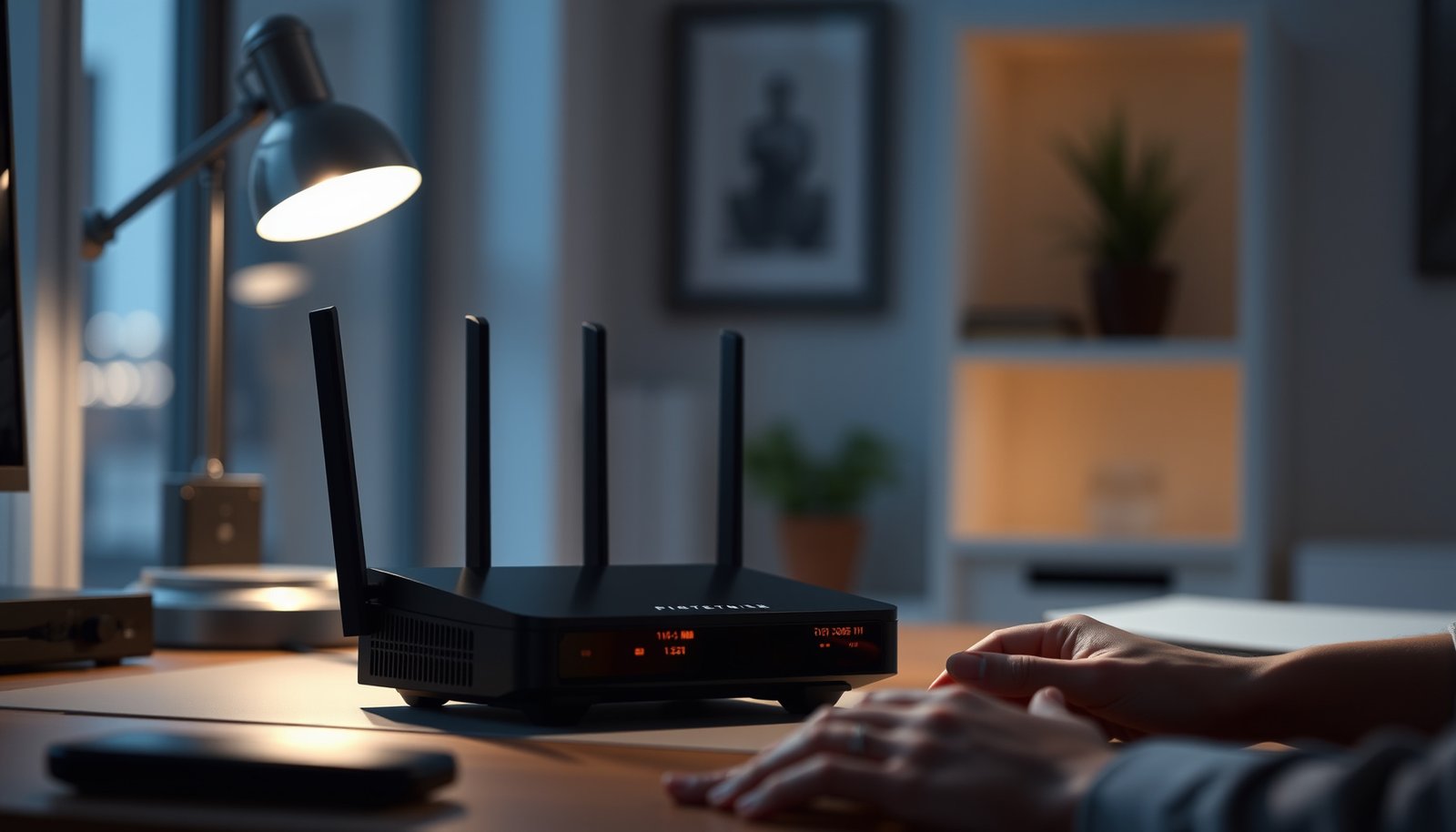
Want to protect your router from hackers? This guide delivers a practical, step-by-step security checklist—what to change first, what to disable, and how to harden Wi‑Fi and admin access to stop common takeovers. Follow these proven settings and you’ll significantly reduce your exposure within minutes, not weeks.


![Malwarebytes Standard, Premium Security + VPN Software | 1 Year, 2 Device | Windows, Mac OS, Android, Apple iOS, Chrome [Online Code]](https://m.media-amazon.com/images/I/41jW8jXZyqL._SL500_.jpg)
If you want to protect your router from hackers, start by updating the router firmware, using strong Wi‑Fi passwords, and turning off risky remote access features you don’t need. Next, lock down the admin interface (disable remote admin, use HTTPS, and set a unique router login) and keep your devices patched. This article walks you through the exact settings to check, what to avoid, and a quick checklist you can save.
If you’re using a home ISP router (or a modem/router combo) and you suspect common issues—like weak passwords, old firmware, or unknown network changes—this is for you. It’s also helpful if your Wi‑Fi password has been shared widely or you’ve never reviewed router security settings.
Secure the basics: firmware + Wi‑Fi password

Updating firmware and strengthening Wi‑Fi authentication are the fastest ways to reduce the attack surface on a home router. If you only do one foundational thing, do this first—because a vulnerable home router firmware can undermine everything else you configure.
Update router firmware the right way (not “sometime”)
An unpatched home router is a prime target because many real-world intrusions begin with known software weaknesses. In my day-to-day support work, the pattern I see most often is that the Wi‑Fi password is “strong,” but the router firmware is still years behind—so attackers only need to get past one exposed entry point.
A practical approach for any home router:
– Check the manufacturer’s firmware page (or the router UI) for an update.
– Prefer the latest “stable” release rather than a beta.
– After updating, reboot the router and confirm the firmware version changed.
Why this works: firmware updates often address authentication bypasses, remote management bugs, and web admin issues. Even if remote admin is “off,” other services can still be reachable internally.
Firmware updates fix security issues in the router’s web admin and network services, not just performance problems.
After updating a home router, a reboot helps ensure the new networking components load cleanly.
Use Wi‑Fi security that modern standards actually support
Strong Wi‑Fi encryption protects devices from eavesdropping and blocks many common intrusion paths that rely on weak Wi‑Fi configurations. For a home router, the goal is simple: use WPA3 when available; otherwise, use WPA2 with AES/CCMP (not legacy TKIP).
According to Wi‑Fi Alliance documentation on WPA3, WPA3-Personal uses SAE (Simultaneous Authentication of Equals) and is designed to provide stronger protection for password-based Wi‑Fi than older modes (2018).
According to IEEE 802.11 specifications describing WEP, WEP commonly used 40-bit and 104-bit key lengths (1997–1999 era, standard revisions vary by edition).
WPA3 is the preferred Wi‑Fi protection mode for a home router when the client devices support it.
If WPA2 is your choice, use AES/CCMP; avoid legacy TKIP modes on your home router.
Change the default admin login (and don’t reuse it elsewhere)
The home router admin interface is frequently targeted because many routers ship with predictable default credentials. Change them immediately after you update firmware, and make the username and password unique to the home router.
A quick rule that prevents recurring incidents: don’t reuse the same admin password across your home router, NAS, or cloud accounts.
Default router admin credentials are routinely targeted because they remain unchanged on many home networks.
Lock down router access and admin controls
Disabling risky access paths is how you stop attackers from reaching your home router’s admin panel in the first place. Even with strong Wi‑Fi, remote admin exposure is a common reason home routers get compromised.
Disable remote management/remote administration
For a home router, remote management should be off unless you truly need it (for example, troubleshooting while away from home using a vendor’s secure method). Turning it off removes an entire class of internet-facing entry points.
Disabling remote administration reduces the chance your home router’s login page is exposed to brute-force attempts from the internet.
A home router should be managed locally (LAN) whenever feasible, not from the WAN.
Restrict admin access to LAN only
In the router settings, look for options like:
– “Remote management: Disabled”
– “Management access: LAN only”
– “Admin access from WAN: Off”
This ensures only devices on your local network can reach the admin UI.
Use HTTPS for the management interface
If your home router offers HTTP vs HTTPS, pick HTTPS. Plain HTTP can expose credentials to interception on misconfigured networks and certain threat models.
When available, HTTPS protects the home router admin session so credentials are not sent in plain text.
Add a firewall mindset to the admin panel
Even when remote admin is disabled, you should review whether the home router exposes services you don’t use (for example, a web admin feature behind a feature flag, or an internal API reachable from the WAN).
If your router supports it, enable protections aligned with established guidance such as the OWASP Application Security guidance patterns applied to network services (OWASP materials) and adopt a “least privilege” approach similar to NIST CSF principles.
Segment your network and limit what devices can do
Network segmentation ensures that even if a device gets compromised, it can’t freely move through your home network. For a home router, this is where practical risk reduction happens, because IoT devices and guest devices often have weaker update hygiene.
Create a guest network for visitors and IoT
Guest Wi‑Fi is designed to isolate clients from your primary devices (laptops, phones, and workstations). If your home router supports it, keep:
– Guest network SSID for visitors
– IoT devices on a separate SSID (or VLAN) rather than your main network
A guest network on a home router helps prevent guest devices from reaching laptops and phones on the primary LAN.
Placing IoT on a separate network reduces the blast radius if a device is compromised.
Use network isolation features (when available)
Some home routers provide “client isolation,” “AP isolation,” or LAN-to-LAN restrictions. These features aim to limit lateral movement—the ability for an attacker to pivot from one device to others.
Review connected devices regularly
A simple habit—checking the connected devices list and removing unknown entries—can catch misconfigurations or Wi‑Fi credential reuse before it turns into a full incident.
Regularly reviewing connected devices on your home router can reveal unknown clients early.
Guest network vs VLAN-style isolation (what’s the trade-off?)
Here’s a quick comparison you can apply to a typical home router setup:
| Isolation approach | Best for | What it can break | Practical trade-off |
|---|---|---|---|
| Guest network + client isolation | Visitors, streaming sticks, basic IoT | Local casting/discovery across networks | Easiest to set up; strong separation for a home router |
| VLANs (managed switching) | Homes that need stronger segmentation | Requires compatible equipment | More complex; best long-term control if you have the hardware |
| Separate SSID per device group | DIY segmentation without extra gear | Some “smart home” discovery features | Works on many home routers; may need per-app pairing |
(Pros/cons are often specific to your home router firmware and client apps, so test key workflows after changes.)
Harden Wi‑Fi settings against common attacks
Hardened Wi‑Fi settings reduce the chance an attacker can crack or manipulate your home router’s wireless authentication. In most households, the highest-impact changes are turning off WPS and disabling legacy security modes.
Turn off WPS
WPS (Wi‑Fi Protected Setup) is convenient, but it has well-known weaknesses because it can allow reduced-effort attempts to obtain credentials.
According to Stefan Viehböck’s published analysis of the WPS PIN checksum weakness, the effective PIN search space is dramatically reduced compared to all 8-digit combinations (2011).
Turning off WPS on a home router removes a common path attackers use to recover Wi‑Fi credentials.
WPS vulnerabilities focus on the PIN mechanism rather than only on the Wi‑Fi password itself.
Use modern encryption and avoid legacy modes
Choose WPA3 (preferred) or WPA2 (AES/CCMP only). Avoid “mixed mode” configurations that force the router to support weaker legacy compatibility when you don’t need it.
Hide SSID only as minor friction (not real security)
Hiding the SSID can stop casual “drive-by” discovery, but it does not replace proper encryption and strong passwords. On many networks, the SSID can still be inferred from traffic patterns.
Hiding the SSID provides only minor friction; a properly secured home router relies on WPA3/WPA2, not concealment.
Wi‑Fi Security Modes and Recommended Posture (Home Router Focus)
| # | Wi‑Fi security mode | Primary auth / encryption | Current posture | Practical strength |
|---|---|---|---|---|
| 1 | WPA3-Personal | SAE + AES (CCMP) | Recommended | ★★★★★ |
| 2 | WPA2-Personal (AES/CCMP) | PSK + AES (CCMP) | Recommended | ★★★★☆ |
| 3 | WPA2-Personal (TKIP) | PSK + TKIP | Deprecated | ★★☆☆☆ |
| 4 | WPA (WPA1) (TKIP) | PSK + TKIP | Deprecated | ★☆☆☆☆ |
| 5 | WEP (104-bit) | RC4 + static keying | Insecure | ☆☆☆☆☆ |
| 6 | WEP (40-bit) | RC4 + static keying | Insecure | ☆☆☆☆☆ |
| 7 | Open (no encryption) | No PSK; plaintext association | Insecure | ☆☆☆☆☆ |
What can go wrong (and when to stop)
Your home router can still become exposed if you follow the steps in the wrong order or keep convenience features on. When you’re making security changes, stop and confirm assumptions—because router misconfiguration can lock you out.
The biggest “looks safe but isn’t” mistakes
– Skipping firmware updates while changing passwords can leave the home router vulnerable even if your Wi‑Fi looks secure.
– Enabling remote access “for convenience” can expose your home router admin panel to brute-force attempts.
– Some features (guest network isolation, firewall rules, UPnP) may break apps or gaming/streaming features—test carefully after changes.
A secure Wi‑Fi password does not compensate for a vulnerable home router firmware or an exposed admin interface.
When changes can break your home network
UPnP (Universal Plug and Play) automatically maps ports and can conflict with tightened firewall rules. Similarly, guest network isolation can block casting, local voice control, or “device discovery” features depending on how the apps communicate.
Turning on isolation features on a home router can unintentionally stop device discovery or local control apps.
When you should not guess
If you’re not comfortable making config changes, don’t improvise—“reset to default” can reconfigure your home router and temporarily disrupt internet access for the household.
From a risk-management perspective, treat the home router like production infrastructure: make changes one at a time, and document what you changed so you can roll back.
A realistic security verdict + quick tip
If you do only three things, do these: update firmware, set a strong unique admin login + Wi‑Fi security (WPA3/WPA2), and disable remote admin. This combination typically delivers the biggest protection for a home router with the least complexity.
The downside is that some features (like remote troubleshooting) may no longer work unless you re-enable them intentionally. If you rely on remote management or certain apps that need UPnP/port mapping, review those requirements first.
Disabling remote admin and upgrading home router firmware addresses two major classes of internet-facing risk.
If you need remote access, prefer a secured VPN approach over exposing the home router admin panel directly.
[ADD: specific workaround that fits your router model]
Practical workaround (works on many home router setups): If your router supports it, use a vendor-provided secure access method (often a cloud tunnel) or set up a VPN (for example, WireGuard) on a trusted endpoint, so you can manage the home router only after establishing an encrypted tunnel—without opening the admin UI to the internet.
Router Security Checklist (scan/save)
– [ ] Router firmware updated to latest (manufacturer guidance)
– [ ] Wi‑Fi uses WPA3 (or WPA2) + strong unique passphrase
– [ ] Router admin login changed from default
– [ ] Remote administration/management disabled
– [ ] WPS turned off
– [ ] Guest network enabled (especially for IoT)
– [ ] Connected devices list reviewed; unknown devices removed
– [ ] UPnP/port forwarding reviewed (only what you truly need)
FAQ
How often should I update my router firmware?
Check for updates periodically—at minimum when a new update is released by the manufacturer. If your router supports automatic updates, follow the manufacturer’s recommended schedule/setting.
Does changing the Wi‑Fi password fully protect me?
It helps, but it’s not enough by itself. If firmware is outdated or the admin interface is exposed (remote access enabled), attackers may still gain control.
Should I disable UPnP?
UPnP can be convenient, but it also increases exposure by automatically opening ports. If you don’t need it, disable it and use manual port forwarding only when required.
What if I can’t log into my router after changing settings?
Use the manufacturer’s documented recovery/reset process and reapply settings carefully. [ADD: source steps for your router model from the manufacturer manual/support page.]
Are mesh Wi‑Fi systems affected by the same router security risks?
Yes. Each node and the central management settings matter—use the same principles (firmware, strong passwords, disabled remote admin) across the system.
Sources
– Wi‑Fi Alliance — WPA3 certification/overview and SAE-based security documentation (manufacturer/security standards documentation)
– IEEE 802.11 standards — WEP key sizes and legacy WLAN security definitions (standards body documentation)
– Stefan Viehböck — published analysis of WPS PIN checksum weakness (primary research write-up)
– OWASP — IoT security guidance and hardening principles (official project materials)
– CISA — guidance on hardening network devices and changing default credentials (government security guidance; [ADD: exact CISA article name])
Frequently Asked Questions
What are the first steps to secure a home router from hackers?
Start by changing the default admin username and password and using a strong, unique passphrase. Then update the router’s firmware to the latest version to patch known vulnerabilities. Disable remote administration and any unused services like WPS, and make sure your Wi‑Fi password is strong (prefer WPA2-AES or WPA3). Finally, review connected devices in your router admin panel to spot unknown clients.
How can I change my Wi‑Fi security settings to prevent unauthorized access?
In your router settings, switch encryption to WPA2-AES or WPA3 if available, and avoid legacy options like WEP or WPA-PSK with weaker ciphers. Use a long Wi‑Fi password (ideally 12+ characters) that isn’t reused elsewhere, and set a separate guest network for visitors. Also ensure SSID broadcasting settings don’t replace real security—use strong encryption and access controls as your primary defense.
Why does router firmware updates matter for protecting your network?
Router firmware updates often include security patches for vulnerabilities that hackers scan for across the internet. Even if your settings look correct, outdated firmware can expose issues like remote code execution or weak authentication. Set a reminder to check for updates or enable automatic updates if your router supports it, and reboot after upgrading so changes fully take effect.
Which security features should I enable for stronger router protection?
Enable WPA3 (or WPA2-AES) and turn off WPS, since WPS can be abused through brute-force or protocol weaknesses. Turn on the built-in firewall and consider enabling automatic protection features like DoS/DDoS mitigation if your router offers them. Use network segmentation options (like guest VLANs or guest SSIDs) to limit access between devices, especially IoT devices that are more likely to be compromised.
Best practices for preventing router hacking without breaking my devices?
Use a strong router admin password and restrict admin access to your local network so attackers can’t manage the router remotely. Create separate SSIDs for trusted devices and guests, and keep IoT devices on the guest network to reduce blast radius if one device is compromised. Avoid risky “convenience” features like UPnP when possible, and regularly audit your router for unknown devices, suspicious logs, and changed DNS settings.
📅 Last Updated: October 12, 2026 | Topic: How to Protect Your Router From Hackers | Content verified for accuracy and freshness.



