Mesh Wi-Fi is the better choice for security cameras spread across a large home when a single router leaves coverage gaps—but only if the mesh nodes have strong connections back to the router. For cameras clustered within reliable range of one router, a mesh upgrade is usually unnecessary. Here’s how to decide whether mesh will fix your camera dropouts or simply add cost.




Mesh Wi-Fi can improve security camera connections when weak wireless coverage is the problem, but it will not fix an unreliable internet connection or incompatible camera settings. The key is to give both the cameras and the mesh nodes reliable connections—not simply place a node beside a camera. This guide explains how to check compatibility, position nodes, and decide when a wired connection makes more sense.
This advice is for homeowners with Wi-Fi cameras that disconnect, load slowly, or struggle to connect outside. It is less relevant to cameras connected through Ethernet or a dedicated recorder’s private wireless network.
Check Camera Compatibility and Network Needs
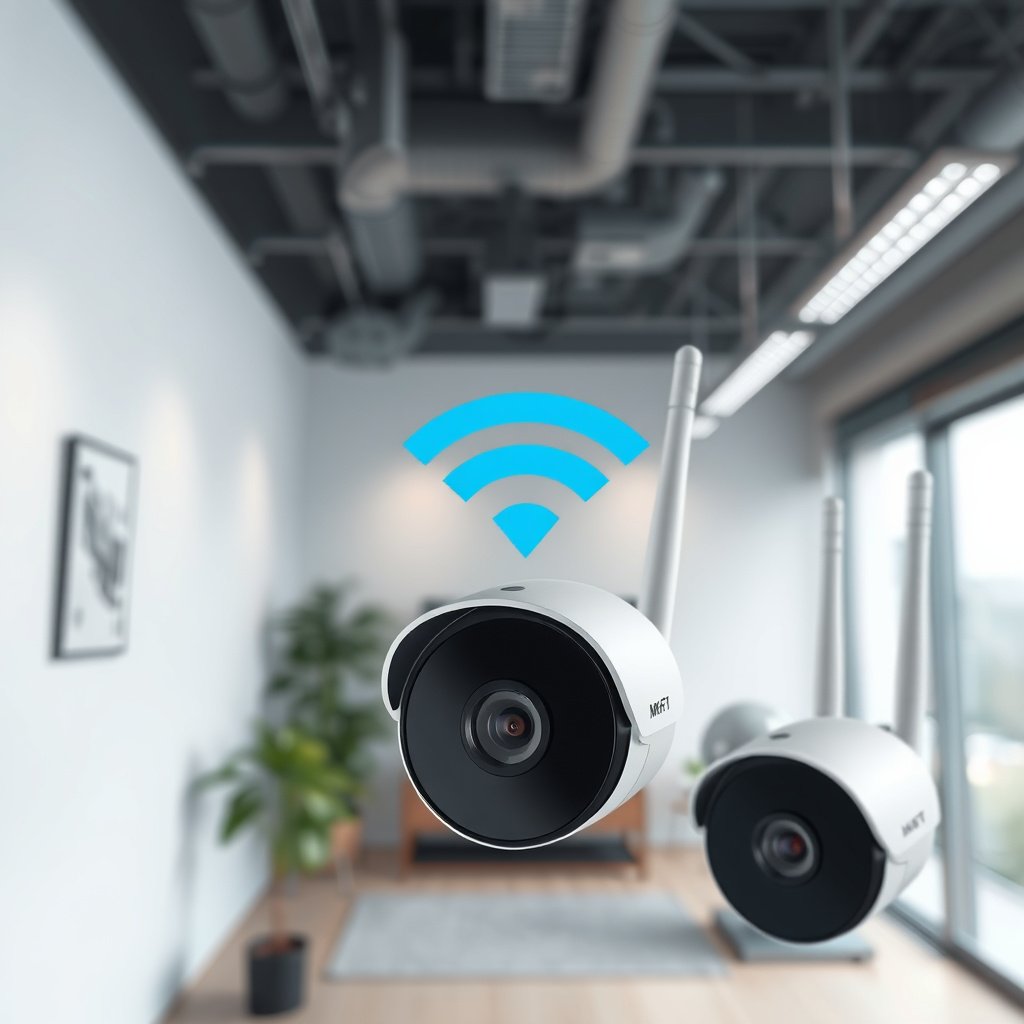
Check the camera’s supported Wi-Fi bands, security modes, and recording requirements before buying mesh hardware. A newer mesh system does not automatically make an older camera compatible.
According to [TP-Link’s Tapo C110 specifications](https://www.tapo.com/us/product/smart-camera/tapo-c110/), the camera supports 2.4 GHz Wi-Fi and captures 3-megapixel video. Those specifications illustrate why compatibility and bandwidth are separate checks: camera resolution does not identify which wireless network it can join. For a 2026 purchase, confirm the exact model, hardware revision, and regional documentation.
A 2.4 GHz-only security camera needs a network that provides compatible 2.4 GHz Wi-Fi; a 5 GHz-only network cannot serve that camera.
Check security settings separately. A camera supporting WPA2-Personal cannot be assumed to work with WPA3-only security. WPA2/WPA3 transition mode is intended to accommodate different clients, but older camera firmware can still cause problems. Use a manufacturer-supported configuration rather than disabling encryption.
Next, distinguish coverage from internet capacity. Test internet upload performance near the router, preferably over Ethernet, and compare results with the camera manufacturer’s requirements. Cloud recording uses the internet connection; local recording may use a memory card, hub, or network recorder, depending on the system.
Mesh Wi-Fi can improve the camera’s local wireless connection, but it cannot increase the upload capacity supplied by the internet service provider.
Finally, inspect guest-network and device-isolation settings. Isolation blocks communication between devices and can interfere with discovery, local viewing, or recording to a network recorder. A separate camera network is useful only when its access rules allow the functions you need.
Seven Wi-Fi Band and Security Compatibility Checks
| # | Camera Band Support | Camera Security Support | Network Configuration | Band/Security Match |
|---|---|---|---|---|
| 1 | 2.4 GHz only | WPA2-Personal | 2.4 GHz, WPA2-Personal | Compatible |
| 2 | 2.4 GHz only | WPA2-Personal | 5 GHz only, WPA2-Personal | Band mismatch |
| 3 | 2.4 GHz only | WPA2-Personal | 6 GHz only, WPA3-Personal | Band/security mismatch |
| 4 | 2.4 GHz only | WPA2-Personal only | 2.4 GHz, WPA3-Personal only | Security mismatch |
| 5 | 2.4/5 GHz | WPA2-Personal | 5 GHz, WPA2-Personal | Compatible |
| 6 | 2.4/5 GHz | WPA2-Personal | 2.4 GHz, WPA2-Personal | Compatible |
| 7 | 2.4/5 GHz | WPA3-Personal | 5 GHz, WPA3-Personal | Compatible |
These are band-and-security checks, not product certifications. Matching settings does not guarantee successful pairing, adequate coverage, or recorder compatibility.
Position and Set Up the Mesh for Reliable Connections
Place each mesh node where it receives a reliable upstream connection while extending coverage toward the cameras. A node inside an existing dead zone may simply repeat an unreliable connection.
Backhaul is the connection carrying traffic between a satellite node and the main network. With wireless backhaul, placement must serve both the camera and the upstream node. Start inside the house toward the problem area, then use the mesh application’s connection assessment rather than assuming the closest electrical outlet is suitable.
Reliable mesh Wi-Fi for security cameras requires both a usable camera-to-node connection and a usable node-to-router connection.
Exterior masonry, foil-backed insulation, metal doors, and detached buildings can obstruct wireless links. Consider Ethernet backhaul where practical; it removes the wireless dependency between connected mesh nodes.
Keep indoor-only equipment indoors. According to [TP-Link’s Deco X50-Outdoor specifications](https://www.tp-link.com/us/deco-mesh-wifi/product-family/deco-x50-outdoor/), that model has an IP65 ingress-protection rating. According to [TP-Link’s Tapo C320WS specifications](https://www.tapo.com/us/product/smart-camera/tapo-c320ws/), that camera has an IP66 rating. Neither rating overrides installation instructions, operating-temperature limits, or connection-protection requirements.
An outdoor camera’s weather-resistance rating does not make an adjacent indoor mesh node suitable for outdoor installation.
Follow the camera’s pairing instructions, then test live view, trigger an event, and play back the saved recording. Repeat with exterior doors closed and during normal household network use.
What Can Go Wrong With Mesh Wi-Fi Cameras
A strong signal indicator does not prove that a camera has a reliable recording path. Check node association, backhaul, internet service, and recording dependencies separately.
Some cameras remain attached to a less suitable node rather than switching to the nearest one. For supported Deco systems, consult [TP-Link’s Connection Preference documentation](https://www.tp-link.com/us/support/faq/3480/). Availability depends on the model and firmware; do not assume every mesh product offers node-selection controls.
A security camera does not necessarily connect to the nearest mesh node, and manual connection controls vary by mesh system.
Wireless backhaul shares finite radio capacity. Simultaneous camera uploads, video calls, and other traffic can expose congestion even when the camera-to-node signal looks strong. Additional nodes can help coverage, but unnecessary wireless hops can introduce another bottleneck.
Internet and power failures require separate planning. Some cameras can retain local footage without internet access, but remote viewing, notifications, authentication, or cloud recording may stop. Confirm each function in the exact camera manual, then test the documented behavior.
Local storage does not automatically guarantee offline operation; recording during an internet outage depends on the camera system’s documented behavior.
Backup power helps only the equipment it supplies. Keeping a router powered does not keep an unprotected camera or recorder running.
When Mesh Is Worth Using—and When to Skip It
Mesh is worth considering when several areas need better Wi-Fi and the cameras support the proposed network. For one difficult camera location, a wired access point may solve the problem with fewer wireless dependencies.
- Mesh Wi-Fi
- Useful for broader household coverage without Ethernet to every node. Downsides include additional hardware, placement constraints, and wireless-backhaul troubleshooting.
- Wired access point
- Useful for a specific weak area when Ethernet can reach it. The camera remains wireless, but the access point’s upstream connection is wired.
- Wired camera
- Preferable when dependable recording outweighs installation convenience. Power over Ethernet can carry data and power through one cable when compatible equipment is used.
A wired access point removes wireless backhaul from the connection path but does not remove the camera’s own Wi-Fi link.
For a critical entrance or detached garage, assess the full recording path rather than choosing hardware solely by advertised coverage. Wired installations still need sound cabling, appropriate outdoor protection, and suitable power arrangements.
Mesh Wi-Fi improves coverage opportunities; it does not promise uninterrupted security recording.
Save This Camera Connection Checklist
Verify recorded evidence, not just successful pairing. Use this checklist before purchase and after any network change.
– Before choosing: Confirm camera bands, security modes, recording requirements, and whether coverage—not internet service—is the actual problem.
– During setup: Check node placement, backhaul quality, camera pairing, and network-isolation settings. Record the working configuration.
– After setup: Verify live view, saved footage, notifications, and reconnection after a normal restart. Test documented offline behavior separately without factory-resetting devices.
Successful camera pairing confirms network access, not successful recording or notification delivery.
A useful camera connection check includes live viewing, recording playback, notifications, and recovery after a normal restart.
Sources to Verify Before Publishing
Use official documentation for the exact hardware revision and region. In 2026, firmware-dependent features still need checking against the installed software version.
– Camera compatibility and recording: Consult the [Tapo C110 support page](https://www.tapo.com/us/support/download/tapo-c110/) and the actual installed camera’s manual.
– Mesh configuration: Verify [Deco placement guidance](https://www.tp-link.com/us/support/faq/1446/), [Ethernet backhaul guidance](https://www.tp-link.com/us/support/faq/1794/), and [Connection Preference support](https://www.tp-link.com/us/support/faq/3480/). Check the selected model’s security documentation.
– Outdoor installation: Verify the linked Deco X50-Outdoor and Tapo C320WS specifications, plus their installation guides, before placing equipment outdoors.
Model-specific recording and compatibility claims should be attributed to the camera manufacturer’s documentation.
Outdoor installation decisions require both weather-resistance specifications and the manufacturer’s installation instructions.
Mesh Wi-Fi is a practical option for security cameras with coverage problems, provided the cameras are compatible and the nodes have reliable backhaul. Start by checking the camera and router documentation, then verify recording—not just signal strength—at each location. If a critical camera remains unreliable, consider a wired connection rather than adding more wireless hardware.
Frequently Asked Questions
What mesh Wi-Fi setup works best for security cameras outdoors and indoors?
For security cameras, look for a mesh Wi-Fi system that supports reliable throughput, strong signal coverage, and features like QoS (Quality of Service) or smart prioritization for video. A common best practice is to place the main router near the center of your home, then use mesh nodes in hallways or areas that are between your cameras and the router to avoid weak, long-distance links. If you have multiple outdoor cameras, consider adding a node closer to the outdoor area or using a weatherproof wireless bridge/poe option if your camera supports it.
How do I reduce buffering and dropped footage from Wi-Fi security cameras using mesh?
Buffering usually happens when the camera has weak Wi-Fi signal or is sharing bandwidth with other devices. Use mesh nodes to strengthen coverage—try to position nodes so cameras connect to the strongest available node and avoid placing nodes behind thick concrete or metal barriers. If your mesh system offers camera-specific QoS, enable it, and separate your camera network (or use a dedicated SSID) to reduce interference and bandwidth contention.
Why do some security cameras keep going offline on mesh Wi-Fi, and how can I fix it?
Cameras may go offline due to unstable roaming between mesh nodes, incorrect Wi-Fi settings, or insufficient power and backhaul performance. To troubleshoot, confirm the cameras are using the correct Wi-Fi band (many work better on 2.4 GHz), update firmware on both the cameras and the mesh system, and ensure the mesh nodes have a strong backhaul link. You can also disable features like aggressive band steering (if your system allows it) to keep devices from constantly switching nodes.
Which mesh Wi-Fi features should I look for to secure my security camera network?
Prioritize mesh systems that support WPA3 encryption, strong password protection, and optional guest or device network segmentation for your security cameras. Features like automatic firmware updates, per-device access controls, and the ability to monitor connected devices help reduce risk if a camera is compromised. If your mesh system supports security analytics or alerts, enable them so you can detect unusual traffic to your security camera feeds.
How can I set up mesh Wi-Fi for security cameras without sacrificing privacy or network performance?
Start by creating a dedicated network for your cameras (separate SSID/VLAN if supported) so camera traffic doesn’t mix with laptops and phones, which improves performance and makes security easier to manage. Place mesh nodes to provide clean coverage and use wired Ethernet backhaul for the best stability when possible, especially for multiple cameras. Finally, keep firmware updated, restrict remote access to only what you need, and review camera and app permissions so your mesh Wi-Fi setup remains both secure and dependable.
📅 Last Updated: October 16, 2026 | Topic: Mesh Wi-Fi for Security Cameras | Content verified for accuracy and freshness.
References
- Wireless mesh network
- IEEE 802.11s
- Wi-Fi Alliance
- IP camera
- SP 800-153, Guidelines for Securing Wireless Local Area Networks (WLANs) | CSRC
- IR 8259A, IoT Device Cybersecurity Capability Core Baseline | CSRC
- https://scholar.google.com/scholar?q=mesh+Wi-Fi+security+cameras Google Scholar
- https://scholar.google.com/scholar?q=wireless+mesh+network+video+surveillance Google Scholar
- https://scholar.google.com/scholar?q=IP+camera+wireless+network+security+best+practices Google Scholar