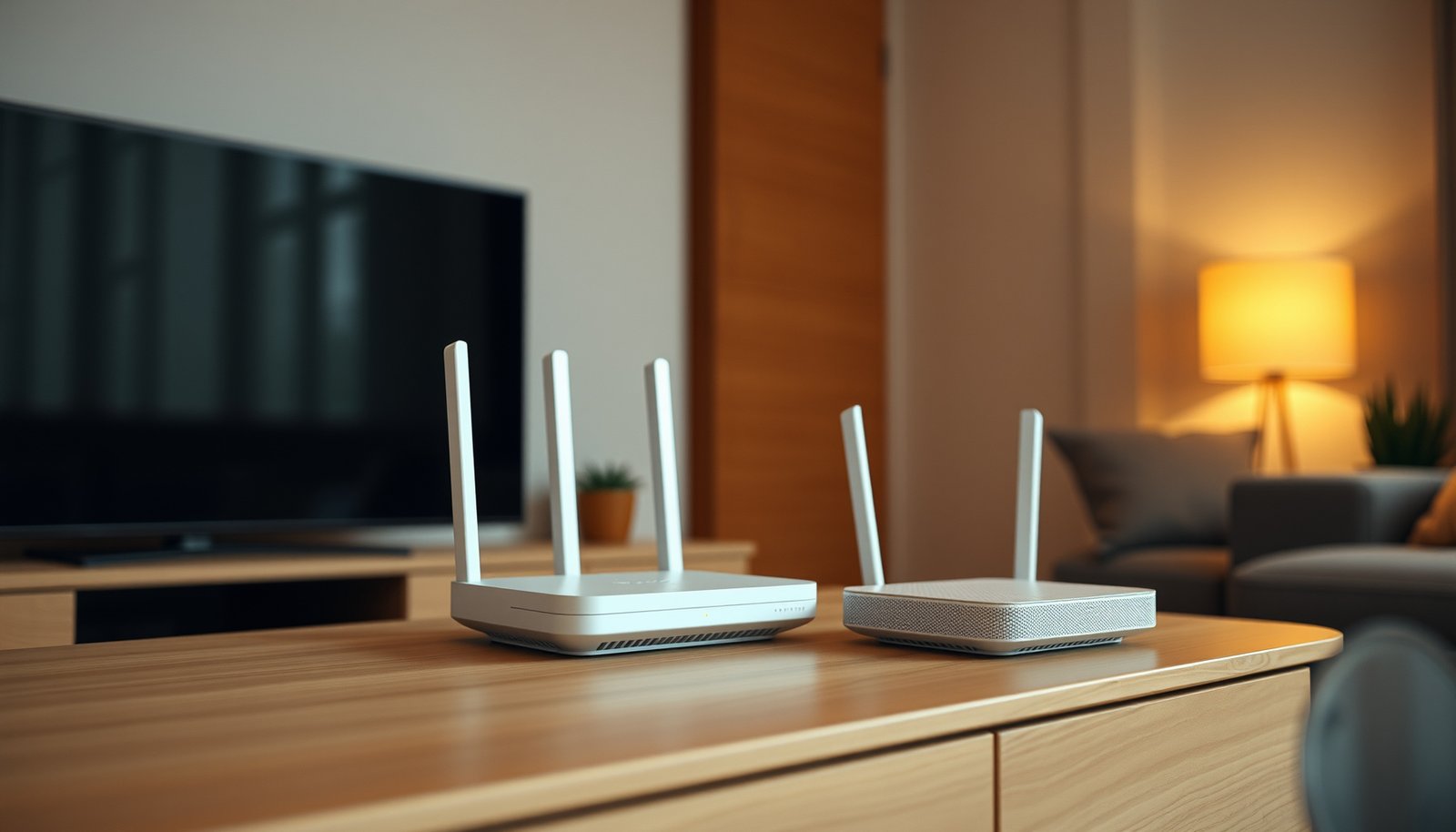
Mesh Wi-Fi is the better choice when a single router leaves dead zones across a large or multistory home; for a smaller home with reliable coverage, a standalone router wins on value. This guide answers whether you need mesh Wi-Fi, how many nodes to buy, and which features justify the cost—so you can choose a setup without paying for coverage you do not need.




Mesh Wi-Fi uses a main router and connected nodes to extend wireless coverage throughout your home. It can reduce dead zones, but it will not repair a slow internet connection or guarantee faster speeds everywhere. This guide explains when mesh makes sense, how to choose and position a system, and what to check before replacing your router.
This guide is for households with weak coverage across multiple rooms or floors. If your connection is unreliable even beside the router, investigate your internet service and existing equipment before buying mesh.
How Mesh Wi-Fi Works

Mesh Wi-Fi distributes wireless coverage through a main router and satellite nodes managed as one system. Its effectiveness depends on both the connection to your devices and the links between nodes.
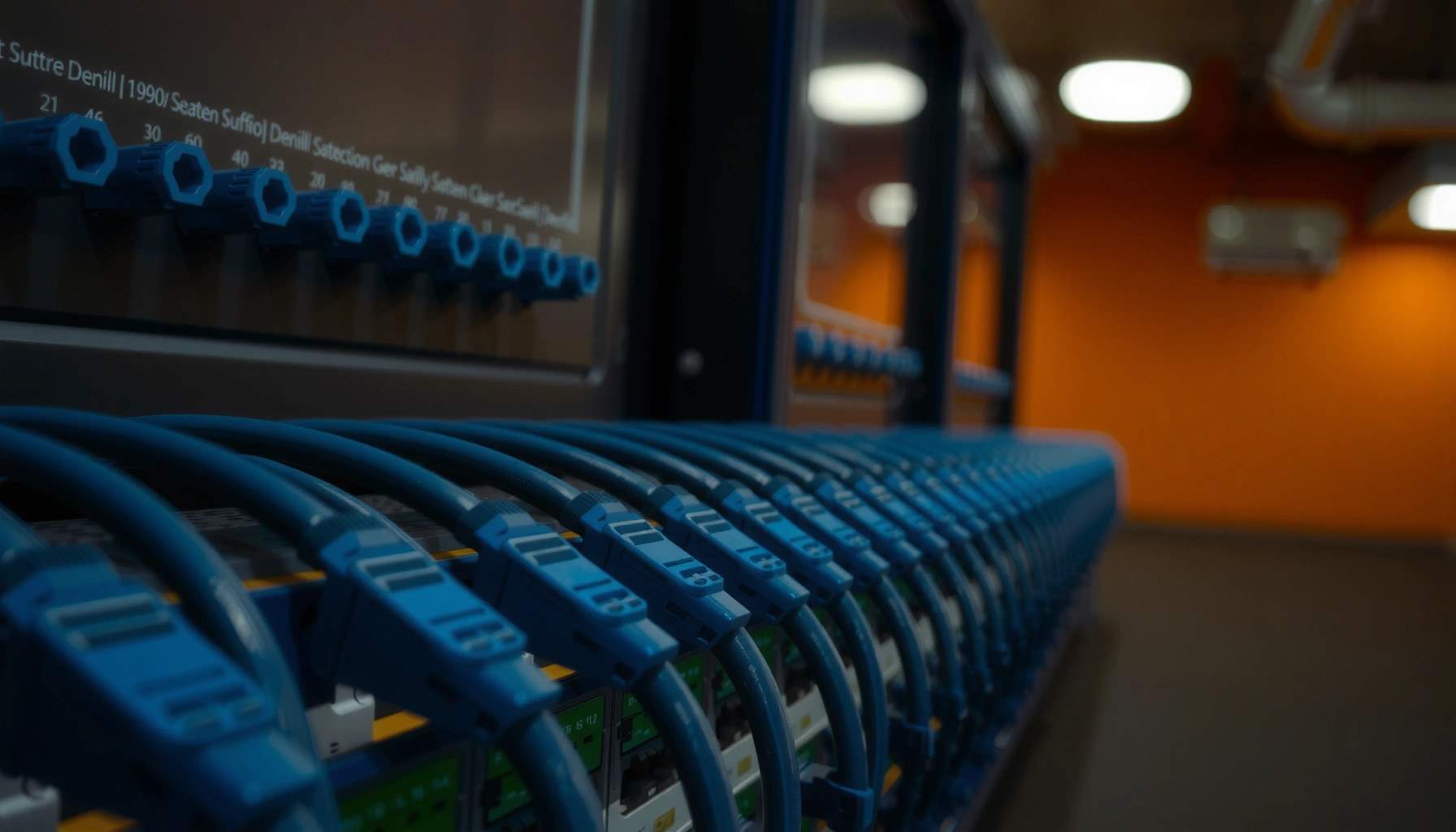
The main router connects to your modem or provider gateway. Satellite nodes extend coverage, while backhaul carries traffic between nodes and the main router. Wireless backhaul uses radio connections; Ethernet backhaul uses network cables, avoiding wireless interference on those links.
Ethernet backhaul removes the need to carry inter-node traffic over a wireless connection.
Mesh is one approach—not automatically the best one:
- Standalone router
- Simple installation and management; often sufficient when centrally positioned in a smaller or open-plan home.
- Range extender
- Can address a localized gap, but integration, network naming, and management depend on the equipment.
- Mesh system
- Offers coordinated setup and management across multiple nodes, with performance dependent on backhaul quality.
- Wired access points
- Provide coverage through Ethernet-connected radios; installation requires cabling, and centralized management depends on the platform.
A shared network name, or SSID, simplifies moving between rooms. However, the client device still influences when it changes access points. [Apple’s Wi-Fi roaming documentation](https://support.apple.com/en-us/102127) explains how supported Apple devices evaluate roaming candidates.
A shared Wi-Fi network name does not guarantee that every device immediately switches to the nearest mesh node.
Choosing a System That Fits Your Home
Choose mesh around your home’s construction, connection options, and support requirements—not advertised square footage alone. Manufacturer coverage figures are claims, not guarantees for your property.
Map weak rooms, floors, masonry walls, metal obstructions, and Ethernet outlets. A long house with a rear extension presents different placement challenges from an open-plan apartment. Check gateway compatibility, router and access-point modes, port availability, and explicit compatibility with existing nodes.
Mesh compatibility is product-specific; nodes from different brands should not be assumed to work together.
Google Nest Wifi Pro illustrates why specifications matter. According to [Google’s technical specifications](https://support.google.com/googlenest/answer/6280668), Nest Wifi Pro has two Ethernet ports, supports 1 Gbps Ethernet links, and uses three frequency bands: 2.4, 5, and 6 GHz. These are hardware specifications, not measured household speeds.
Google Nest Wifi Pro: Seven Specification Checks
| # | Specification | Documented capability | Buying implication |
|---|---|---|---|
| 1 | Wi-Fi generation | Wi-Fi 6E | Supports 6 GHz clients |
| 2 | Frequency bands | 2.4, 5, and 6 GHz | Tri-band operation |
| 3 | Ethernet ports | 2 per unit | Wired connections supported |
| 4 | Ethernet link rate | 1 Gbps | No multigigabit Ethernet |
| 5 | Wired backhaul | Supported | Ethernet-connected nodes possible |
| 6 | Earlier Google mesh generations | Cannot join the same mesh | Existing nodes cannot be reused |
| 7 | Bridge-mode mesh | Not supported | Bridge mode permits one device only |
Sources: Google’s specifications, Ethernet-backhaul instructions, and bridge-mode documentation linked below.
Compare security-support duration, guest isolation, account requirements, and paid features before purchasing. Nest Wifi Pro requires a Google Account and Google Home app for setup. Google’s published policy promises automatic security updates for at least five years after a device first becomes available through the US Google Store—not five years after your purchase. For a 2026 purchase, check the remaining support window.
Security-support promises should be evaluated against their starting date, not just their stated duration.
Setting Up and Positioning Mesh Nodes
Measure the existing connection first, then place wireless nodes where they still receive a reliable upstream signal. A node inside a dead zone may simply repeat a poor connection.
Use a repeatable before-and-after test protocol: the same device, locations, test service, and similar household activity. Record download and upload speeds, latency, and disconnections beside the router and in problem rooms.
Reliable mesh testing compares the same locations and devices before and after installation.
Favor open shelves rather than cupboards, floors, or positions behind televisions. Follow the manufacturer’s placement guidance and use its connection-quality test. Google’s setup instructions recommend placing additional units between the main router and the area needing coverage.
Configure the appropriate operating mode, install firmware updates, and protect the administrator account with a unique password and multifactor authentication where available. For Google mesh, follow the documented Ethernet topology: wired satellite units belong downstream of the primary router.
Wired-backhaul installation must follow the manufacturer’s topology requirements, not merely connect every unit to an available socket.
What Can Go Wrong
Mesh usually disappoints when weak backhaul, interference, or an upstream problem remains unresolved. Adding nodes without diagnosing the bottleneck can increase complexity without improving service.
Move an underperforming node closer to its upstream connection and retest before buying another. Unnecessary overlap can add radio contention. Wireless backhaul consumes airtime; shared-radio designs must divide available radio resources between client traffic and inter-node traffic.
More mesh nodes do not automatically produce better coverage or higher throughput.
Compare wired and wireless performance where possible. Poor wired results suggest investigating the internet service, modem, gateway, cabling, or router rather than assuming a coverage problem.
Double NAT occurs when both the provider gateway and mesh router perform network address translation. It can complicate gaming, incoming connections, and port forwarding. Follow your provider’s bridge-mode instructions or use a supported mesh access-point mode. Google specifically limits bridge mode to a single Wi-Fi device, so it is not a workaround for a multi-unit Nest mesh.
For setup failures, check account permissions, Bluetooth or local-network permissions, supported security settings, and device-specific instructions. Older smart-home devices may require a compatible 2.4 GHz setup process. Access-point modes can also remove routing-dependent features such as parental controls.
Access-point mode can prevent double NAT, but feature availability and mesh support depend on the system.
Is Mesh Worth It—or Should You Skip It?
Mesh is worthwhile when sensible router placement still leaves patchy coverage and the household wants centrally managed wireless service. Skip it when one well-positioned router already covers the home reliably.
The benefits are broader coverage and simpler multi-node management. The trade-offs are equipment cost, power-outlet and placement constraints, potentially paid features, and variable wireless-backhaul performance.
Mesh Wi-Fi is primarily a coverage upgrade, not an automatic internet-speed upgrade.
Where Ethernet is available, compare wired access points with Ethernet-backhauled mesh. Access points may offer greater installation flexibility, while mesh may provide easier household administration. Neither approach increases the speed purchased from your internet provider.
Existing Ethernet makes both wired access points and Ethernet-backhauled mesh worth considering.
Save This Mesh Wi-Fi Checklist
Use this checklist before purchasing and again after installation. In 2026, verify current support terms rather than relying on an older review.
– [ ] Identify weak rooms, check the existing connection, and record a baseline before purchasing.
– [ ] Confirm gateway compatibility, backhaul options, security support, and any ongoing feature costs.
– [ ] Position nodes within reliable signal range, update and secure the system, then retest the same locations.
A useful coverage baseline records both strong and weak locations before equipment changes.
Retesting should determine whether another node is necessary—not the number of units supplied in the box.
Sources for Specifications and Setup Advice
Use official documentation for compatibility, installation requirements, and support commitments. Manufacturer specifications describe capabilities; they are not independent household performance measurements.
– Client roaming: [Apple: Wi-Fi roaming support](https://support.apple.com/en-us/102127).
– Specifications and compatibility: [Google: Nest Wifi technical specifications](https://support.google.com/googlenest/answer/6280668).
– Setup and placement: [Google: Set up Nest Wifi Pro](https://support.google.com/googlenest/answer/9548301).
– Wired backhaul: [Google: Hardwire Google Nest Wifi routers and points](https://support.google.com/googlenest/answer/7215624).
– Bridge mode and double NAT: [Google: Bridge mode](https://support.google.com/googlenest/answer/6240987).
– Security-support policy: [Google: Nest security updates](https://support.google.com/product-documentation/answer/10231940).
– Provider-specific configuration:
– Paid features:
Manufacturer coverage claims should remain separate from independently measured results.
Provider-specific bridge-mode instructions take precedence over generic gateway configuration advice.
Mesh Wi-Fi is most useful for solving coverage gaps, not repairing every connection problem. Start by checking your current router and internet service, then choose a system that fits your layout and connection options. Use the checklist to guide setup, and compare performance in the same locations before deciding whether more nodes are necessary.
Frequently Asked Questions
What is a complete mesh Wi‑Fi system, and how does it work?
A complete mesh Wi‑Fi system uses multiple Wi‑Fi nodes (or access points) that communicate with each other to provide one seamless network across your home or office. Instead of relying on a single router, each node covers its area and works together to maintain stable coverage, typically improving performance in dead zones. Most setups let you use a single network name and password while the system automatically steers devices to the best node.
How do I set up complete mesh Wi‑Fi for the best coverage?
Start by placing the main node near your modem/router (or replacing it if the system supports router mode), then position additional nodes roughly halfway between your dead zones and the main node. For best results, avoid blocking nodes with thick walls, mirrors, or large appliances, and use the “wired backhaul” option (Ethernet between nodes) if available for stronger speeds. After placement, run any in-app coverage test or optimization feature to confirm each node has a strong connection.
Why does my complete mesh Wi‑Fi feel slow, and what should I troubleshoot first?
Slow performance is often caused by weak backhaul connections between nodes, outdated router/modem settings, or too many devices competing for bandwidth. Check whether the nodes are communicating over a strong wireless link (or switch to Ethernet backhaul if possible), and verify your internet speed matches what your ISP is providing. Also consider placing nodes closer together, updating firmware in the mesh app, and testing with a wired device to separate Wi‑Fi issues from internet issues.
Which mesh backhaul option is best for a complete mesh Wi‑Fi network—Ethernet or wireless?
Ethernet backhaul is usually the best choice because it provides consistent, high throughput between mesh nodes and reduces latency. Wireless backhaul can still work well, but it may reduce overall speeds—especially in larger homes or where nodes have to hop through multiple walls. If you can run Ethernet, prioritize it for the connection between the main node and at least the most distant node(s) to maximize performance.
What are the best practices for choosing complete mesh Wi‑Fi hardware for my home size and layout?
Choose a mesh system based on square footage, building materials (brick, concrete, drywall), and the number of floors to ensure adequate coverage. If you expect heavy streaming, gaming, or many smart devices, look for models that support Wi‑Fi 6/6E, strong QoS, and features like beamforming and advanced roaming. Consider your layout when deciding between a full “multi-node” kit versus adding nodes later, and verify that the system supports wired backhaul if you may want to optimize speeds.
📅 Last Updated: October 16, 2026 | Topic: Complete Mesh Wi-Fi Guide | Content verified for accuracy and freshness.
References
- SP 800-153, Guidelines for Securing Wireless Local Area Networks (WLANs) | CSRC
- https://www.ncsc.gov.uk/guidance/home-broadband-and-wi-fi-security
- Mesh networking
- Wireless mesh network
- IEEE 802.11r-2008
- https://scholar.google.com/scholar?q=complete+mesh+Wi-Fi+guide Google Scholar
- https://scholar.google.com/scholar?q=802.11s+wireless+mesh+network+survey Google Scholar
- https://scholar.google.com/scholar?q=Wi-Fi+EasyMesh+specification+architecture Google Scholar