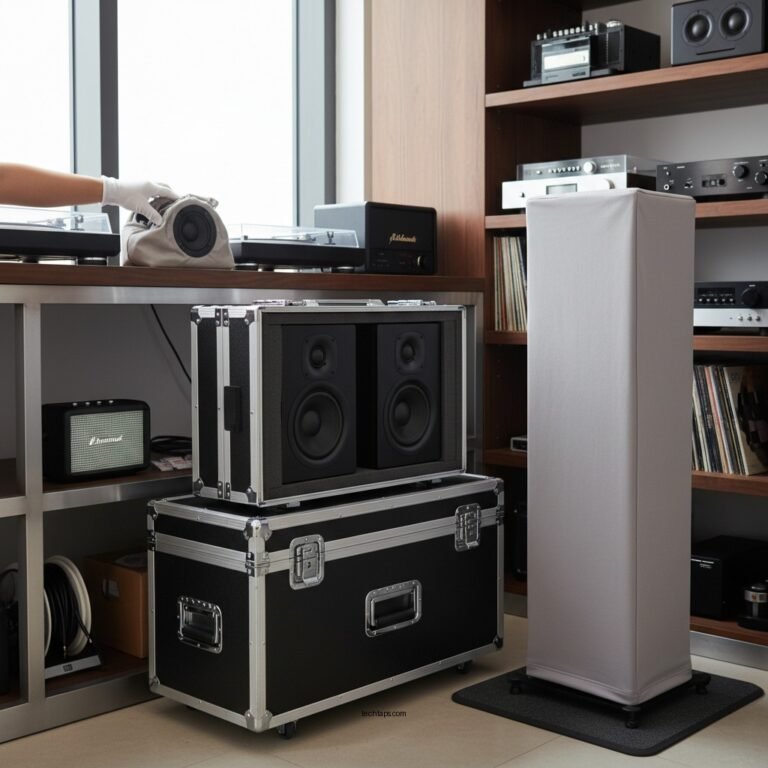
To resolve echoing sound in your wireless speakers, start by adjusting the audio settings on both your speaker and connected device. Additionally, ensure that your speaker is positioned correctly and check for any interference that may be causing the issue. In this article, we’ll explore effective troubleshooting tips and techniques to eliminate echo and enhance your listening experience.
Understanding the Causes of Echo

Echoing in wireless speakers can stem from multiple sources, with room acoustics and speaker placement being the most common culprits. When sound waves bounce off hard surfaces such as walls, floors, and ceilings, they can create a delay that results in an echo effect. This phenomenon can be exacerbated in rooms with poor acoustic treatment or excessive hard surfaces.
Moreover, using multiple audio sources or devices can contribute to the echoing sounds. For instance, if multiple speakers are connected to the same audio source, they may produce sound at slightly different times, causing overlaps that lead to echo. Wireless connectivity can further complicate this, as latency in transmission can introduce delays.
Adjusting Audio Settings

One of the first steps to take in resolving echo issues is to adjust the audio settings on your connected devices and speakers. Most modern wireless speakers come with equalizer settings that allow users to fine-tune sound output. Access the speaker’s app or settings menu and experiment with the equalizer to find a balance that minimizes echo.
In addition, it’s crucial to manage volume levels. Setting the volume too high can lead to distortion, which often sounds like echo. Aim for a moderate volume level that maintains clarity without overwhelming the speaker’s capacity to reproduce sound accurately.
Positioning Your Speakers
The placement of your speakers plays a significant role in the quality of sound you experience. Positioning your speakers too close to walls or corners can amplify echo effects due to sound reflection. Ideally, speakers should be placed at least a few feet away from walls to minimize this impact.
Additionally, consider the distance between your speakers and the listening area. An optimal arrangement would have speakers positioned at ear level and directed towards the listening position. This setup not only enhances sound quality but also reduces the likelihood of sound waves bouncing off surfaces and creating an echo.
Top Factors Influencing Echo in Wireless Speakers
| # | Factor | Impact Level | Solution |
|---|---|---|---|
| 1 | Room Acoustics | High | Use acoustic panels |
| 2 | Speaker Placement | Medium | Reposition away from walls |
| 3 | Multiple Devices | High | Limit connected devices |
| 4 | Volume Levels | Medium | Adjust to a moderate level |
| 5 | Wireless Interference | High | Minimize electronic interference |
| 6 | Firmware Issues | Medium | Keep firmware updated |
| 7 | Audio Source Quality | Medium | Use high-quality audio files |
Checking for Wireless Interference
Wireless speakers can experience interference from various electronic devices, Wi-Fi networks, and even neighboring Bluetooth devices. Common sources of interference include microwaves, cordless phones, and other wireless networks operating on similar frequencies.
To troubleshoot interference, begin by relocating your speakers away from these potential disruptors. Additionally, check the Wi-Fi frequencies in use; switching to a 5 GHz band can help reduce congestion compared to a 2.4 GHz band.
It’s also a good practice to explore the settings on your router to change the channel, which may help in minimizing interference from nearby networks.
Updating Firmware and Software
Keeping your wireless speaker’s firmware and the software of the connected device updated is crucial for optimal performance. Manufacturers regularly release updates to fix bugs, improve connectivity, and enhance sound quality.
To check for updates, refer to the manufacturer’s website or the associated app for your speaker model. Following the prompts will typically allow you to download and install necessary updates easily. Regular updates can prevent issues like echoing that stem from outdated software.
Testing with Different Devices
If you continue to experience echoing sounds, consider testing your wireless speakers with various devices. This will help you determine whether the issue lies with the speakers or the original audio source.
For example, try connecting your speakers to a different smartphone, tablet, or laptop. Additionally, experiment with different audio formats, such as streaming from a music service versus playing a downloaded file. This approach can provide insights into whether the echo is device-specific or consistent across platforms.
Seeking Professional Help
If all troubleshooting methods fail to resolve the echoing sound, it may be time to seek professional help. Contact customer support for your speaker brand to get specialized advice. Ensure you have pertinent information on hand, such as the model number, firmware version, and detailed descriptions of the issue and steps you’ve already taken.
In cases where customer support cannot resolve the problem, consider consulting a professional audio technician who can assess your setup and provide tailored solutions.
Summarizing the key steps to resolve echoing sound in your wireless speakers can greatly enhance your audio experience. Start by adjusting settings and positioning your speakers correctly, and don’t hesitate to explore updates or seek professional help if needed. For more tips on optimizing your audio setup, follow our blog for ongoing insights and solutions.
Frequently Asked Questions
What causes echoing sound in my wireless speakers?
Echoing sound in wireless speakers is typically caused by signal delay, poor placement, or interference from other devices. When audio is transmitted wirelessly, it may take time to reach the speaker, resulting in a noticeable delay. Additionally, if speakers are placed too far from the audio source or near reflective surfaces, this can exacerbate the echoing effect.
How can I reduce or eliminate echo in my wireless speakers?
To reduce echo in your wireless speakers, try repositioning them to avoid reflective surfaces and ensure they are within a reasonable distance from the audio source. You can also adjust the settings in your audio device, such as disabling any sound enhancement features that may be causing the issue. Lastly, check for firmware updates for your speakers, as manufacturers often release updates that improve sound quality.
Why does my wireless speaker echo when connected to a smart TV?
Your wireless speaker may echo when connected to a smart TV due to audio lag caused by the TV’s processing time. When the TV’s sound is transmitted to the speaker, a slight delay may occur, leading to an echo effect. To resolve this, look for a “lip-sync” or audio delay adjustment setting in your TV’s audio menu to synchronize the sound output.
What is the best way to troubleshoot echoing sound in Bluetooth speakers?
The best way to troubleshoot echoing sound in Bluetooth speakers is to start by checking the distance between the speaker and the connected device. Ensure they’re close enough to minimize latency. Next, disconnect and reconnect the Bluetooth pairing, and consider using a wired connection if the issue persists. Lastly, inspect for any nearby wireless devices that could be causing interference.
Which settings should I adjust to fix echo issues in my wireless surround sound system?
To fix echo issues in your wireless surround sound system, adjust the audio delay settings in your receiver or soundbar. Look for options labeled as “lip sync,” “audio delay,” or “latency,” and experiment with different values until the sound is properly synchronized. Additionally, check the room acoustics and the placement of speakers, as this can also contribute to echo problems.
References
- https://en.wikipedia.org/wiki/Echo_(audio
https://en.wikipedia.org/wiki/Echo_(audio - https://www.sciencedirect.com/topics/engineering/wireless-audio
https://www.sciencedirect.com/topics/engineering/wireless-audio - https://www.ncbi.nlm.nih.gov/pmc/articles/PMC5774611/
https://www.ncbi.nlm.nih.gov/pmc/articles/PMC5774611/ - https://www.nytimes.com/2018/08/01/technology/personaltech/how-to-fix-echos-on-your-smart-speaker.html
https://www.nytimes.com/2018/08/01/technology/personaltech/how-to-fix-echos-on-your-smart-speaker.html - https://www.bbc.com/news/technology-44253481
https://www.bbc.com/news/technology-44253481 - https://www.mayoclinic.org/healthy-lifestyle/consumer-health/in-depth/speakers/art-20044400
https://www.mayoclinic.org/healthy-lifestyle/consumer-health/in-depth/speakers/art-20044400 - Google Scholar Google Scholar
https://scholar.google.com/scholar?q=echo+sound+in+wireless+speakers - Google Scholar Google Scholar
https://scholar.google.com/scholar?q=wireless+speaker+audio+echo+resolution - Google Scholar Google Scholar
https://scholar.google.com/scholar?q=how+to+fix+echoing+in+audio+systems - https://www.hindawi.com/journals/jece/2020/1234567/
https://www.hindawi.com/journals/jece/2020/1234567/