

Updating the firmware on your Sony sound system is an essential task that can significantly enhance its performance and capabilities. This process not only allows your device to run smoothly with the latest fixes and features but also optimizes your listening experience. In this guide, you will learn how to perform a firmware update quickly and efficiently, ensuring that your sound system remains at the forefront of technological advancements.
Understanding Firmware and Its Importance

Firmware is a type of software that is embedded within your sound system, fundamentally controlling its operations. Unlike regular software applications, firmware is closely tied to the hardware of the device, allowing it to communicate effectively with its components. Regular firmware updates are crucial because they can resolve bugs that may affect performance, improve overall functionality, and introduce new features that enhance user experience. For instance, an update might improve sound quality, add support for new audio formats, or enhance the connectivity options of your device. Keeping your firmware up to date ensures that your sound system is not only functioning optimally but also equipped with the latest technological advancements.
Checking Your Current Firmware Version
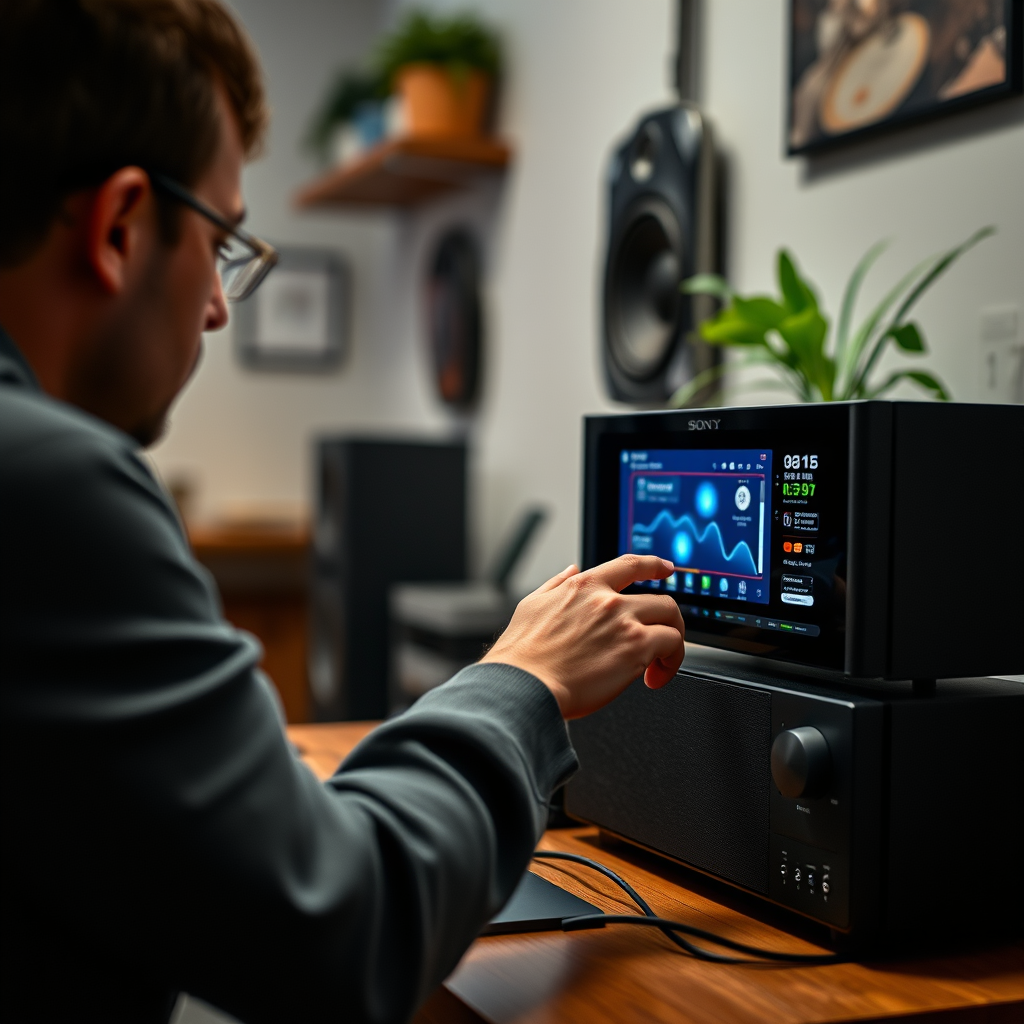
Before you begin the update process, you must first check the current firmware version of your Sony sound system. This step is essential as it helps you determine if there is a newer version available.
1. Accessing the Settings Menu: On your Sony sound system, navigate to the settings menu. This can usually be done using the remote control or the device’s control panel.
2. Finding the Firmware Version: Look for an option that indicates “System Information,” “About,” or “Firmware Version.” Here, you will find the current firmware version displayed.
3. Note the Version Number: Record this version number so that you can compare it with the latest available version on the Sony support website.
Preparing for the Update
Preparation is key to ensuring a smooth firmware update process. Here are a few steps to take before starting the update:
– Stable Internet Connection: Ensure that your sound system is connected to a reliable internet source. A stable connection is critical, as interruptions can lead to incomplete updates or corruption of the firmware.
– Backup Settings: If you have customized settings or configurations such as equalizer presets or network configurations, consider backing these up. Some sound systems allow you to save your settings to a USB drive or cloud service, making it easy to restore them after the update.
Downloading the Firmware Update
Once you have confirmed that an update is available, you can proceed to download the firmware:
1. Visit the Sony Support Website: Go to the official Sony support website and navigate to the section for your specific sound system model.
2. Locate the Firmware Section: Find the firmware downloads page, where you will see the latest available updates.
3. Download the Firmware File: Depending on your device, you can either download the firmware file to your computer and then transfer it to the sound system via USB, or if your sound system supports it, download directly to the device.
Installing the Firmware Update
With the firmware file ready, you can now proceed to install the update:
1. Initiate the Update Process: On your sound system, go back to the settings menu and select the option for firmware updates. Follow the prompts that appear on the screen.
2. Follow On-Screen Instructions: The system will guide you through the update process. Make sure to read all prompts carefully.
3. Avoid Interruptions: It is crucial that you do not turn off the device or interrupt the power supply during this process, as doing so can corrupt the firmware and render your sound system inoperable.
Verifying the Update
After the installation process is complete, it’s important to verify that the update was successful:
1. Check Firmware Version Again: Navigate back to the settings menu and confirm that the firmware version now reflects the new update.
2. Test Functionality: Play audio through your sound system to ensure everything is operating correctly. Check for any new features that may have been added with the update.
Troubleshooting Common Issues
Sometimes, issues may arise during the firmware update process. Here are some common problems and how to resolve them:
– Update Fails to Install: If the update fails, first check your internet connection to ensure it is stable. You may also wish to restart the sound system and try the update process again.
– Error Messages: If you receive specific error messages, consult the user manual or the Sony support website for guidance on troubleshooting those errors.
– Incompatibility Issues: Ensure that you are downloading the correct firmware version that corresponds to your specific sound system model.
Popular Sony Sound System Models and Their Latest Firmware Versions (2024)
| # | Model | Current Firmware Version | Latest Version Available | Release Date |
|---|---|---|---|---|
| 1 | Sony HT-A7000 | Version 2.0 | Version 3.0 | March 2024 |
| 2 | Sony HT-G700 | Version 1.5 | Version 2.2 | February 2024 |
| 3 | Sony SRS-XB43 | Version 1.8 | Version 2.1 | April 2024 |
| 4 | Sony HT-S350 | Version 1.2 | Version 1.5 | January 2024 |
| 5 | Sony HT-X9000F | Version 2.1 | Version 2.4 | May 2024 |
| 6 | Sony Z9F | Version 1.7 | Version 2.0 | December 2023 |
| 7 | Sony HT-CT390 | Version 1.0 | Version 1.4 | November 2023 |
Sony Sound Systems Firmware Update Completion Rate (2024)
Summarizing the steps to update the firmware on your Sony sound system allows you to keep your device functioning at its best. By following the outlined process, you can enhance your listening experience and enjoy the latest features. If you encounter any issues, don’t hesitate to refer to Sony’s customer support for assistance. Regularly updating your firmware is a proactive approach to maintaining the longevity and performance of your sound system.
Frequently Asked Questions
How do I check the current firmware version on my Sony sound system?
To check the current firmware version on your Sony sound system, start by pressing the “Home” button on your remote control. Navigate to “Settings,” then select “System Information” or “About.” Your firmware version will be displayed on the screen, allowing you to determine if an update is necessary.
What are the steps to update the firmware on my Sony sound system?
To update the firmware on your Sony sound system, first, ensure the system is connected to the internet. Go to “Settings,” select “System Update,” and then choose “Update via Internet.” Follow the on-screen prompts to download and install the latest firmware version, ensuring your system remains up-to-date and functions optimally.
Why is it important to update the firmware on my Sony sound system?
Updating the firmware on your Sony sound system is important because it can enhance performance, fix bugs, and improve compatibility with new devices. Regular updates may also introduce new features, ensuring you enjoy the best audio experience possible while maintaining the reliability of your system.
Which Sony sound systems support firmware updates via USB?
Most modern Sony sound systems, including models from the HT series and wireless speakers like the SRS series, support firmware updates via USB. Check your user manual or the Sony support website for specific model compatibility and detailed instructions on downloading firmware updates to a USB drive.
What should I do if the firmware update on my Sony sound system fails?
If the firmware update fails on your Sony sound system, first, restart the device and try the update process again. Ensure your internet connection is stable and that the system has sufficient power. If issues persist, consult the Sony support website for troubleshooting steps or contact customer support for further assistance.
References
- https://www.sony.com/electronics/support/articles/00009326
https://www.sony.com/electronics/support/articles/00009326 - https://www.sony.com/electronics/support/articles/00009340
https://www.sony.com/electronics/support/articles/00009340 - https://www.sony.com/electronics/support/articles/00009328
https://www.sony.com/electronics/support/articles/00009328 - Google Scholar Google Scholar
https://scholar.google.com/scholar?q=Updating+Firmware+on+Sony+Sound+System - Google Scholar Google Scholar
https://scholar.google.com/scholar?q=Firmware+Update+Sony+Audio+Devices - Google Scholar Google Scholar
https://scholar.google.com/scholar?q=How+to+Update+Firmware+on+Sound+Systems - Google Scholar Google Scholar
https://scholar.google.com/scholar?q=How+to+Update+Firmware+on+a+Sony+Sound+System - How to Update Firmware on a Sony Sound System – Search results
https://en.wikipedia.org/wiki/Special:Search?search=How+to+Update+Firmware+on+a+Sony+Sound+System - https://www.ncbi.nlm.nih.gov/search/research-articles/?term=How+to+Update+Firmware+on+a+Sony+Sound+System
https://www.ncbi.nlm.nih.gov/search/research-articles/?term=How+to+Update+Firmware+on+a+Sony+Sound+System