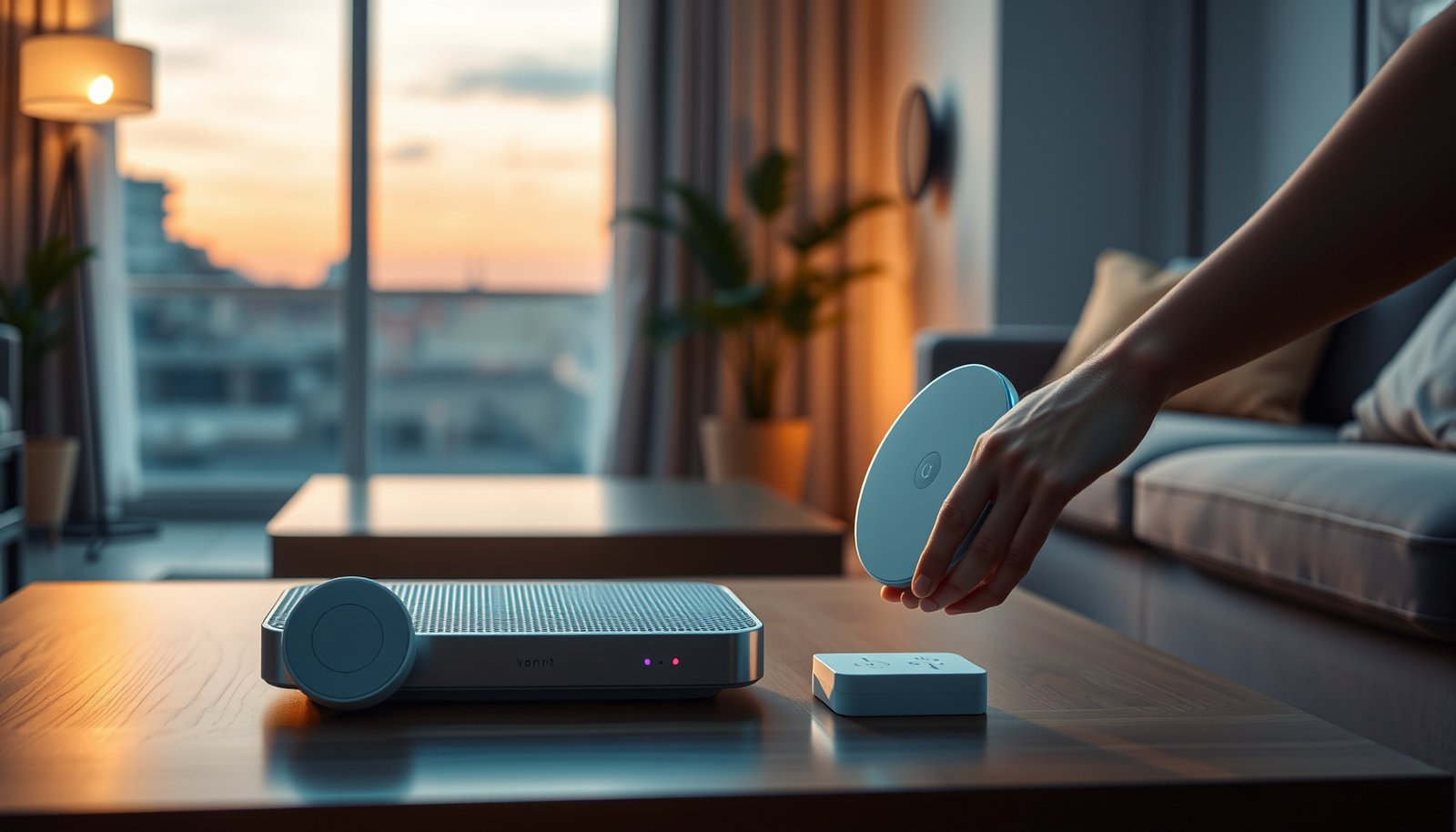
Mesh Wi-Fi for IoT is worth the upgrade when smart devices lose their connection in rooms a single router cannot reliably reach. But does a mesh system beat a well-placed router for your setup? We give a clear verdict based on coverage gaps, 2.4 GHz compatibility, and device density—not advertised speed alone.




Mesh Wi-Fi can improve coverage for Wi-Fi-connected IoT devices, but it does not automatically fix compatibility, pairing, or network isolation problems. Choose a system that supports your devices’ connection requirements and provides suitable security controls. This article explains what to check, how to set it up, and when mesh is unnecessary.
This guide is for households connecting smart plugs, cameras, sensors, and other smart-home devices, especially where a single router leaves coverage gaps. Devices using Thread, Zigbee, or other non-Wi-Fi protocols may still need their own compatible border router or hub.
How Mesh Wi-Fi Supports IoT Devices

Mesh Wi-Fi extends coverage through connected access points, commonly called nodes. It can improve an unreliable connection between a device and your router, but it cannot increase the speed of your internet subscription.
Mesh Wi-Fi improves wireless coverage; it does not automatically increase internet-service bandwidth.
Nodes carry device traffic back to the main router over backhaul, the connection between network access points. Wired backhaul uses Ethernet; wireless backhaul uses radio links. Ethernet generally provides more predictable performance because the backhaul does not compete for wireless airtime. Wireless backhaul remains useful where installing cable is impractical, provided nodes maintain strong connections.
A camera might show a strong connection to a nearby node while still buffering because that node has weak backhaul. Assess both links rather than relying only on the device’s Wi-Fi indicator.
A Wi-Fi mesh does not replace the Thread border router or Zigbee coordinator required by devices using those protocols.
Thread and Zigbee are separate networking technologies. Some Wi-Fi mesh products include a Thread border router, but that capability must be explicitly documented. Matter, a smart-home interoperability standard, can operate over Wi-Fi, Ethernet, or Thread; the Matter label alone does not identify a device’s network requirements.
Check Device Compatibility Before Choosing a System
Match each device’s Wi-Fi bands, security modes, and setup procedure against the exact mesh model’s documentation. A newer Wi-Fi generation does not guarantee compatibility with every older smart-home device.
A shared network name for 2.4 GHz and 5 GHz is not inherently incompatible with a 2.4 GHz-only smart-home device.
Many smart plugs use only 2.4 GHz. They cannot connect to 5 GHz, but a dual-band network can still serve them normally. Pairing failures sometimes involve the setup app rather than the device’s radio. Check for documented onboarding assistance, such as temporarily pausing higher-frequency bands, instead of assuming separate network names are mandatory.
Compare WPA2-Personal, WPA3-Personal, and transition-mode support. Do not disable security or switch to obsolete encryption to accommodate an unsupported device.
An “IoT network” label does not prove that devices are isolated from the main network or from one another.
Look for explicit statements about main-network access, client-to-client communication, and local discovery. For example, eero’s guest-network documentation describes separation from the main network and other guest devices. Other systems may offer an additional SSID—another network name—without equivalent separation.
The following manufacturer specifications illustrate why model-level checks matter. According to eero’s eero 6 specifications, the router has two Gigabit Ethernet ports; according to eero’s Max 7 specifications, Max 7 has two 10 GbE and two 2.5 GbE ports; according to TP-Link’s Deco X55 specifications, each X55 has three Gigabit ports (2026 purchase-reference specifications, not measured speeds).
Seven Mesh Models: Radios and Backhaul Connections
| # | Model | Radio Bands | Ethernet Ports per Unit | Ethernet Backhaul |
|---|---|---|---|---|
| 1 | eero 6 router | 2.4 / 5 GHz | 2 × 1 GbE | Supported |
| 2 | eero 6+ | 2.4 / 5 GHz | 2 × 1 GbE | Supported |
| 3 | eero Pro 6 | 2.4 / 5 / 5 GHz | 2 × 1 GbE | Supported |
| 4 | eero Pro 6E | 2.4 / 5 / 6 GHz | 1 × 2.5 GbE; 1 × 1 GbE | Supported |
| 5 | eero Max 7 | 2.4 / 5 / 6 GHz | 2 × 10 GbE; 2 × 2.5 GbE | Supported |
| 6 | TP-Link Deco X20 | 2.4 / 5 GHz | 2 × 1 GbE | Supported |
| 7 | TP-Link Deco X55 | 2.4 / 5 GHz | 3 × 1 GbE | Supported |
The separate eero 6 extender has no Ethernet ports. Verify hardware revisions and regional specifications; this table is not an IoT-compatibility endorsement.
Set Up Coverage and Security Together
Place nodes where they still receive a strong upstream connection, then configure security around the local communication your devices actually need. Putting a wireless node deep inside a dead zone can reproduce the original problem.
A wireless mesh node needs reliable backhaul as well as a usable connection to nearby smart-home devices.
Start between the main router and the weak-coverage area, preferably in an open location away from metal cabinets. Use the manufacturer’s placement test, then check devices at their installed locations. Enable supported automatic firmware updates, protect the administrator account, and use the strongest documented Wi-Fi security compatible with the devices.
Network isolation can improve separation while preventing local discovery, casting, or communication with a smart-home hub.
An internet-only plug may work on an isolated network, while a locally controlled device may need access to a controller. Apply least privilege: allow required communication without assuming every smart-home device needs unrestricted access.
What Can Go Wrong
Troubleshoot the failed connection layer before adding hardware. Pairing, wireless coverage, backhaul, internet service, and vendor cloud availability are different failure categories.
Additional mesh nodes cannot repair an internet outage, unsupported security mode, or unavailable vendor cloud service.
For failed pairing, check the device’s documented band and security requirements, reset procedure, app permissions, and phone access to the local network. Bluetooth or location permissions may also be required by the onboarding app. Temporarily disable phone VPN software if the manufacturer identifies it as a setup obstacle.
For intermittent operation, inspect backhaul quality and interference before buying another node. Compare cloud-based control with supported local control to help distinguish internet problems from LAN problems.
Wi-Fi clients influence roaming decisions, so a device does not necessarily connect to the nearest mesh node.
A stationary sensor may retain a more distant connection. Restarting it may prompt reassociation, but persistent problems require documented placement or client-management remedies—not an assumption that more nodes will force better roaming.
When Mesh Is Worth It—and When to Skip It
Choose mesh when Wi-Fi coverage gaps affect separate rooms or floors and better router placement is insufficient. Skip it when coverage is already reliable or the actual problem belongs to a Thread, Zigbee, or vendor-service network.
Mesh Wi-Fi is most useful when distributed Wi-Fi coverage—not device compatibility—is the limiting factor.
- Advantages
- Broader coverage, coordinated management, and flexible expansion without necessarily installing Ethernet everywhere.
- Disadvantages
- Additional hardware, power outlets, placement constraints, configuration complexity, and potentially harder troubleshooting.
- Alternative
- Ethernet-connected access points can better suit properties with existing cabling or demanding reliability requirements.
Wired access points are a practical alternative when Ethernet is available and wireless backhaul would be unreliable.
Save This Pre-Purchase Checklist
Confirm compatibility and support before comparing headline wireless speeds. In 2026, the newest Wi-Fi generation is still not a substitute for documented device support.
A mesh purchase should be based on device requirements, backhaul feasibility, and security behavior—not coverage claims alone.
– [ ] Confirm device compatibility, onboarding options, and the meaning of any advertised IoT network features.
– [ ] Plan node placement and backhaul; verify that isolation settings preserve required local control.
– [ ] Check firmware support and return terms before committing.
Return eligibility matters because home construction and neighboring networks can change real-world wireless performance.
Sources to Support the Article
Use official specifications for hardware facts and model-specific support documents for behavior. Firmware features, regional variants, and support commitments require separate verification.
Hardware specifications do not establish whether an IoT network permits local discovery or isolates connected devices.
– Mesh specifications: [eero comparison specifications](https://eero.com/compare); [TP-Link Deco X20 specifications](https://www.tp-link.com/us/deco-mesh-wifi/product-family/deco-x20/#specifications); [TP-Link Deco X55 specifications](https://www.tp-link.com/us/deco-mesh-wifi/product-family/deco-x55/#specifications).
– Placement, onboarding, and security: [eero Help Center](https://support.eero.com/). Consult its placement, guest-access, WPA3, and temporary band-pause guidance.
– Device setup: [TP-Link Tapo P125M support](https://www.tp-link.com/us/support/download/tapo-p125m/).
– Protocol distinctions: [Thread Group: What Is Thread?](https://www.threadgroup.org/What-is-Thread/Overview); [Connectivity Standards Alliance: Matter](https://csa-iot.org/all-solutions/matter/).
Thread and Matter documentation should be consulted separately because network transport and smart-home interoperability are different capabilities.
Mesh Wi-Fi is useful for IoT when coverage is the actual problem—not as a universal smart-home upgrade. Start by listing your devices’ connection requirements and identifying coverage gaps, then compare those needs with documented mesh features before buying.
Frequently Asked Questions
What is mesh Wi‑Fi, and how does it work for IoT devices?
Mesh Wi‑Fi uses multiple nodes to create one continuous wireless network, helping IoT devices maintain stable connectivity as you move around your home or office. Instead of connecting to a single router far away, IoT endpoints can hop to the nearest node, reducing dead zones and dropouts. Many systems also support features like band steering and optimized backhaul to improve reliability for smart home devices.
How do I set up mesh Wi‑Fi specifically for IoT devices like smart bulbs, cameras, and plugs?
Start by placing mesh nodes to cover the areas where you have the most IoT devices, ideally with good overlap between nodes. During setup, choose a secure Wi‑Fi configuration (strong password and WPA2/WPA3 support) and enable any “IoT” or “smart device” network option if your router provides it. Then connect devices one group at a time—many smart devices perform better when you use a 2.4 GHz SSID, so ensure that IoT devices aren’t forced onto a crowded band.
Why do my IoT devices disconnect even with mesh Wi‑Fi?
IoT dropouts often happen due to weak signal strength, interference (such as microwaves or neighboring networks), or device compatibility issues with Wi‑Fi standards. Some mesh systems also change the channel or manage steering aggressively, which can confuse older IoT devices that expect a stable connection. Creating a dedicated 2.4 GHz network for IoT devices, updating router firmware, and using robust security settings can significantly improve IoT reliability.
Which mesh Wi‑Fi features matter most for IoT reliability?
Look for systems that support WPA3 (or strong WPA2), stable 2.4 GHz performance, and “device prioritization” or “smart home” profiles when available. Features like a dedicated IoT network, band steering controls, and a strong wired/wireless backhaul plan can reduce latency and improve uptime for cameras, hubs, and sensors. Also consider whether the mesh supports standards and security requirements used by popular smart home platforms.
What is the best way to place mesh nodes to improve IoT coverage across multiple rooms?
Place the main router node centrally, then position additional mesh nodes in the path between your router and the rooms with the most IoT devices, avoiding placement behind TVs, inside cabinets, or in metal enclosures. If you have high‑bandwidth IoT devices like security cameras, ensure those nodes have strong backhaul connection so the mesh Wi‑Fi doesn’t become a bottleneck. For best results, run the mesh app’s signal tests and adjust node placement until IoT-heavy areas show consistent coverage.
📅 Last Updated: October 16, 2026 | Topic: Mesh Wi-Fi for IoT | Content verified for accuracy and freshness.
References
- IEEE 802.11s
- Wireless mesh network
- Mesh networking
- Internet of things
- Home automation
- https://scholar.google.com/scholar?q=mesh+wifi+for+internet+of+things Google Scholar
- https://scholar.google.com/scholar?q=IEEE+802.11s+mesh+networking+IoT Google Scholar
- https://scholar.google.com/scholar?q=Wi-Fi+EasyMesh+IoT+mesh+networking Google Scholar


One thought on “Mesh Wi-Fi for IoT”