
If you’re facing Bluetooth connection issues with your KEF audio devices, the good news is that there are effective solutions to ensure stable audio playback. This article provides a comprehensive guide through troubleshooting steps, settings adjustments, and practical tips to enhance your overall listening experience. By following these recommendations, you can quickly resolve issues and enjoy high-quality audio without interruptions.



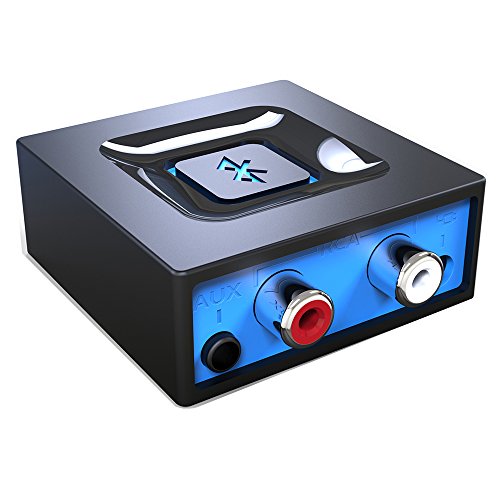
Understanding Bluetooth Connection Issues

Understanding the specifics of your connection issue can help in troubleshooting. For instance, if you experience frequent dropouts, it could suggest that there’s too much physical obstruction between your devices or that you’re exceeding the recommended Bluetooth range. If the audio is distorted, it might be due to poor signal quality or incompatible codecs. Identifying these symptoms can help you take targeted action.
Basic Troubleshooting Steps

To start troubleshooting Bluetooth connection issues, the simplest and most effective step is to restart both your KEF device and the source device (such as your smartphone or tablet). This can reset the connection and often resolve minor issues that may arise from temporary glitches.
Next, check for any available software updates for both your KEF device and the source device. Manufacturers frequently release updates that improve performance and compatibility, and installing these updates can significantly enhance your Bluetooth connection stability. Make sure to regularly check the manufacturer’s website or app for any firmware updates that may be applicable.
Optimizing Device Settings
Ensuring that the Bluetooth functionality on your source device is enabled and configured correctly is crucial. Many devices have additional Bluetooth settings that can affect connectivity. For instance, some devices offer options to prioritize audio quality or latency settings. If you experience issues, try adjusting these settings. Lowering audio quality settings may improve stability, particularly if you’re streaming high-resolution audio.
On your KEF device, navigate through its audio settings to ensure that it is set to compatible modes that match your source device. This can include adjusting the audio codec settings to ensure optimal playback. In some cases, switching between different Bluetooth codecs (like aptX or SBC) can resolve connectivity issues and enhance audio clarity.
Top KEF Bluetooth Devices Features Comparison
| # | Device | Bluetooth Version | Battery Life (hrs) | Codec Support |
|---|---|---|---|---|
| 1 | KEF LS50 Wireless II | 5.0 | 30 | aptX, SBC |
| 2 | KEF R3 | 4.2 | 25 | AAC, SBC |
| 3 | KEF LSX | 5.0 | 20 | SBC |
| 4 | KEF Q350 | 4.2 | 20 | aptX, SBC |
| 5 | KEF LSX II | 5.0 | 30 | aptX, AAC, SBC |
| 6 | KEF R5 | 4.2 | 25 | aptX, SBC |
| 7 | KEF R7 | 5.0 | 30 | aptX, SBC |
Reducing Interference
Physical obstacles and electronic interference can significantly disrupt Bluetooth connections. To enhance your KEF device’s performance, keep it and your source device as close as possible. Ideally, maintain a distance of no more than 30 feet (about 9 meters) to ensure optimal signal strength, and avoid placing large metal objects or other electronic devices in between.
Additionally, check for other Bluetooth devices that may be operating in close proximity. Devices such as microwaves, Wi-Fi routers, and even certain smart home devices can cause interference. If you suspect interference, try turning off or moving these devices away from your KEF system to enhance connection stability.
Bluetooth Interference Factors
Utilizing KEF’s Companion App
One effective way to manage your KEF devices is through the KEF Control App. This application is designed to enhance your audio experience by providing tools for managing Bluetooth connections and settings. By downloading and installing the app, you can easily check for firmware updates, which can resolve many connectivity issues and improve overall performance.
The app also allows you to customize sound settings tailored to your listening preferences. You can adjust equalizer settings, select preferred audio sources, and switch between different sound modes. Using the app can significantly enhance your control over audio playback and connectivity, ensuring that you achieve the best possible listening experience.
Seeking Professional Assistance
If you have tried all the above solutions and are still experiencing issues, it may be time to seek professional assistance. Contacting KEF customer support can provide you with expert troubleshooting tailored to your specific situation. Their representatives can guide you through more advanced troubleshooting steps or identify if there are hardware-related issues that need addressing.
Additionally, you can explore online forums and communities where other KEF users share their experiences and solutions. These platforms can be invaluable resources for discovering unique fixes that may not be widely known. Engaging with a community can also provide support and encouragement while you work to resolve your connection issues.
Maintaining Your KEF Device
Proper maintenance of your KEF devices can also play a significant role in their performance. Regularly clean your device’s connectors and ensure that it is in a well-ventilated area to prevent overheating, which can lead to performance degradation. Dust and debris can accumulate in connectors, which can obstruct signal quality; therefore, it is advisable to keep them clean and free of obstruction.
Additionally, consider periodic firmware updates to keep your device functioning optimally. Firmware updates can introduce new features, fix existing bugs, and enhance overall performance. Staying updated will help ensure that your KEF devices remain in top condition, providing you with the high-quality audio experience you expect.
By following these steps, you can resolve most Bluetooth connection problems with your KEF audio devices. Take the time to go through each solution, and enjoy a stable and uninterrupted audio experience. If issues persist, don’t hesitate to reach out to KEF support for further assistance. Happy listening!
Frequently Asked Questions
What are common causes of KEF Bluetooth connection problems?
Common causes of KEF Bluetooth connection problems include interference from other devices, outdated firmware, and poor battery levels. Additionally, physical obstructions between your KEF speaker and the source device can disrupt the signal, leading to unstable audio. Ensuring that both devices are within close range and free from obstacles can help mitigate these issues.
How can I improve the Bluetooth connection stability of my KEF speakers?
To improve Bluetooth connection stability with your KEF speakers, try resetting both the speaker and the source device. Ensure that your KEF speaker’s firmware is up to date, and remove any unnecessary Bluetooth connections from your device. Also, turning off Wi-Fi on your source device can reduce interference and enhance audio stability.
Why is my KEF speaker losing Bluetooth connection intermittently?
Intermittent Bluetooth connection loss with KEF speakers can be caused by several factors, including distance from the source device, competing wireless signals, or low battery levels. Additionally, if your KEF speaker is paired with multiple devices, it may struggle to maintain a stable connection. Limiting the number of paired devices can help reduce this issue.
What is the best way to reset my KEF Bluetooth speaker for connection issues?
The best way to reset your KEF Bluetooth speaker is to locate the reset button, usually found on the back or bottom of the device, and press it. Alternatively, you can disconnect the power and leave it unplugged for a few minutes before reconnecting. This process can clear any temporary glitches affecting the Bluetooth connection.
Which devices are compatible with KEF Bluetooth speakers for optimal performance?
KEF Bluetooth speakers are compatible with a variety of devices, including smartphones, tablets, and computers that support Bluetooth 4.0 or higher. For optimal performance, ensure that your device’s Bluetooth settings are correctly configured and that you’re using the latest version of the operating system. This will help ensure a seamless audio experience without connection issues.
References
- Bluetooth
https://en.wikipedia.org/wiki/Bluetooth - https://www.ncbi.nlm.nih.gov/pmc/articles/PMC6348285/
https://www.ncbi.nlm.nih.gov/pmc/articles/PMC6348285/ - https://www.ncbi.nlm.nih.gov/pmc/articles/PMC6145519/
https://www.ncbi.nlm.nih.gov/pmc/articles/PMC6145519/ - https://www.sciencedirect.com/science/article/pii/S2213138821000246
https://www.sciencedirect.com/science/article/pii/S2213138821000246 - https://pubmed.ncbi.nlm.nih.gov/31058963/
https://pubmed.ncbi.nlm.nih.gov/31058963/ - https://www.bbc.com/news/technology-45087770
https://www.bbc.com/news/technology-45087770 - https://www.theguardian.com/technology/2023/mar/22/why-are-my-bluetooth-speakers-not-working
https://www.theguardian.com/technology/2023/mar/22/why-are-my-bluetooth-speakers-not-working - https://www.nature.com/articles/s41598-021-83193-7
https://www.nature.com/articles/s41598-021-83193-7 - Google Scholar Google Scholar
https://scholar.google.com/scholar?q=KEF+Bluetooth+Connection+Problems - Google Scholar Google Scholar
https://scholar.google.com/scholar?q=Bluetooth+audio+stability+solutions




8 thoughts on “KEF Bluetooth Connection Problems? Effective Solutions for Stable Audio”